Connecting Google Cloud to CloudOps
Connection Methods
CloudOps provides two methods for connecting Google Cloud accounts:
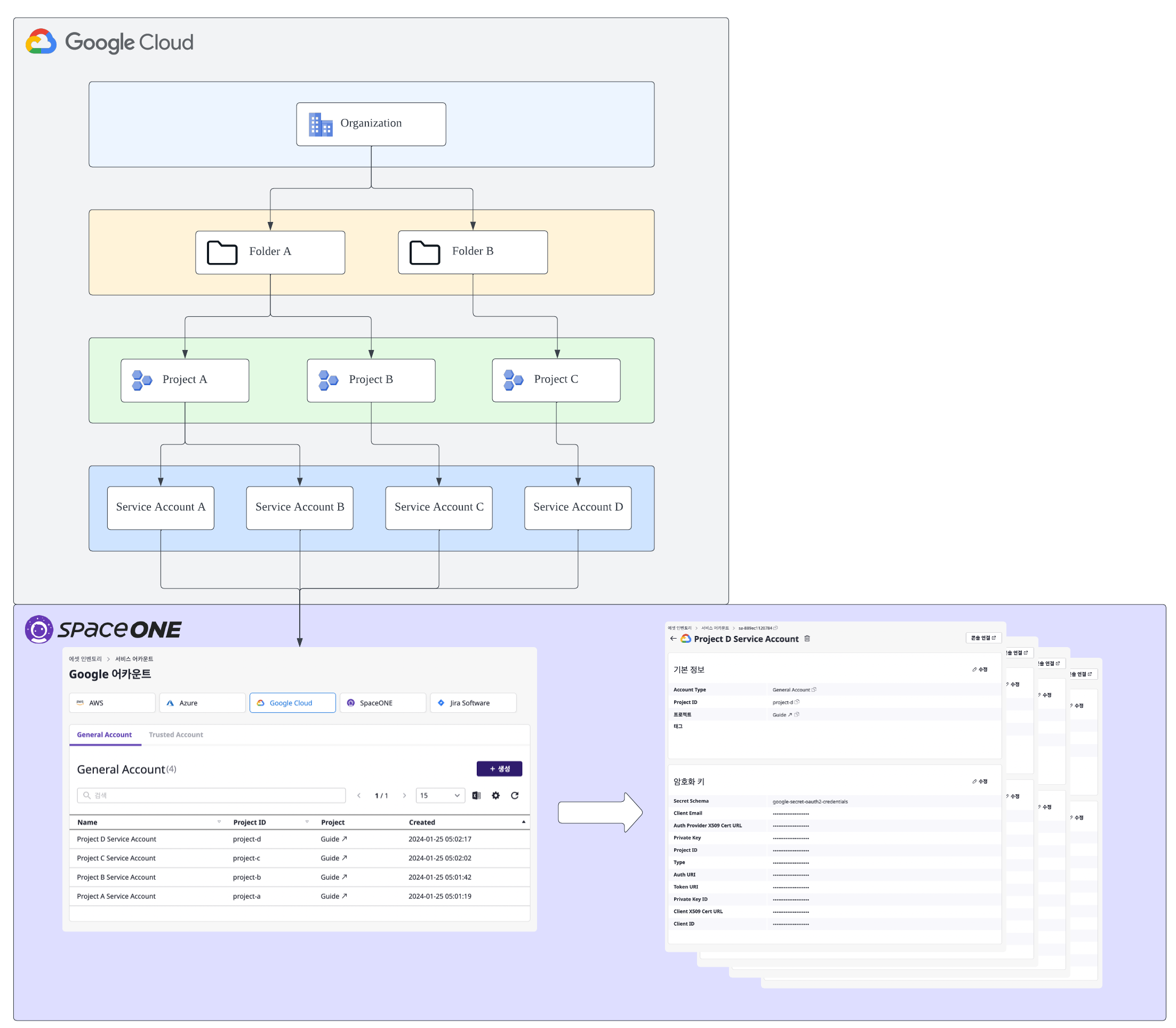
Individual Account Connection
This method is suitable when the project scale is not large.
Create an account with resource collection permissions for each individual Google Cloud project and register it with CloudOps.
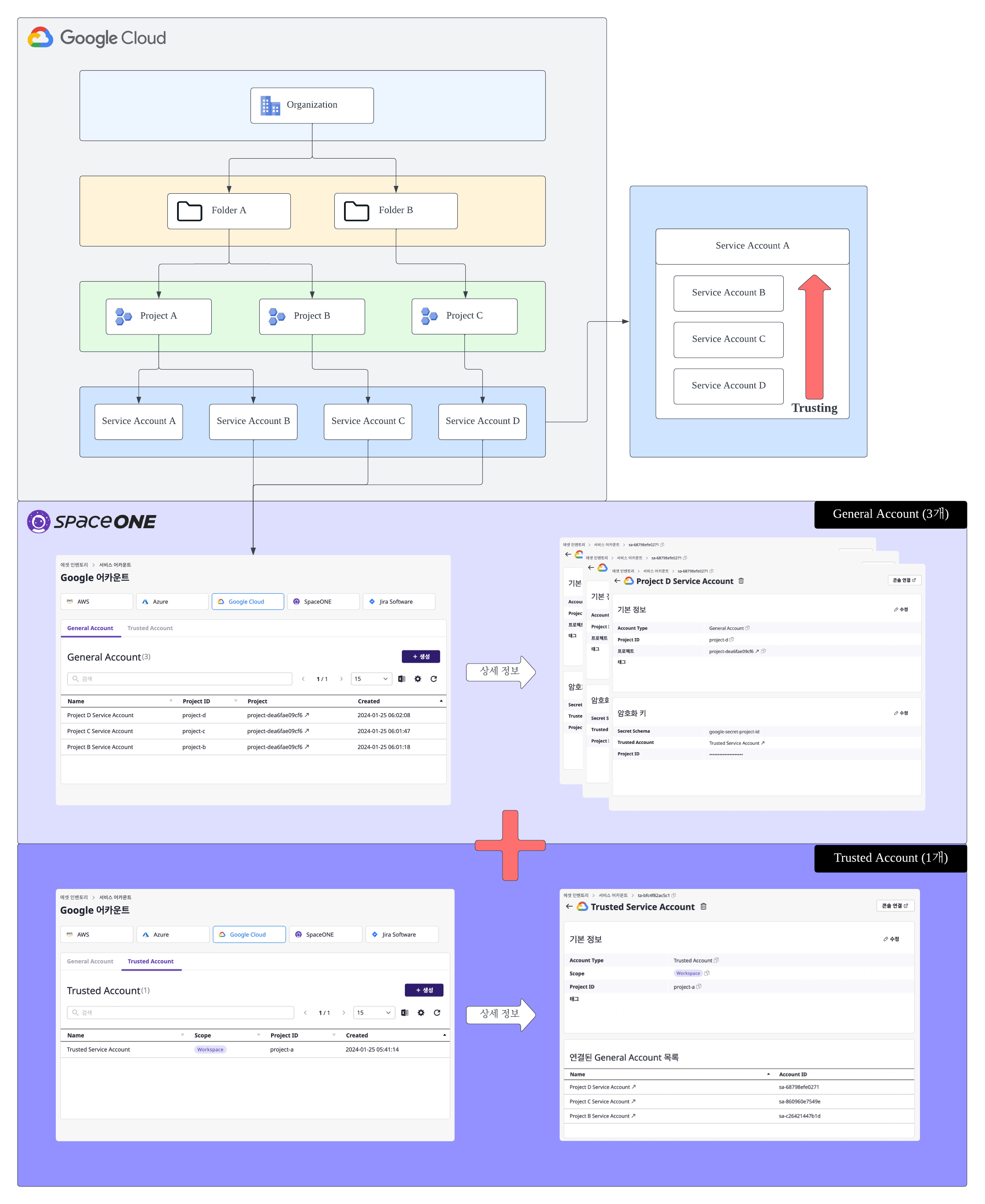
Multiple Account Connection
This method is suitable when managing large-scale projects simultaneously.
Create an account in Google Cloud with access permissions to sub-projects, allowing CloudOps to access multiple Google Cloud projects with a single service account.
Prerequisites
Before connecting a Google Cloud account to CloudOps, minimum permission settings are required for resource collection.
Additionally, when choosing the multiple account connection method, additional Google Cloud permission settings are required.
Registering CloudOps Service Account
The following service accounts can be created in CloudOps:
General Account
This is the basic account for collecting and managing individual Google Cloud project resources. CloudOps’s General Account can be created in three ways:
- Option 1) You can directly register a Google Cloud service account using individual credentials.
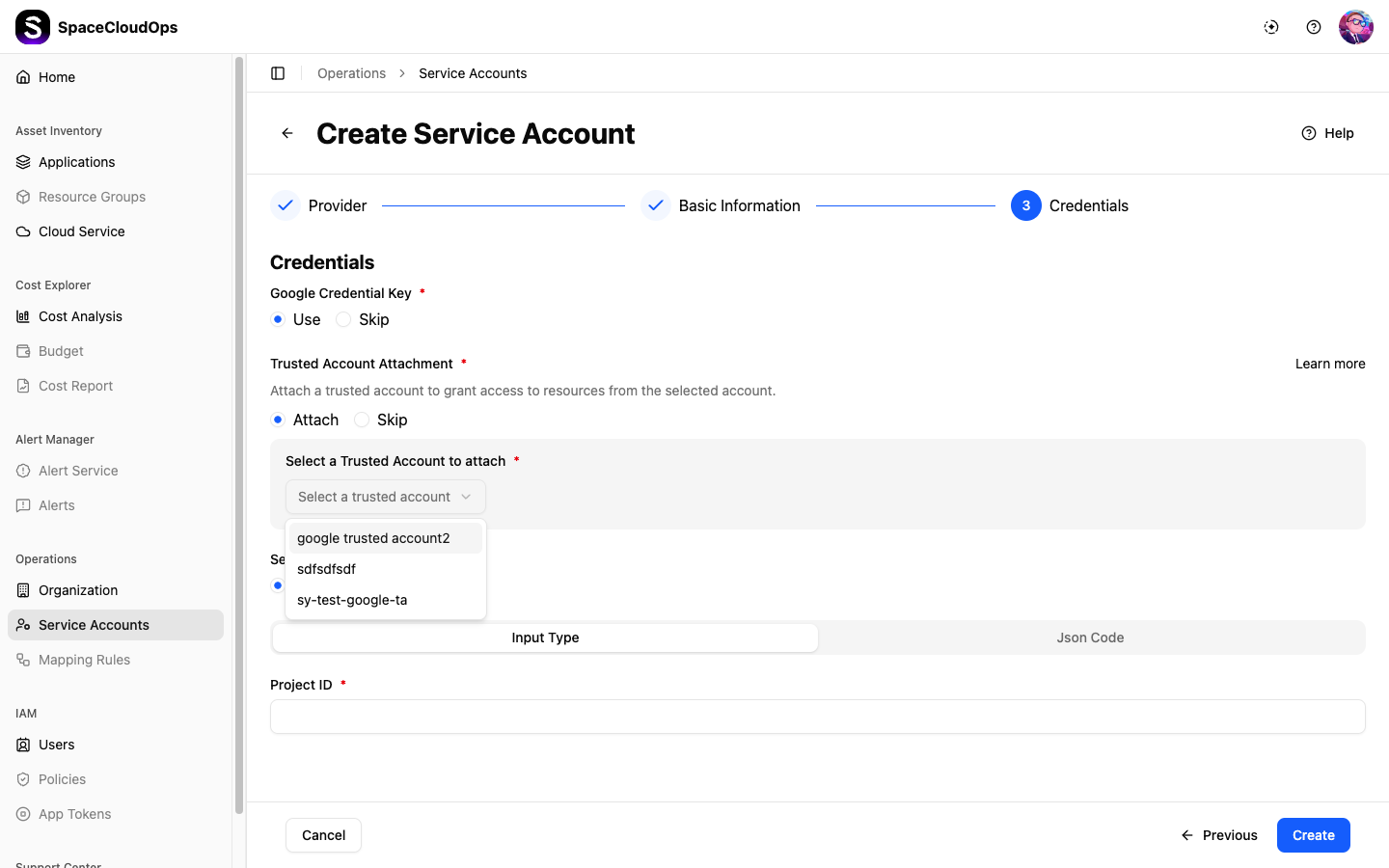
- Option 2) You can connect to a Trusted Account created in CloudOps.
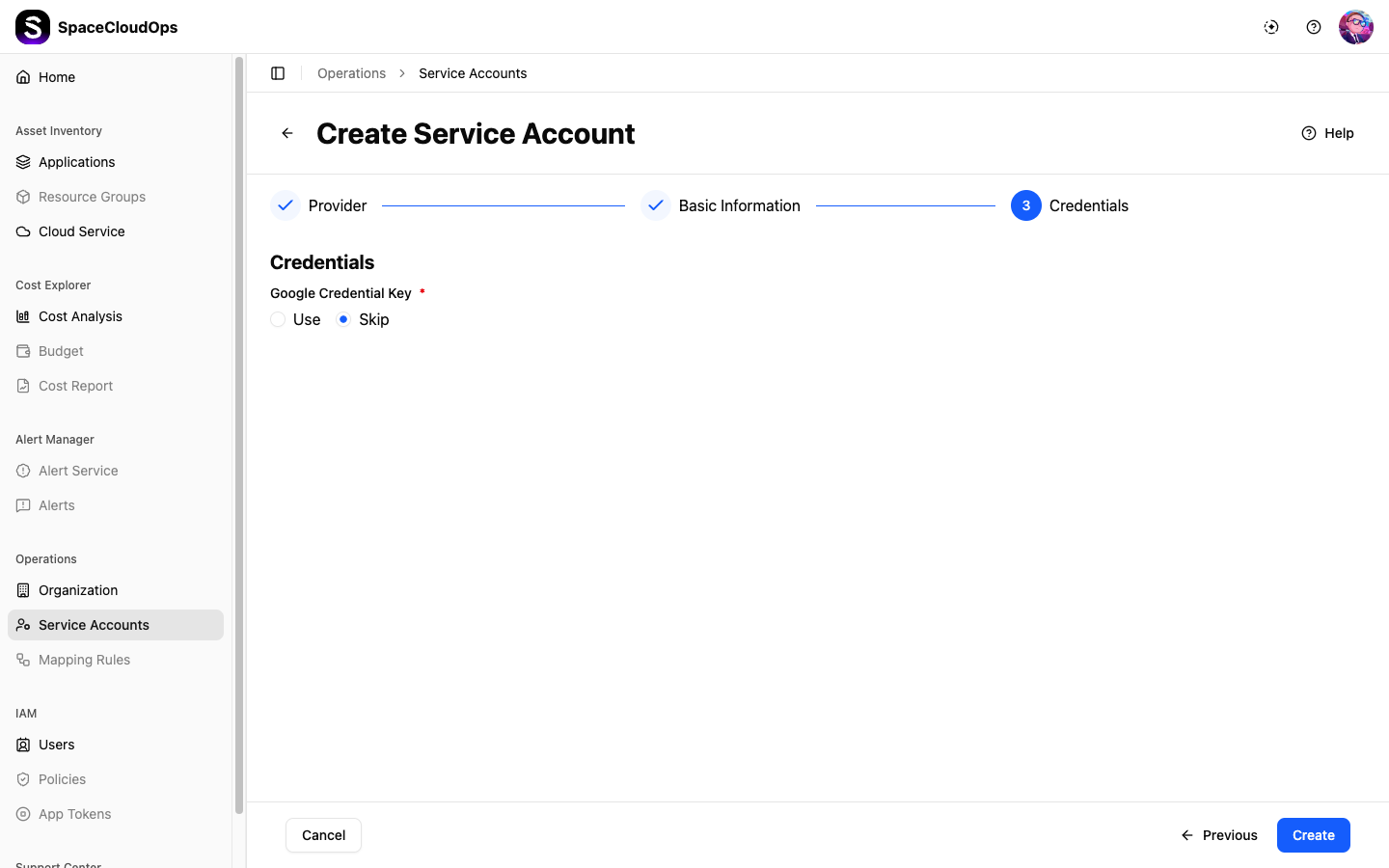
- Option 3) Depending on the situation, you can create a new service account without separate credentials.
Trusted Account
This is an account that manages multiple Google Cloud projects by connecting them at once.
- You can create a Trusted Account in CloudOps that can be connected to General Accounts.
- Trusted Accounts are referenced and utilized when accessing General Accounts.
Creating a General Account
Navigate to General Account Creation Page
On the [Asset Inventory > Service Account] page, select [Google Cloud], then select [General Account] from the tabs.
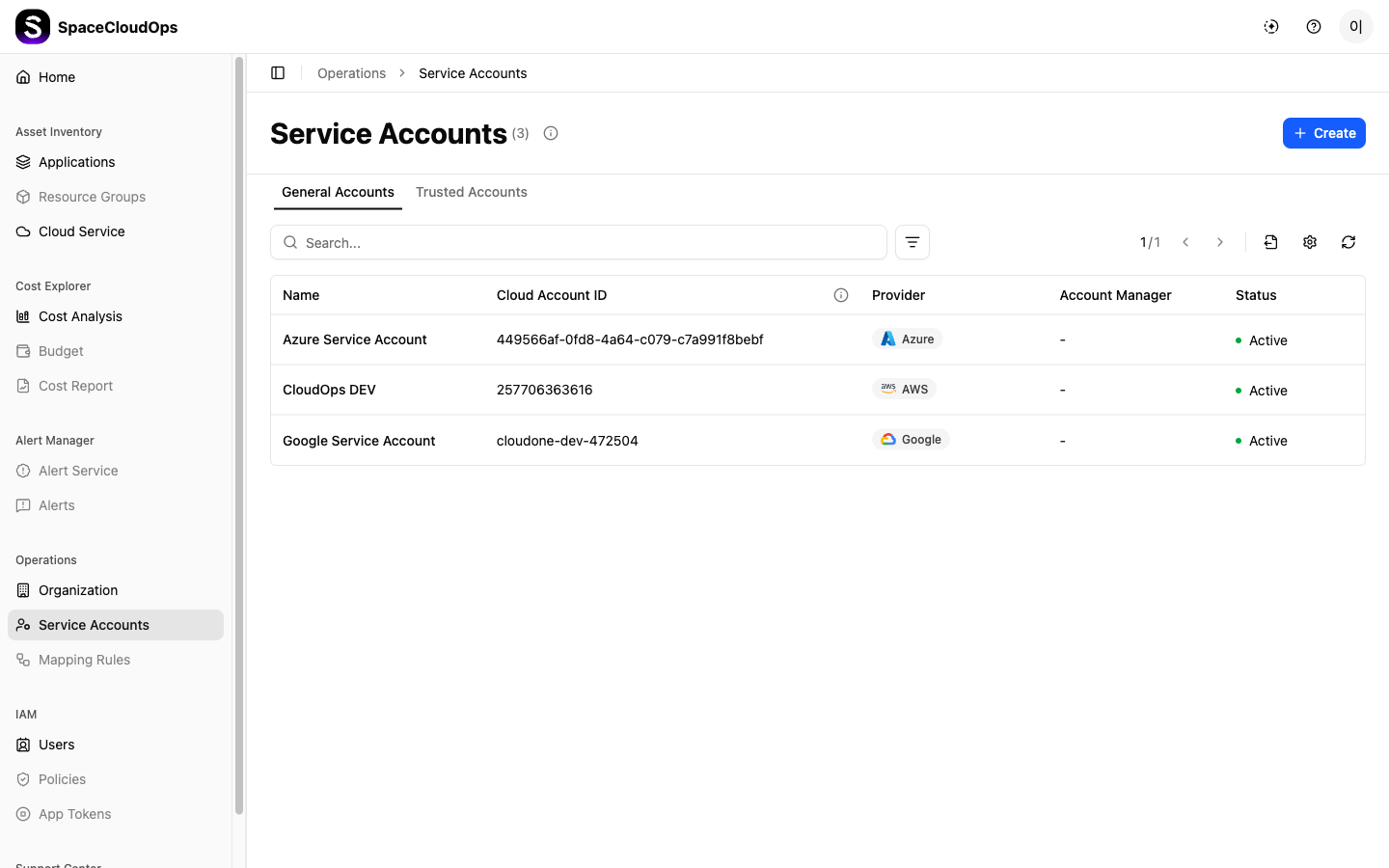
Then click the [Create] button on the right.
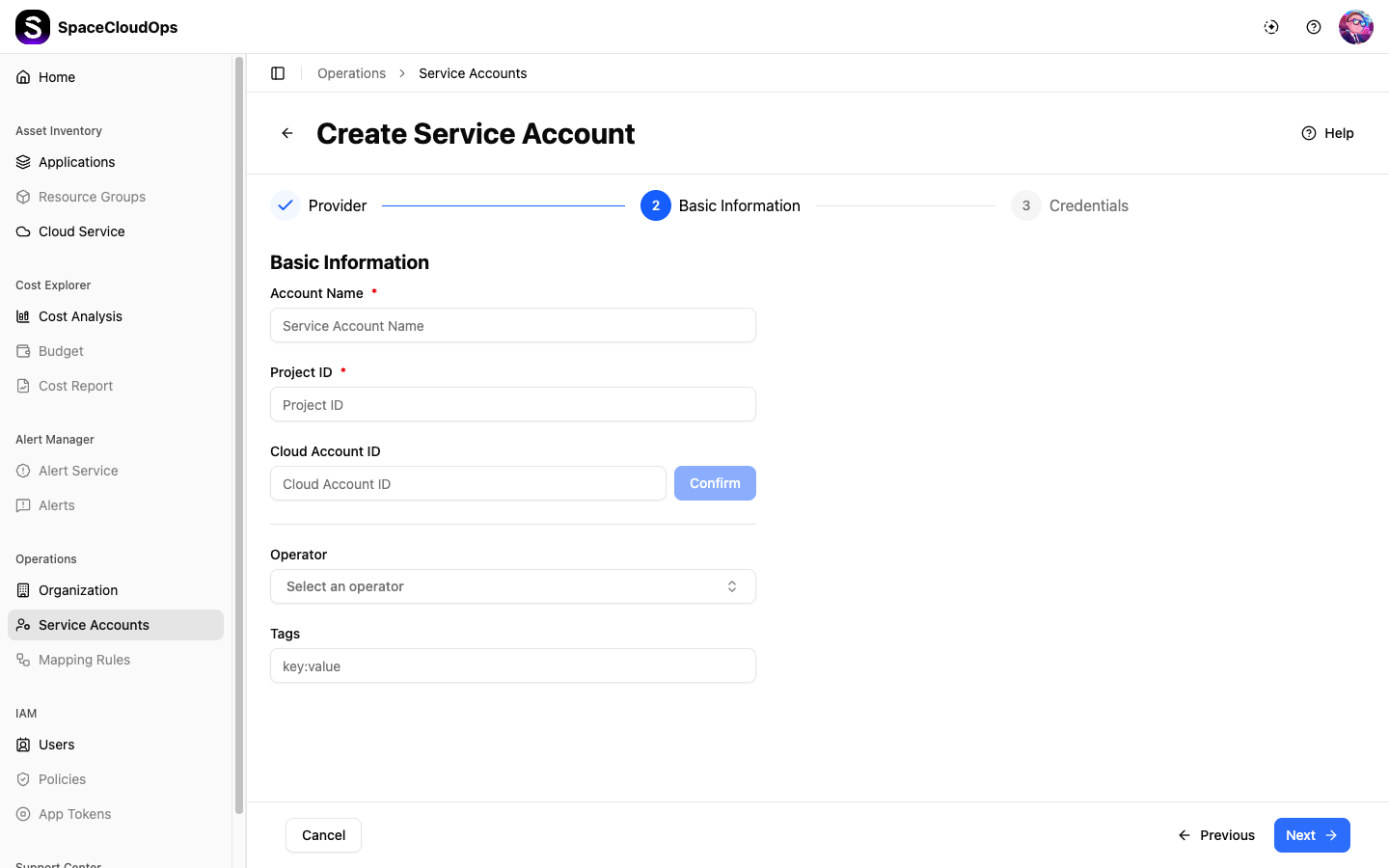
Configure Basic Information
Configure the basic information. You can find the Project ID in the Google Cloud information created previously.
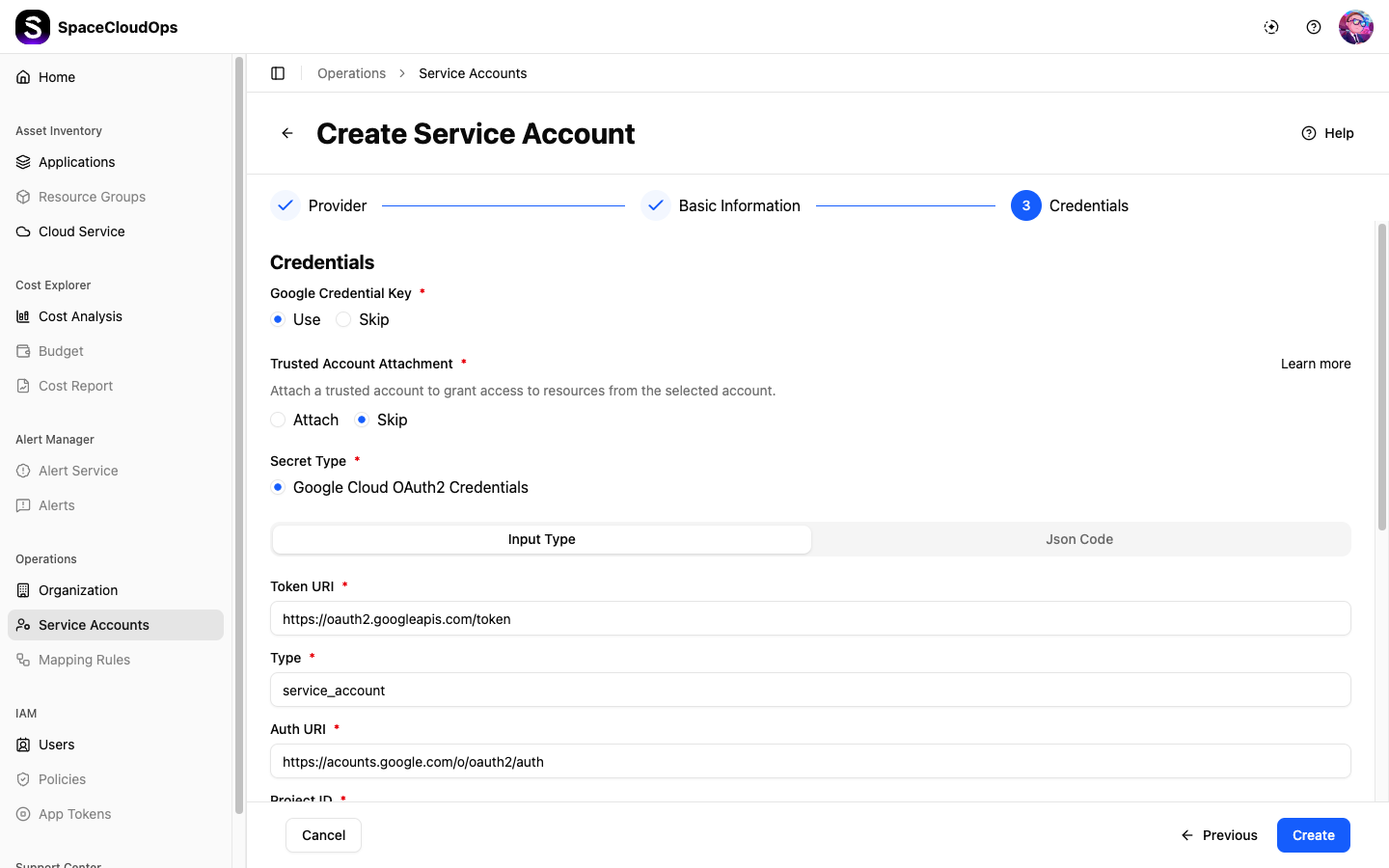
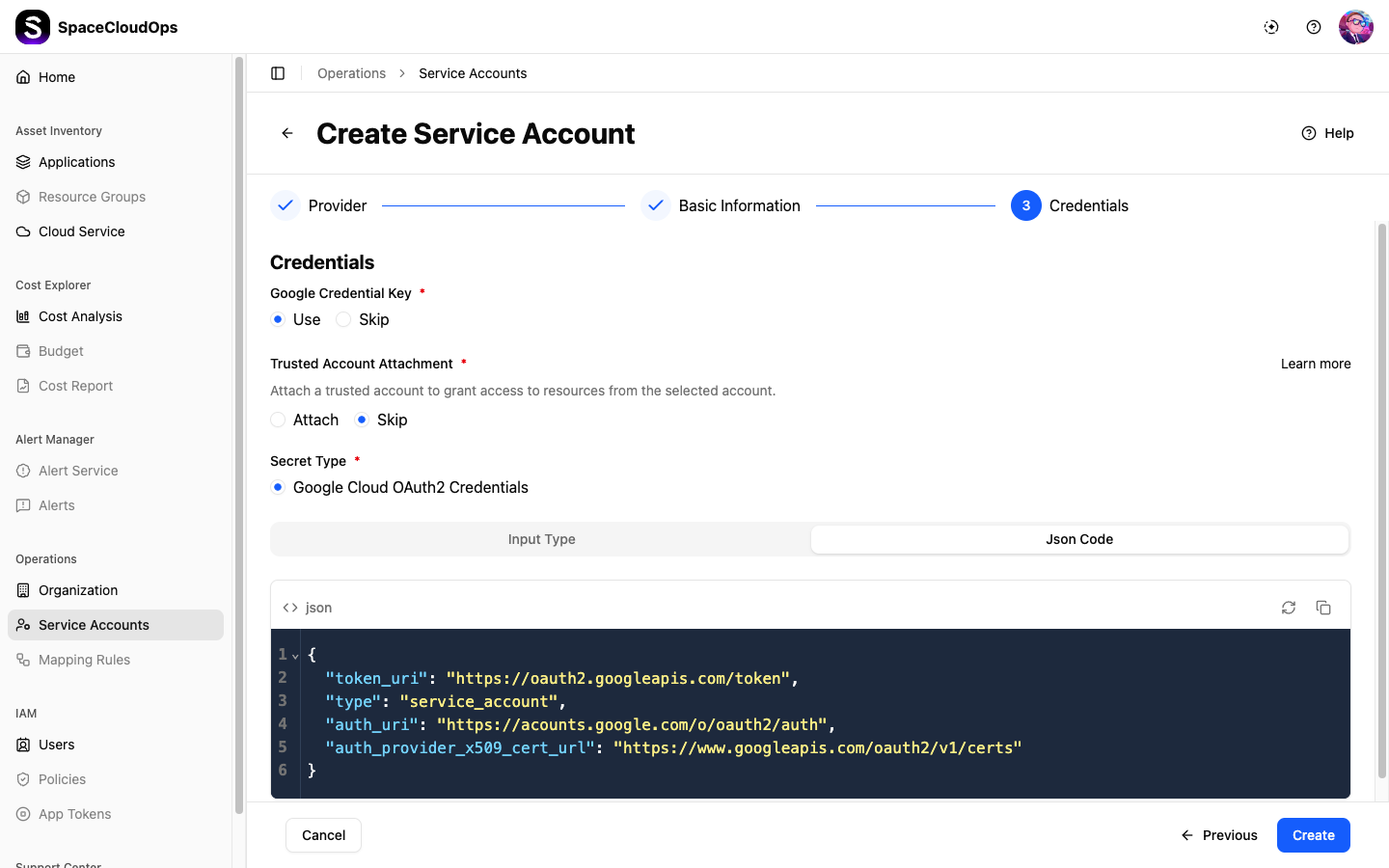
Configure Credentials
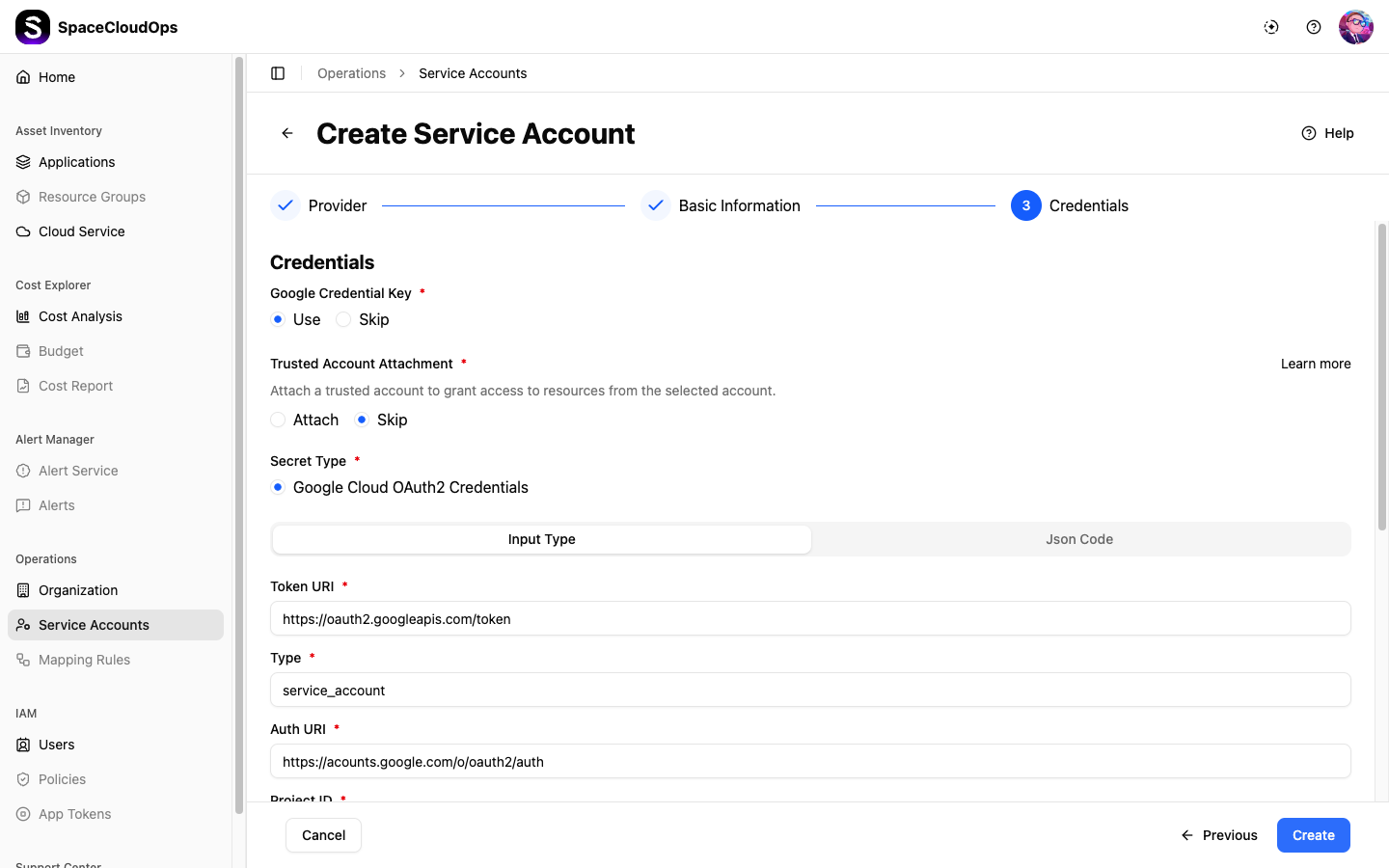
Set up the credentials. This information can be entered directly through input fields or by uploading the JSON file downloaded when creating the Google Cloud account.
Option 1) Register a Google Cloud service account by directly entering individual credentials.
Option 2) Register by connecting credentials from a Trusted Account.
Option 3) Depending on the situation, you can create a new account without separate credentials.
Creating a Trusted Account
Navigate to Trusted Account Creation Page
On the [Asset Inventory > Service Account] page, select [Google Cloud], then select [Trusted Account] from the tabs.
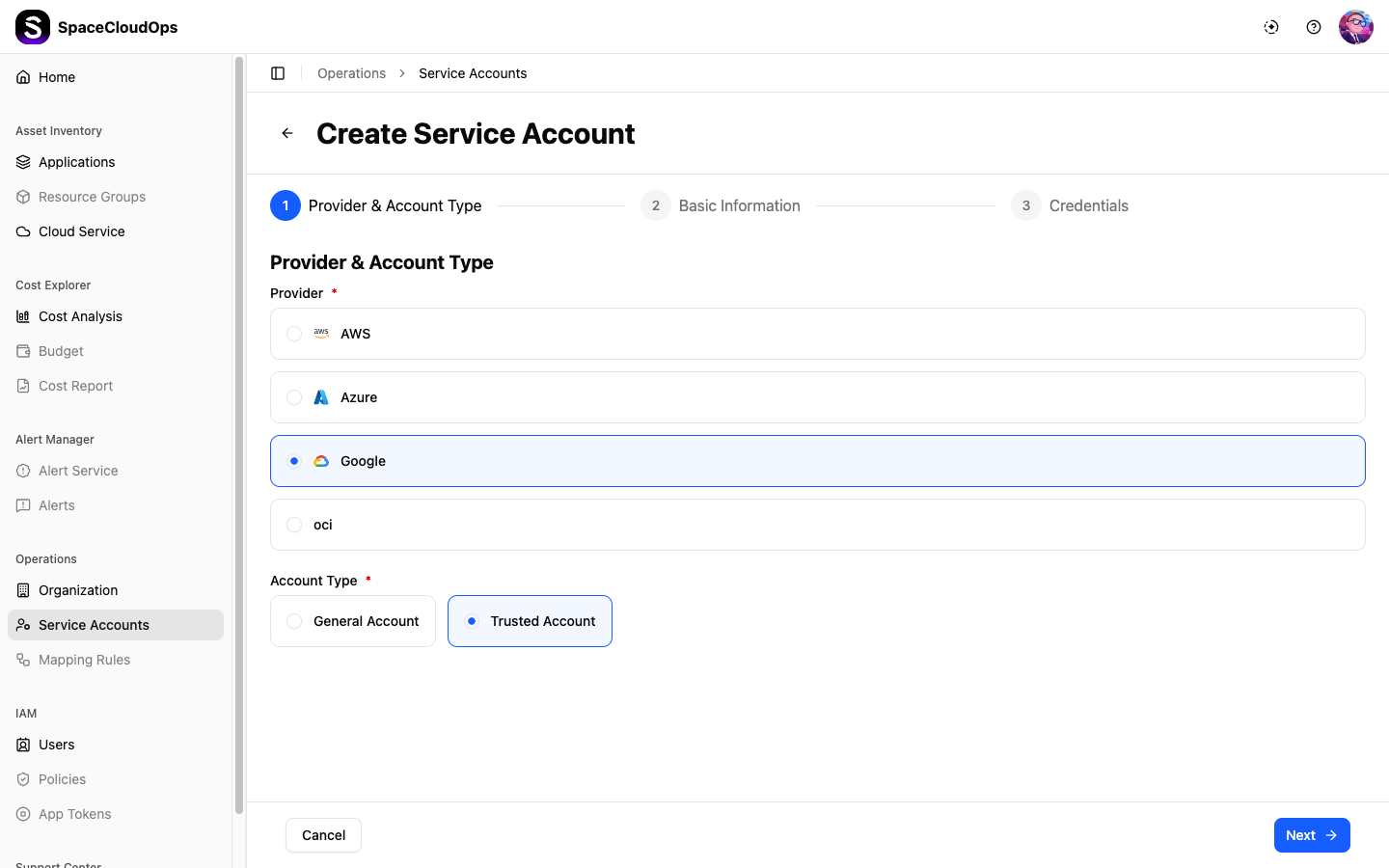
Configure Basic Information
Enter the service account name and Project ID in the basic information. You can find the Project ID in the Google Cloud information created previously.
Configure Credentials
Set up the credentials. This information can be entered directly through input fields or by uploading the JSON file downloaded when creating the Google Cloud account.
Configure Auto Synchronization
If needed, you can automatically map Google Cloud’s service account hierarchy to CloudOps. For more details, refer to Google Cloud Account Auto Synchronization.