Alert Webhook
Overview
To forward AWS Personal Health Dashboard (PHD) events to CloudOps, set up an EventBridge Rule to detect Health events and deliver them to the CloudOps webhook endpoint directly via an API Destination.
You will need:
- CloudOps webhook URL — the endpoint that CloudOps issues when you register an AWS PHD webhook source. Obtain it first by following Integrate AWS PHD to CloudOps.
- AWS console permission to create EventBridge Rules, Connections, and API Destinations.
The setup follows this order:
- Create an EventBridge Connection
- Create an EventBridge API Destination
- Create an EventBridge Rule (Health events → API Destination)
- Test the integration
1. Create an EventBridge Connection
Define the authentication information that the API Destination will use when calling the external endpoint.
Navigate to EventBridge
Log in to the AWS Console
, type EventBridge in the search bar, and navigate to Amazon EventBridge.
Create a Connection
Click [Integration > Connections] in the left menu, then click [Create connection].
- Connection name: Enter a recognizable name (e.g.,
cloudops-webhook-connection) - Destination type:
Other - Authorization type:
API Key - API key name:
Content-Type - Value:
application/json
Click [Create].
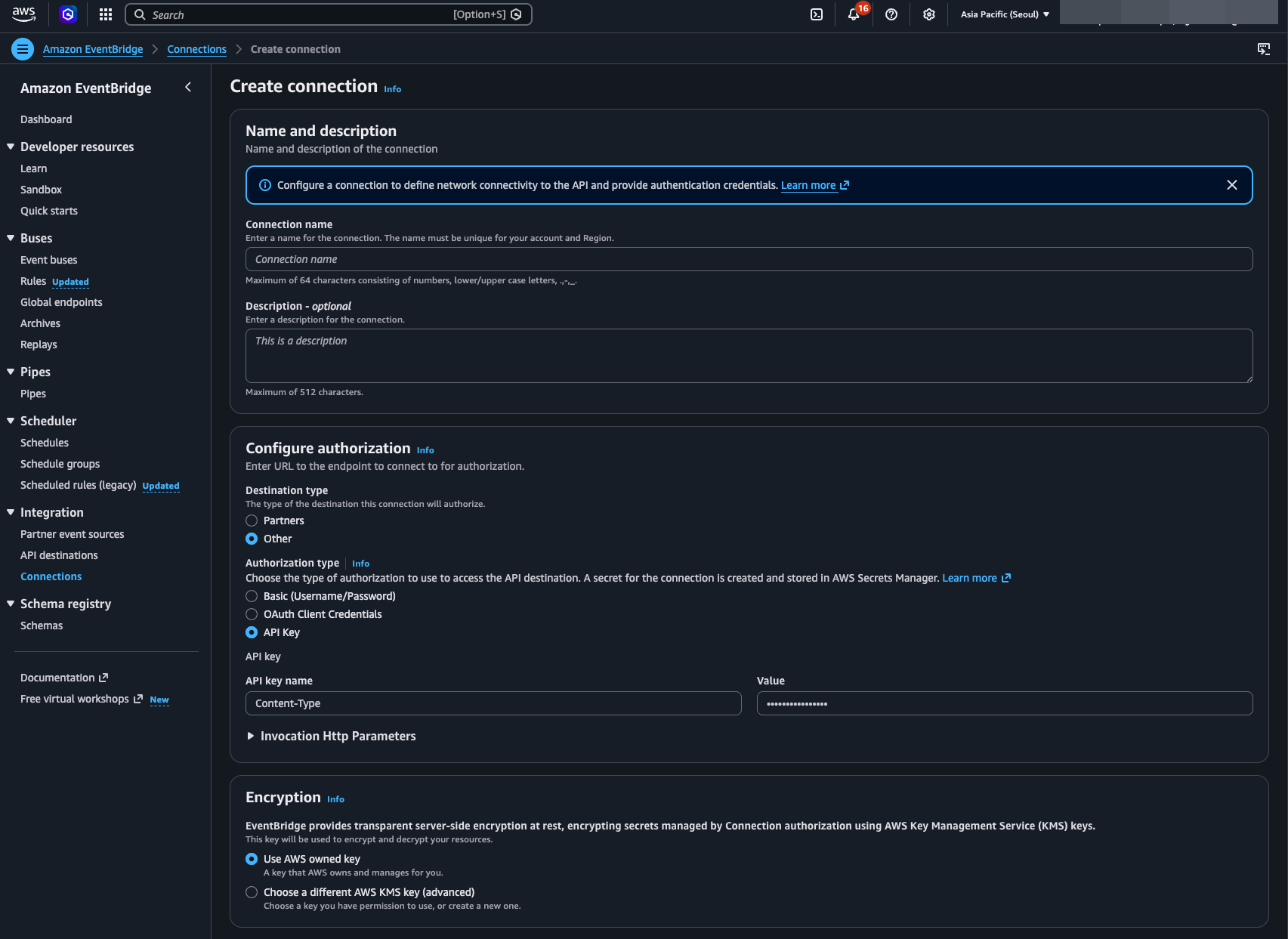
Content-Type: application/json ensures the payload is delivered in JSON format.2. Create an EventBridge API Destination
Register the CloudOps webhook URL as a target that EventBridge can call directly.
Create an API Destination
Click [Integration > API destinations] in the left menu, then click [Create API destination].
- Name: Enter a recognizable name (e.g.,
cloudops-phd-destination) - API destination endpoint: Paste the Webhook URL issued by CloudOps.
- HTTP method:
POST - Connection type:
Use an existing connection - Connection: Select the Connection created above (e.g.,
cloudops-webhook-connection)
Click [Create].
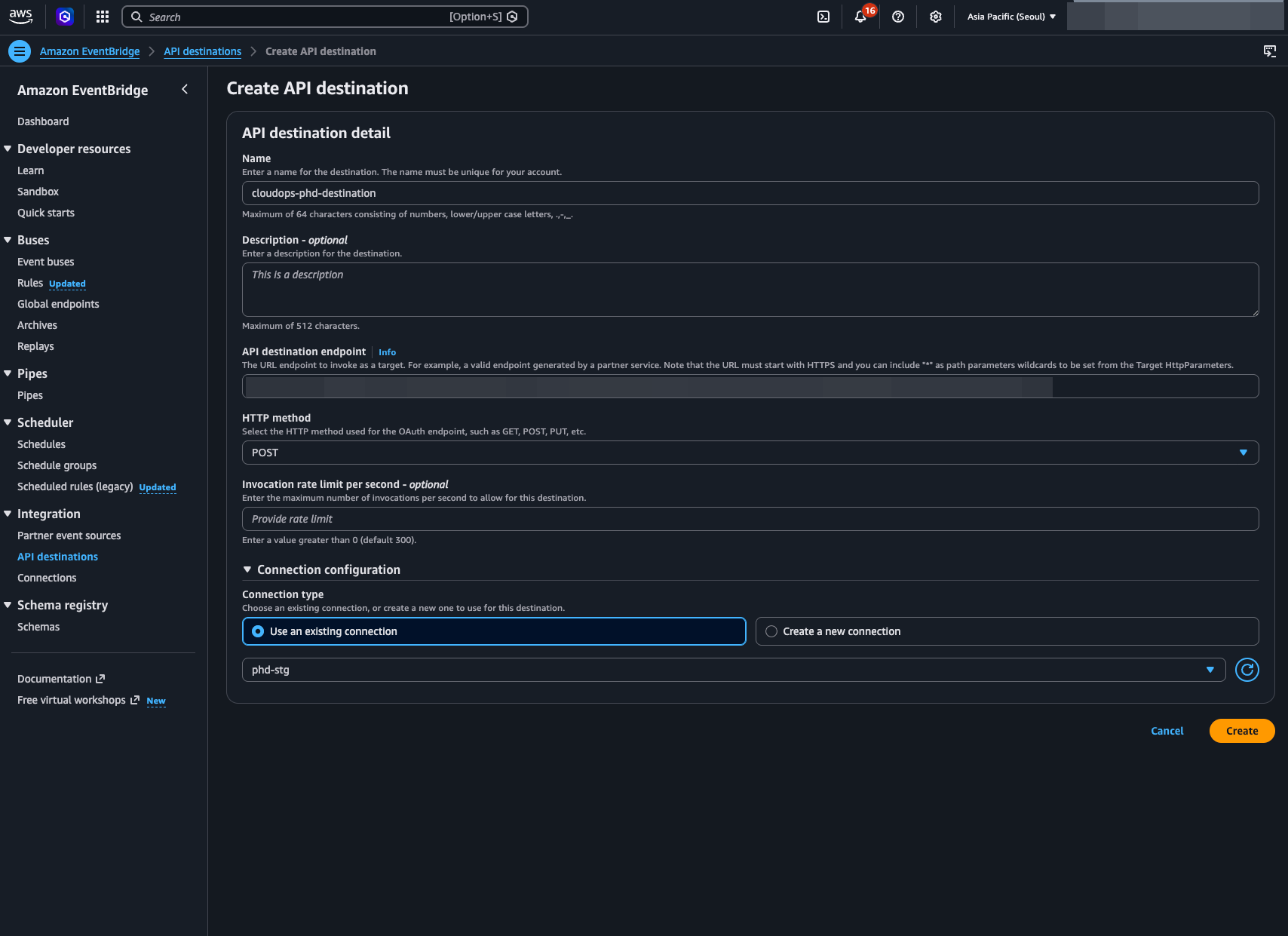
3. Create an EventBridge Rule
Set up an EventBridge Rule so that AWS Health events are automatically forwarded to the API Destination.
Create a Rule
Click [Buses > Rules] in the left menu, then click [Create rule].
Enter Rule Details
- Name: Enter a recognizable name (e.g.,
cloudops-health-rule) - Event bus: Select
default - Rule type: Select
Rule with an event pattern
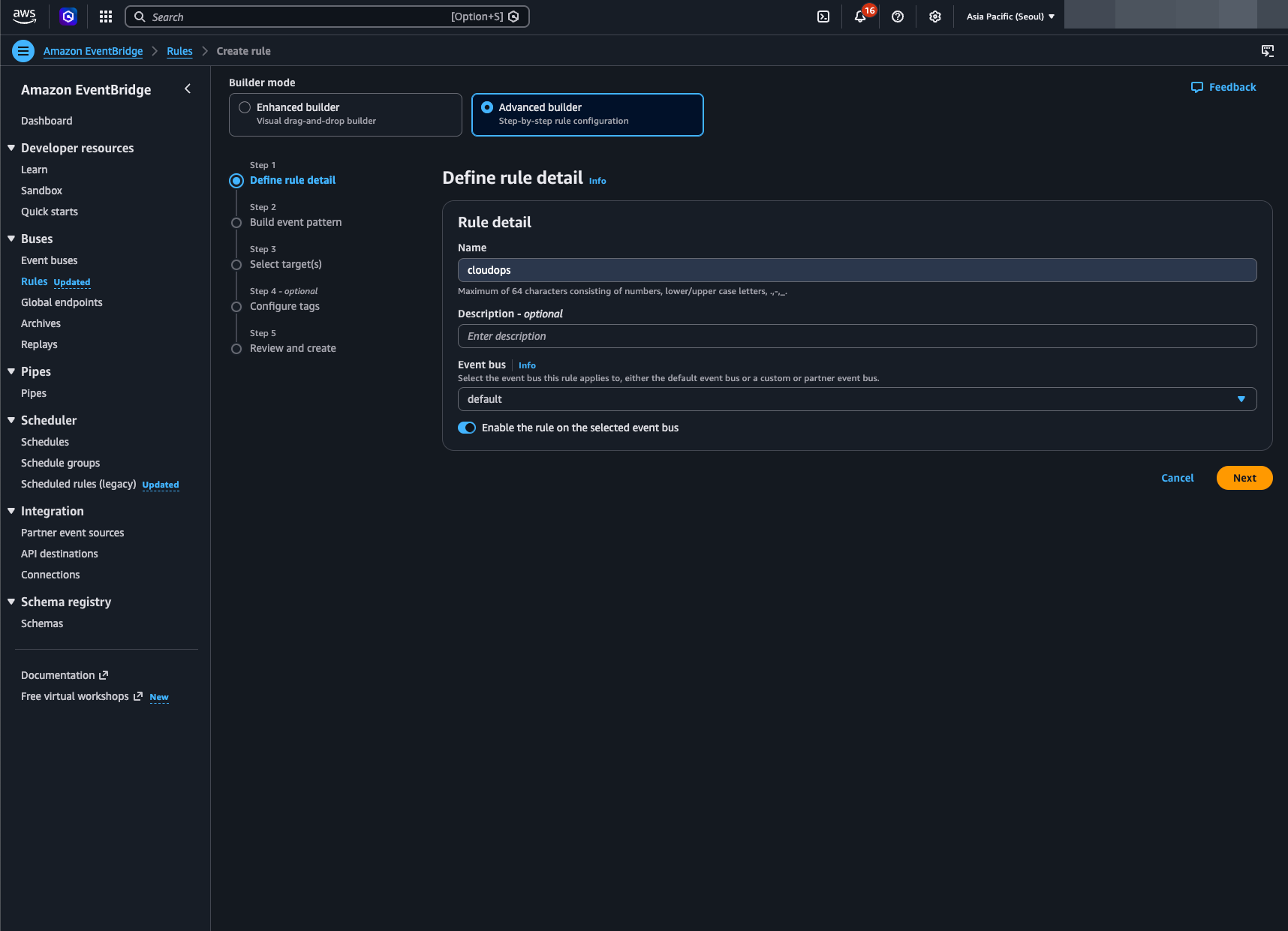
Click [Next].
Configure the Event Pattern
Under Event source, select AWS events or EventBridge partner events.
In the Event pattern section, select Custom pattern (JSON editor) and enter:
{
  "source": ["aws.health"]
}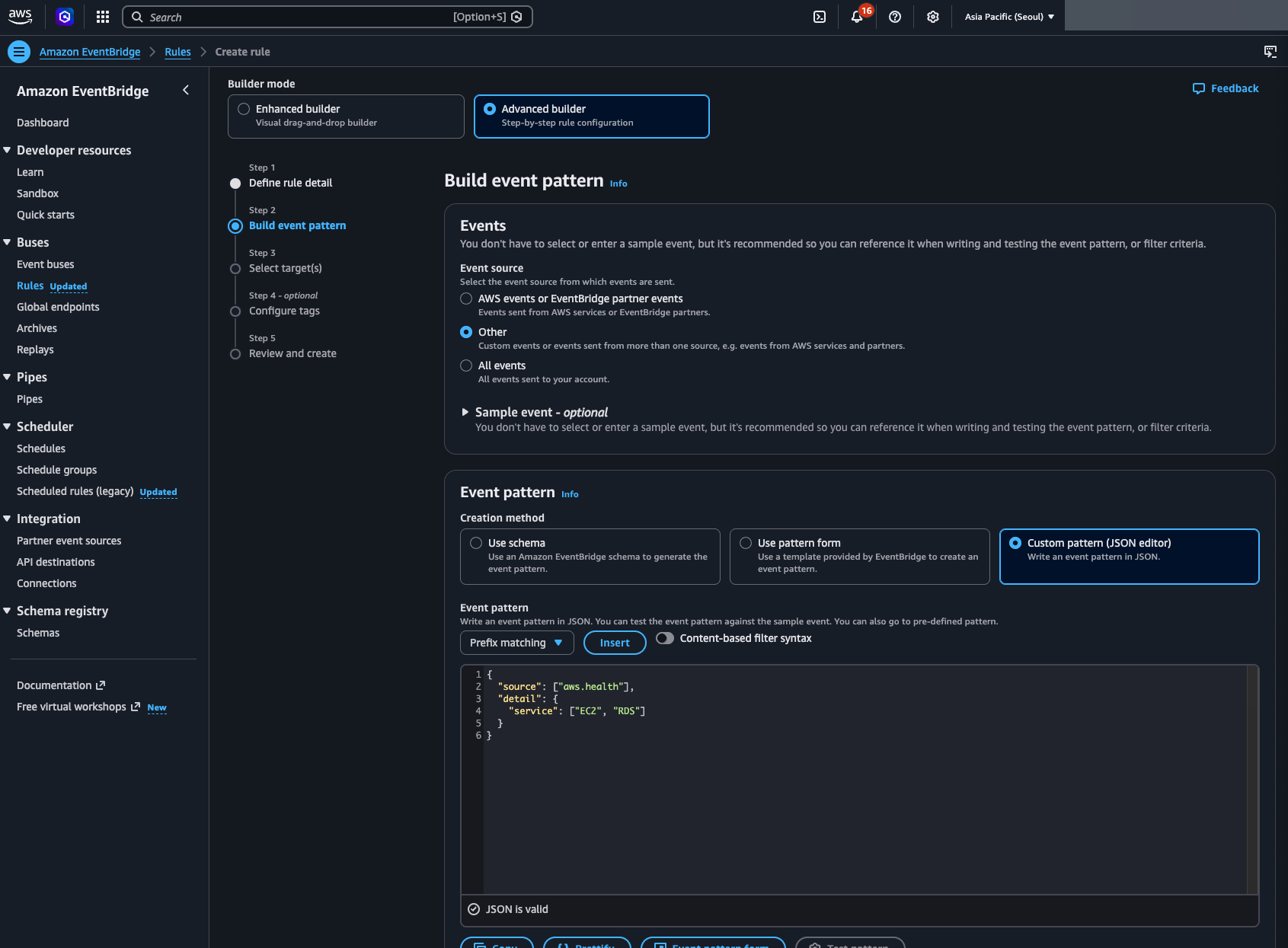
To receive Health events for specific services only, add a detail.service filter:
{
  "source": ["aws.health"],
  "detail": {
    "service": ["EC2", "RDS"]
  }
}
Click [Next].
Configure the Target
- Target type: Select
EventBridge API destination - API destination: Select the API Destination created above (e.g.,
cloudops-phd-destination)
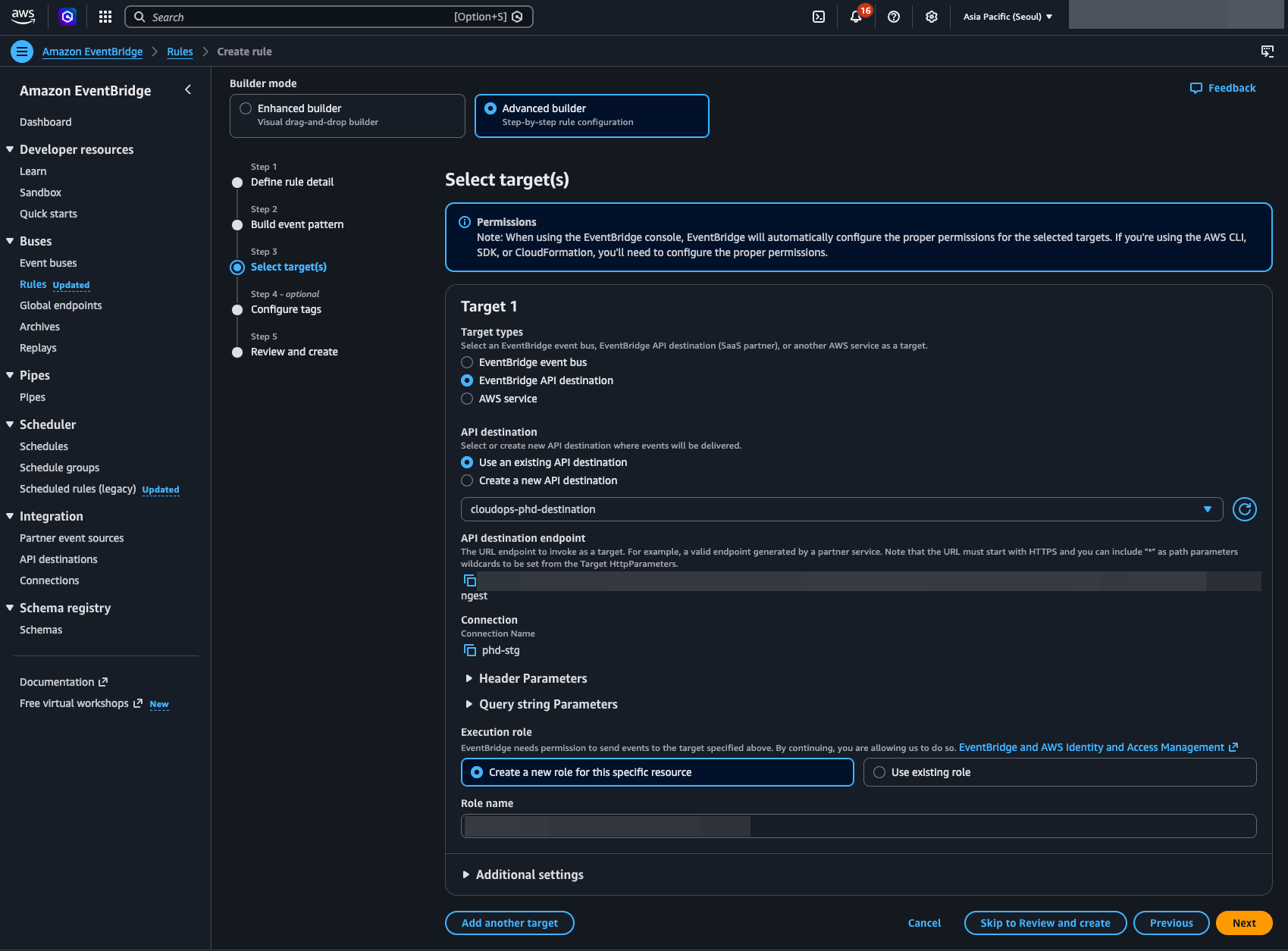
Click [Next] → [Next] → [Create rule] to complete.
4. Test the Integration
Testing Method
AWS Health events cannot be triggered manually. To verify that the setup is correct:
- Check EventBridge Rule status: Confirm that the Rule’s Status is
Enabledin the EventBridge console. - Check API Destination status: Confirm that the Status is
Activein the API Destinations list. - Check Connection status: Confirm that the Status is
Authorizedin the Connections list.
If all statuses are normal, actual AWS Health events will be automatically forwarded to CloudOps when they occur.
Verify on CloudOps
When an actual Health event occurs, check that the Requests (24h) count increases on the registered webhook source in the CloudOps console.
Health Event Types
CloudOps classifies AWS Health events as follows:
| AWS eventTypeCategory | CloudOps Severity | CloudOps Event Type |
|---|---|---|
issue | ERROR | ALERT |
scheduledChange | WARNING | ALERT |
accountNotification | INFO | ALERT |
When the statusCode changes to closed, CloudOps treats the event as RECOVERY.