Integrating Azure with CloudOps
This guide walks you through connecting your Azure account to CloudOps for resource collection and cost monitoring.
Prerequisites
Before connecting your Azure account to CloudOps, you need to configure Azure account settings for cloud resource collection.
Understanding Account Types
CloudOps registers two account types.
- General Account: The basic account for collecting and managing an individual Azure subscription’s resources, connected in one of two ways.
- Direct (Access Key): Connects the subscription directly with an Azure Service Principal’s own authentication key.
- Delegated (Assumed Role): Connects by assuming credentials from a parent Root Account.
- Root Account: An entry holding one credential that can reach many subscriptions — an app registration (service principal) granted the
Readerrole on a management group. Register it once and reuse it.
Which one should you use
| Situation | How to register |
|---|---|
Your subscriptions sit under one management group you can grant Reader on (setup guide) | Register the Root Account first, then connect each workload subscription as General + Delegated |
| You have a single subscription, or they have no delegation relationship | General + Direct |
The deciding factor is your organization’s structure, not how many subscriptions you have. Without a management group to grant access on you cannot create a Root at all; conversely, if the delegation structure exists, a Root is worth having even for two — Direct means issuing, storing, and rotating separate credentials for every subscription.
With a Root Account in place you can connect its delegated accounts in one pass through Bulk Register instead of registering them one at a time.
A Root Account is not collected
A Root Account is the delegation basis and credential provider — it is not a collection target. That is why a Root row reads differently in the account list:
| Item | Root Account | General Account |
|---|---|---|
| Collection Status | Empty | Success · Running · Failure … |
| Last Collected | Empty | When resources were last collected |
| Collection Issues KPI | Excluded | Counted |
| Detail screen | Number of delegated General accounts | Collection status |
Auto badge in the account list — and that General account is what collects. In other words collection always happens at the General account level, with the Root standing behind it.Register a Cloud Account
In the CloudOps console, go to [Settings > Cloud Account] and click the [Connect Account] dropdown. Select either Root Account or General Account to open the registration page.
The registration page uses a 4-step accordion wizard: Provider → Account Info → Verify → Save. A progress panel on the right tracks your completion status.
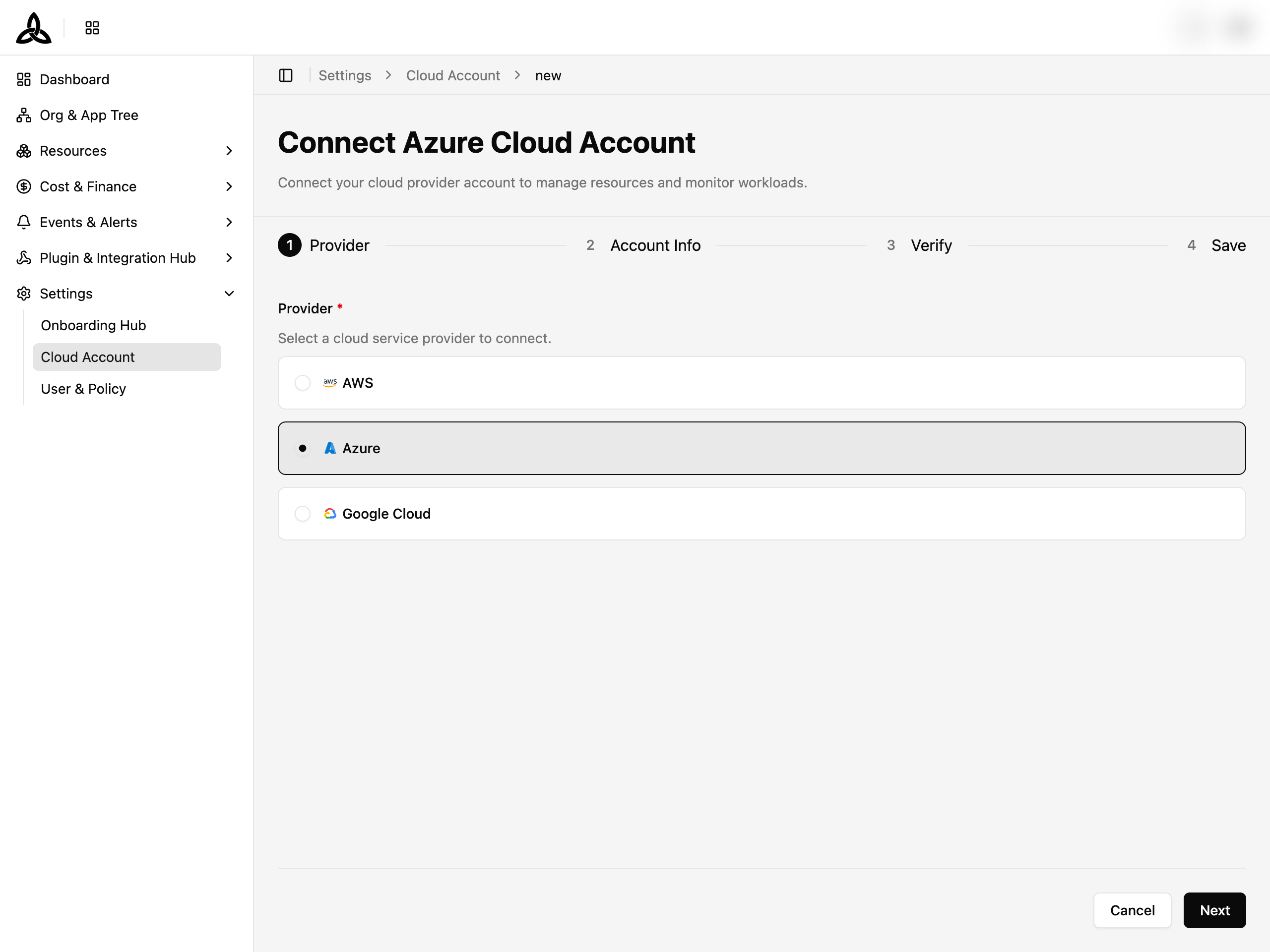
Select a provider
Select Azure as the provider and click [Next].
Enter account info
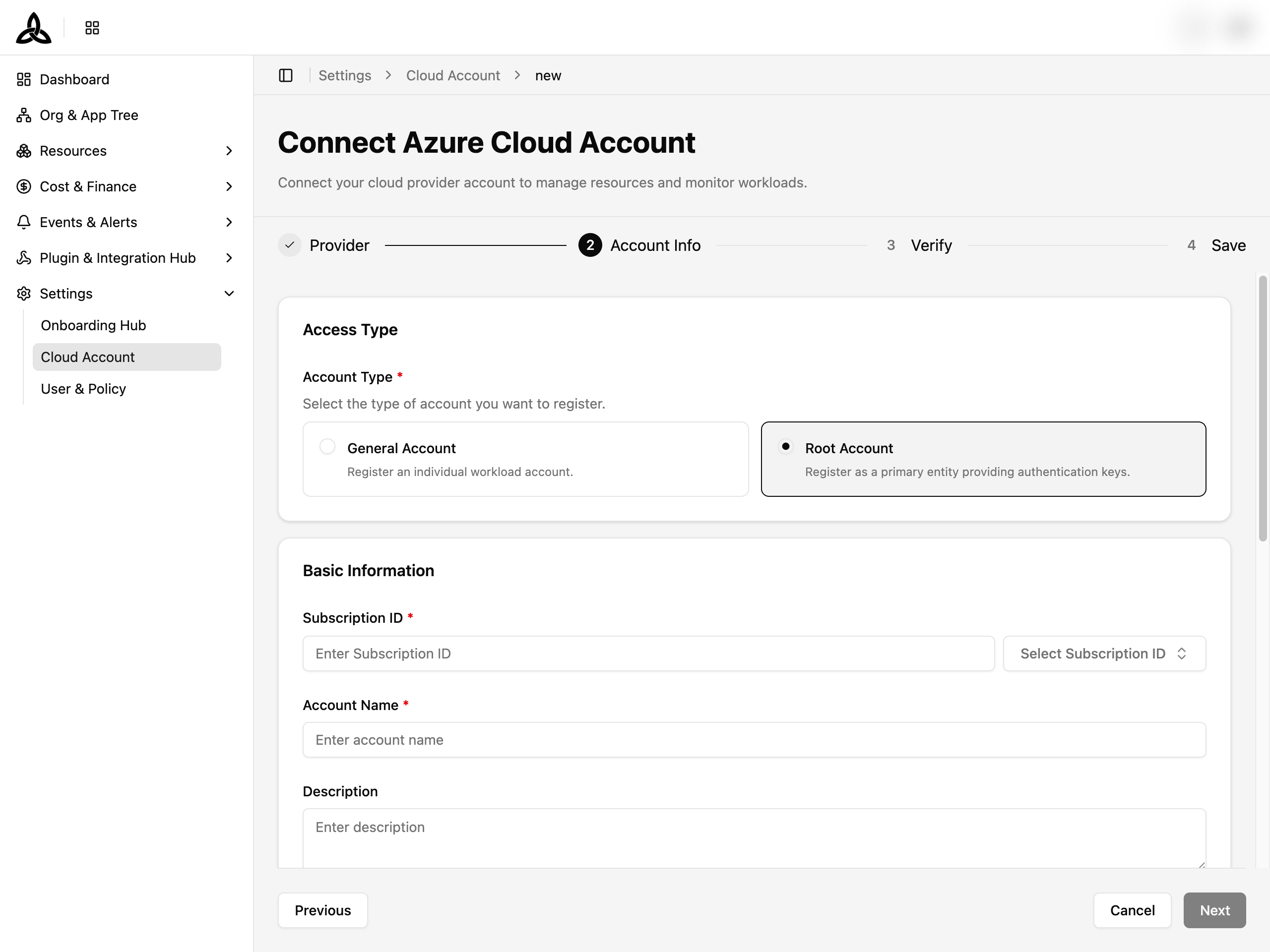
In the Account Info step, the form fields differ depending on the account type you chose.
① Root Account — the page title shows Connect Root Account.
- Enter Subscription ID, Account Name, Description, and Tenant ID.
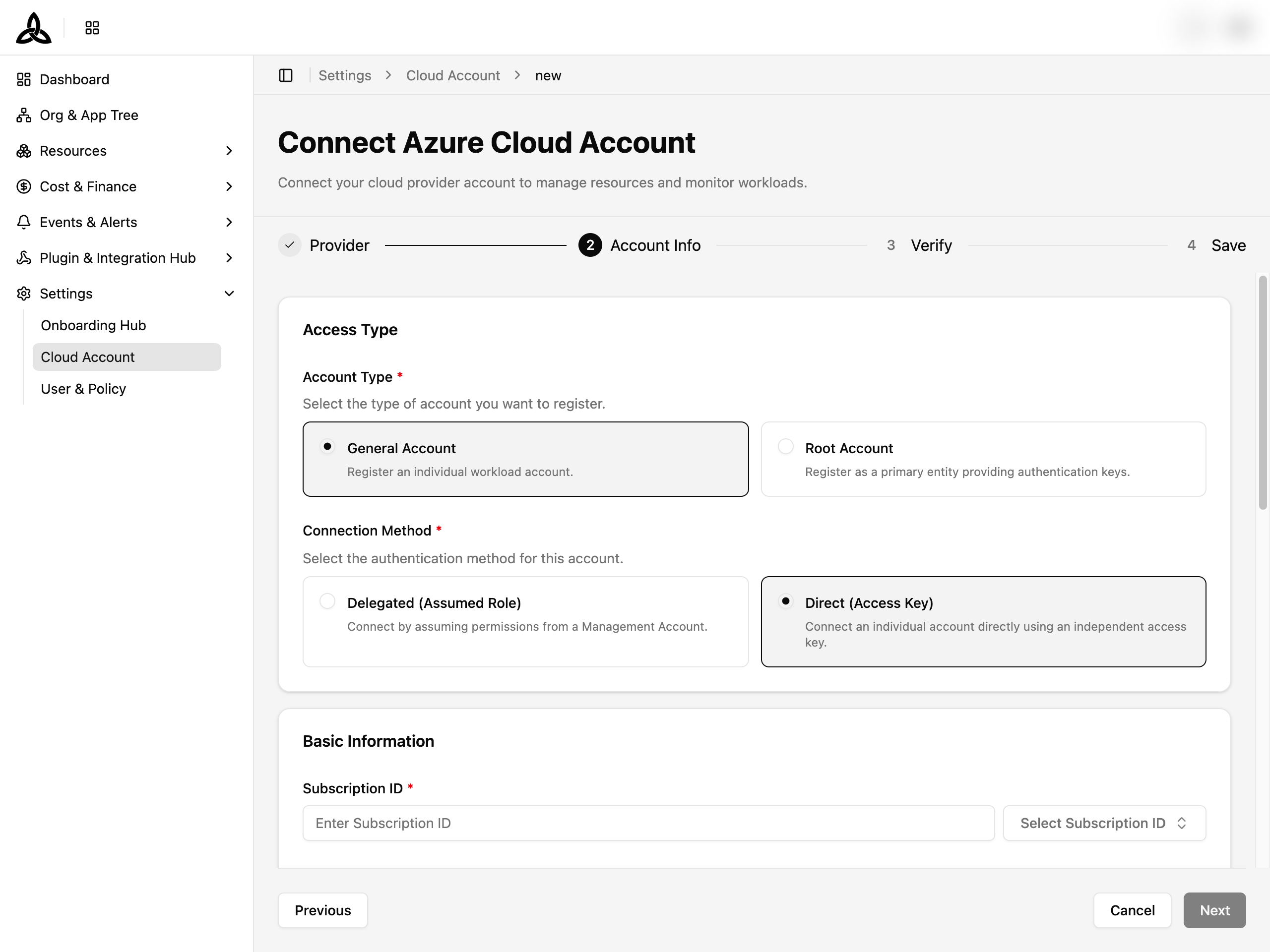
② General Account — the page title shows Connect General Account.
- Select a Connection Method:
Option 1) Direct (Access Key) — Register with individual authentication keys.
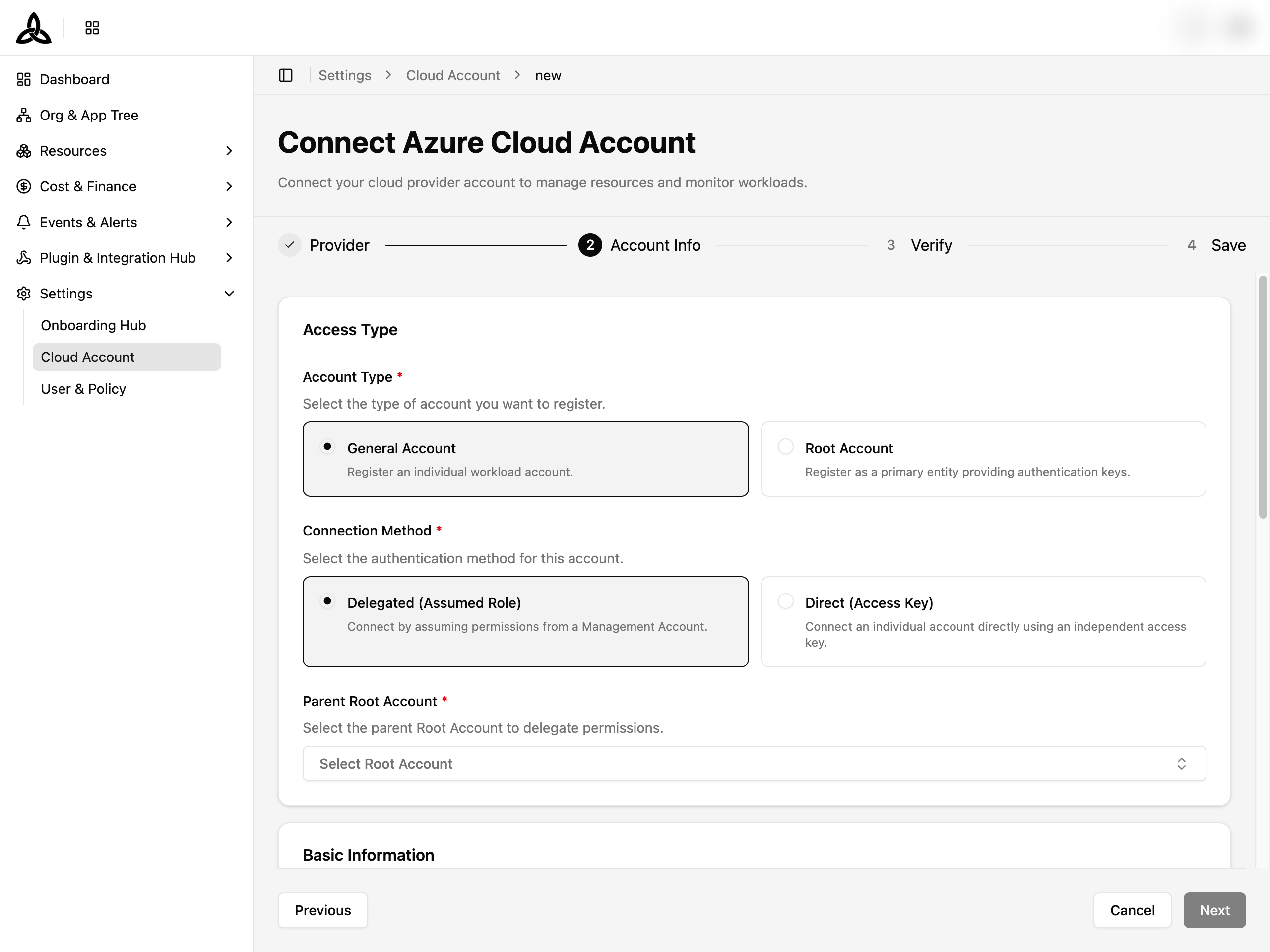
Option 2) Delegated (Assumed Role) — Connect to a Root Account. Select the Parent Root Account to delegate permissions.
Enter credentials
Provide the credentials with permission to access the resources. You can enter via Input Form or paste Json Code.
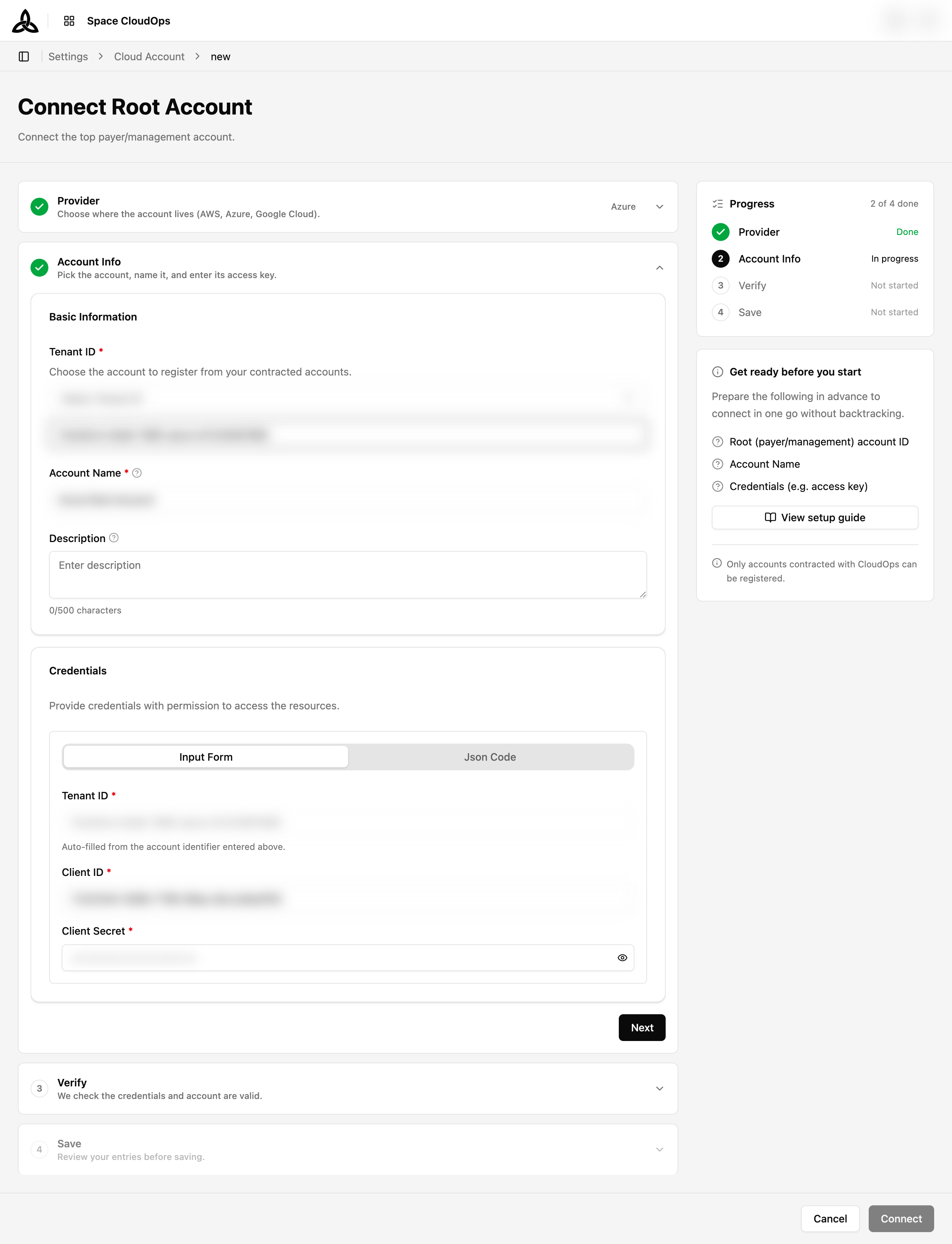
| Field | Required | Description |
|---|---|---|
| Subscription ID | Yes | Azure Subscription ID |
| Tenant ID | Yes | Azure AD Tenant ID |
| Client ID | Yes | Application (Service Principal) Client ID |
| Client Secret | Yes | Application Client Secret |
Verify
CloudOps verifies the entered credentials through Credential Format Verification and Account Validity Check. Once verification succeeds, proceed to the next step.
If verification fails, check the following:
- Credentials: Confirm that the Tenant ID, Client ID, and Client Secret are correct.
- Verification permission: Account validity check calls the
subscriptions.get()API. The Service Principal must have theMicrosoft.Resources/subscriptions/readpermission. - Resource collection permissions: Verify that the appropriate role assignment (Reader or custom role) is configured on the target subscription.
Save
Review the summary of Basic Info and Credentials, then click [Connect] to finalize. The integration completes and resource collection begins.