User & Policy
On the [Settings > User & Policy] page, you can review who has access to your CloudOps workspace, which invitations are outstanding, and which permission policies are attached to whom.
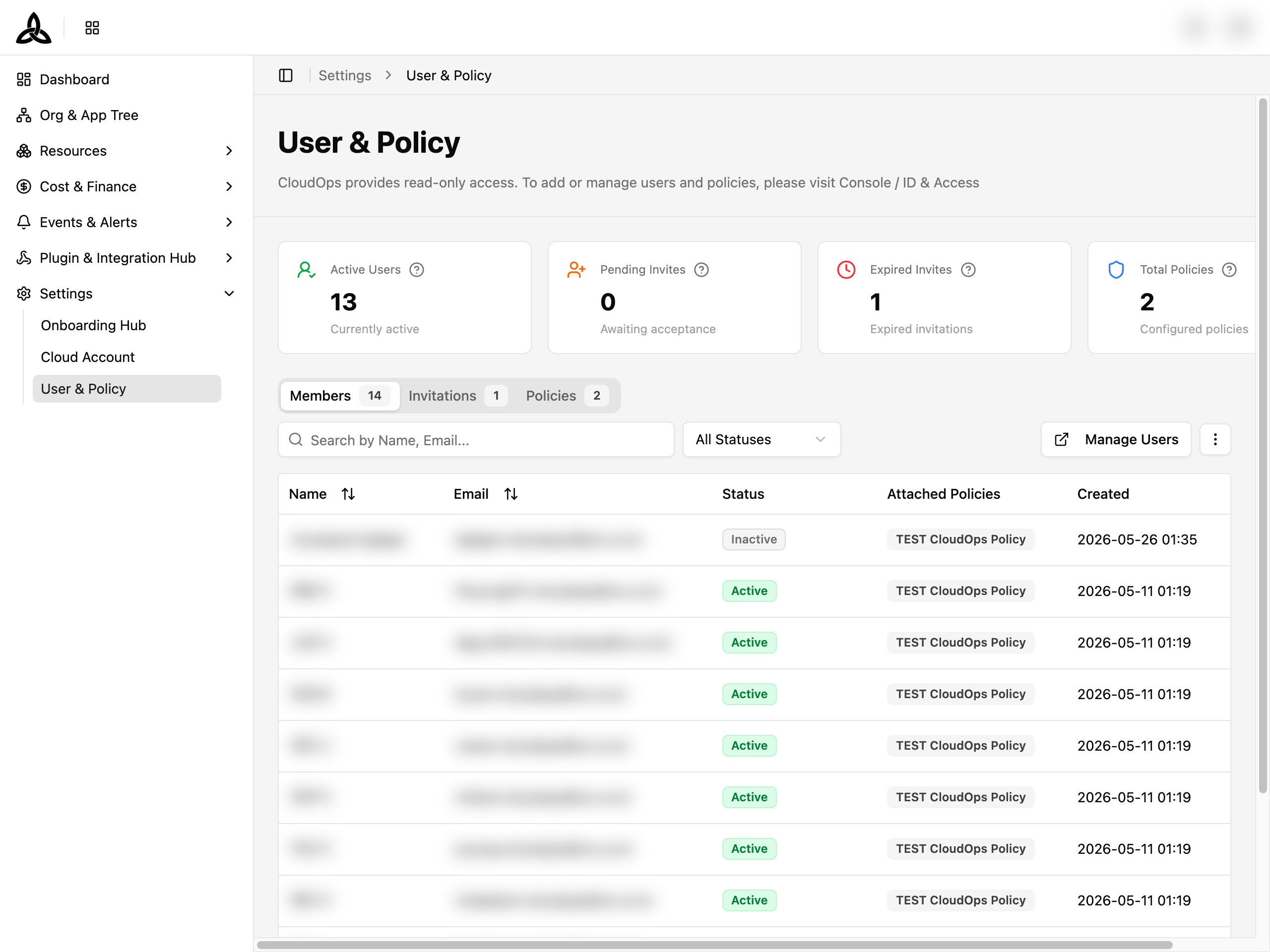
Summary Cards

| Card | Meaning |
|---|---|
| Active Users | Users currently active in the workspace |
| Pending Invites | Invitations sent but not yet accepted |
| Expired Invites | Invitations that ran out before being accepted |
| Total Policies | Permission policies configured for the workspace |
Members
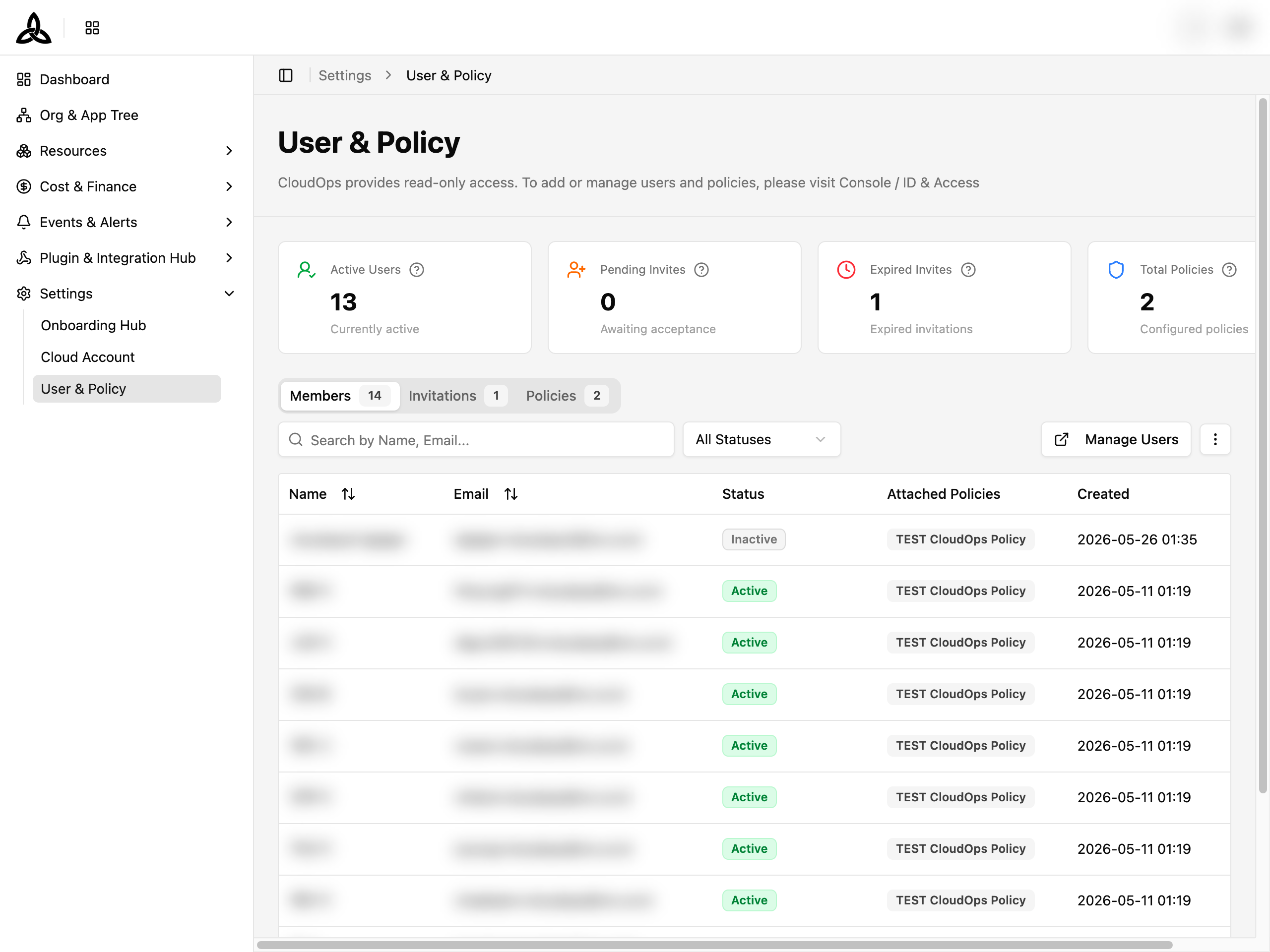
The Members tab lists everyone with access. The count next to the tab name is the number of members.
| Column | Description |
|---|---|
| Name | The member’s display name |
| The email the account is registered under | |
| Status | Active or Inactive |
| Attached Policies | Permission policies granted to this member. Extra policies beyond the first few are summarised as +N |
| Created | When the member was added |
Toolbar
| UI element | Description |
|---|---|
| Search by Name, Email… | Search members by name or email |
| All Statuses | Filter by Active / Inactive |
| [Manage Users ↗] | Opens Console / ID & Access, where members are actually managed |
| ⋮ | Set Display (rows per page, column visibility, order, and pinning) and Refresh |
No Members Found with Invite users to start collaborating in your CloudOps workspace. If a search or filter excluded everything, it shows No results found instead.Invitations
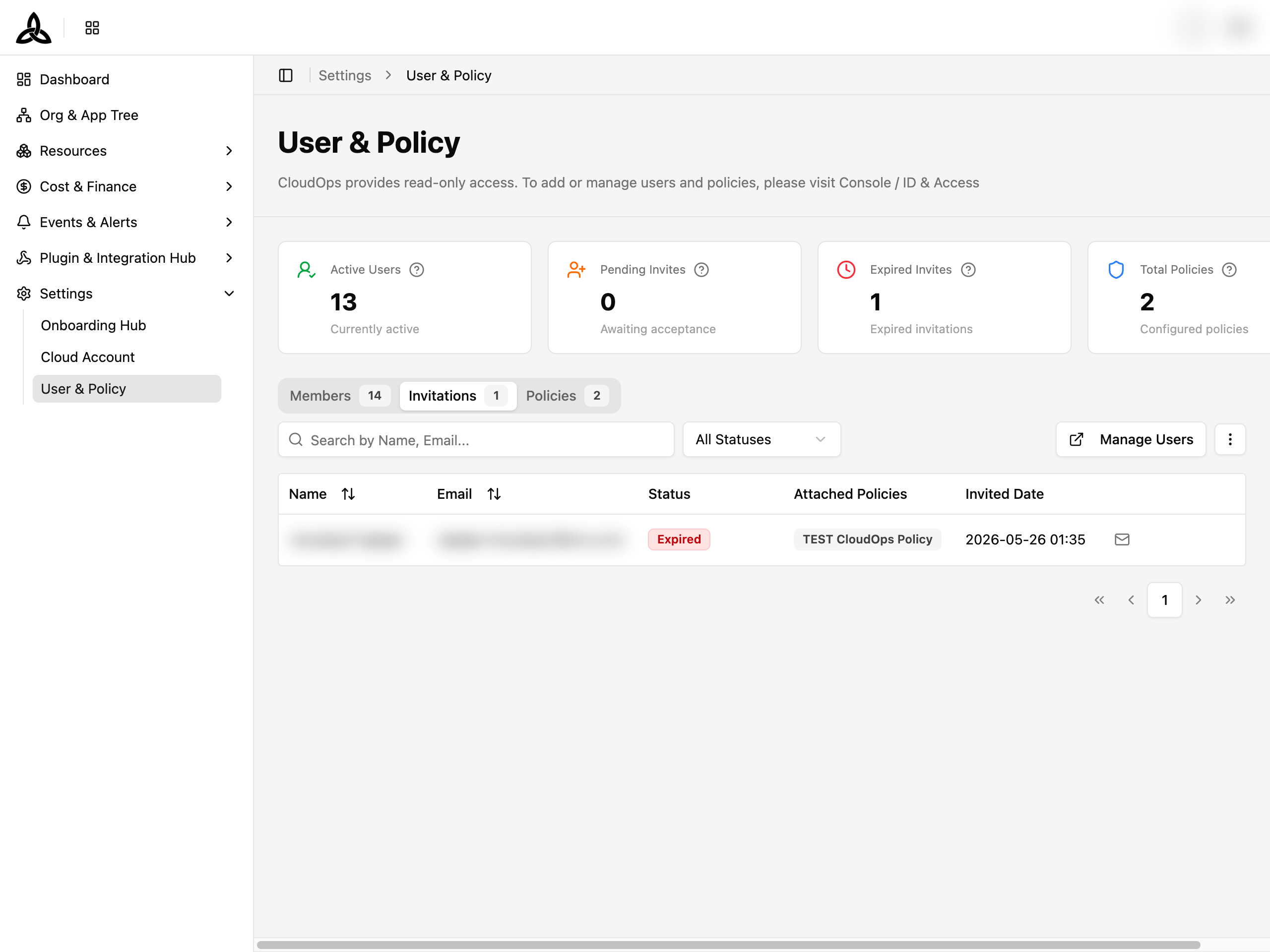
The Invitations tab tracks invitations that have been sent but not yet turned into members, so you can tell an unanswered invite from an expired one.
Statuses are Pending while an invitation is awaiting acceptance and Expired once it has lapsed. Re-sending an expired invitation is done from Console / ID & Access.
Policies
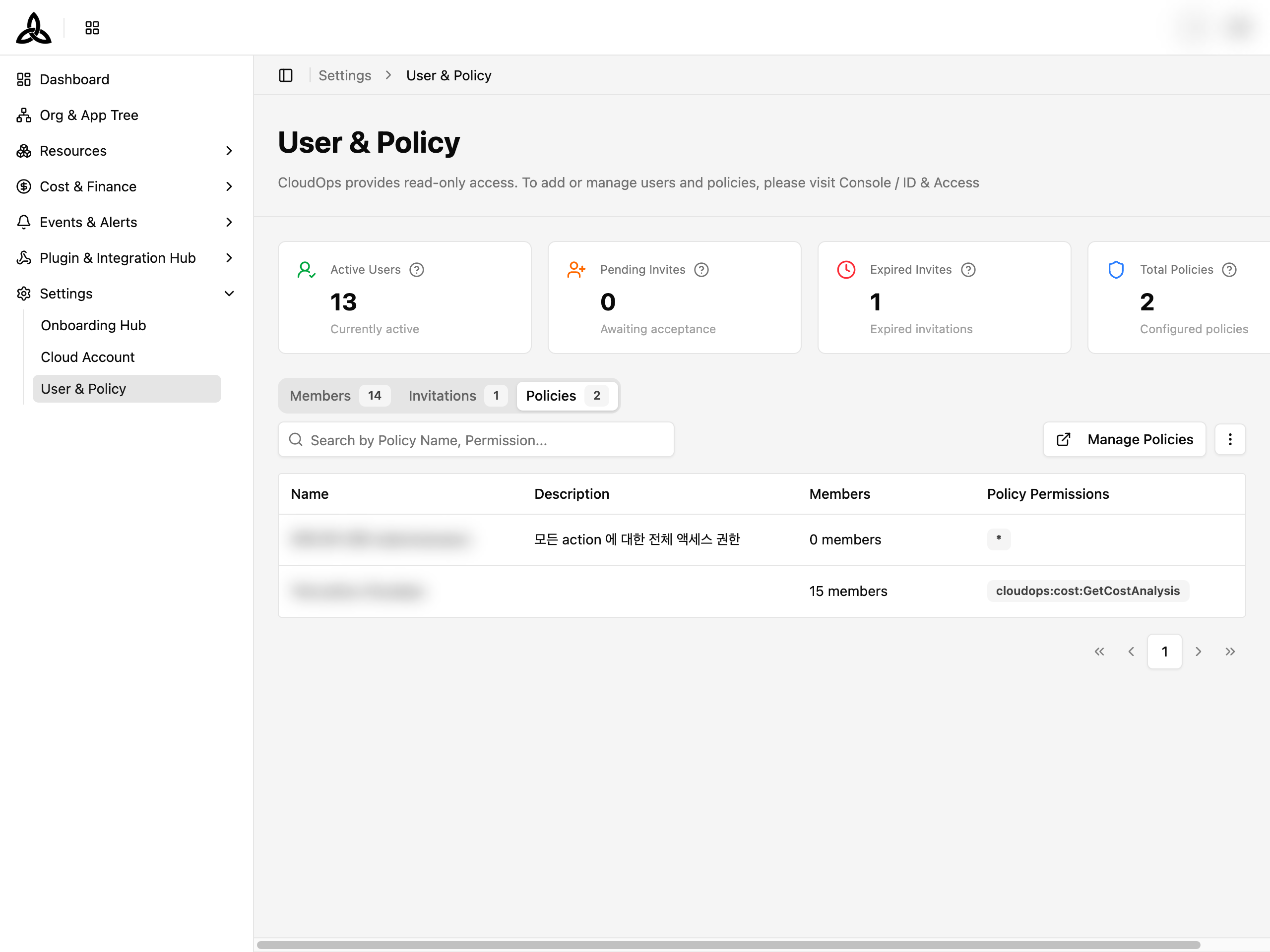
The Policies tab lists the permission policies configured for the workspace — the same names that appear in each member’s Attached Policies column.
Use it to answer the reverse question from the Members tab: instead of “what can this person do?”, “who holds this policy?”