Mapping Rules
On the [Resources > Mapping Rules] page, you can manage rules that automatically assign resources to applications based on resource attributes such as tags or cloud accounts.
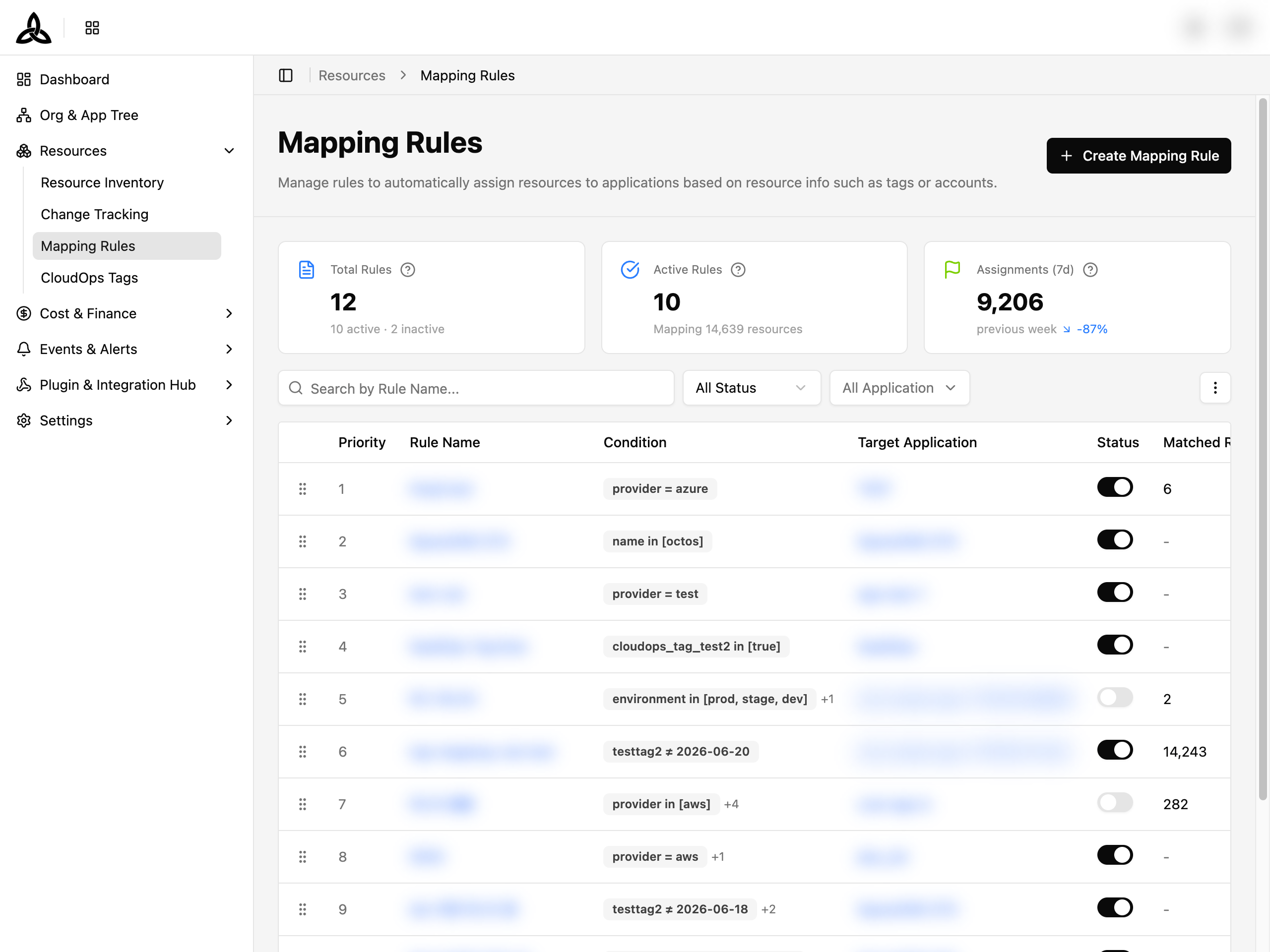
The header holds two actions: [Create Mapping Rule] and [Apply All Rules]. Creating a rule does not assign anything on its own — rules take effect when they are applied, which is described under Applying Rules.
Summary Cards
Three metric cards at the top of the page provide an at-a-glance overview:
| Card | Description |
|---|---|
| Total Rules | Total number of mapping rules, with active and inactive counts |
| Active Rules | Number of currently active rules and how many resources they match |
| Assignments (7d) | Automatic assignments performed in the last 7 days, with a week-over-week trend |
Rule List
Rules are displayed in a table ordered by priority. You can reorder rules by dragging the grip handle on the left side of each row.
| Column | Description |
|---|---|
| ⠿ (Grip) | Drag to reorder priority |
| Priority | Evaluation order — lower numbers run first |
| Rule Name | Name of the mapping rule (click to open the detail page) |
| Condition | Condition badges showing the matching criteria |
| Target Application | Application that matched resources will be assigned to (click to navigate) |
| Status | Toggle switch to enable or disable the rule |
| Matched Resources | Number of resources currently matched by this rule |
| Last Matched | Timestamp of the most recent match, with a status indicator dot |
Search and Filters

| UI Element | Description |
|---|---|
| Search | Search rules by name |
| Status | Filter by status — All Status, Active, Inactive |
| Application | Filter by one or more target applications |
| More menu (⋮) | Refresh the list |
Row Actions
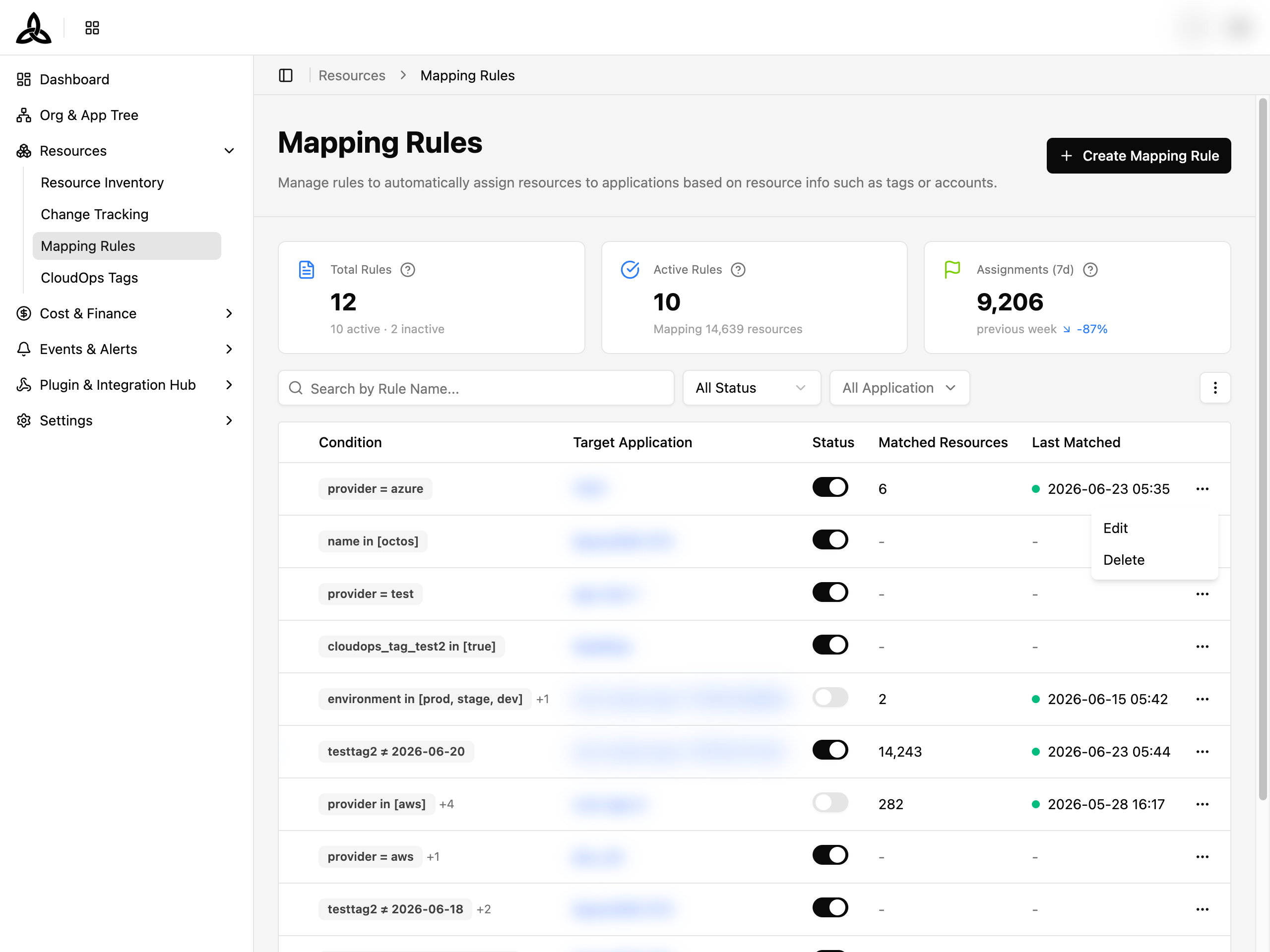
Click the more menu (⋯) on a rule row to access the following actions:
| Action | Description |
|---|---|
| Edit | Navigate to the edit form to modify the rule |
| Delete | Open the delete confirmation dialog |
Exporting the List
[Export] on the toolbar turns what you are currently looking at into a file.
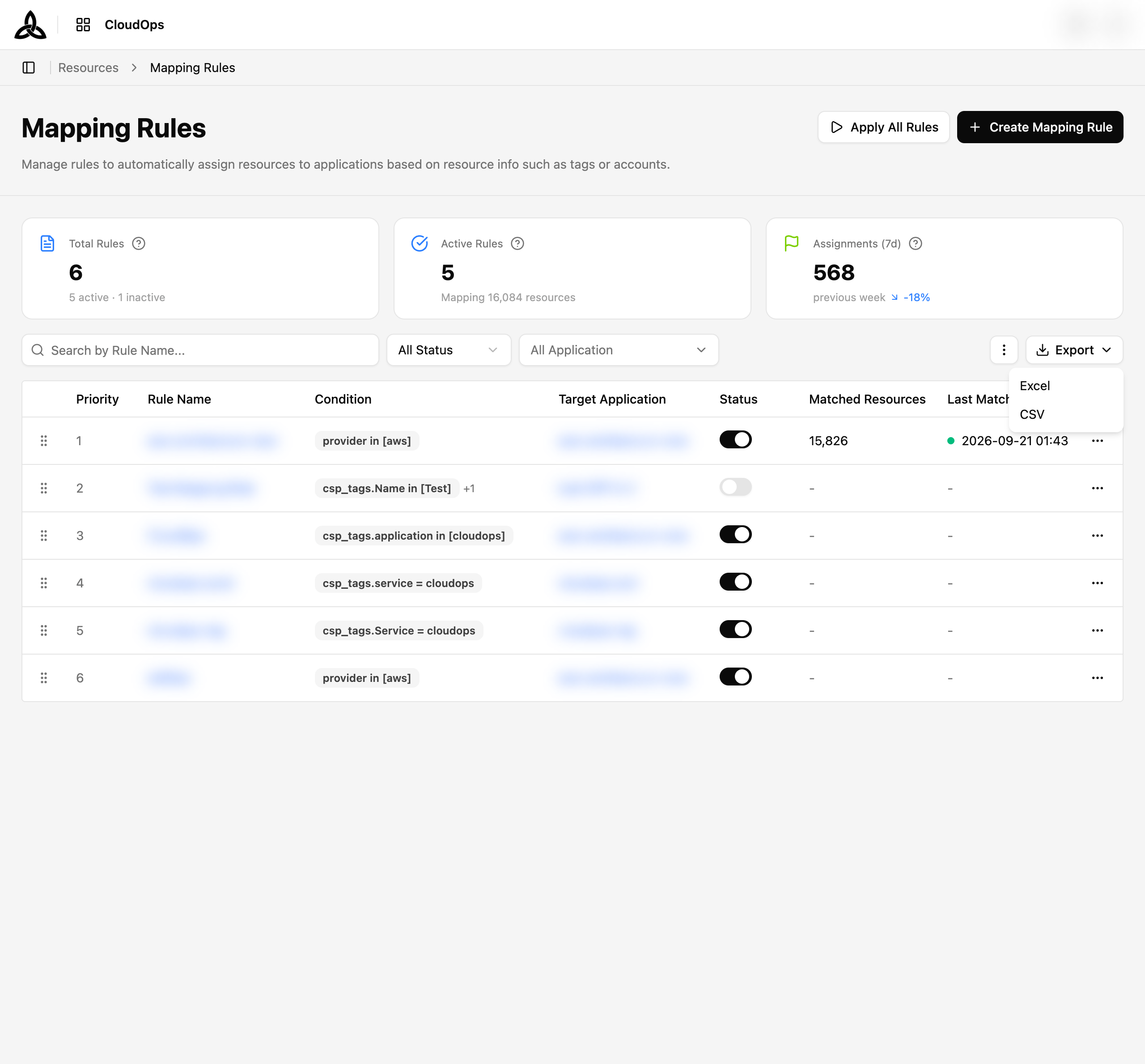
Selecting it offers the two formats; choosing one starts the export.
| Format | Row limit |
|---|---|
| Excel | 30,000 rows |
| CSV | 50,000 rows |
The file is built from the filters you have applied and the columns visible on screen — narrowing the list narrows the file, and a column turned off in display settings does not appear in it. At least one column has to be on.
When the list is too big
Going over the row limit stops the export rather than silently truncating it, and you are told by how much. Narrow the filters — or turn off columns — and run it again.
The file downloads on its own once it is ready.
Rule Detail
Click a rule name in the table to open its detail page. The detail view includes a header showing the rule name, description, and action buttons (Edit / Delete), plus three tabs.
Summary Tab
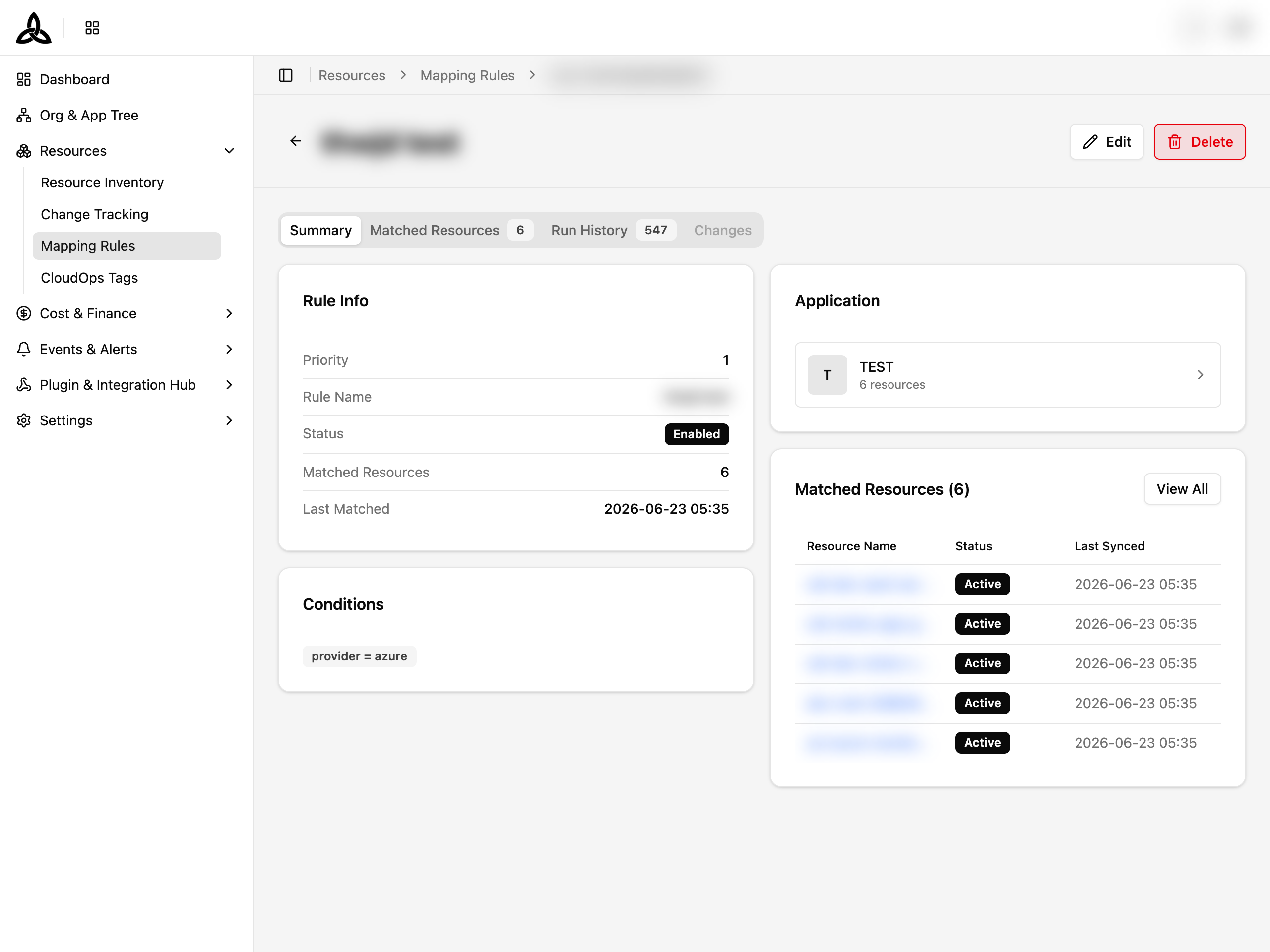
Provides an overview of the rule:
- Rule Info — Priority, Rule Name, Status (Enabled / Disabled), Matched Resources count, and Last Matched timestamp
- Conditions — The list of attribute conditions defined on the rule
- Application — Target application card showing abbreviation and total resource count
- Matched Resources preview — Top 5 matched resources with a View All link
Matched Resources Tab
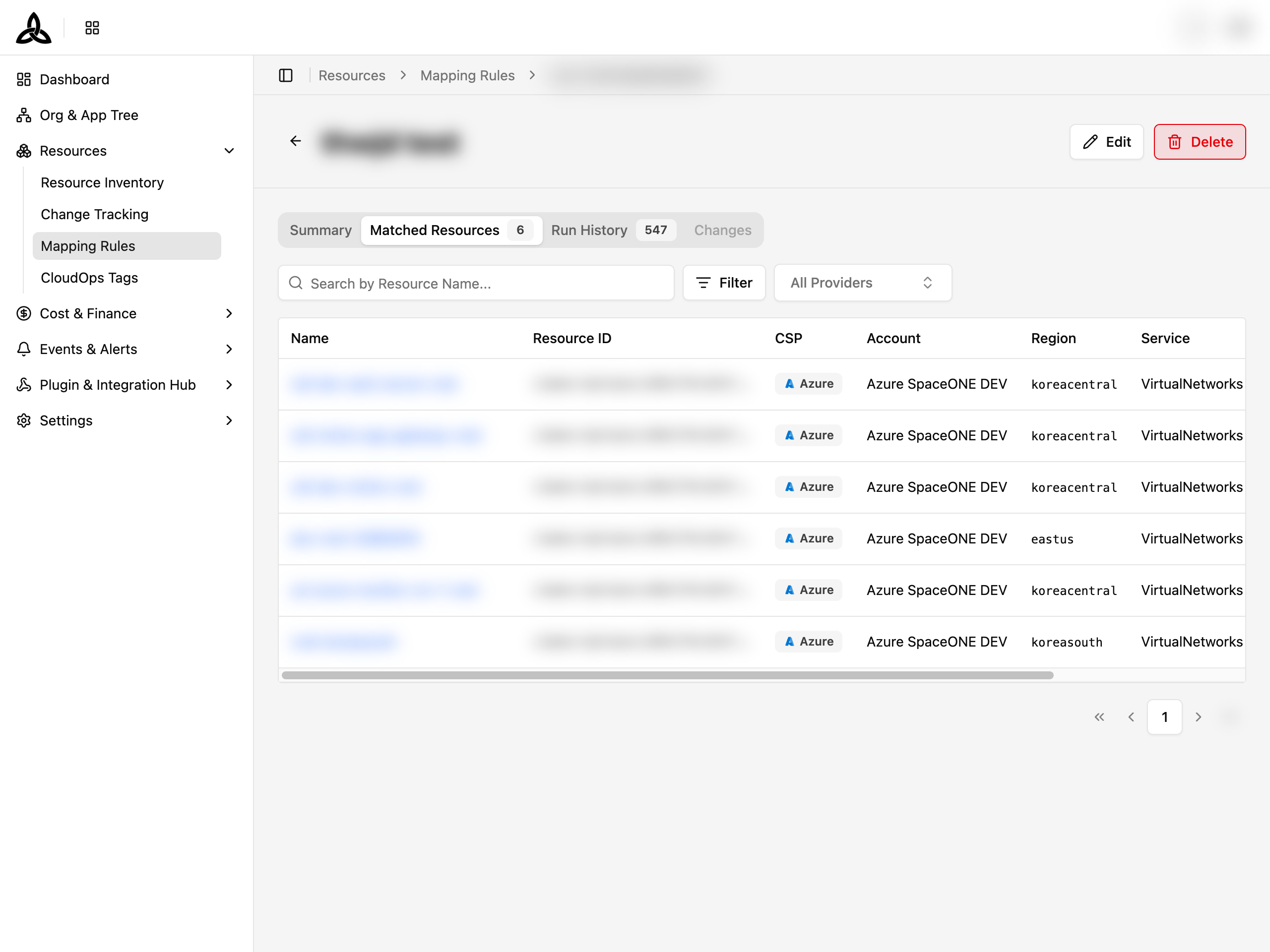
A paginated, filterable table of all resources matched by this rule.
| Column | Description |
|---|---|
| Name | Resource name |
| Resource ID | Cloud provider resource identifier |
| CSP | Cloud service provider — AWS, Azure, or GCP |
| Account | Cloud account the resource belongs to |
| Region | Region of the resource |
| Service | Service type |
| Status | Resource status — Active, Disconnected, Deleted, Virtual, External |
| Last Synced | Last synchronization timestamp |
Filters: Provider, Services, Regions, Statuses, and a search field.
Run History Tab
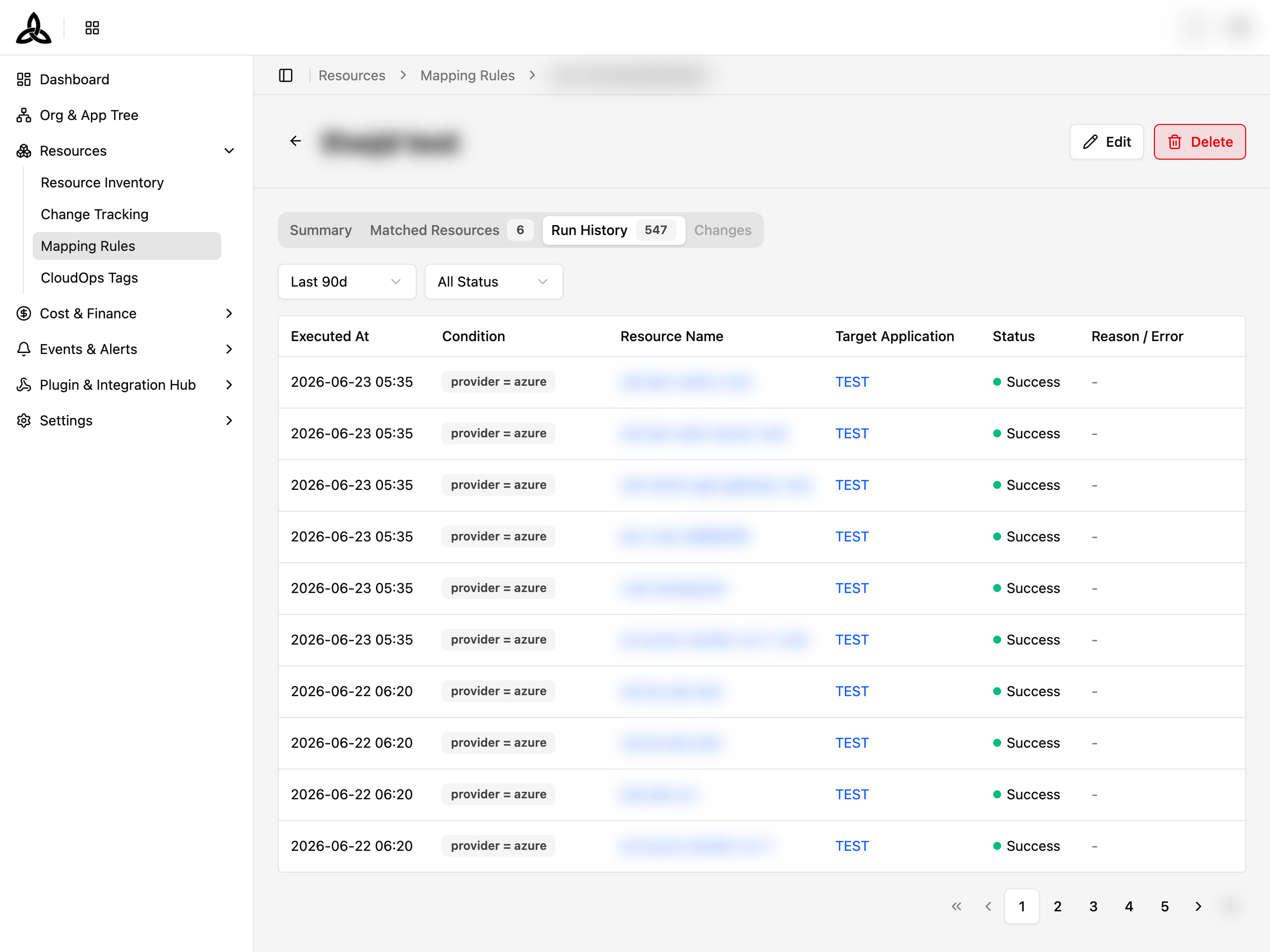
A paginated log of every automatic assignment execution for this rule.
| Column | Description |
|---|---|
| Executed At | Timestamp of the assignment run |
| Condition | Conditions that were evaluated |
| Resource Name | Resource that was matched |
| Target Application | Application the resource was assigned to |
| Status | Success or Failed |
| Reason / Error | Error message if the assignment failed |
Filters: Time range (Last 24h / 7d / 30d / 90d) and Status (All / Success / Failed).
Applying Rules
Creating or editing a rule does not move any resource by itself. Rules take effect when they are applied: every active rule is evaluated in priority order against every unmapped resource, and each resource is assigned to the first rule it matches.
Select [Apply All Rules] above the list to run this at any time.
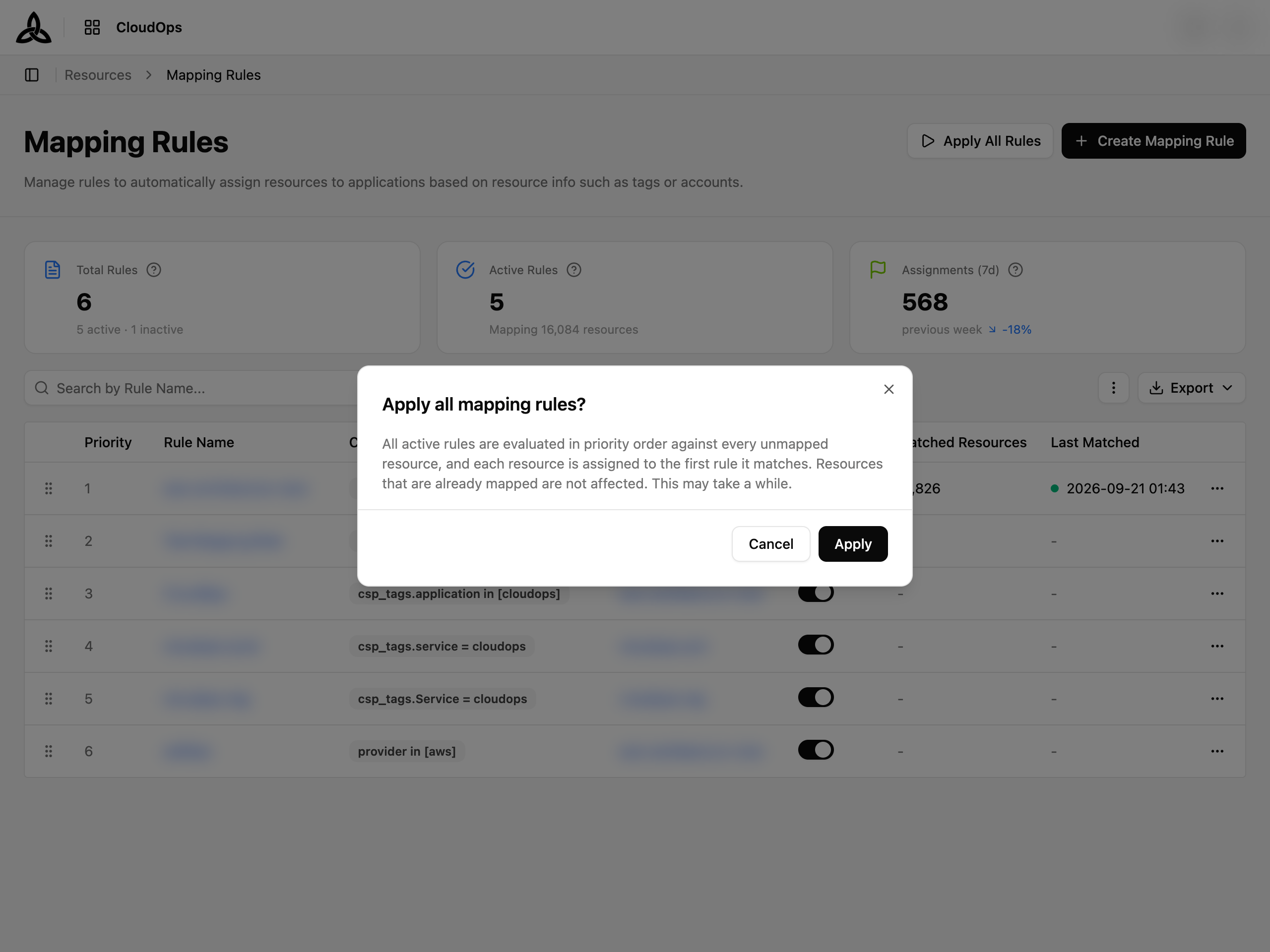
Resources that are already mapped are not affected, even if you change the rules afterwards. A run can take a while; when it finishes, a message reports how many assignments were applied, failed, and skipped.
After creating a rule
Creating a rule is the moment it is easiest to forget this second step. So when you return to the list right after saving a new rule, the confirmation opens on its own and explains the situation in its own words.
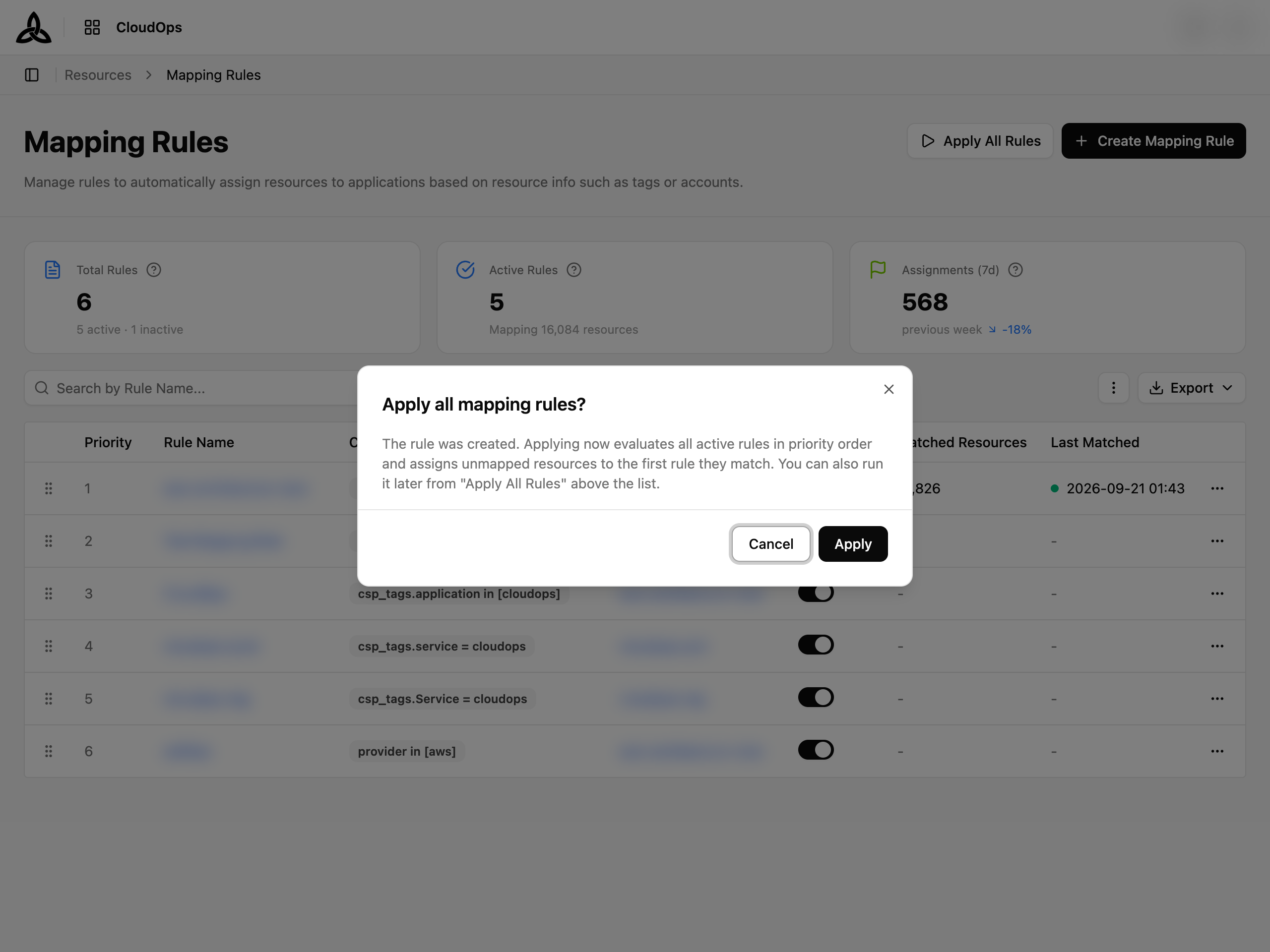
Selecting [Apply] runs it immediately. Selecting [Cancel], or closing the dialog, leaves the new rule in place but unapplied — it will pick up resources on the next scheduled run, or whenever you use [Apply All Rules] yourself.
Create a Mapping Rule
Click [Create Mapping Rule]
Click the [Create Mapping Rule] button at the top right of the list page. This opens a dedicated form page.
Fill in General information
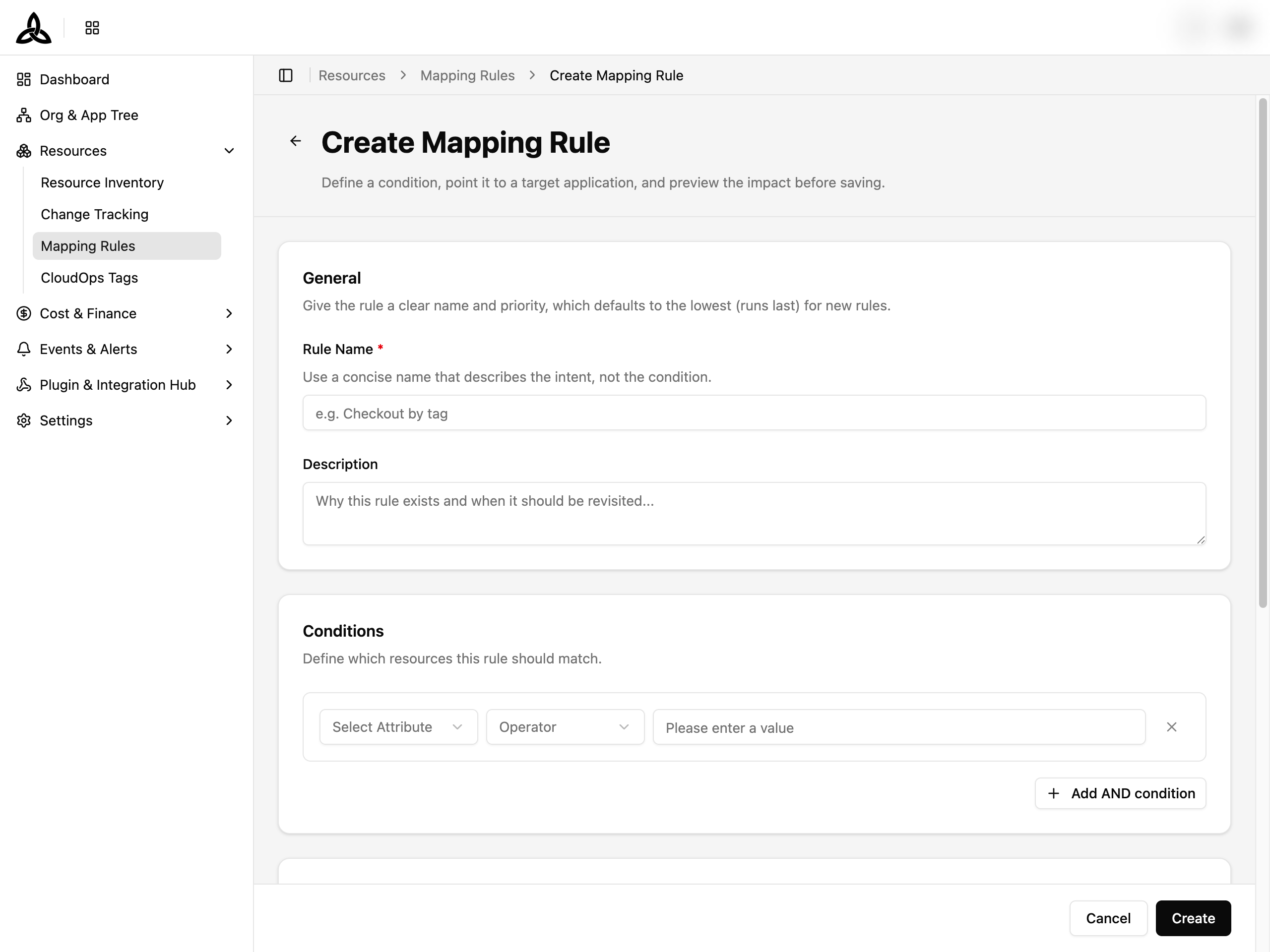
| Field | Required | Description |
|---|---|---|
| Rule Name | Yes | A concise name that describes the intent of the rule |
| Description | No | Explain why this rule exists and when it should be revisited |
Define Conditions
| Field | Required | Description |
|---|---|---|
| Attribute | Yes | What to match — Provider, Resource Name, Resource Group, Resource Type, Tag/Label, or CloudOps Tags |
| Operator | Yes | How to match — equals, not, in, contain |
| Key | Conditional | Required for Tag/Label and CloudOps Tags attributes |
| Value | Yes | The value(s) to match against |
Click [Add AND condition] to add multiple conditions. All conditions must be satisfied for a resource to match.
Select Target Application
Choose a leaf-level application to assign matched resources to.
Review Conflict Preview
Before saving, run the Conflict Preview to check whether your conditions overlap with existing rules. If conflicts exist, they are shown with the conflicting rule names and overlapping conditions.
Click [Create]
Click [Create] to save the rule. You are redirected back to the list page, where the apply confirmation opens automatically so the new rule can take effect — see After creating a rule.
Edit a Mapping Rule
Open the edit page
From the list page, click the more menu (⋯) on the rule row and select Edit. Or from the detail page, click the Edit button in the header.
Modify fields
The edit form is identical to the create form, pre-populated with the existing values. You can update the rule name, description, conditions, and target application.
Review Conflict Preview
As with creating, the conflict preview checks for overlaps. The current rule is excluded from the conflict check.
Click [Update]
Click [Update] to apply the changes.
Delete a Mapping Rule
Open the delete dialog
From the list page, click the more menu (⋯) on the rule row and select Delete. Or from the detail page, click the Delete button in the header.
Confirm deletion
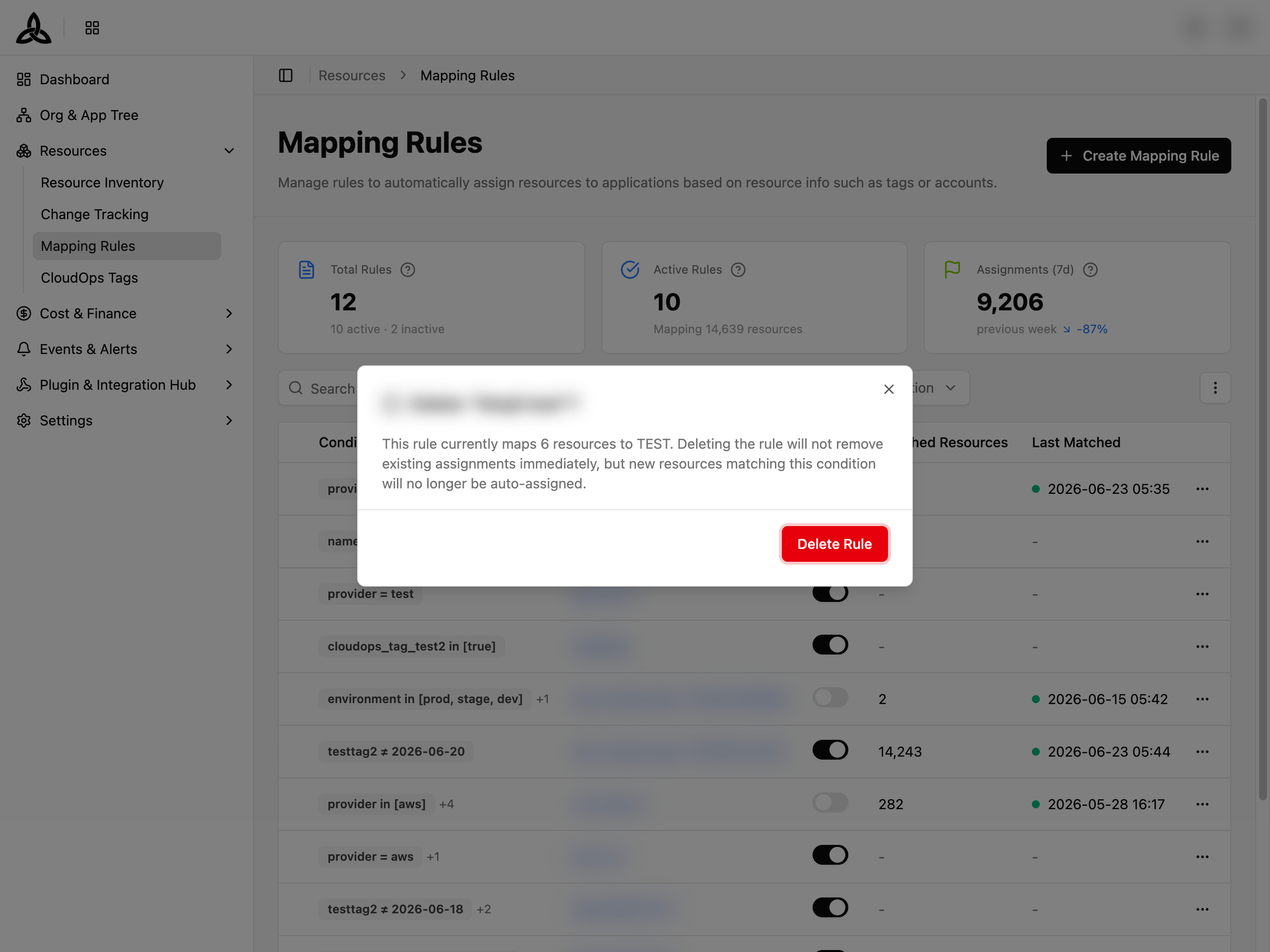
The dialog shows the rule name, how many resources are currently matched, and the target application. Click [Delete Rule] to confirm.
Priority and Reorder
Rules are evaluated in priority order (lowest number first). To change a rule’s priority, drag its grip handle (⠿) to a new position in the table. The priority numbers update automatically.