CloudOps Tags
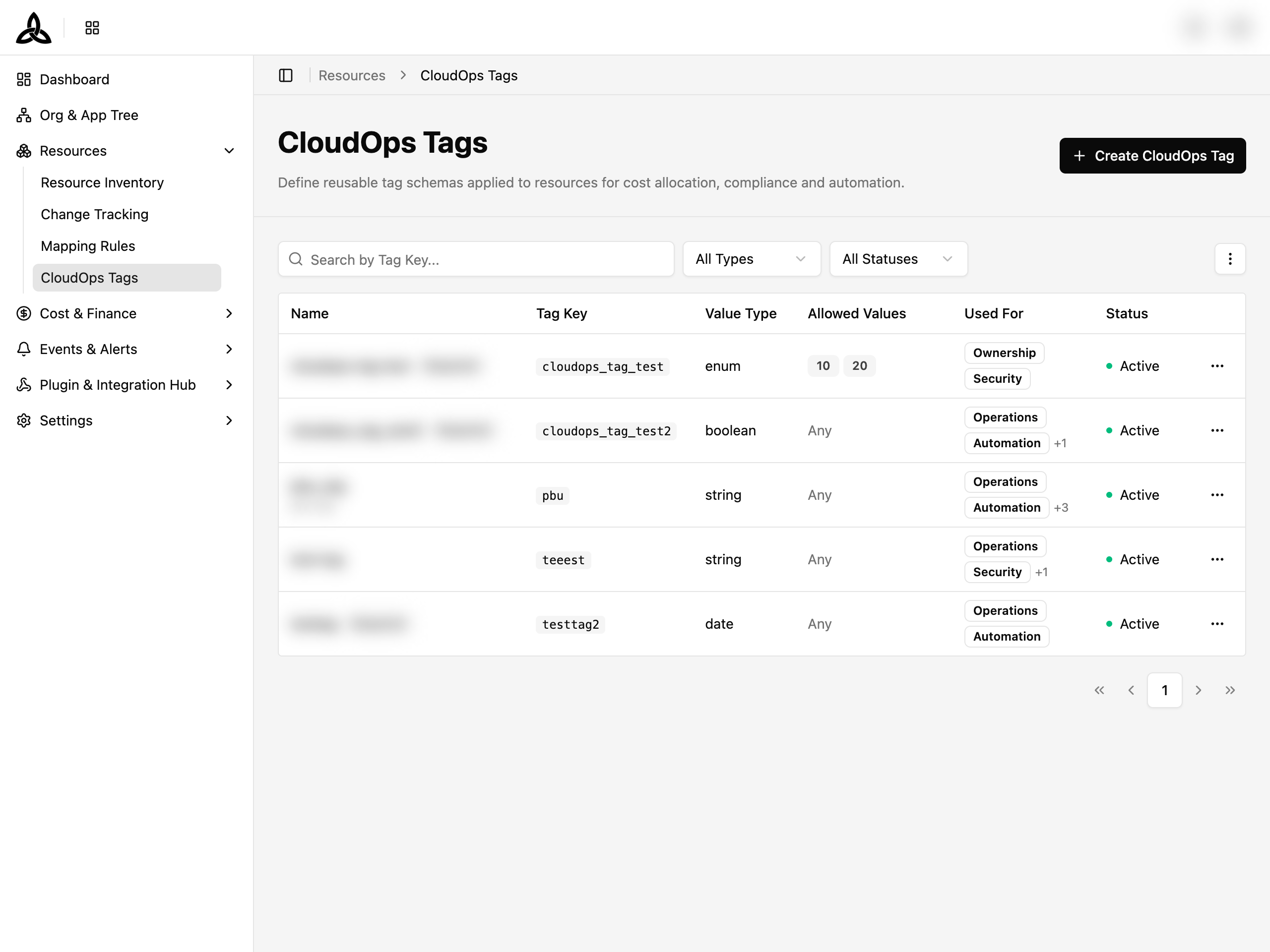
On the [Resources > CloudOps Tags] page, you can define and manage reusable tag schemas that are applied to resources for cost allocation, compliance, and automation.
Tag List
Tags are displayed in a paginated table with the following columns:
| Column | Description |
|---|---|
| Name | Display name and description of the tag |
| Tag Key | The unique key identifier used when applying the tag |
| Value Type | Data type — String, Enum, Number, Boolean, or Date |
| Allowed Values | For Enum type, the list of permitted values. Other types show “Any” |
| Used For | Resource categories where this tag is applicable (e.g., Operations, Security, Automation, Ownership, Cost Reference) |
| Status | Current state — Active, Inactive, or Deprecated |
Search and Filters

| UI Element | Description |
|---|---|
| Search | Search tags by name or tag key |
| All Types | Filter by value type (String, Enum, Number, Boolean, Date) |
| All Statuses | Filter by status (Active, Inactive, Deprecated) |
| More menu (⋮) | Additional options: Set Display (column visibility), Refresh |
Row Actions
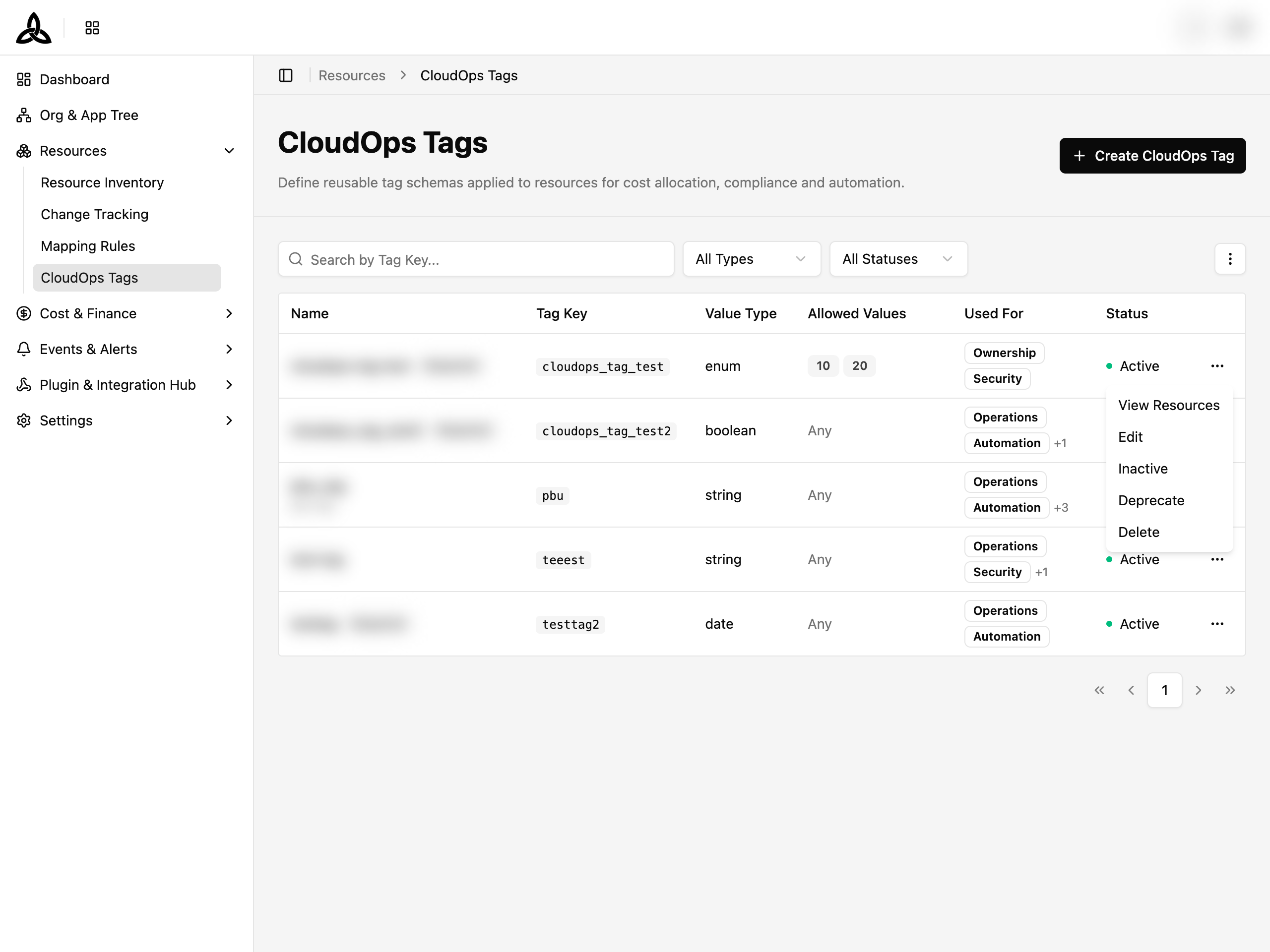
Click the more menu (⋯) on a tag row to access the following actions:
| Action | Description |
|---|---|
| View Resources | Navigate to Resource Inventory filtered by this tag key |
| Edit | Open the edit dialog to modify tag properties |
| Inactive | Deactivate an active tag (shown when status is Active) |
| Activate | Reactivate an inactive or deprecated tag (shown when status is not Active) |
| Deprecate | Mark the tag as deprecated (hidden when already deprecated) |
| Delete | Permanently delete the tag |
Exporting the List
[Export] on the toolbar turns what you are currently looking at into a file.
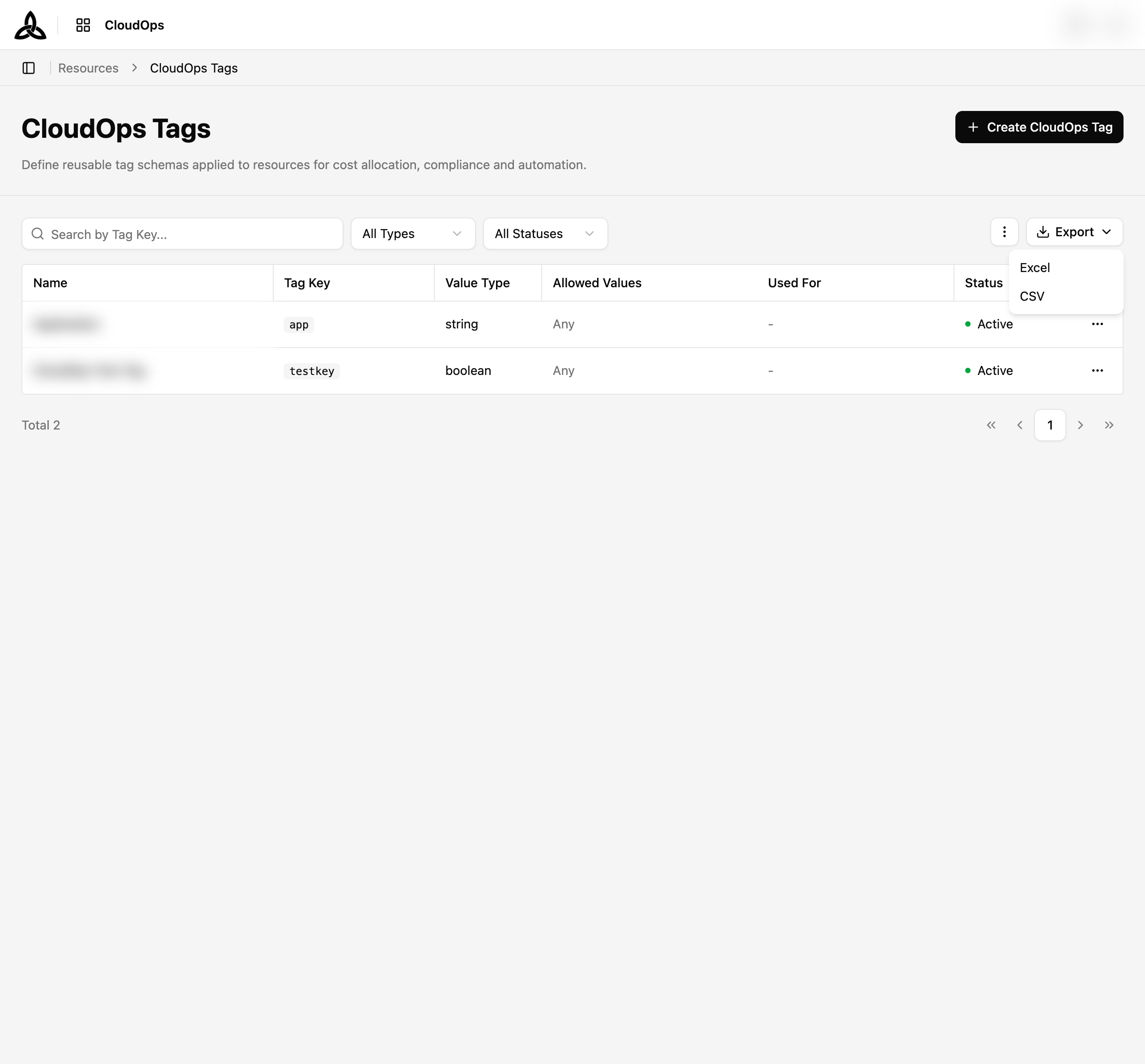
Selecting it offers the two formats; choosing one starts the export.
| Format | Row limit |
|---|---|
| Excel | 30,000 rows |
| CSV | 50,000 rows |
The file is built from the filters you have applied and the columns visible on screen — narrowing the list narrows the file, and a column turned off in display settings does not appear in it. At least one column has to be on.
When the list is too big
Going over the row limit stops the export rather than silently truncating it, and you are told by how much. Narrow the filters — or turn off columns — and run it again.
The file downloads on its own once it is ready.
Create a CloudOps Tag
Click [+ Create CloudOps Tag]
Click the [+ Create CloudOps Tag] button at the top right of the page.
Fill in the tag details
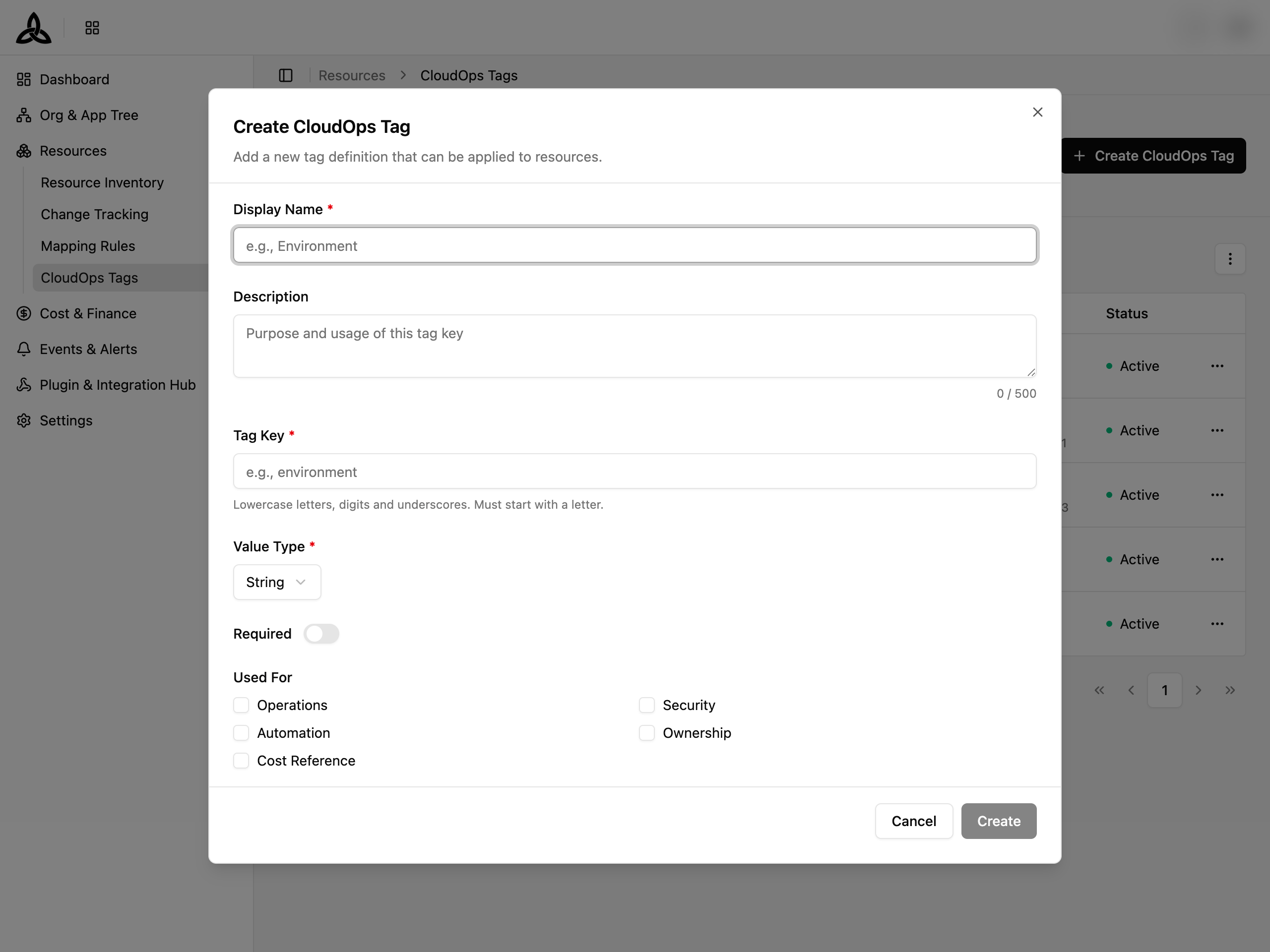
| Field | Required | Description |
|---|---|---|
| Display Name | Yes | A human-readable name for the tag (e.g., Environment) |
| Description | No | Purpose and usage of this tag key (max 500 characters) |
| Tag Key | Yes | Unique identifier. Lowercase letters, digits, and underscores only. Must start with a letter (e.g., environment) |
| Value Type | Yes | Data type — String, Enum, Number, Boolean, or Date |
| Allowed Values | Enum only | Define the list of permitted values (enter a value and press Enter) |
| Required | No | Toggle to make this tag mandatory when applying to resources |
| Used For | Yes | Select at least one use case (Operations, Security, Automation, Ownership, Cost Reference) |
Click [Create]
Click [Create] to save the new tag. It will appear in the tag list with Active status.
Edit a CloudOps Tag
Open the edit dialog
Click the more menu (⋯) on the tag row and select Edit.
Modify fields
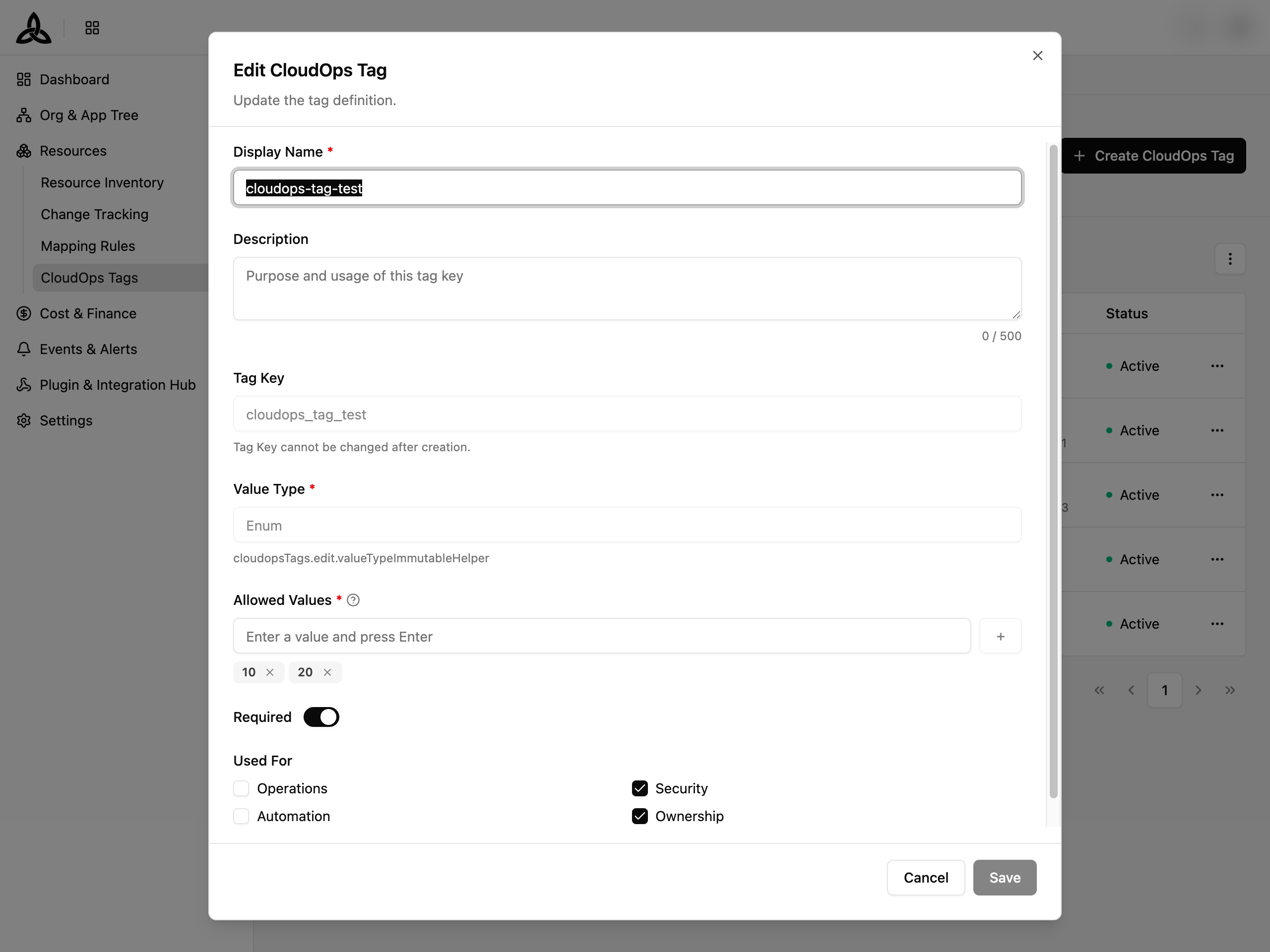
| Field | Editable | Description |
|---|---|---|
| Display Name | Yes | Update the display name |
| Description | Yes | Update the description (max 500 characters) |
| Tag Key | No | Cannot be changed after creation |
| Value Type | No | Cannot be changed after creation |
| Allowed Values | Yes (Enum only) | Add or remove permitted values |
| Required | Yes | Toggle mandatory status |
| Used For | Yes | Update applicable use cases |
Click [Save]
Click [Save] to apply the changes.
Change Tag Status
Tags can be managed through the following status transitions using the row actions menu.
Activate
Reactivate an inactive or deprecated tag. The tag will be included in new tag recommendations again.
Inactive
Temporarily deactivate an active tag. The tag will be excluded from new tag recommendations, but existing tags on resources are preserved.
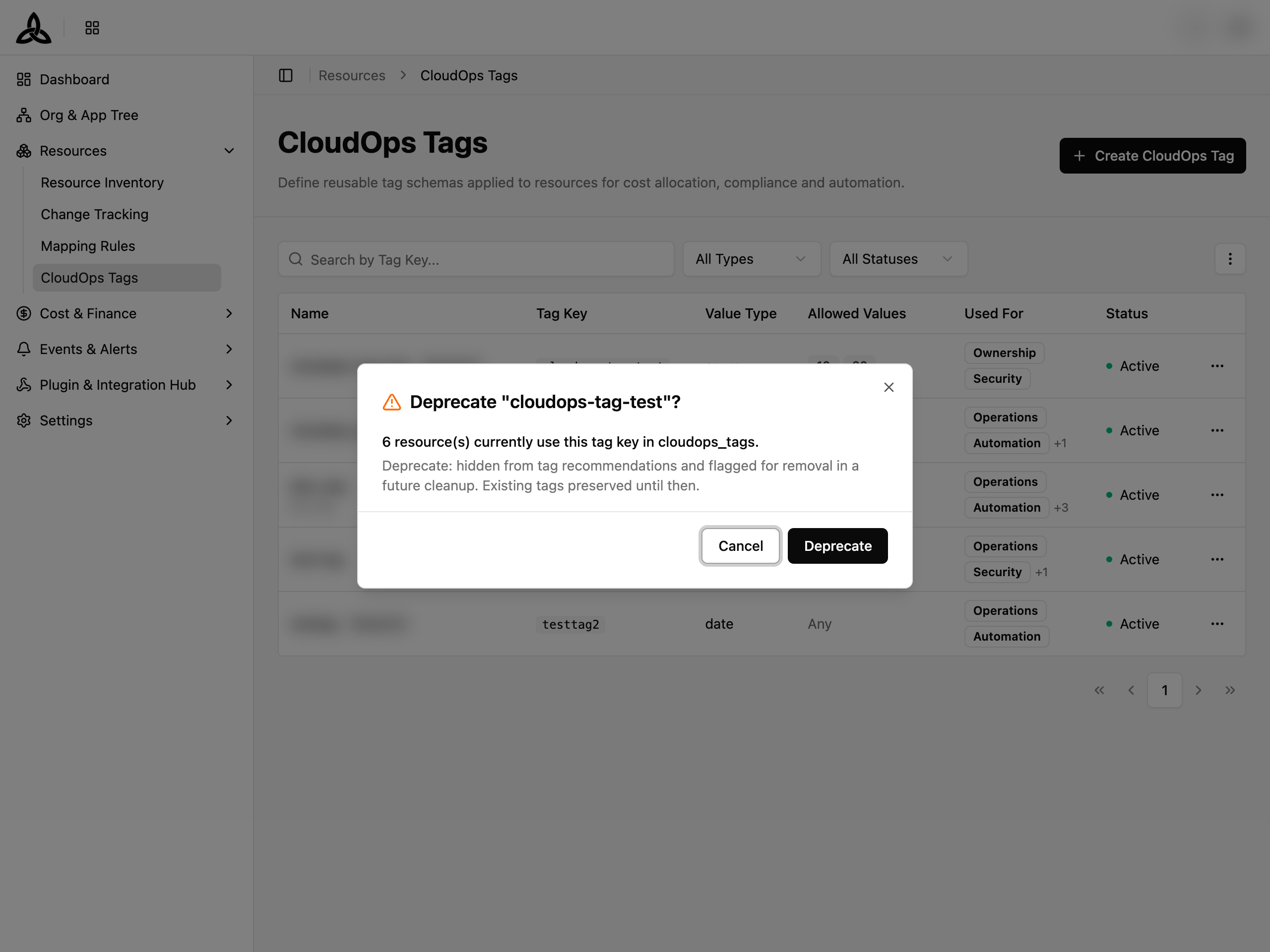
Deprecate
Mark a tag as deprecated. The tag will be hidden from tag recommendations and flagged for removal in a future cleanup. Existing tags on resources are preserved until then.
Delete
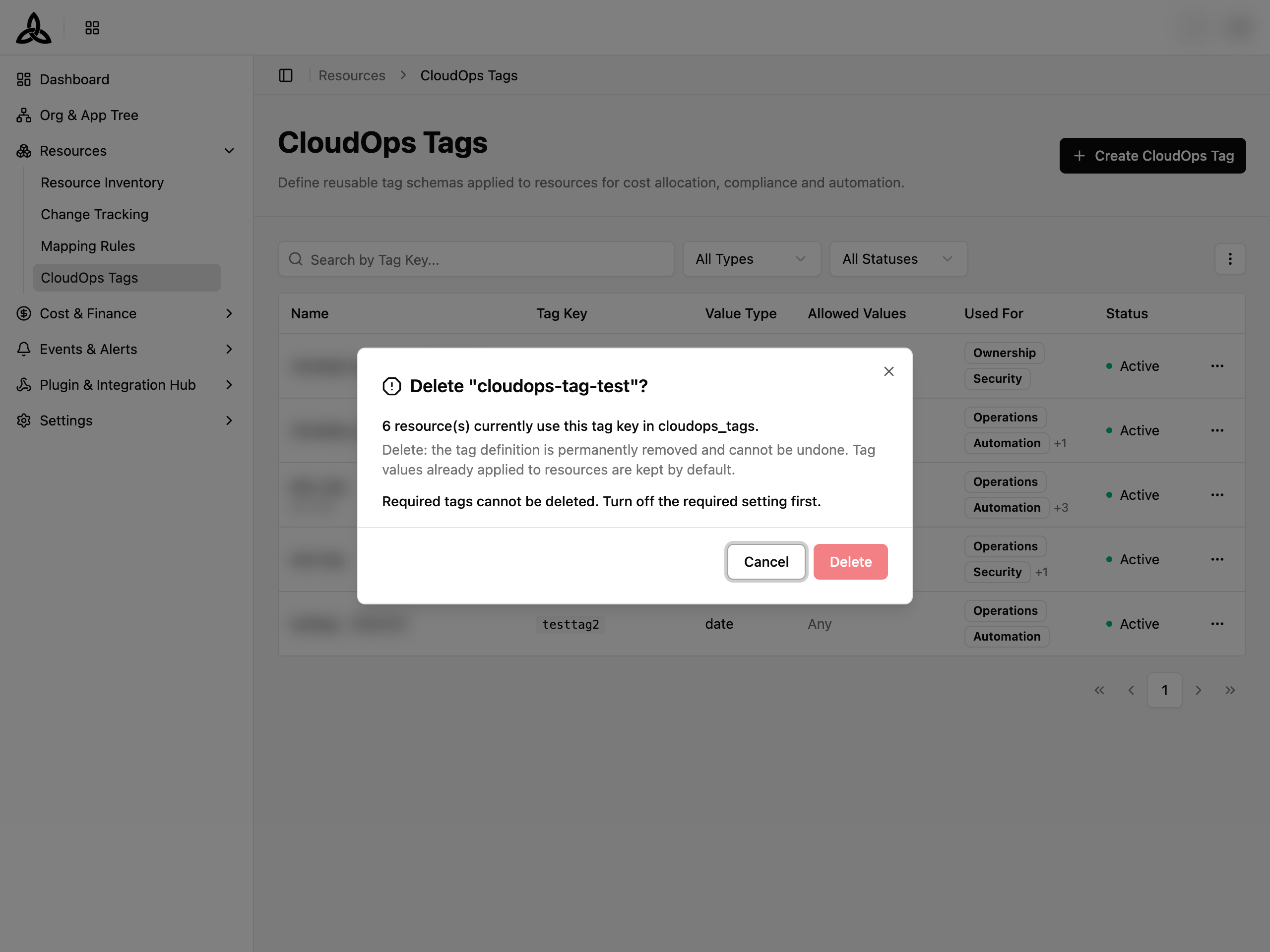
Permanently remove a tag definition and all values applied to resources. This action cannot be undone.