Change Tracking
On the [Resources > Change Tracking] page, you can track and monitor changes across your cloud resources.
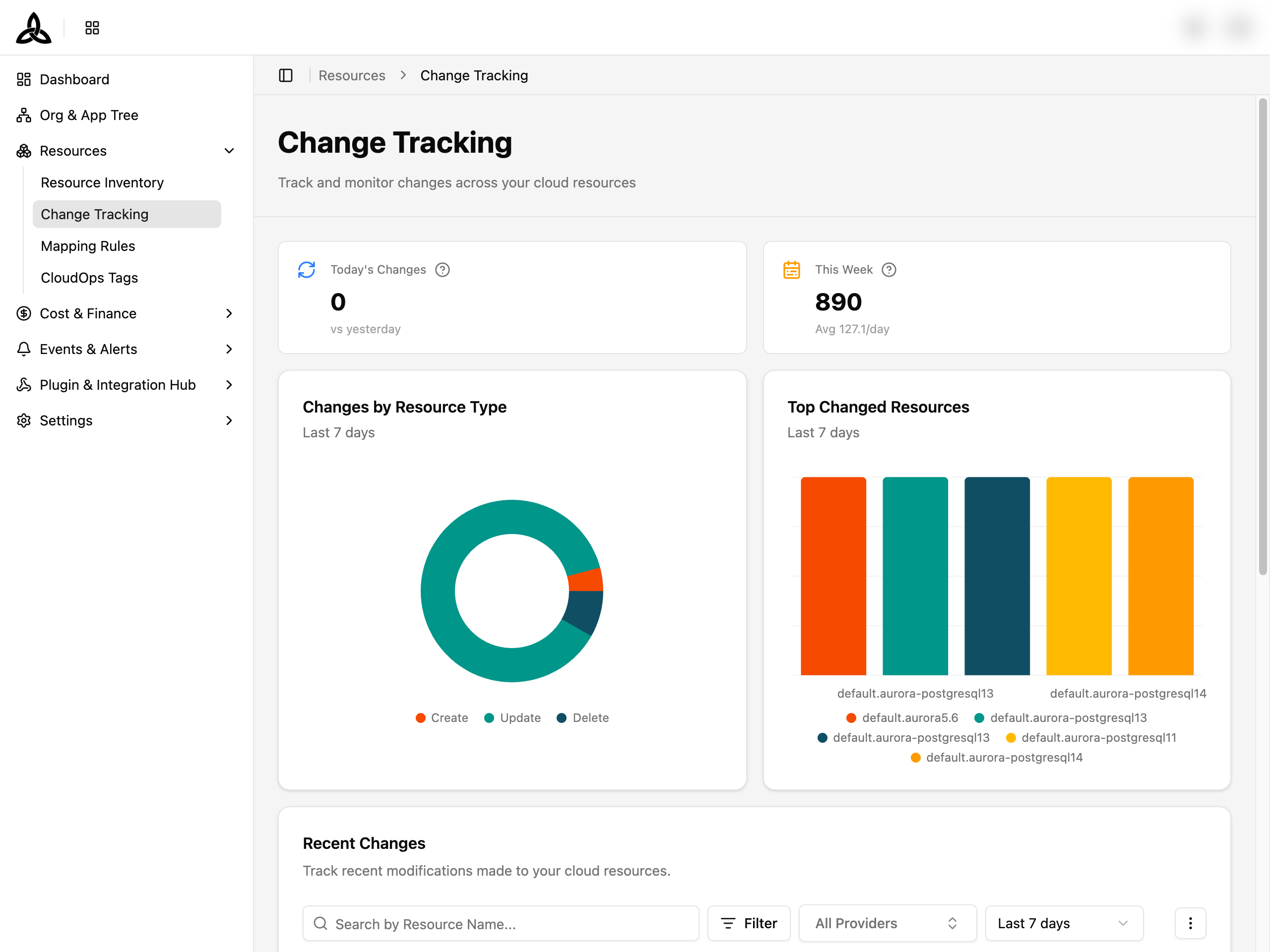
Summary Cards
Two metric cards at the top provide a quick overview of change activity:
| Card | Description |
|---|---|
| Today’s Changes | Number of resource changes detected today, with a trend comparison versus yesterday |
| This Week | Total changes this week, with a daily average (e.g., “Avg 703/day”) |
Analytics
Two visualization cards display change patterns over the last 7 days:
| Chart | Description |
|---|---|
| Changes by Resource Type | Donut chart showing the distribution of changes grouped by resource type, with a color-coded legend |
| Top Changed Resources | Horizontal bar chart listing the resources with the most changes |
Recent Changes
The main section displays a paginated table of individual resource changes.
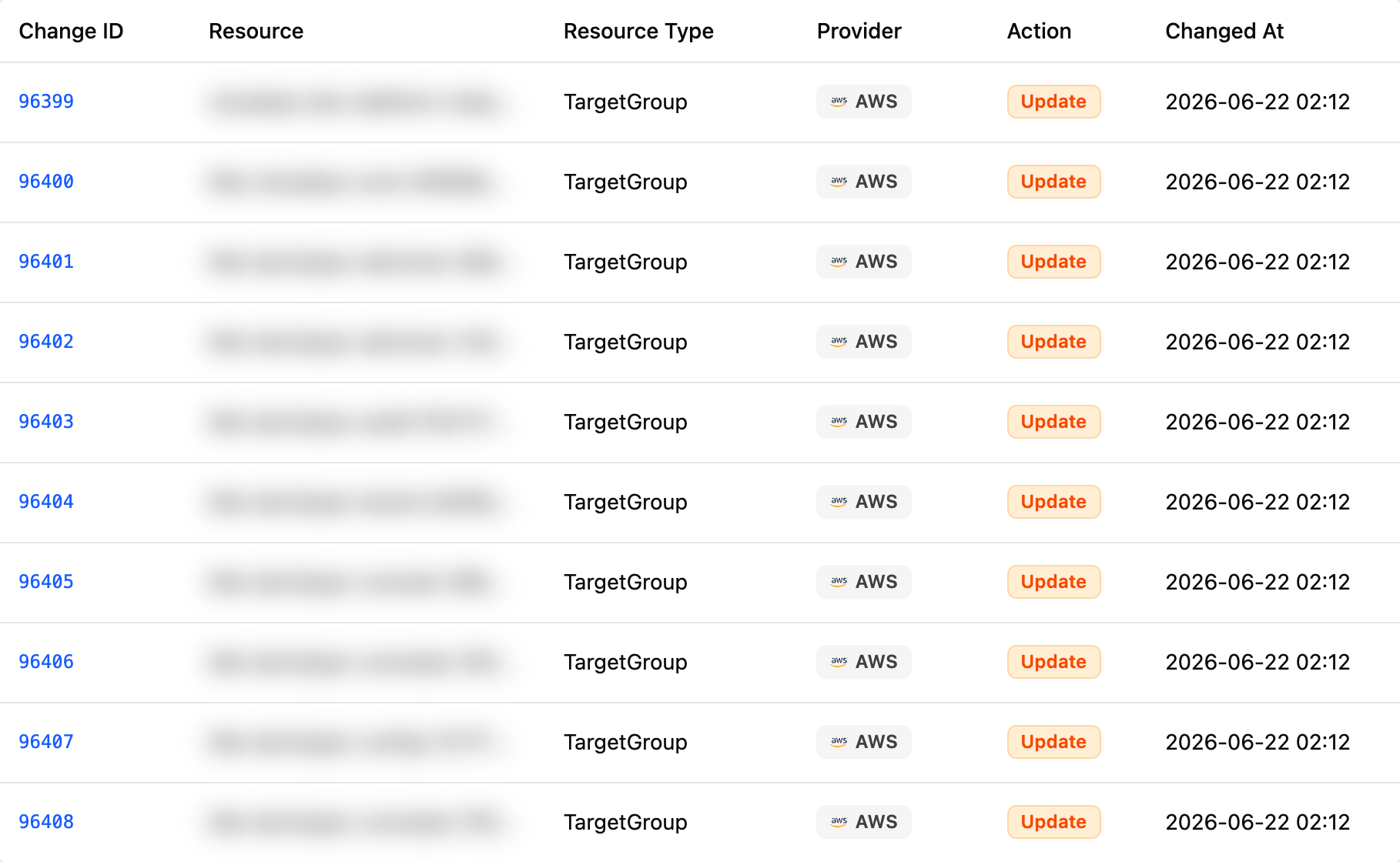
Table Columns
| Column | Description |
|---|---|
| Change ID | Unique identifier for the change event. Clickable — navigates to the resource detail’s Change History tab |
| Resource | Name or ID of the affected resource |
| Resource Type | Type of the cloud resource (e.g., EC2 Instance, S3 Bucket) |
| Provider | Cloud service provider (AWS, Azure, GCP, NCP) |
| Action | Type of change — Create, Update, or Delete, shown as a color-coded badge |
| Changed At | Timestamp of when the change was detected |
Search and Filters

| UI Element | Description |
|---|---|
| Search | Search by resource name |
| Filter (funnel icon) | Filter by Action, Resource Type, Account, or Organization. Each category has individual checkboxes |
| All Providers | Filter by provider (AWS, Azure, GCP, NCP). Supports multi-select |
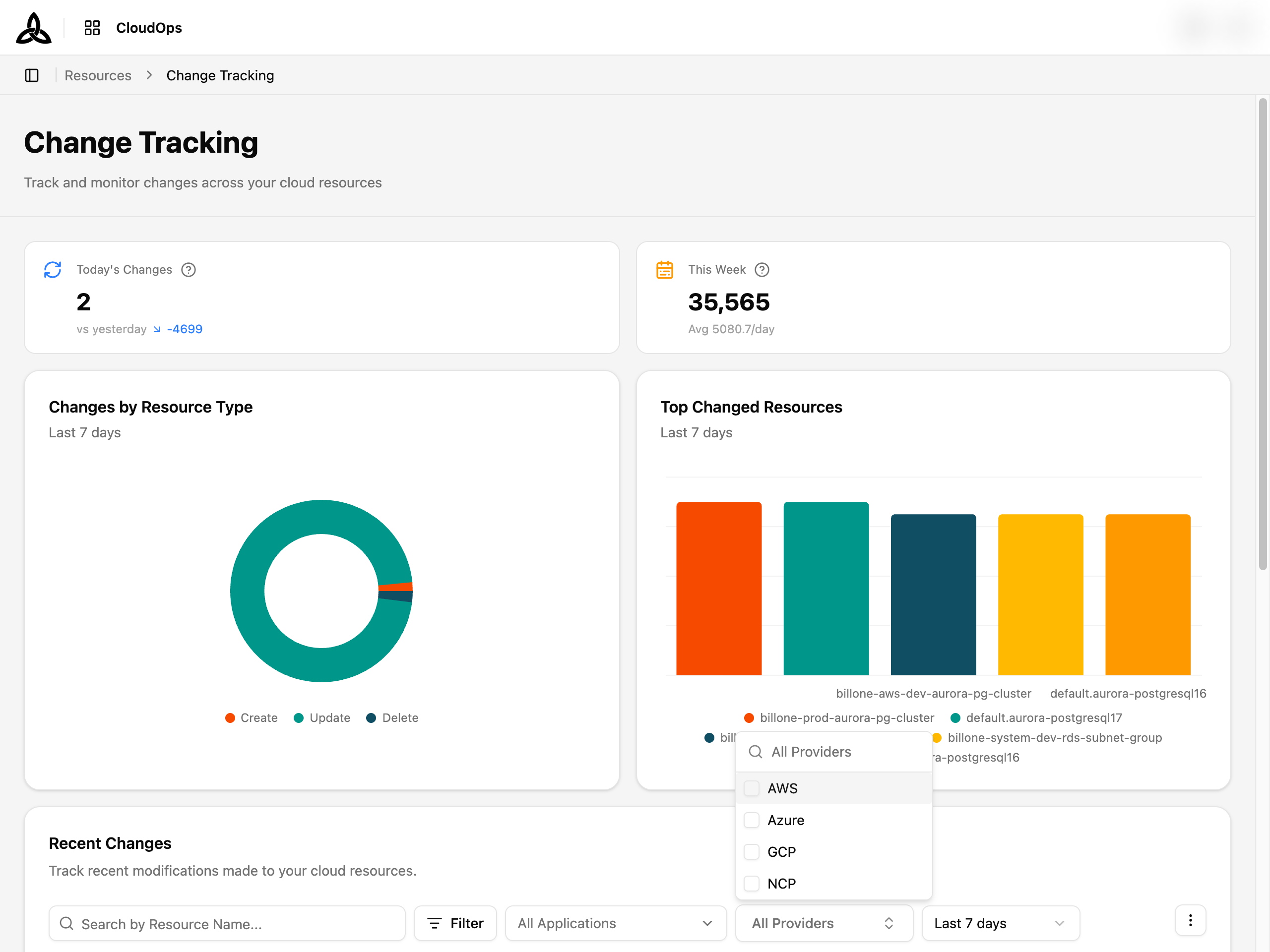 | Date range | Quick presets — Last 1 Hour, Last 24 Hours, Last 7 days, Last 30 days |
| More menu (⋮) | Set Display (column visibility and page size), Refresh |
| Date range | Quick presets — Last 1 Hour, Last 24 Hours, Last 7 days, Last 30 days |
| More menu (⋮) | Set Display (column visibility and page size), Refresh |
Filter Popover
Click [Filter] to open the filter popover. It has four tabs:
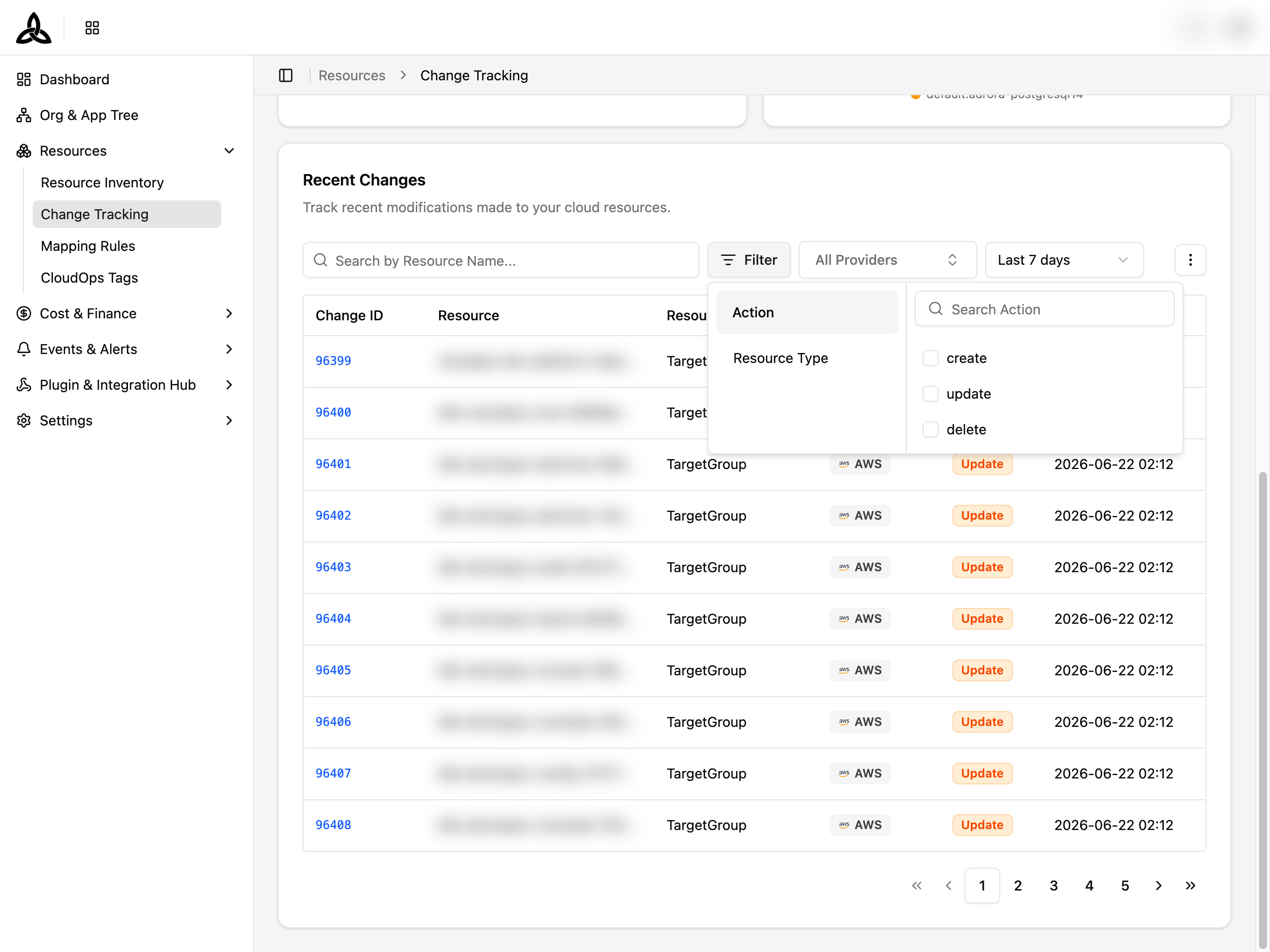
| Tab | Description |
|---|---|
| Action | Filter by change action type — Create, Update, Delete. Each option has a checkbox |
| Resource Type | Filter by cloud resource type. Searchable list with checkboxes |
| Account | Filter by the cloud account the change happened in. Searchable |
| Organization | Filter by the organization that owns the resource |
Applications are picked separately, from a tree rather than a flat list, so choosing a parent covers the applications under it.
ℹ️
Account, Organization, and Application answer “whose change was this?”, which the earlier Action and Resource Type tabs could not. Before them, narrowing a busy tenant to one team’s changes meant reading the table and filtering by eye.
Date Range Selector
Click the date range dropdown to choose a time window:
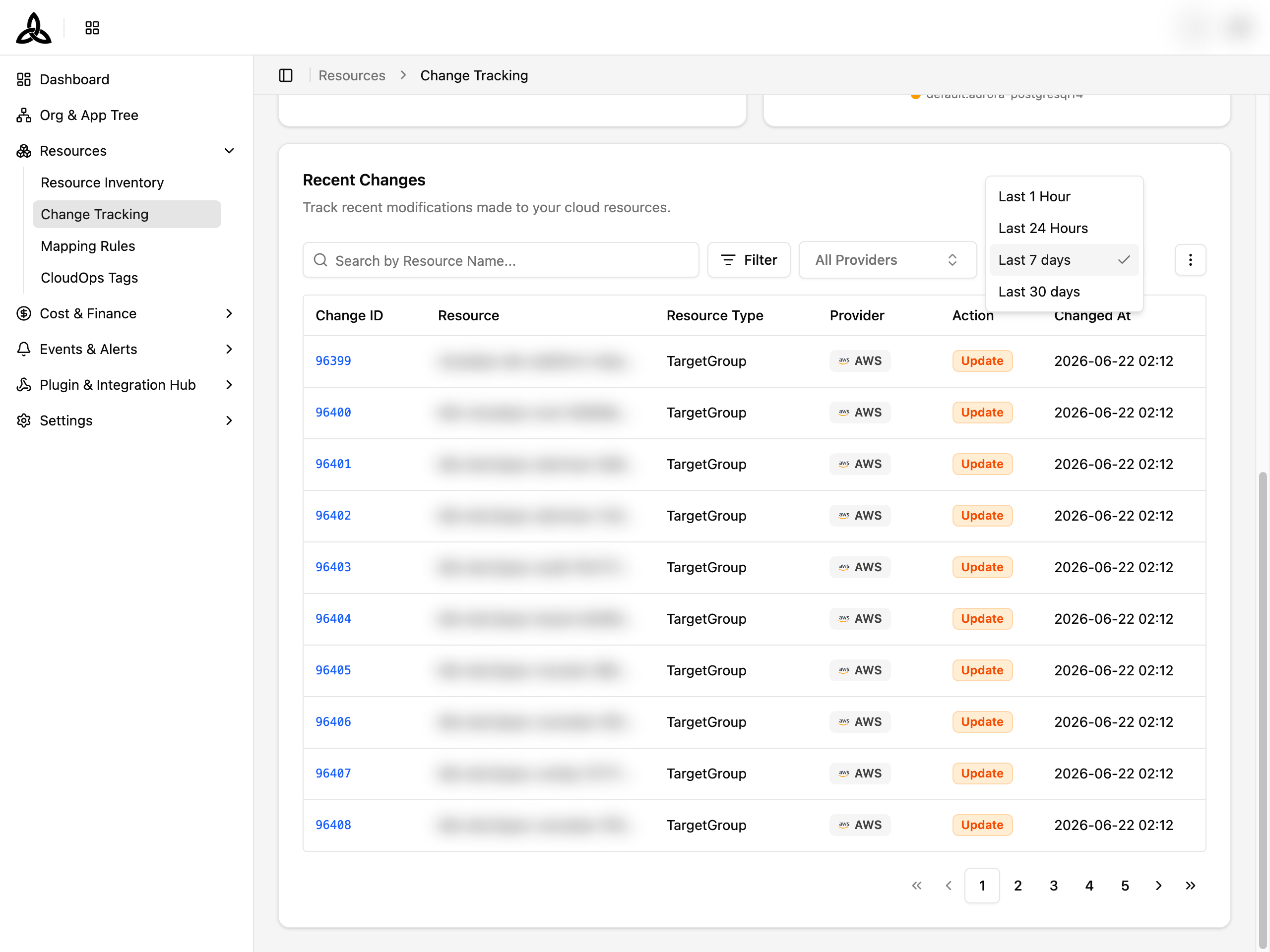
| Option | Description |
|---|---|
| Last 1 Hour | Changes in the past hour |
| Last 24 Hours | Changes in the past day |
| Last 7 days | Changes in the past week (default) |
| Last 30 days | Changes in the past month |
Action Badges
| Action | Color | Description |
|---|---|---|
| Create | Blue | A new resource was created |
| Update | Yellow | An existing resource was modified |
| Delete | Red | A resource was removed |
ℹ️
When navigating from a resource’s detail page, the table is automatically filtered to show only changes for that specific resource. A banner at the top indicates the active resource filter, with a button to clear it.
ℹ️
When no resource changes have been recorded, the table shows an empty state with the message “No recent changes.”