Monthly Report
On the [Reports > Monthly Report] page, you can read last month’s cost, security, and operations as one document, freeze it as a finalized snapshot so the numbers never change, and have a link to it emailed to yourself on a schedule.
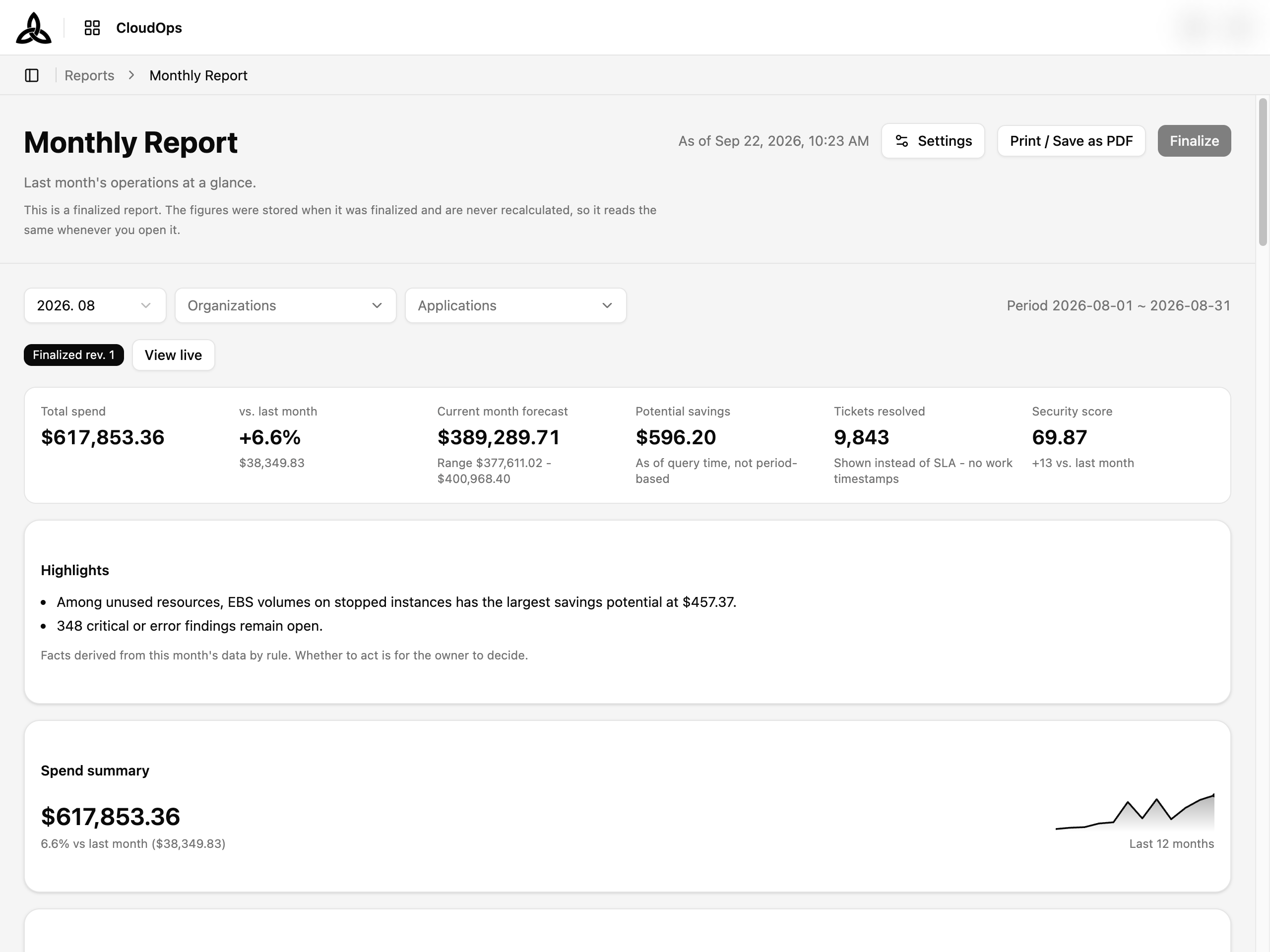
Page Layout
| Section | Purpose |
|---|---|
| Header | Page title, the time the figures are as of, and the actions — Settings, Print / Save as PDF, Finalize |
| Scope bar | The report month and the organization / application scope, with the resolved Period on the right |
| Snapshot bar | Whether you are reading a finalized revision or live figures, with a switch between them (appears once the month has a finalized revision) |
| KPI strip | Six headline numbers for the month |
| Highlights | Facts derived from the month’s data by rule |
| Sections | The report body — cost, security & savings, then operations — in the order set in Settings |
Live figures and finalized snapshots
The page draws the same document in two modes, and the notice under the title tells you which one you are looking at.
| Mode | What you read | Notice under the title |
|---|---|---|
| Live | Every section is recalculated from the domain APIs when you open the page. Settlement updates and tag remapping can change the same month’s numbers later | These figures are recalculated at view time, not a stored snapshot. — the header shows Viewed at <time> |
| Finalized | The payload stored at the moment the month was finalized, rendered as-is. Nothing is recalculated, so it reads the same whenever it is opened | This is a finalized report. — the header shows As of <time> |
A month that has a finalized revision opens on that revision. Finalized revisions exist only for the report’s default scope — drilling down to a particular organization or application always shows live figures, and returning to the default scope brings the finalized revision back.
Snapshot bar

Once a month has been finalized, a badge above the KPI strip says Finalized rev. N or Live, with a button to switch — View live / View finalized. When a month has been finalized more than once, a revision selector lets you open an earlier revision (Rev. N · <time>). If the snapshot cannot be loaded the bar says so, shows live figures, and offers Retry.
Finalizing a month
Open the month you want to freeze
Pick it in the scope bar. Leave the organization and application scope at the report’s default — a drilled-down view cannot be finalized.
Wait for every section to render
Finalize stays disabled while any section is still loading or has failed (Retry the failed ones first). It is also disabled while you are reading a finalized revision — switch to View live first.
Click [Finalize] and confirm
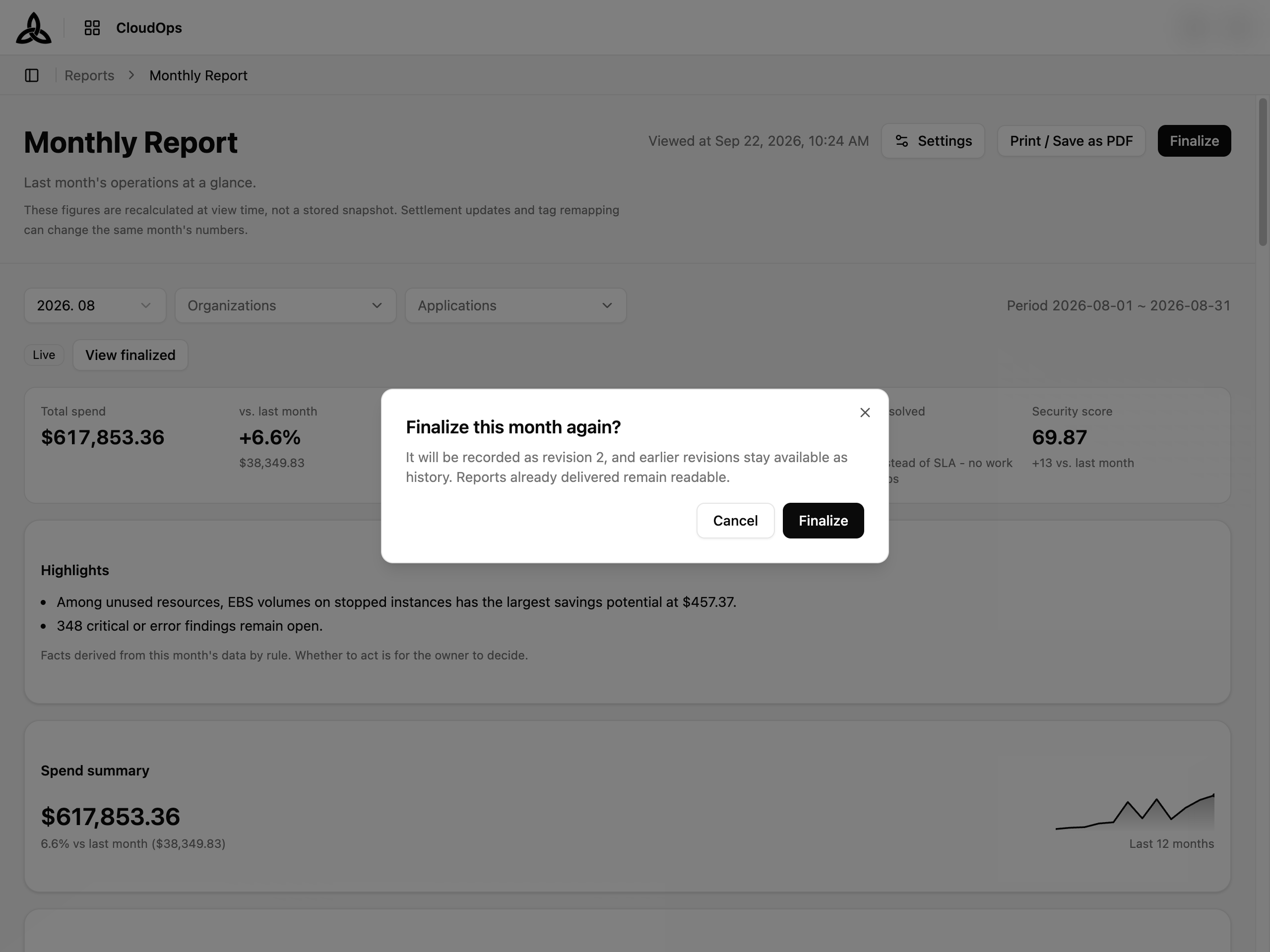
The dialog explains what will happen: the figures on screen are stored as revision 1 and from then on the month opens as the finalized report. Finalizing the same month again records revision 2, 3, …; earlier revisions stay available as history, and a revision that has already been delivered stays readable.
Save the report configuration before finalizing.). When scheduled delivery is on, the month is finalized automatically on the delivery day — the button carries a note Finalized automatically when sent on day N each month.Scope

| Control | Description |
|---|---|
| Report month | The month the report covers. The Period on the right shows the resolved first and last day |
| Organizations | Narrow the report to one or more organizations, chosen from the organization tree with search and Expand all / Collapse all |
| Applications | Narrow it further to particular applications |
The default scope comes from Settings; changing it here affects only the document you are reading. Not every section can take every axis — a section that ignores the scope you picked says so in its header (Scope not applied · all customers, Organization scope not applied, Application scope not applied) rather than silently showing the whole customer.
KPI strip and highlights

| Metric | Meaning |
|---|---|
| Total spend | The month’s cost for the scope |
| vs. last month | Change against the previous month, as a percentage with the amount underneath |
| Current month forecast | Month-end forecast with its expected range. Shown for the current month only — a past month is settled and has no forecast |
| Potential savings | What deleting the unused resources found today would save. As of query time, not tied to the report month |
| SLA compliance / Tickets resolved | Share of tickets resolved within their due date. When no ticket carries work timestamps the card falls back to the number of tickets resolved and says so |
| Security score | The Well-Architected score for the month, with the change against last month (No baseline when there is nothing to compare with) |

Highlights lists facts the rules found in the month’s data — a budget that exceeded its limit and the largest overage, the unused-resource class with the biggest saving, how many critical or error findings remain open. They are facts, not recommendations; whether to act is for the owner to decide.
Cost

| Section | What it shows |
|---|---|
| Spend summary | The month’s total with the change against last month and a 12-month trend line |
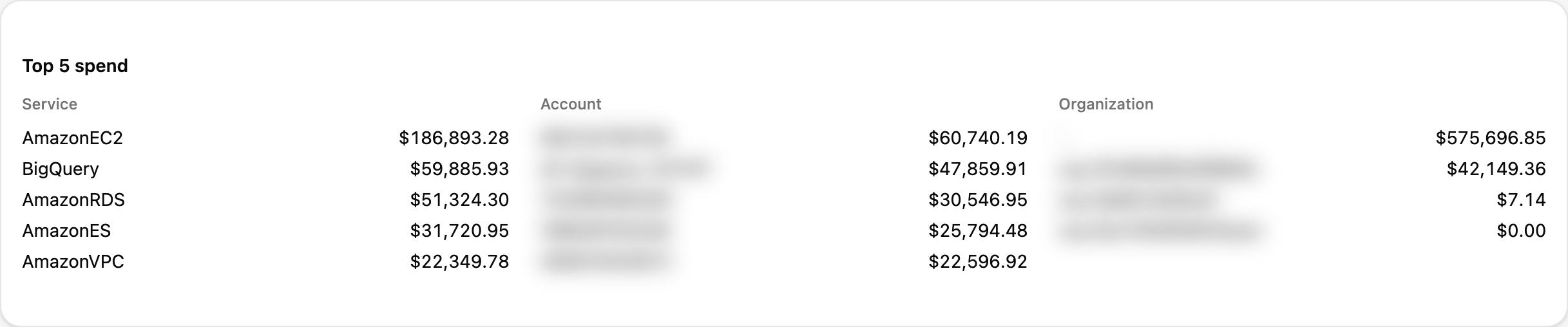
| Top 5 spend | The five largest items by Service, by Account, and by Organization, side by side |
| Forecast | Month-end forecast with its expected range and a confidence label. For a past month it says the month is settled and points to the latest report; forecast is calculated on a single axis (by organization) |
| Budget utilization | Each budget in scope with its usage percentage; a budget without an amount cannot be measured and says so |
| Cost anomalies | Anomalies detected in the month with their total impact |
| Cost attribution | How the month’s cost splits across organizations. An organization you are not allowed to see is shown as Restricted organization |
Security and savings
| Section | What it shows |
|---|---|
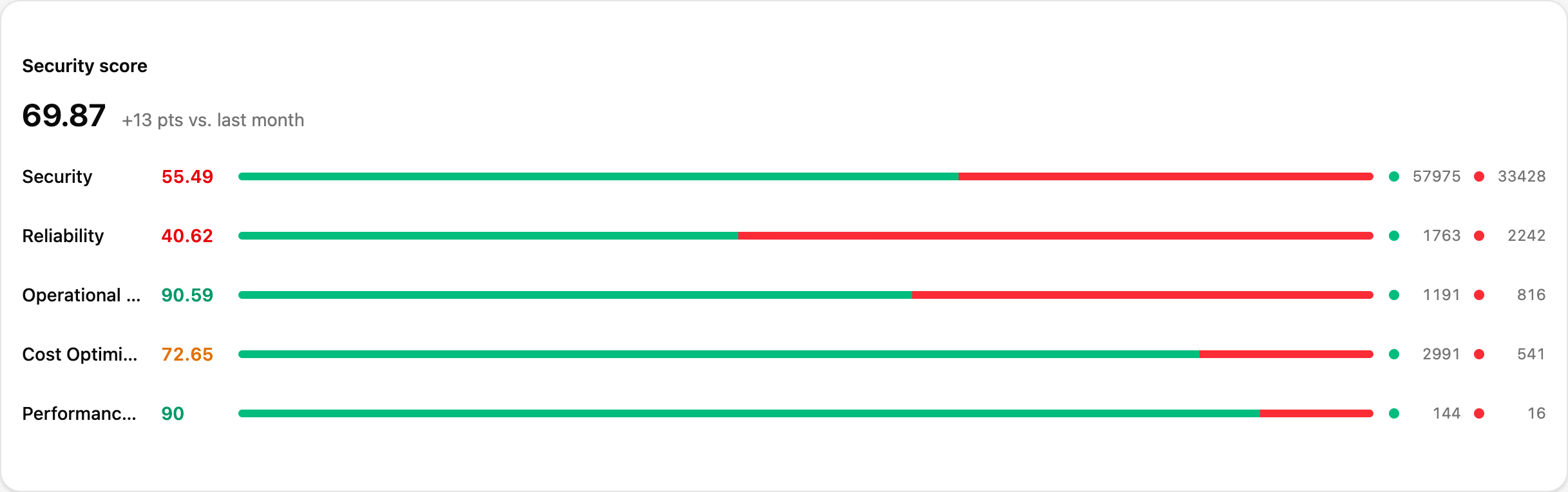
| Security score | The month’s Well-Architected score, the change in points against last month, and the score per pillar with healthy / unhealthy counts. When no assessment completed in the month the card says so |
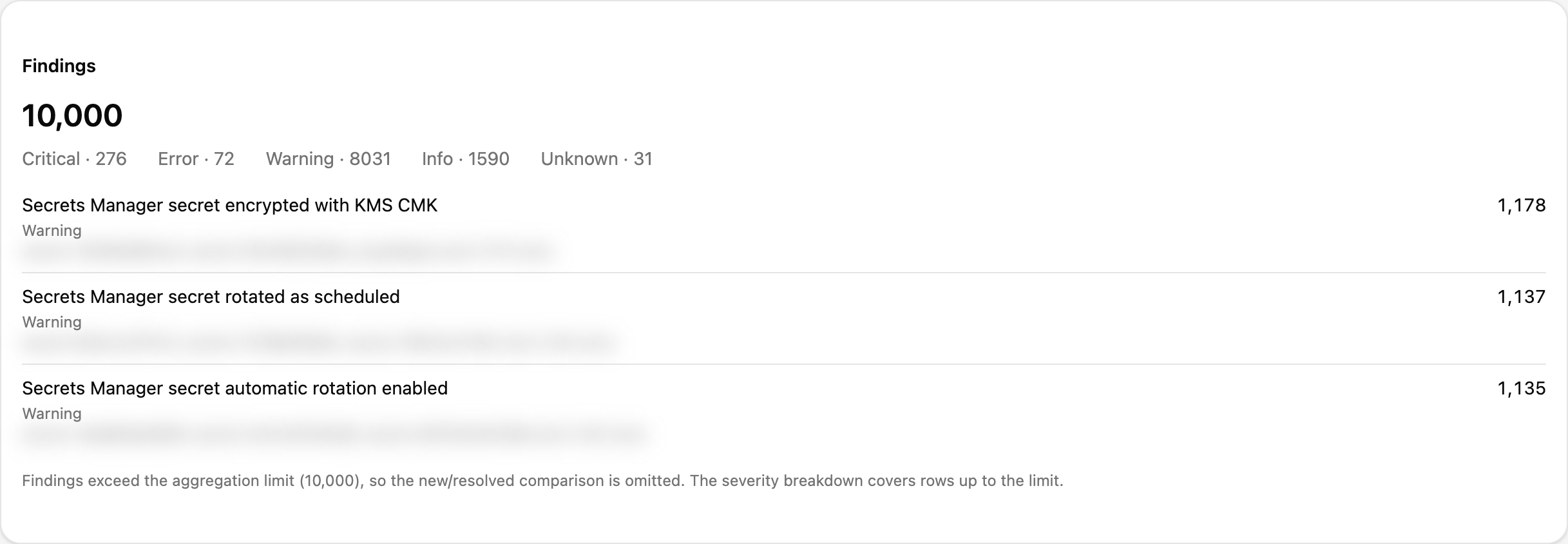
| Findings | Total findings with the severity breakdown, the top checks with the resources behind them, and New N · Resolved N against last month’s assessment. When findings exceed the aggregation limit the new / resolved comparison is omitted and the card says so |
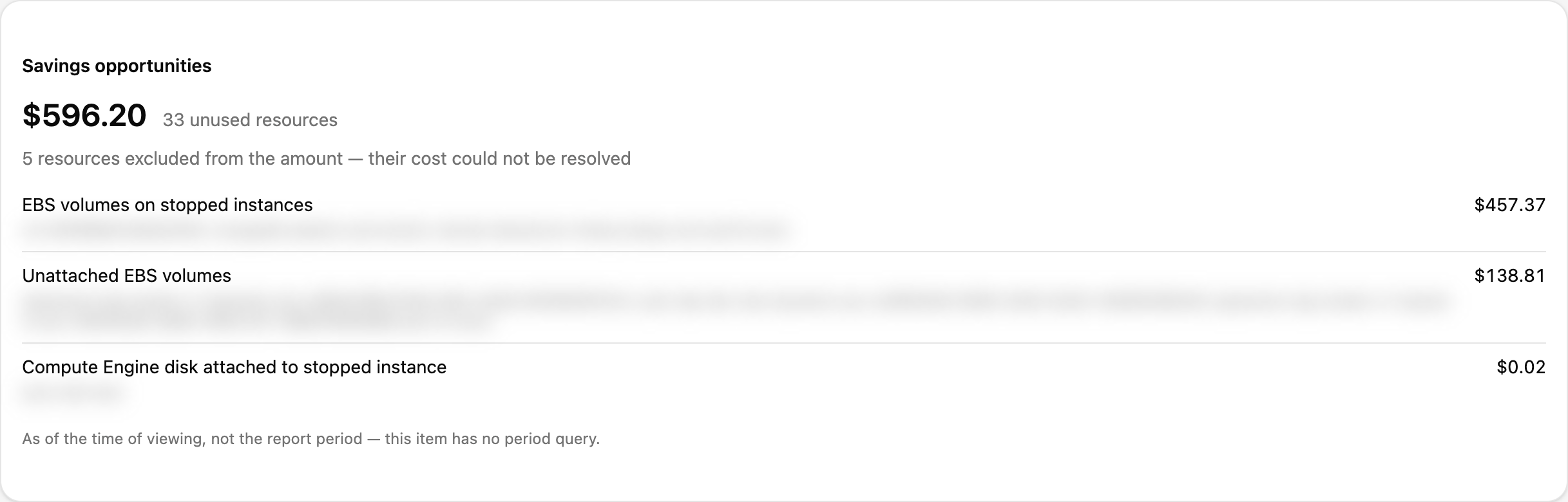
| Savings opportunities | Potential savings from unused resources, grouped by check with the resources listed. Resources whose cost could not be resolved are counted but excluded from the amount |
| Technical debt — extended support | Resources billed an extended-support surcharge and the monthly saving from upgrading them, by version |
Operations
| Section | What it shows |
|---|---|
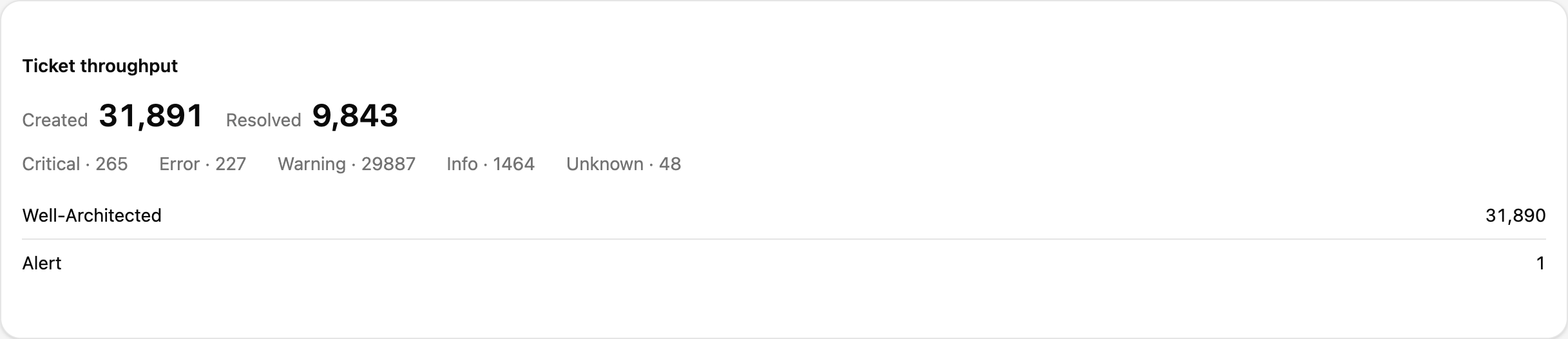
| Ticket throughput | Tickets created and resolved in the month, the severity breakdown, and the split by source (Well-Architected, Alert, Manual) |
| Ticket SLA | Share of tickets resolved within their due date and the average handling time, each with the sample it was measured on. The section is left out entirely when no ticket in the month carries work timestamps — that is “not measurable”, not “zero” |
| Alert response | Alerts in the month, how many are still unresolved, and the mean time to acknowledge (MTTA) and to resolve (MTTR) |
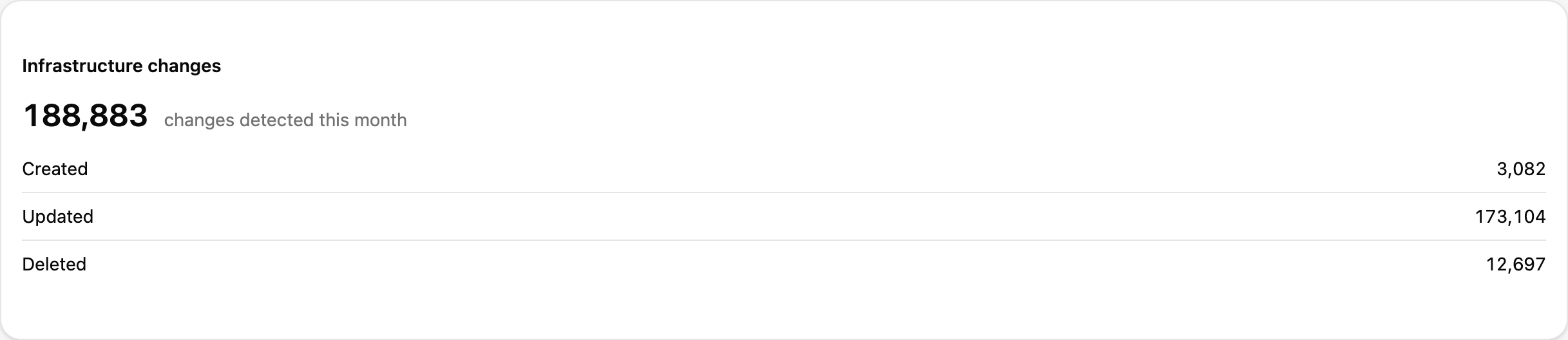
| Infrastructure changes | Changes detected in the month, split into Created / Updated / Deleted |
| Asset inventory | The current asset total by type with N added · N removed this month, plus the number of CSP accounts |
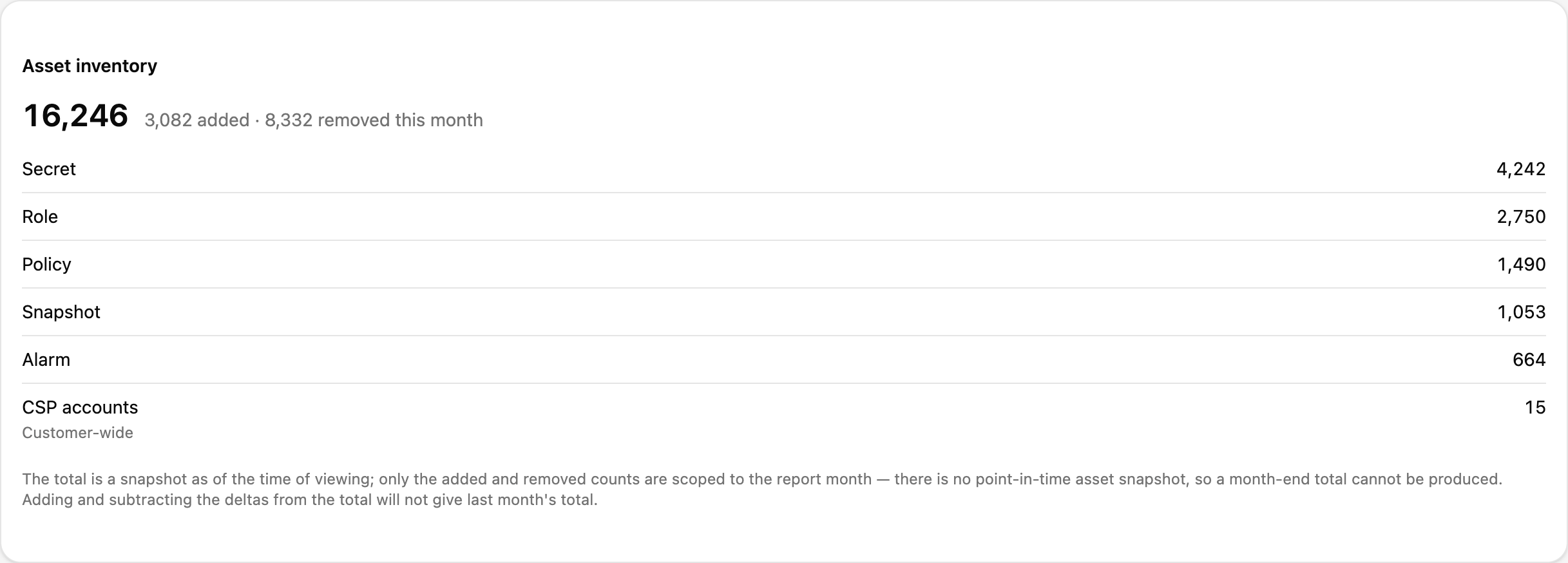
based on N, Sampled: …). The Asset inventory total is a snapshot as of viewing; only the added and removed counts are scoped to the month, so adding the deltas to the total does not give last month’s total.Printing / saving as PDF
[Print / Save as PDF] in the header prints the report. Sections still loading are left blank in the printout, so wait until the page has settled — the button warns N section(s) are still loading while it has not. The printout carries the report title, the period, and the same as-of time shown on screen; the scope bar and snapshot bar are left out.
Choose Save as PDF in the browser dialog to keep a file. The file name identifies the document: cloudops-monthly-report-<YYYYMM> for the latest finalized revision at the default scope, with a suffix when the document is something else — -rev<N> for an earlier revision, -live for live figures, -scoped for a drilled-down scope — so two documents of the same month never save under one name.
Settings
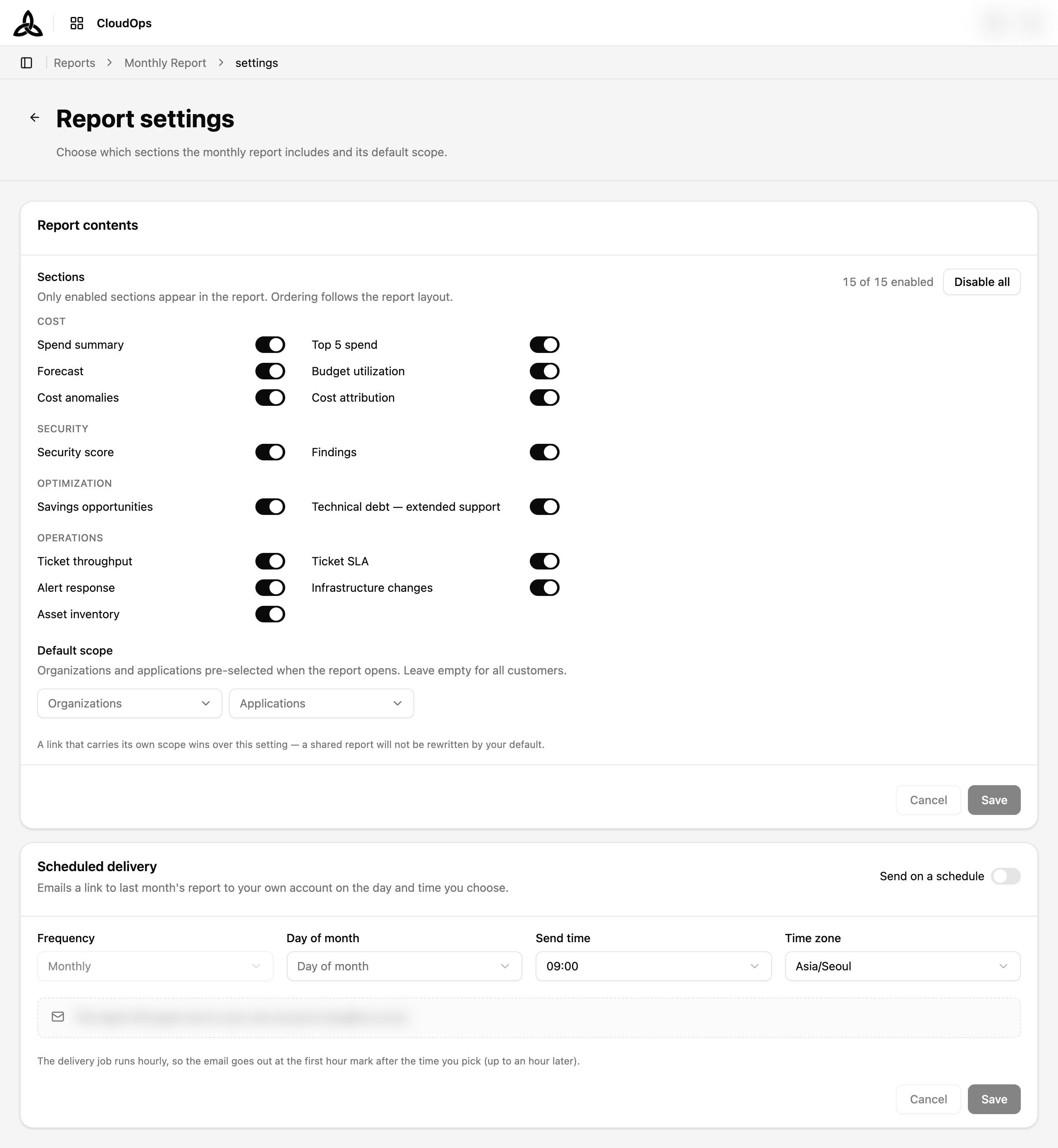
[Settings] in the header opens /reports/monthly/settings, which decides what the report contains and how it is delivered.
Report contents
| Setting | Description |
|---|---|
| Sections | A switch per section, grouped as COST, SECURITY, OPTIMIZATION, OPERATIONS. Only enabled sections appear in the report, in the fixed report order. Enable all / Disable all toggle the whole list; at least one section must stay on |
| Default scope | The organizations and applications pre-selected when the report opens. Leave both empty for all customers |
Click [Save] to apply. [Save] is enabled only after something on the form has changed — to store the default configuration as-is the first time, switch one section off, save, switch it back on, and save again. A finalized revision keeps the section set it was finalized with — turning a section off afterwards does not change documents that are already frozen. A shared link that carries its own scope wins over the default here.
Scheduled delivery
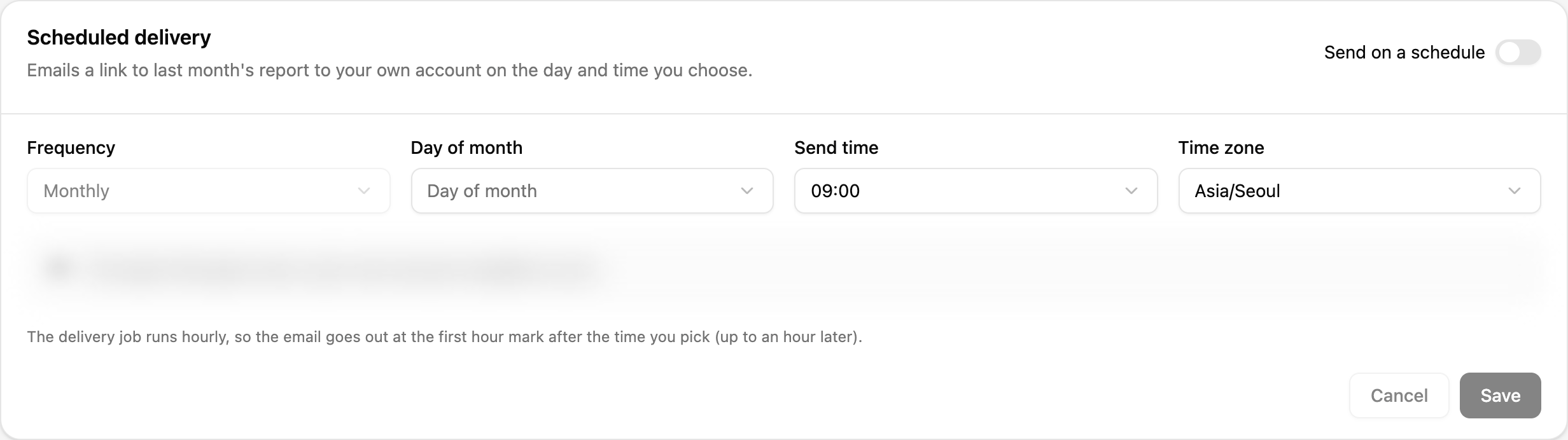
| Field | Description |
|---|---|
| Send on a schedule | Turns delivery on or off |
| Frequency | Monthly |
| Day of month | The day the email goes out |
| Send time and Time zone | When on that day |
The email carries a link to last month’s report and goes only to your own account — the notice shows the address it will be sent to, and there is no recipient list to edit. On the delivery day the month is finalized automatically before the link is sent. The delivery job runs hourly, so the email goes out at the first hour mark after the time you pick, up to an hour later; Last sent shows the most recent dispatch.
Save the report settings first to set up delivery.