Organization
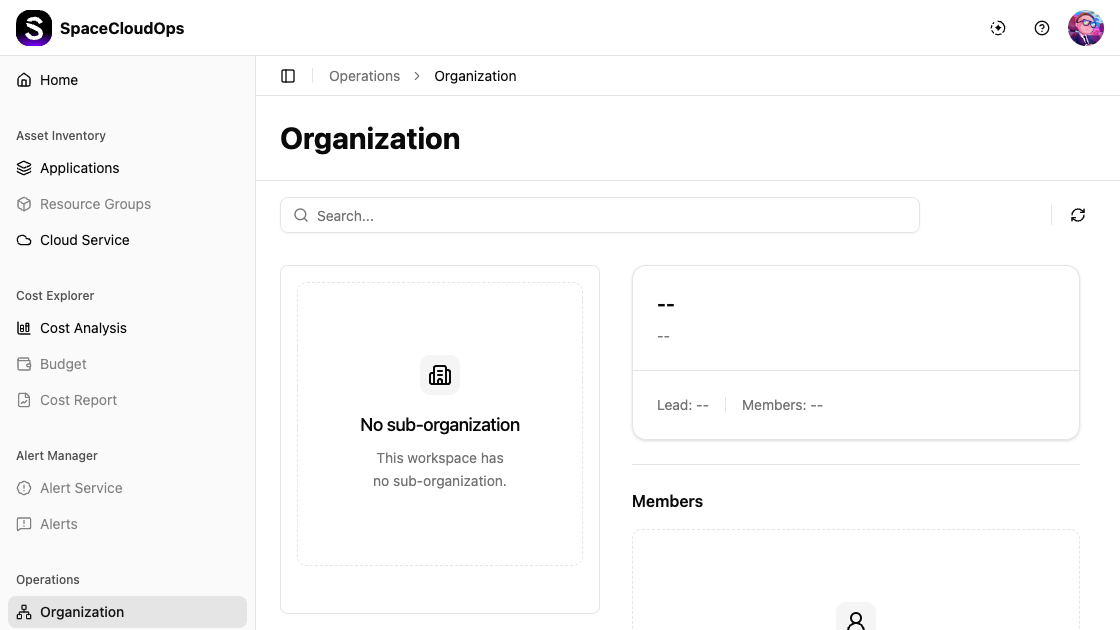
On the [Operations > Organization] page, you can view and manage your workspace’s organizational structure, including sub-organizations, leads, and members.
Page Layout
The Organization page is divided into three main areas:
| Area | Description |
|---|---|
| Organization Tree (left) | A hierarchical tree view showing the organization structure. The root node represents the workspace, and child nodes represent organizational units |
| Unit Card (right) | A summary card showing the selected unit’s details |
| Members (below) | A list of members belonging to the selected organization unit |
Search and Toolbar

| UI Element | Description |
|---|---|
| Search | Enter keywords to find specific sub-organizations or members |
| Refresh | Reload the organization data |
Organization Tree
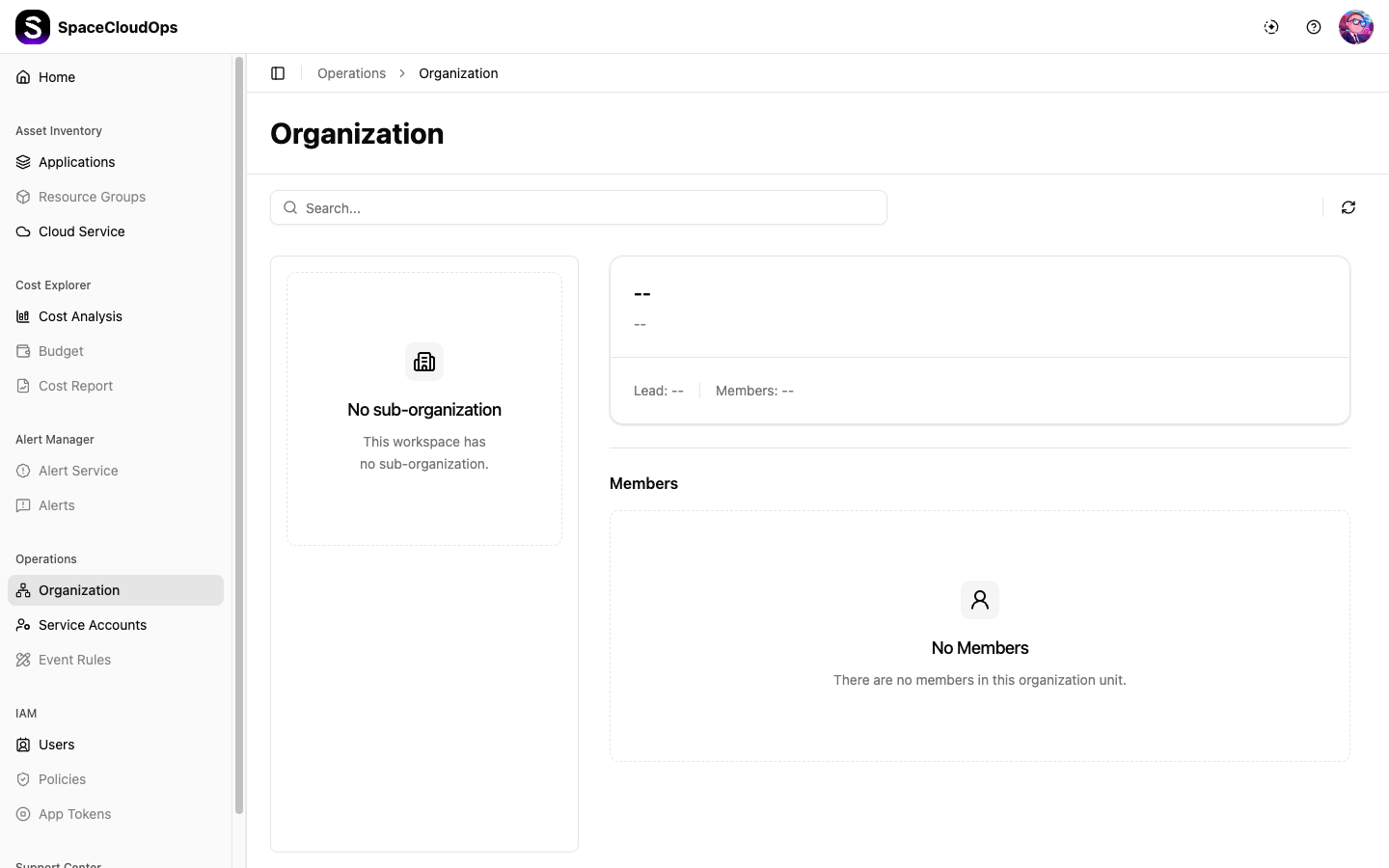
The left panel displays the organization hierarchy as a tree structure. Click on a node to select it and view its details in the Unit Card.
- Expand or collapse nodes to navigate the hierarchy
- The path of each unit is displayed in the format
Parent > Child
ℹ️
When no sub-organizations have been created, the tree area displays “No sub-organization” with the message “This workspace has no sub-organization.”
Unit Card
When an organization unit is selected, the Unit Card displays:
| Field | Description |
|---|---|
| Name | The name of the selected sub-organization |
| Description | Description of the sub-organization |
| Path | The full path in the organization hierarchy |
| Lead | The designated lead of the sub-organization |
| Members | The number of members assigned, with overlapping avatar stack |
When no organization is selected, all fields display --.
Members
The Members section below the Unit Card lists all members belonging to the selected organization unit as cards in a grid layout.
Each member card shows:
| Field | Description |
|---|---|
| Profile Image | The member’s profile picture or initials |
| Display Name | The member’s display name |
| Department | The department the member belongs to |
| Organization Unit | The unit path the member is assigned to |
| The member’s email address. Click to copy to clipboard | |
| Status | The member’s account status badge |
Member Status
| Status | Description |
|---|---|
| Activated | Active member with full access |
| Pending | Invited but has not yet activated their account |
| Deactivated | Account has been deactivated |
| Locked | Account has been locked or suspended |