Personal Settings
The Personal Settings page allows you to configure your personal preferences for using the console. The page is divided into a left sidebar menu and a settings content area.
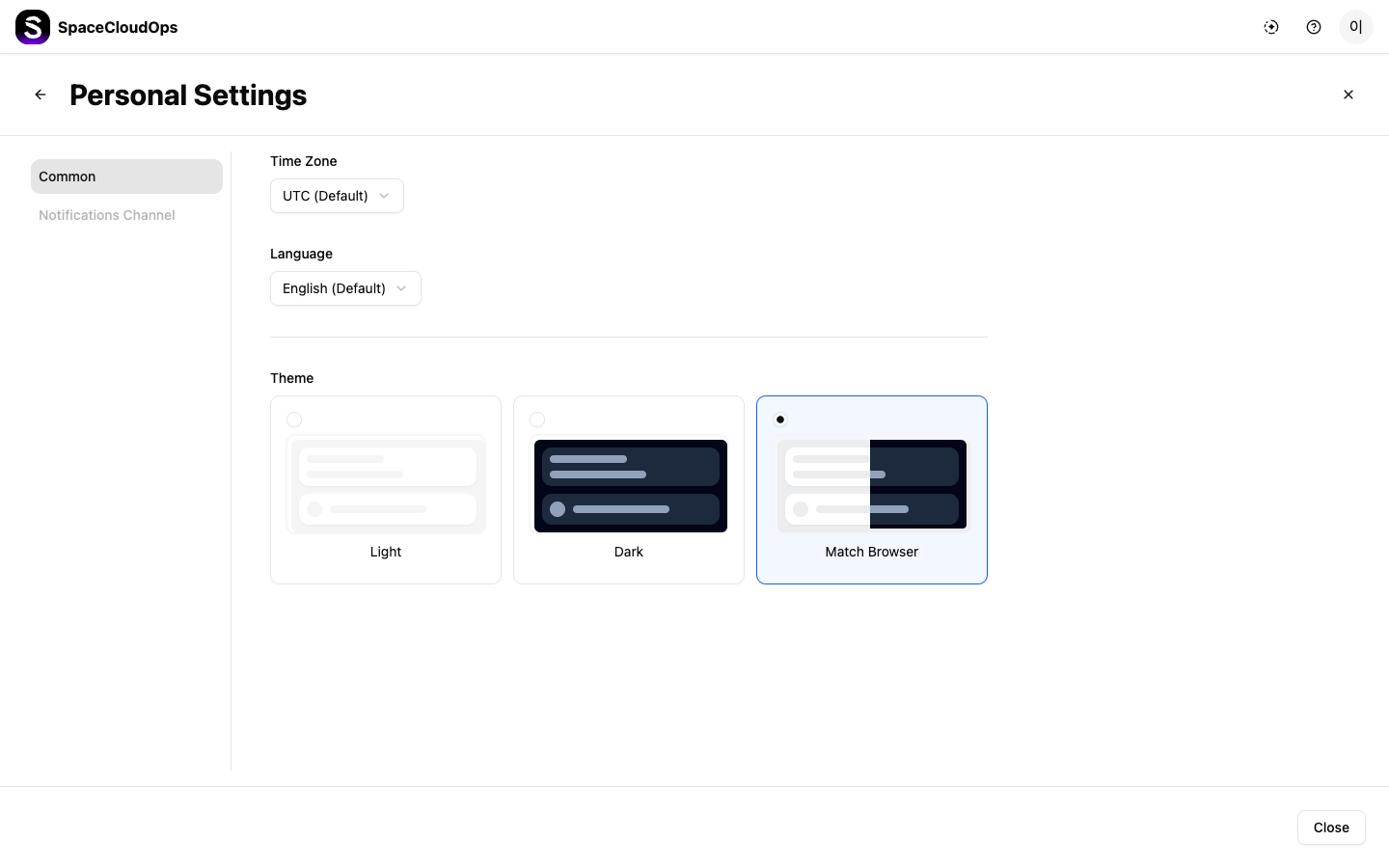
The left sidebar has two menu tabs:
| Menu Tab | Description |
|---|---|
| Common | General settings including timezone, language, and theme. |
| Notifications Channel | Notification channel configuration (coming soon). |
Accessing Personal Settings
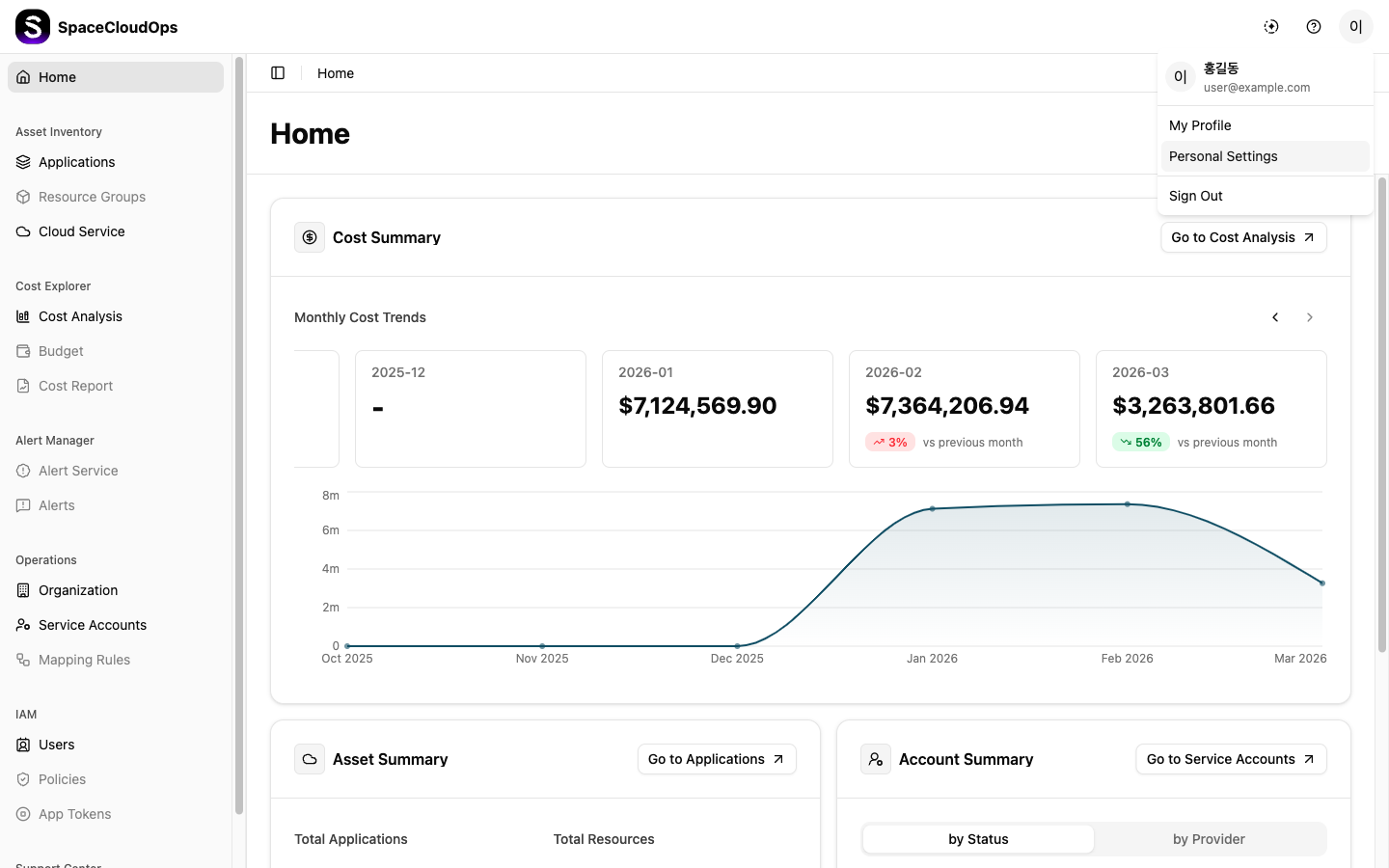
Open Profile Menu
Click the profile icon (avatar) in the top-right corner of the console.
Click Personal Settings
Select Personal Settings from the dropdown menu.
Time Zone
Set your preferred timezone for date and time display throughout the console.
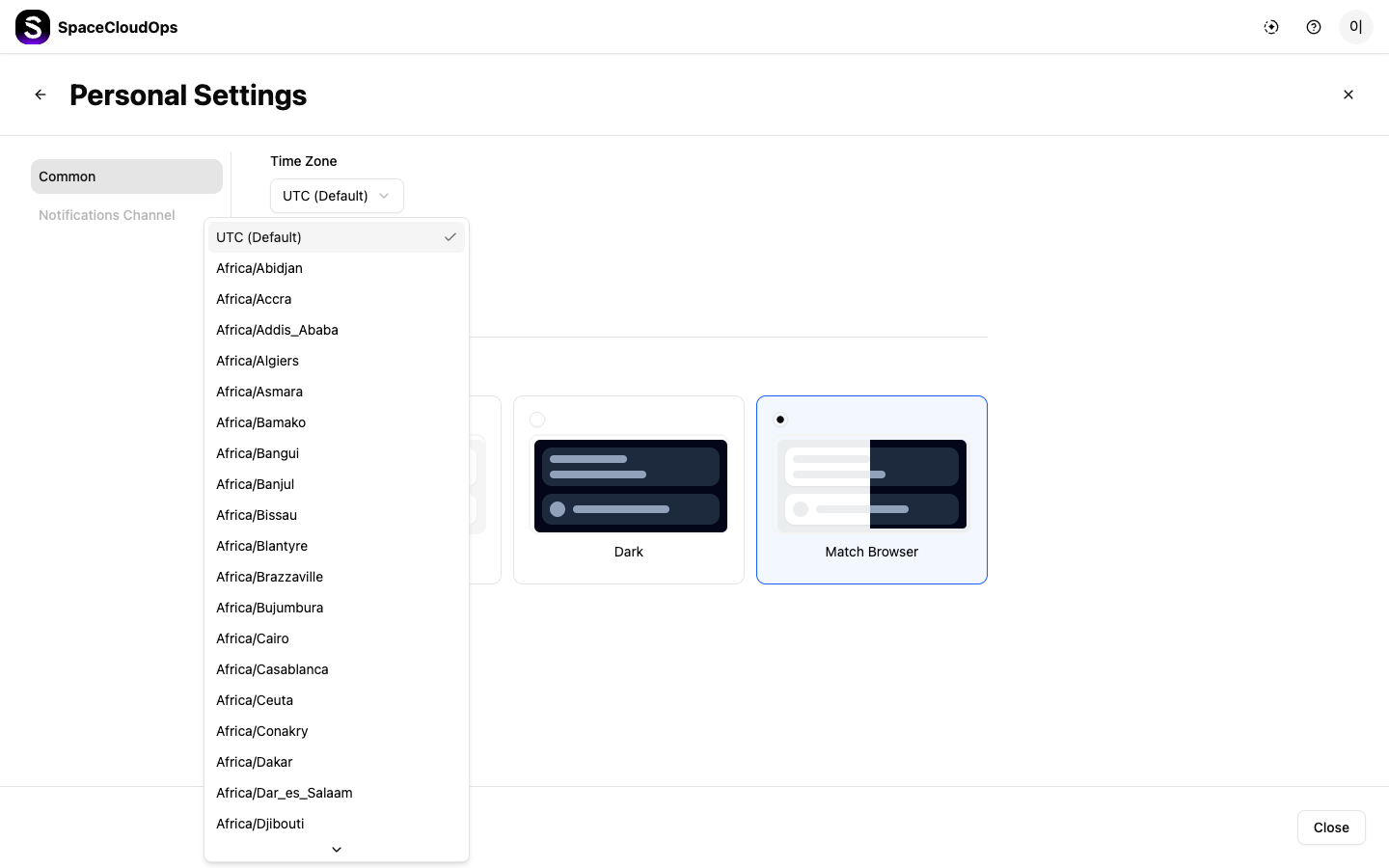
Click the Time Zone Dropdown
Click the Time Zone dropdown which shows the currently selected timezone (default: UTC).
Select a Timezone
Choose your preferred timezone from the list. All IANA timezone names are available (e.g., Asia/Seoul, America/New_York, Europe/London).
Confirm
The timezone is applied immediately. All dates and times displayed in the console will be converted to your selected timezone.
Language
Set your preferred display language for the console interface.
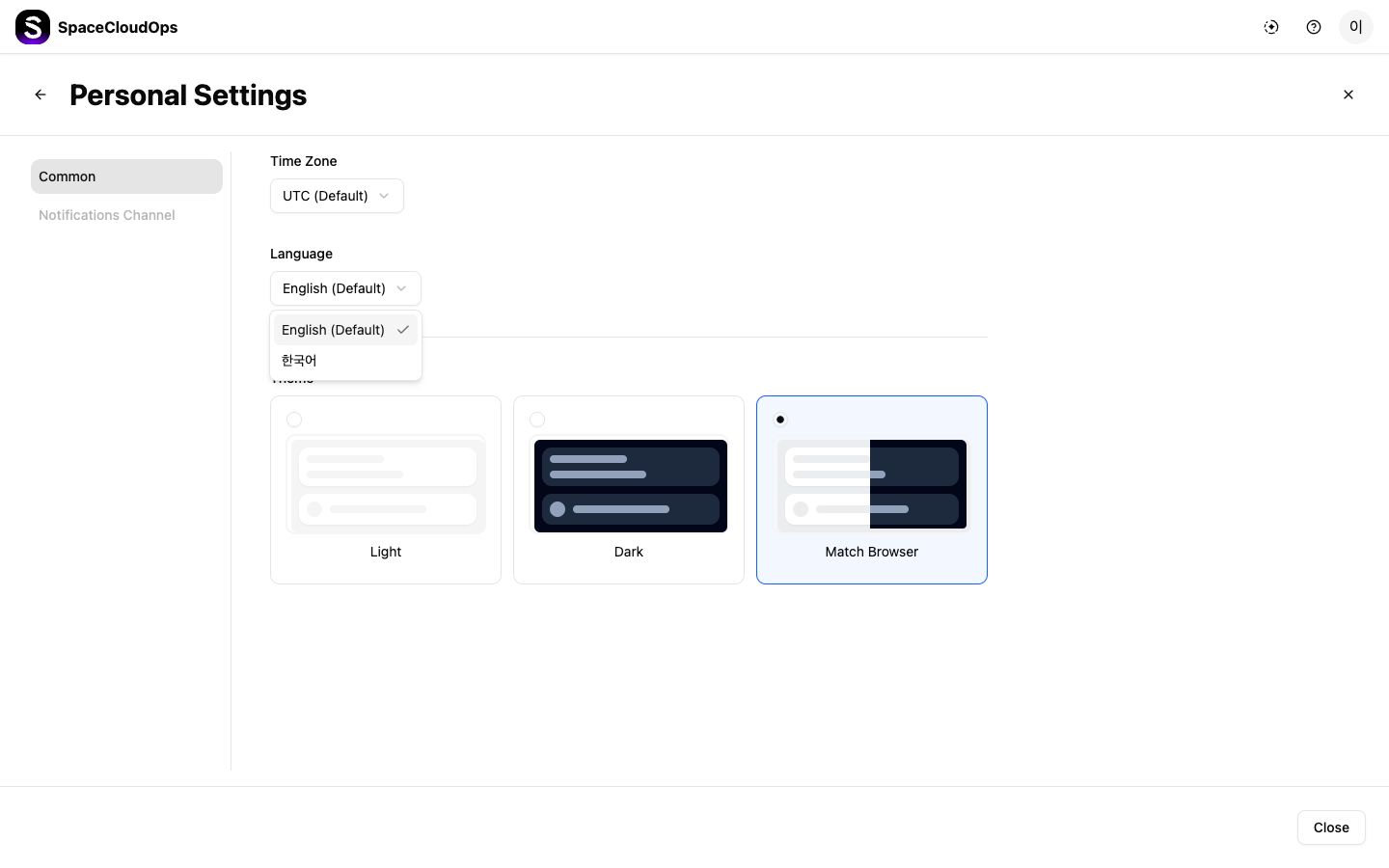
Click the Language Dropdown
Click the Language dropdown which shows the currently selected language (default: English).
Select a Language
Choose from the available languages:
| Language | Description |
|---|---|
| English (Default) | English interface. |
| 한국어 | Korean interface. |
Confirm
The language change is applied immediately across the entire console interface.
Theme
Choose the visual theme for the console. Three theme options are available as selectable cards with preview images.
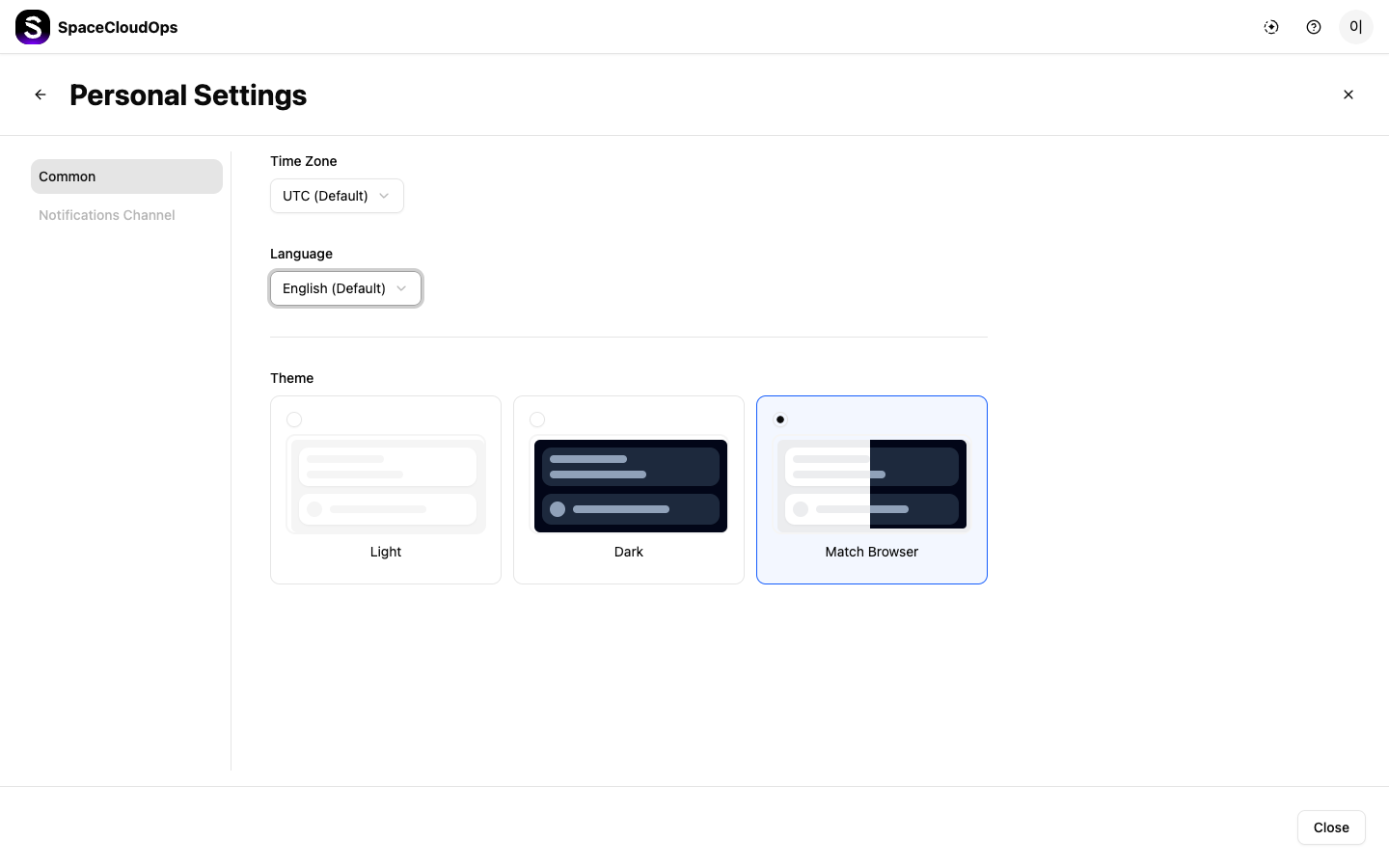
| Theme | Description |
|---|---|
| Light | Light color scheme with a white background. |
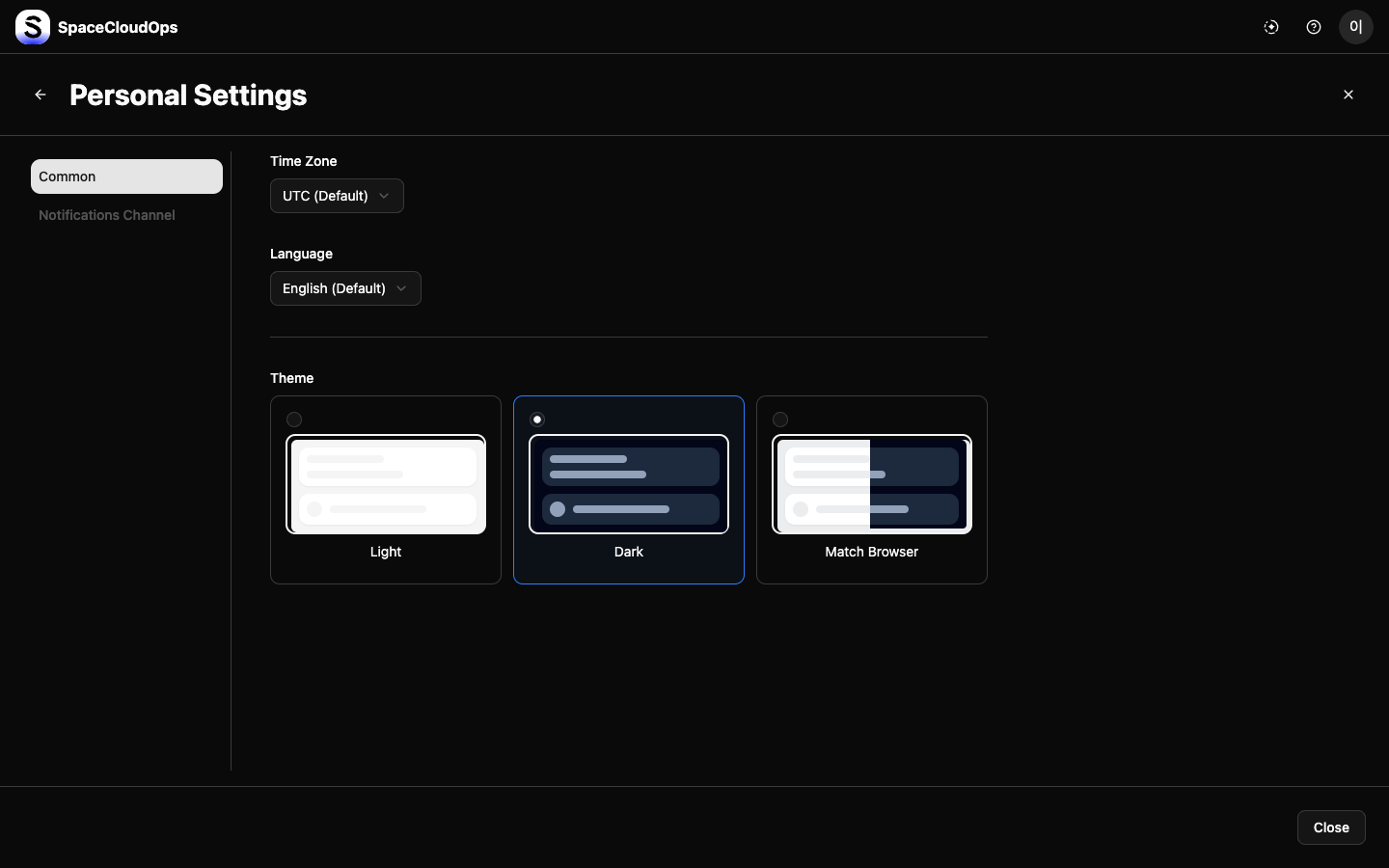
| Dark | Dark color scheme with a dark background, reducing eye strain in low-light environments. |
| Match Browser | Automatically matches the theme to your browser or operating system’s dark/light mode setting. |
Click on a theme card to apply it. The change takes effect immediately.
Dark Theme Example
Closing Personal Settings
To exit the Personal Settings page:
- Click the [Close] button at the bottom-right corner of the page.
- Click the back arrow (←) button at the top-left to return to the previous page.
- Click the close (×) button at the top-right to return to the previous page.