My Profile
My Profile opens the Megazone Account portal in a new tab. This portal allows you to manage your personal account information, security settings, and connected services.
The portal has three tabs: My profile, Security, and Connected services.
Accessing My Profile
Click the Profile Icon
Click the profile icon (avatar) in the top-right corner of the console. The icon displays the first character of your name.
Select My Profile
Select My Profile from the dropdown menu.
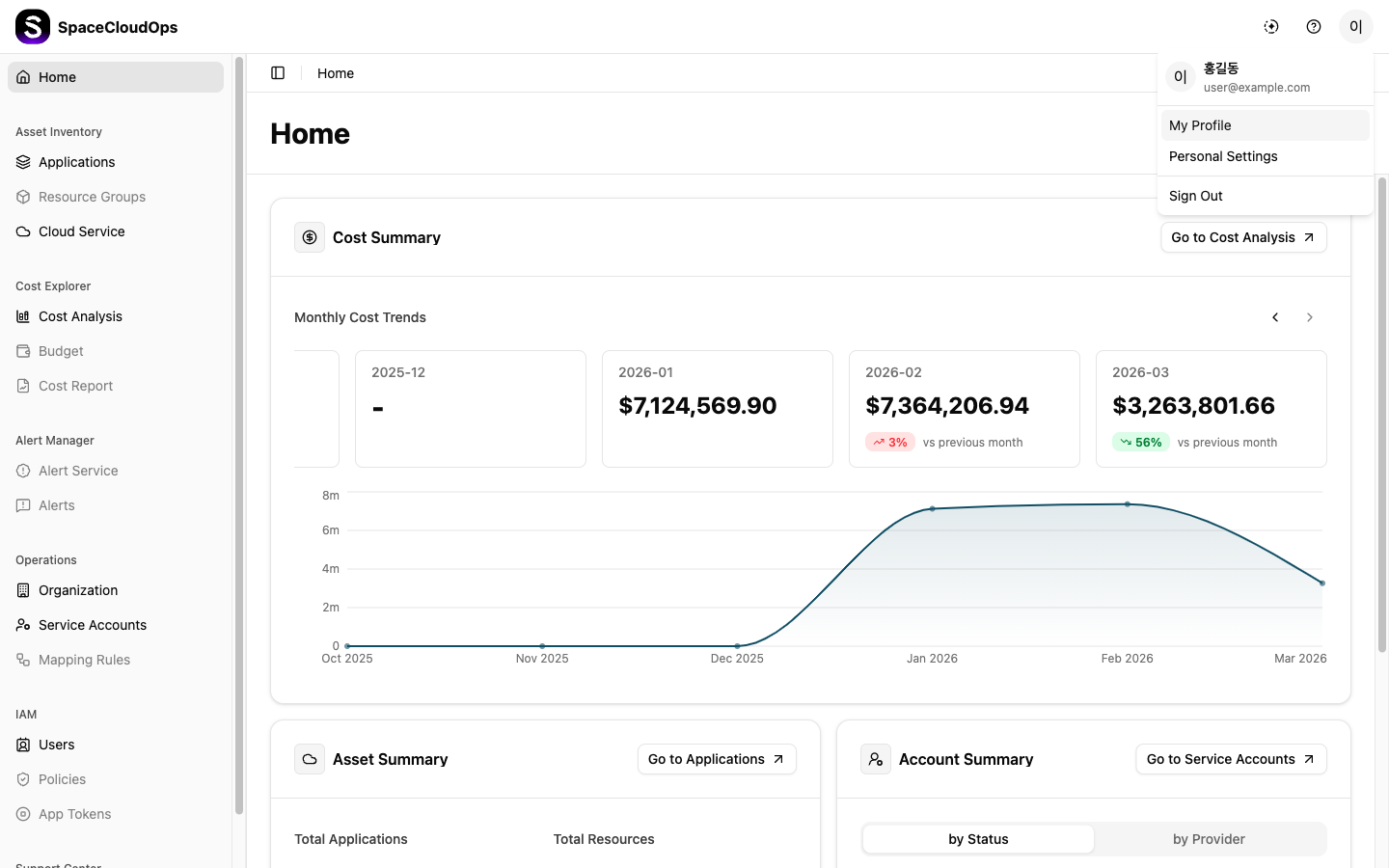
Megazone Account Portal
The Megazone Account portal opens in a new browser tab.
My Profile Tab
The My profile tab displays and allows you to manage your basic account information.
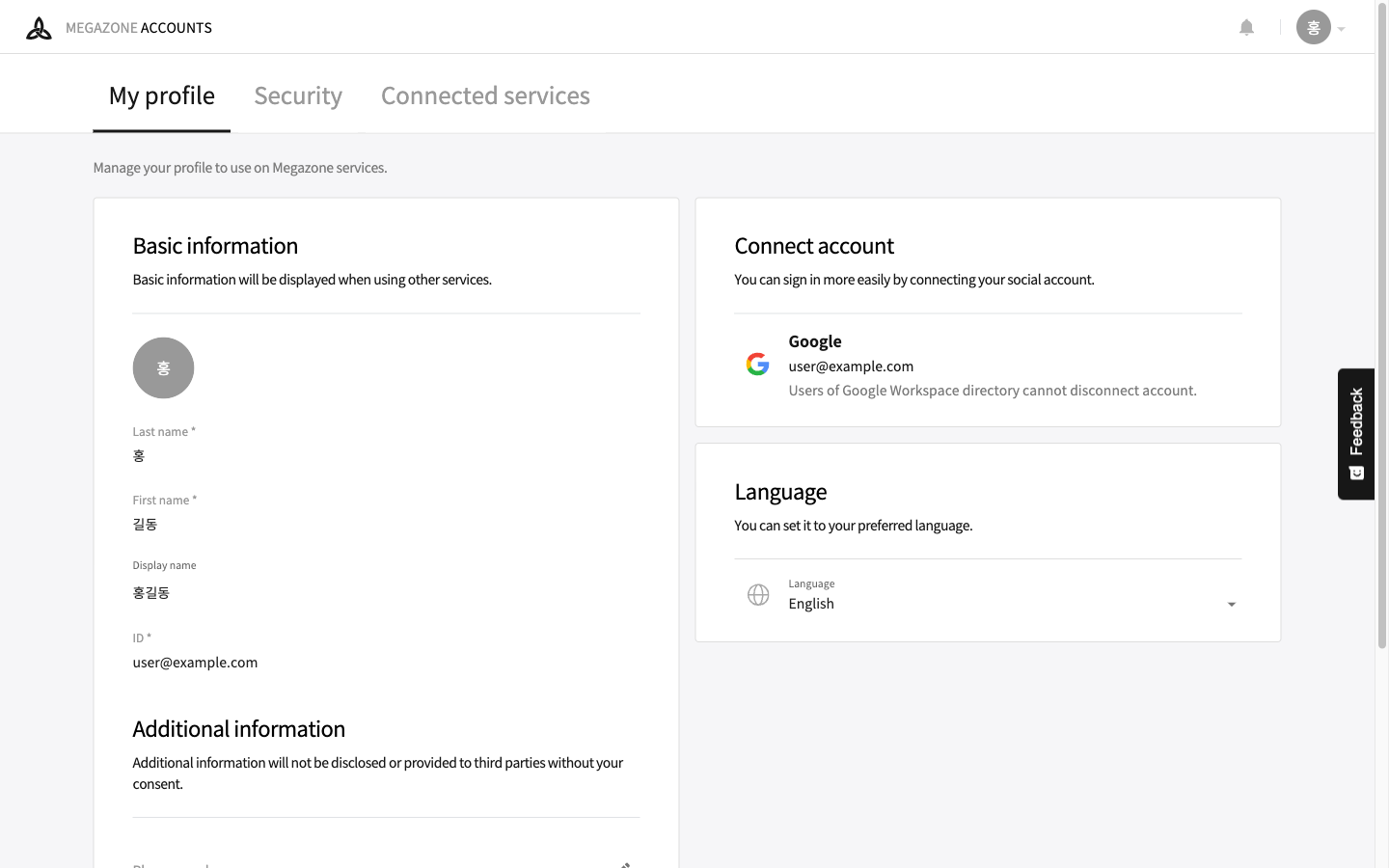
Basic Information
Basic information is displayed when using Megazone services.
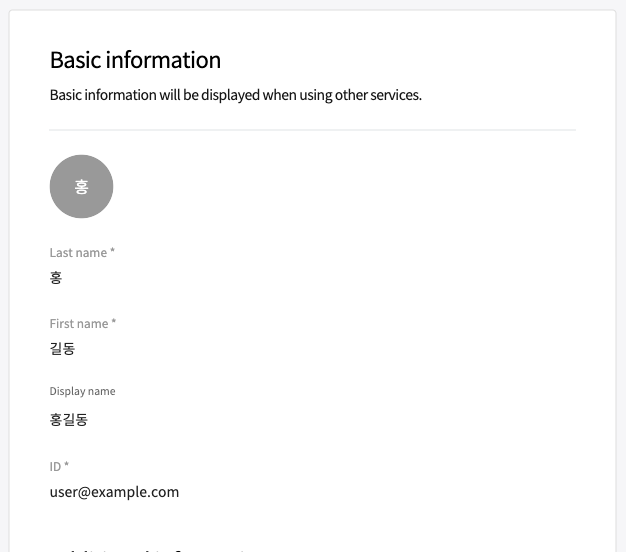
| Field | Description |
|---|---|
| Profile Image | Your profile avatar displaying the first character of your name. |
| Last name | Your last name (required). |
| First name | Your first name (required). |
| Display name | The display name shown across services. |
| ID | Your unique account identifier (email address, required, read-only). |
Additional Information
Additional information will not be disclosed or provided to third parties without your consent.
| Field | Description |
|---|---|
| Phone number | Your contact phone number. Click the edit icon (pencil) to modify. |
| Department | Your department within the organization. |
| Job Title | Your job title. |
Connect Account
You can link social accounts for easier sign-in.
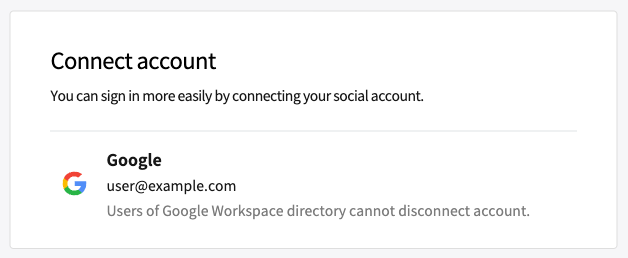
| Field | Description |
|---|---|
| Your connected Google account. Google Workspace directory users cannot disconnect their account. |
Language
Set your preferred language for the Megazone Account portal interface.
Security Tab
The Security tab allows you to manage password, passkeys, two-step verification, login history, and device management.
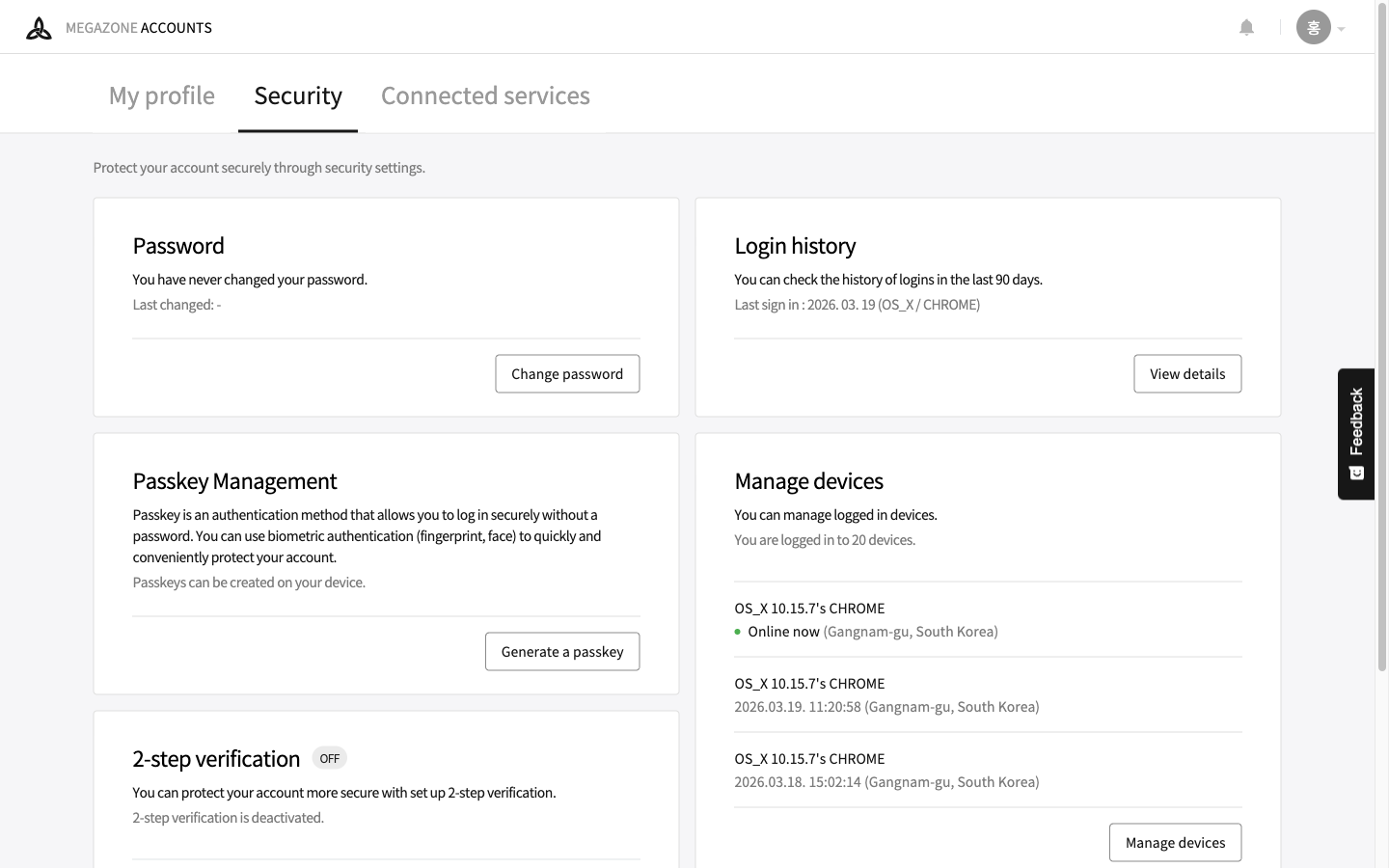
Password
| Field | Description |
|---|---|
| Last changed | The date your password was last changed. |
| Change password | Click to change your current password. |
Passkey Management
Passkey is an authentication method that allows you to log in securely without a password using biometric authentication (fingerprint, face).
| Action | Description |
|---|---|
| Generate a passkey | Click to create a new passkey on your device. |
2-Step Verification
Protect your account with an additional verification step during sign-in.
| Method | Description |
|---|---|
| OTP | One-time password authentication. Click [Set up] to configure. |
| Duo Security | Duo Security integration for two-factor authentication. |
Login History
View your sign-in history from the last 90 days. Click [View details] to see the full history.
Manage Devices
View and manage devices that are currently logged into your account.
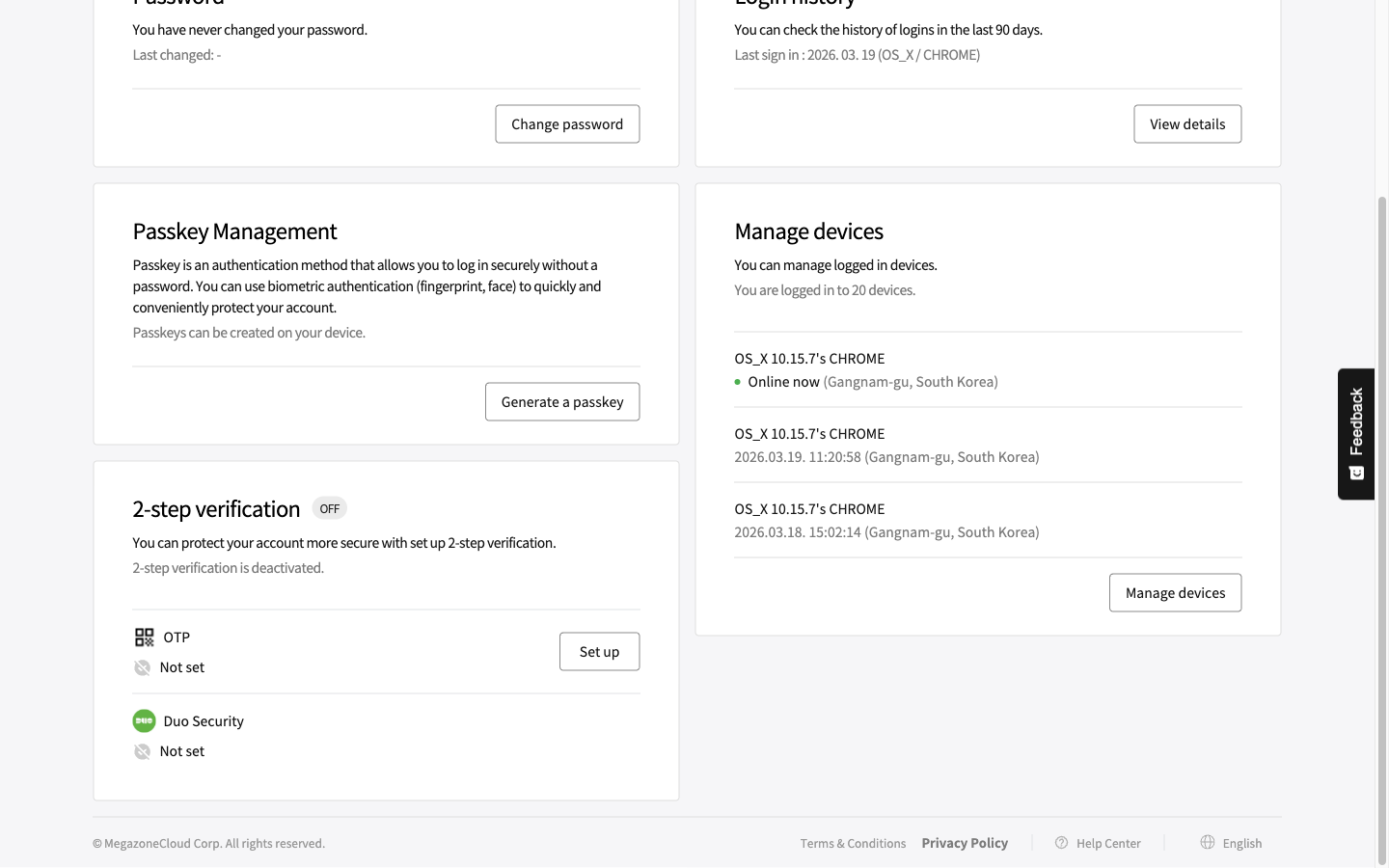
Each device entry shows:
- OS and browser information (e.g., OS_X 10.15.7’s CHROME)
- Online status or last access timestamp
- Location (e.g., Gangnam-gu, South Korea)
Click [Manage devices] to manage your logged-in devices.
Connected Services Tab
The Connected services tab shows the Megazone services connected to your account.
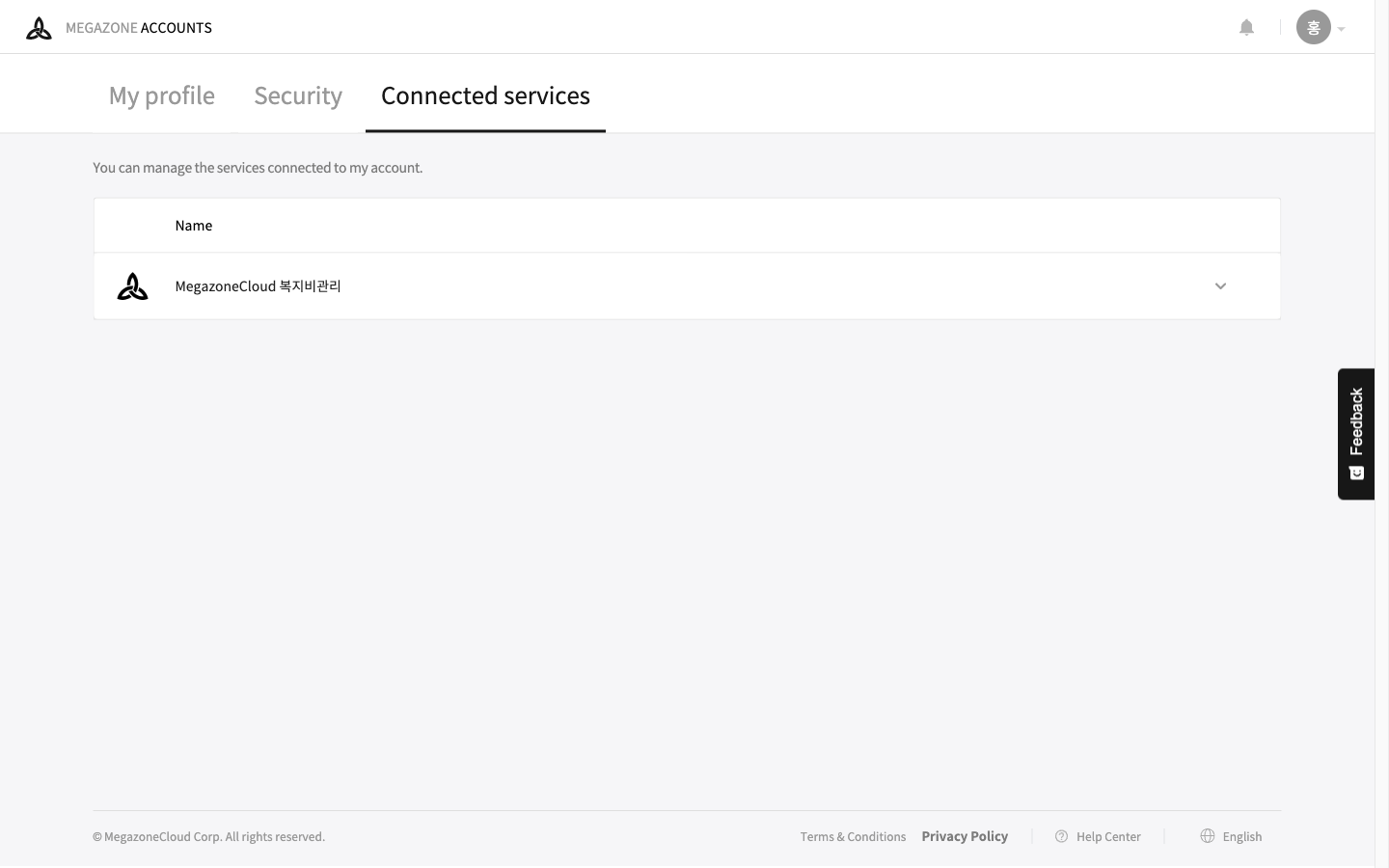
The list displays each connected service by name. Click the expand arrow to view additional details about the service connection.