Home
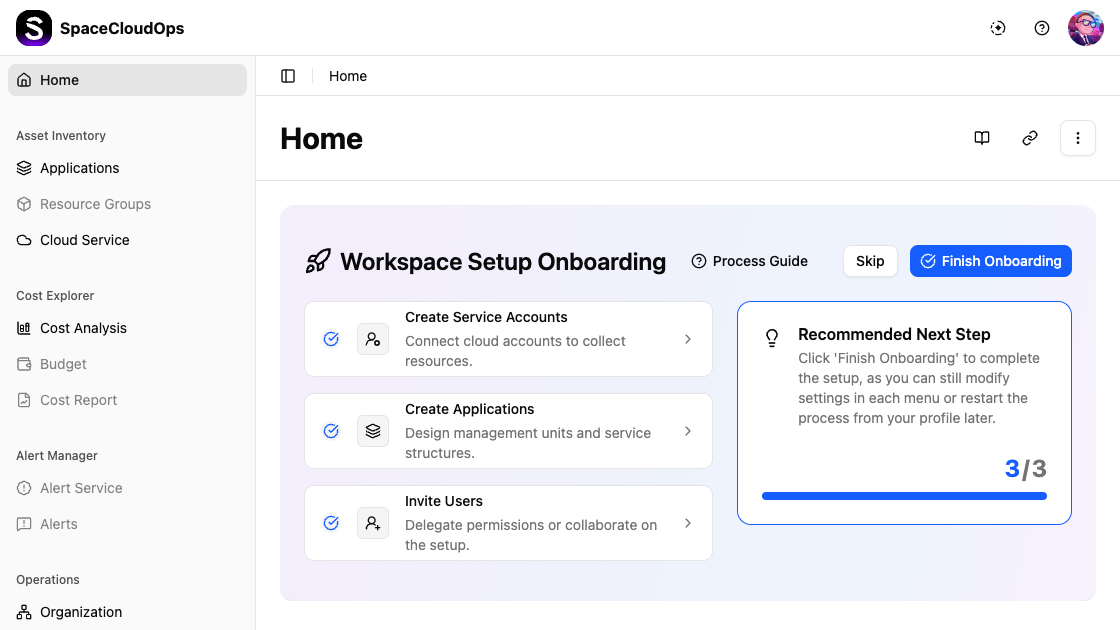
The Home page is the landing page of your workspace. For new workspaces, it displays the Workspace Setup Onboarding guide to help you configure your workspace step by step. After completing or skipping the onboarding, it transitions to the Dashboard view with key metrics.
Page Actions
The top-right corner of the Home page provides quick access buttons:

| Button | Description |
|---|---|
| Documentation | Opens the SpaceCloudOps documentation site |
| API Guide | Opens the API reference guide |
| More actions (⋮) | Additional options such as restarting the onboarding setup |
Workspace Setup Onboarding
The onboarding guide walks you through 3 essential setup steps to get your workspace ready:
| Step | Description | Navigation |
|---|---|---|
| Create Service Accounts | Connect your cloud accounts to collect resources | Operations > Service Accounts |
| Create Applications | Design management units and service structures | Asset Inventory > Applications |
| Invite Users | Delegate permissions or collaborate on the setup | IAM > Users |
Each step shows a checkmark icon when completed. The Recommended Next Step panel on the right tracks your progress (e.g., 3/3) and provides guidance on the next action.
Onboarding Steps in Detail
Clicking each onboarding step navigates you to the corresponding setup page.
Create Service Accounts
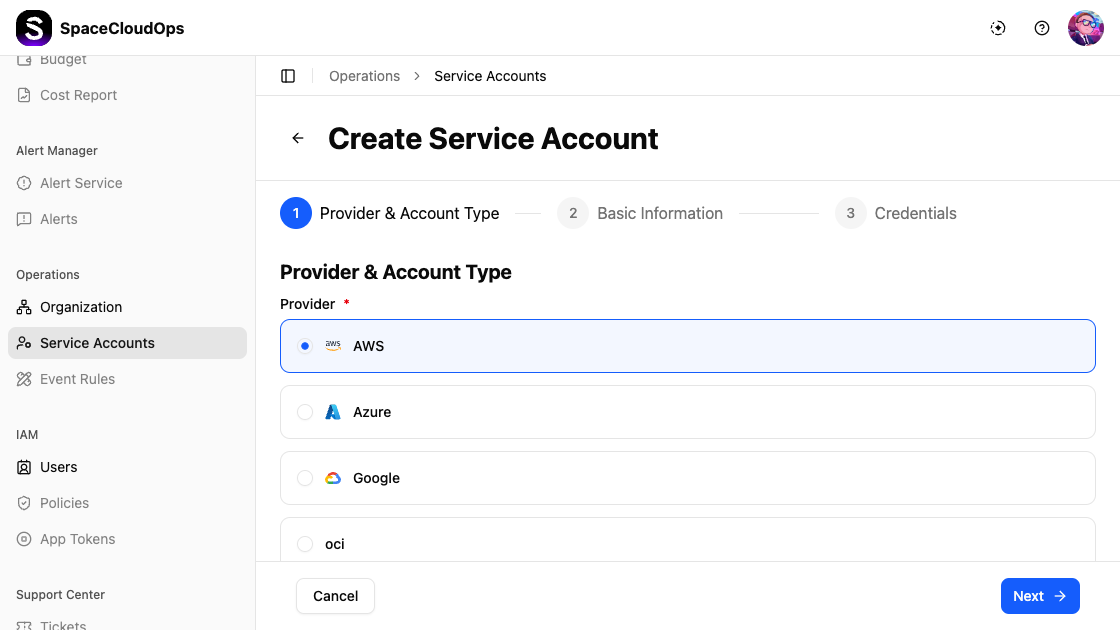
Clicking Create Service Accounts takes you to the Create Service Account wizard under Operations > Service Accounts. The wizard guides you through 3 steps:
Step 1. Provider & Account Type — Select the cloud provider and account type.
| Field | Required | Description |
|---|---|---|
| Provider | Yes | Select a cloud provider: AWS, Azure, Google, or OCI |
| Account Type | Yes | Choose General Account or Trusted Account |
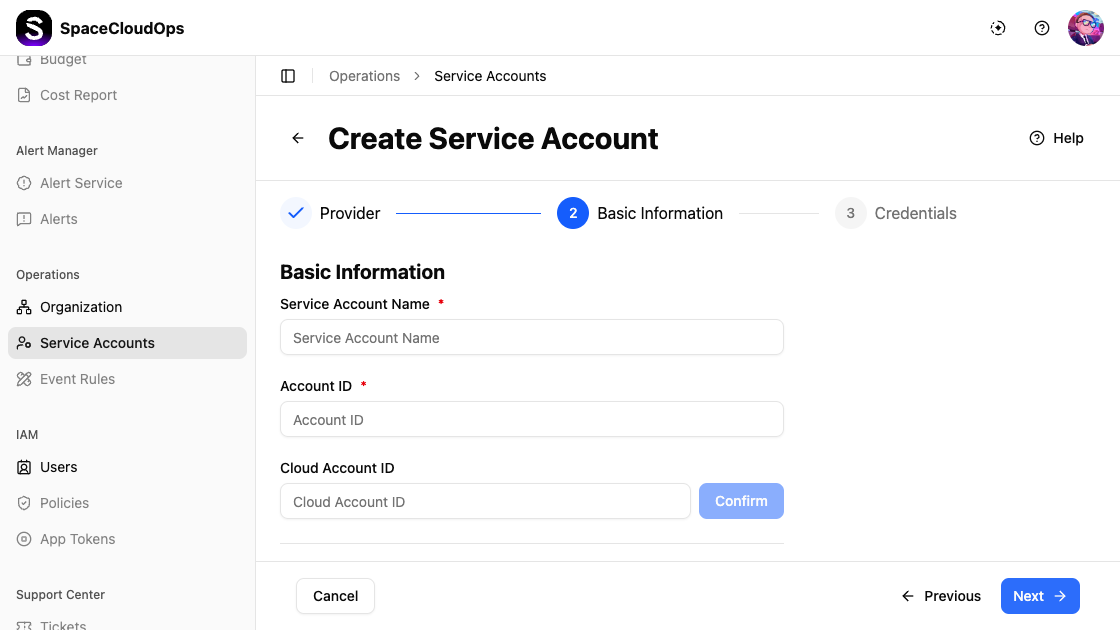
Step 2. Basic Information — Enter the service account details.
| Field | Required | Description |
|---|---|---|
| Service Account Name | Yes | A unique name for the service account |
| Account ID | Yes | The cloud provider’s account identifier |
| Cloud Account ID | No | An additional cloud account identifier. Click [Confirm] to validate |
| Operator | No | Select the user responsible for this account |
| Tags | No | Add custom key-value tags in key:value format |
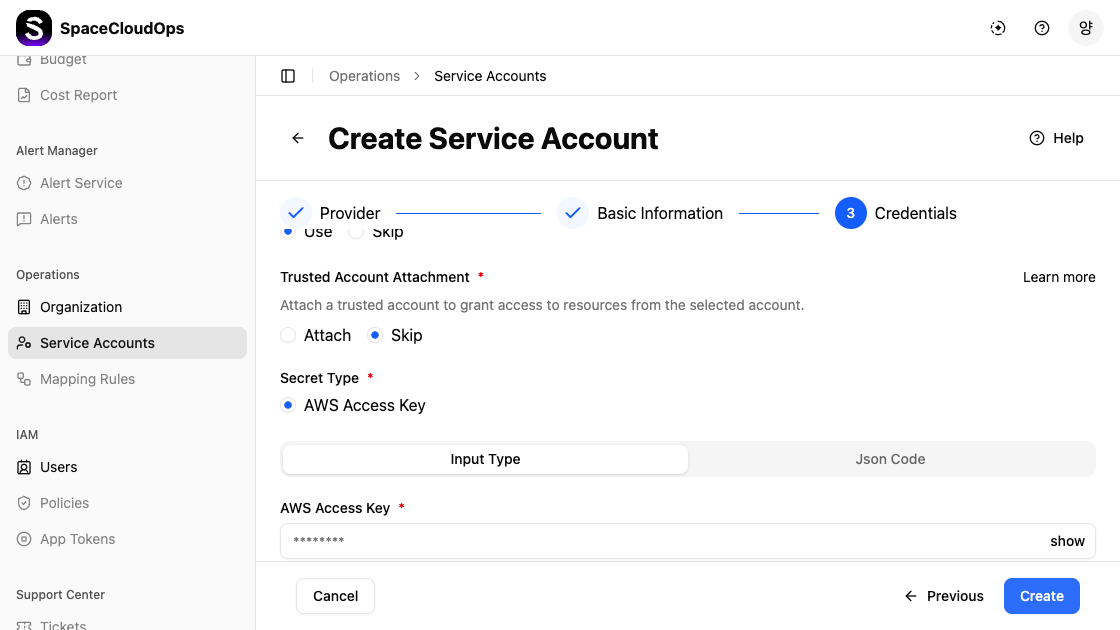
Step 3. Credentials — Provide authentication credentials for the selected provider.
| Field | Required | Description |
|---|---|---|
| Use / Skip | Yes | Choose to enter credentials directly (Use) or skip this step (Skip) |
| Trusted Account Attachment | Yes | Attach to link an existing Trusted Account, or Skip to configure independently |
| Secret Type | Yes | The credential type for the selected provider (e.g., AWS Access Key) |
| Input Type / Json Code | — | Toggle between a structured form (Input Type) or raw JSON (Json Code) to enter credential values |
| Credential Fields | Yes | Provider-specific fields (e.g., AWS Access Key) — values are masked for security |
Click [Next] to proceed through each step, or [Cancel] to return to the previous page.
Create Applications
Clicking Create Applications takes you to the Create Application form under Asset Inventory > Applications. The creation form has 2 steps:
Step 1. Basic Information — Enter the application details.
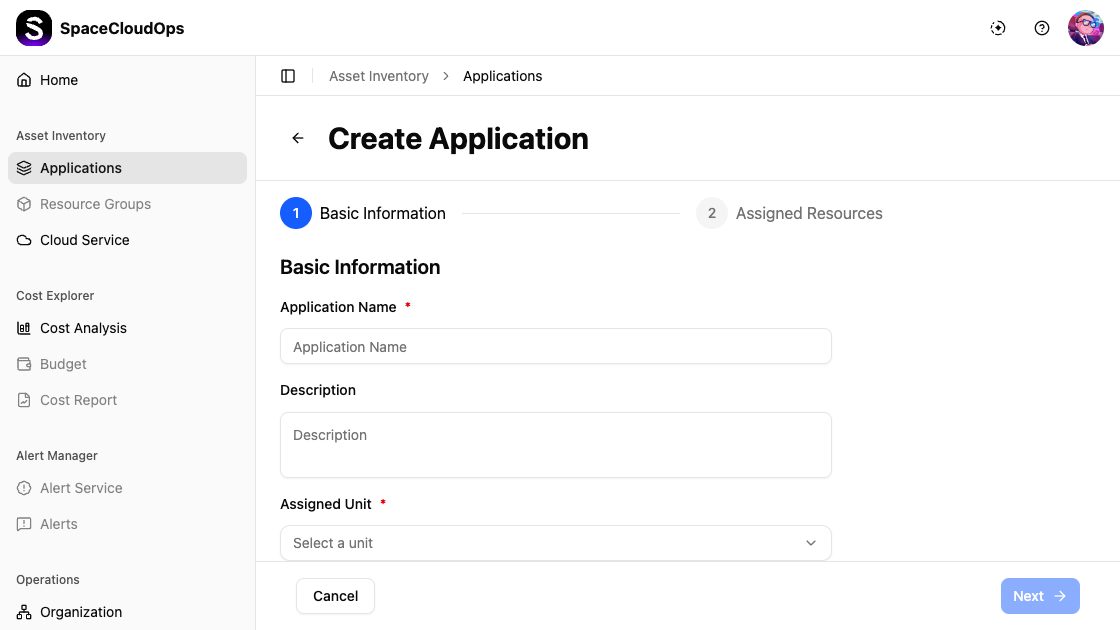
| Field | Required | Description |
|---|---|---|
| Application Name | Yes | Name for the application |
| Description | No | Optional description |
| Target Account | No | Select the target service account(s) |
| Assigned Unit | Yes | Select the organizational unit to assign (dropdown) |
| Operator | Yes | Select the operator responsible for this application |
Step 2. Assigned Resources — Assign cloud resources to the application. You can skip this step and add resources later.
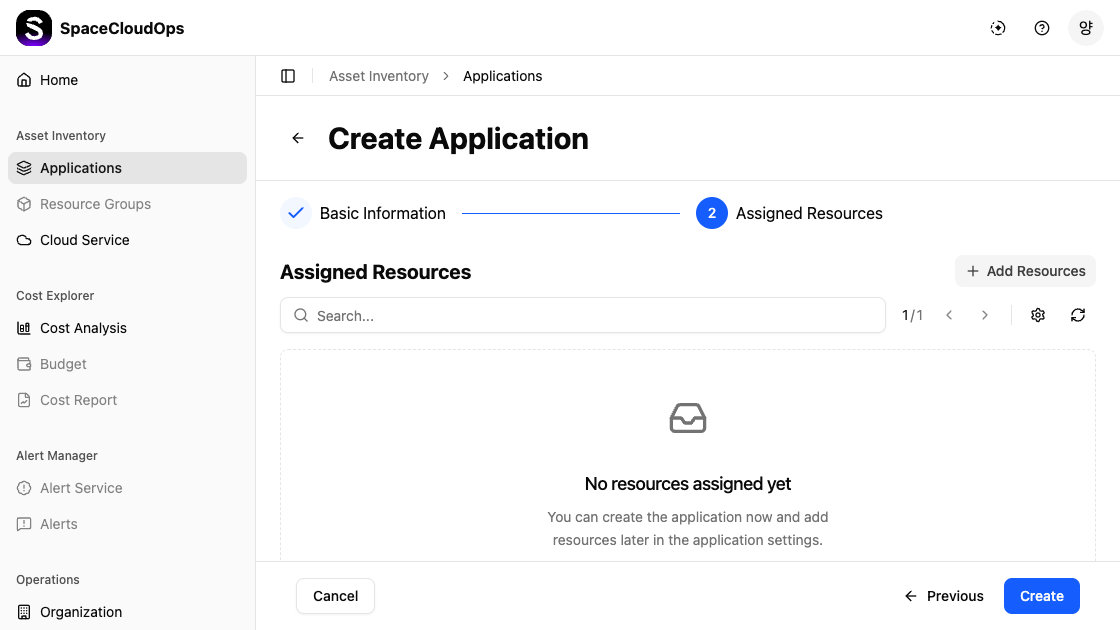
Click [+ Add Resources] to browse and assign cloud resources, or click [Create] to finish without assigning resources.
Click [Next] to proceed through each step, or [Cancel] to return.
Invite Users
Clicking Invite Users opens the Invite Users modal on the IAM > Users page.
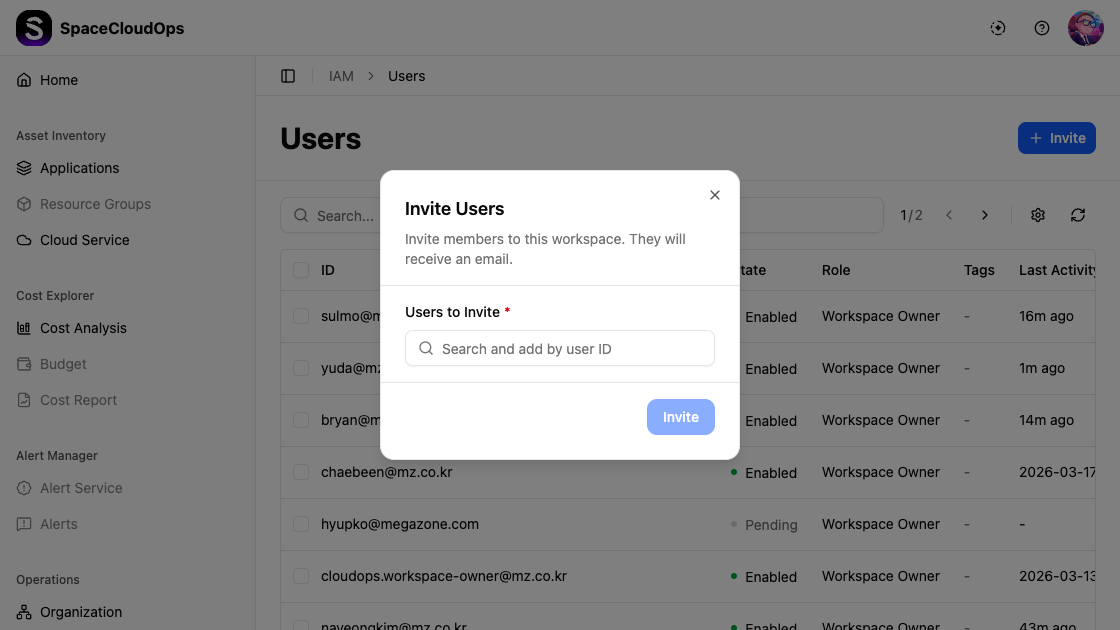
| Field | Required | Description |
|---|---|---|
| Users to Invite | Yes | Search and add users by user ID |
Click the [Invite] button to send invitations. Invited users will receive an email notification.
Process Guide
Click the [Process Guide] link in the onboarding header to view recommended setup workflows.
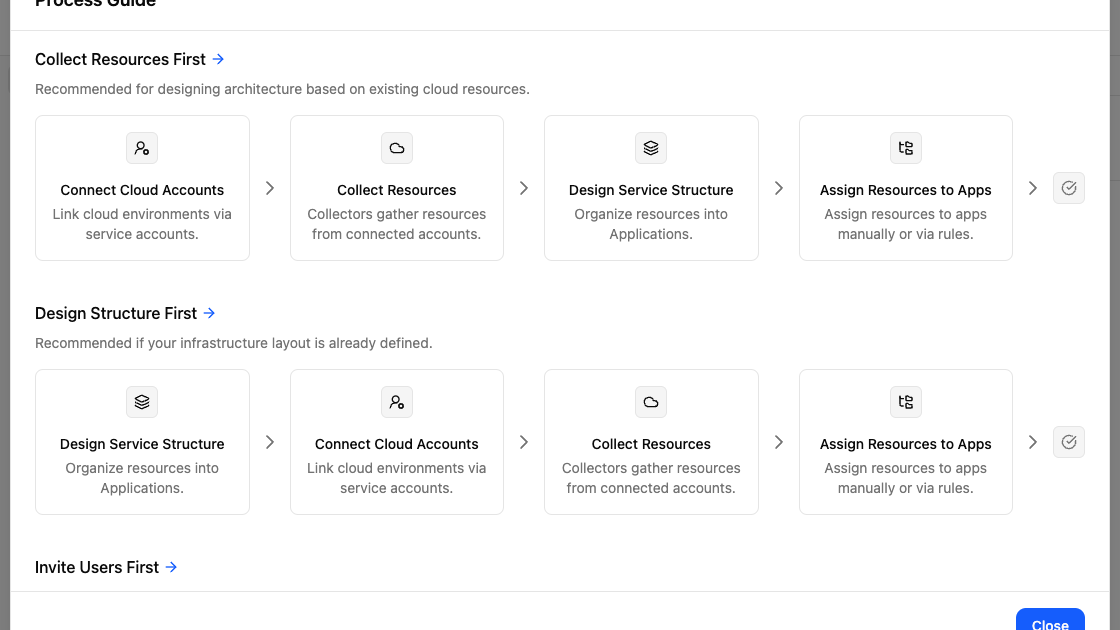
The Process Guide offers three onboarding paths based on your situation:
| Path | When to Use | Steps |
|---|---|---|
| Collect Resources First | Recommended when designing architecture based on existing cloud resources | Connect Cloud Accounts → Collect Resources → Design Service Structure → Assign Resources to Apps |
| Design Structure First | Recommended when your infrastructure layout is already defined | Design Service Structure → Connect Cloud Accounts → Collect Resources → Assign Resources to Apps |
| Invite Users First | When you need collaborators before starting setup | Invite team members first, then proceed with setup |
Click the arrow link (→) next to each path title to start that workflow. Click [Close] to return to the Home page.
Completing Onboarding
Complete all three onboarding items
Work through each item — Create Service Accounts, Create Applications, and Invite Users. Each item links directly to the relevant page.
Click [Finish Onboarding]
Once all items are complete, the [Finish Onboarding] button becomes active. Click it to dismiss the onboarding card and switch to the Dashboard view.
Dashboard
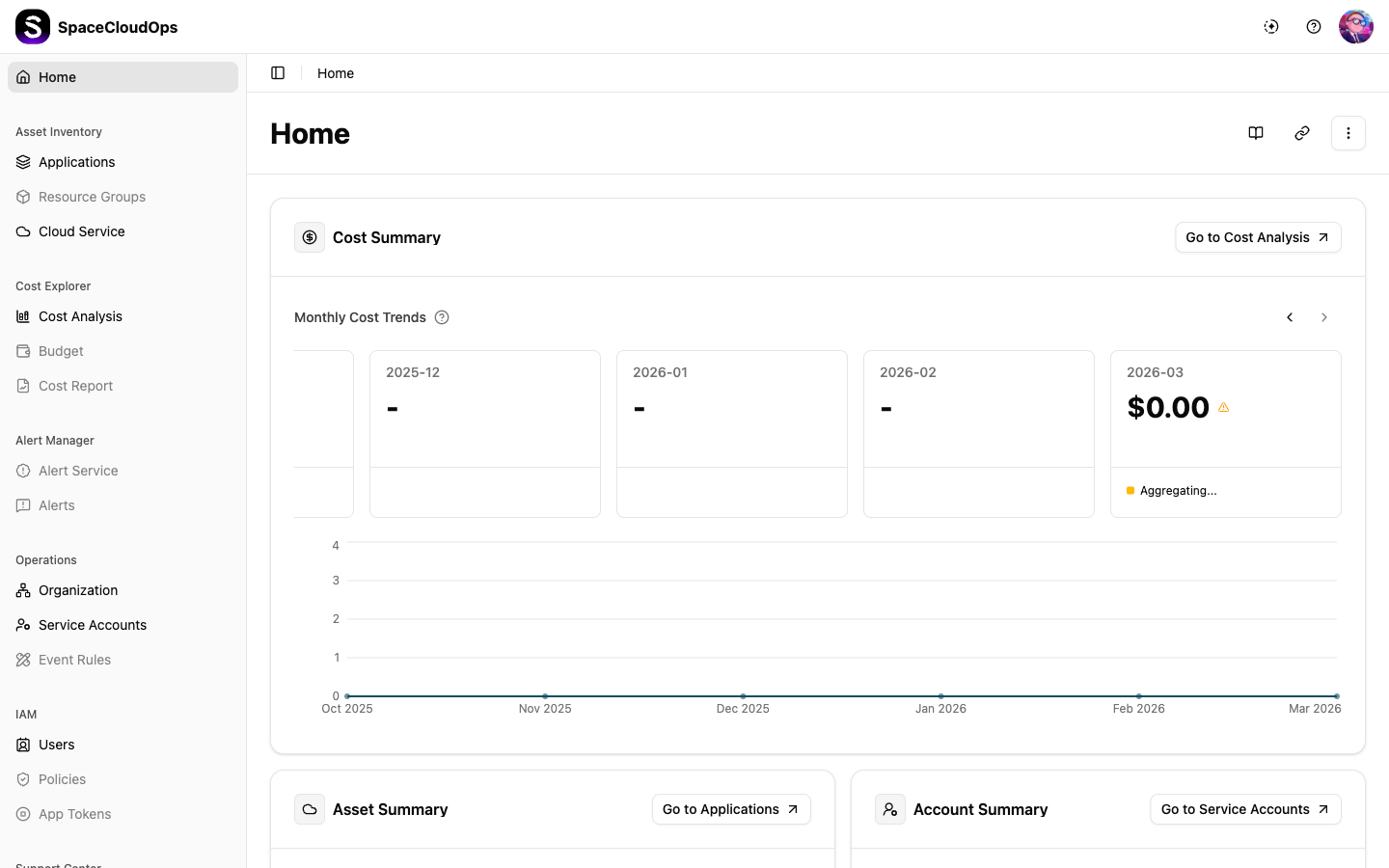
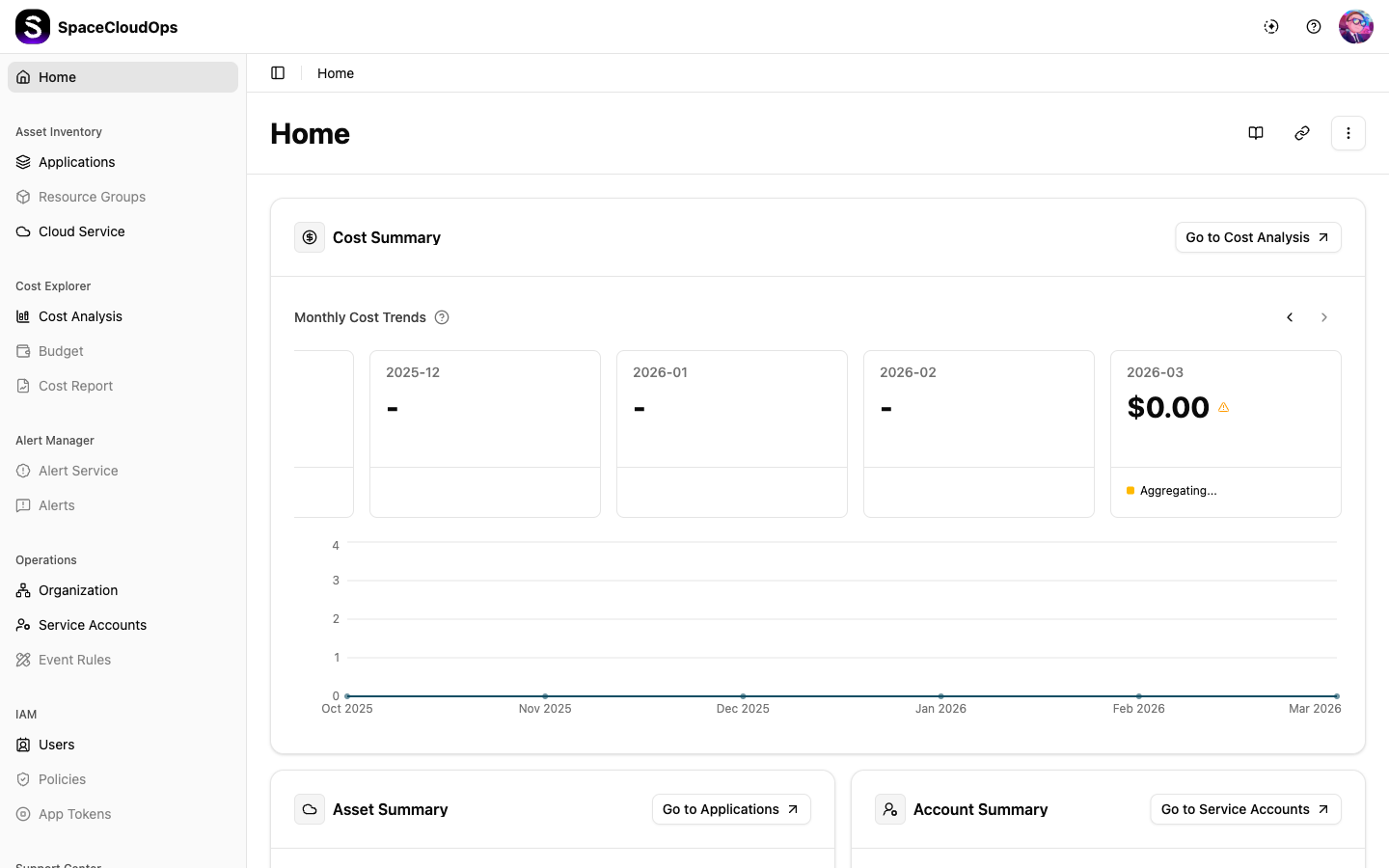
After completing or skipping the onboarding, the Home page displays summary widgets showing key metrics of your workspace.
Cost Summary
The Cost Summary widget shows monthly cost trends for the last 6 months.
Monthly Cost Cards — Each card displays:
| Element | Description |
|---|---|
| Month | The billing period in YYYY-MM format |
| Cost | The total cost for that month in USD. Shows - if no data is available |
| Trend | Percentage change compared to the previous month (up/down/unchanged) |
Cost Status Types:
| Status | Description |
|---|---|
| Finalized | Confirmed amount based on the issued report. This is the actual billed amount |
| Estimated | Pre-finalization estimate. May differ from the actual amount after finalization |
| Aggregating | Currently being collected (current month only). May differ from the actual amount after finalization |
Use the ← and → arrow buttons to scroll through month cards. Click the ⓘ icon next to “Monthly Cost Trends” to view status descriptions.
Below the month cards, a Cost Trend Chart visualizes the 6-month cost trend as an area chart. The X-axis shows months and the Y-axis shows cost amounts.
Asset Summary
The Asset Summary widget displays:
| Metric | Description |
|---|---|
| Total Applications | The number of applications registered in the workspace |
| Total Resources | The total count of cloud resources across all applications |
User Summary
The User Summary widget provides an overview of users in the workspace, showing the total count and distribution by role type.
Account Summary
The Account Summary widget shows service account statistics with two views:
| View | Description |
|---|---|
| by Status | A donut chart showing the distribution of service accounts by their status (Active, Inactive, etc.) |
| by Provider | A breakdown of service accounts by cloud provider |