Ticket Board
On the [Events & Alerts > Ticket Board] page, you can track and work through every issue in your organization in one place — whether it came from a Well-Architected assessment, an external alert, or was raised by hand.
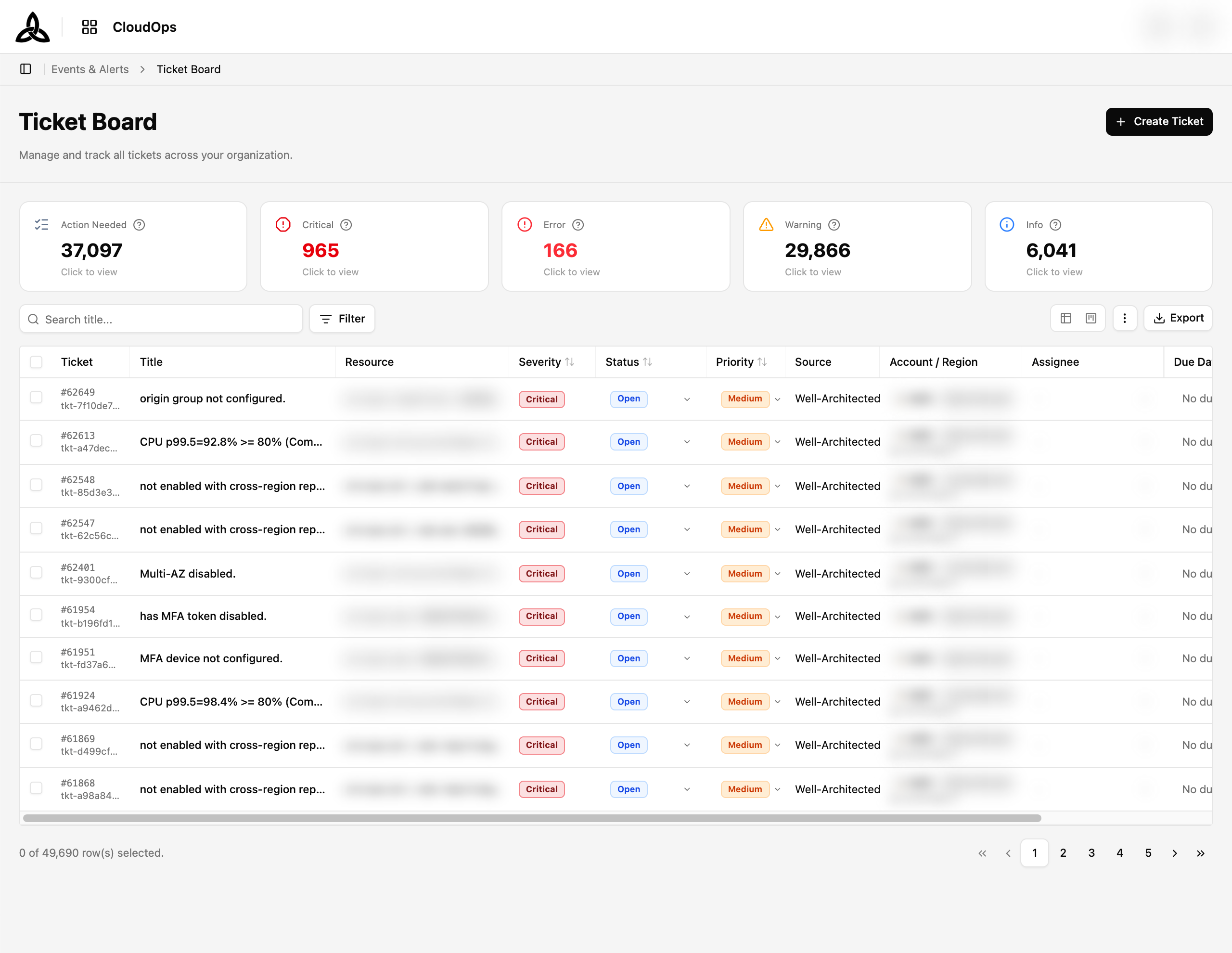
Page Layout
| Section | Purpose |
|---|---|
| KPI cards | How much work is outstanding, broken down by severity |
| Toolbar | Search, filters, and the table / kanban view switch |
| Ticket list | Every ticket, with the fields you most often change editable in place |
KPI cards
| Card | Meaning |
|---|---|
| Action Needed | Open, in-progress, and reopened tickets that still need attention |
| Critical / Error / Warning / Info | Action-needed tickets at that severity |
Every card is clickable — selecting one filters the list to exactly those tickets.
Ticket List
| Column | Description |
|---|---|
| Ticket | The ticket number and its identifier |
| Title | What is wrong |
| Resource | The affected resource |
| Severity | Critical / Error / Warning / Info |
| Status | Open / In Progress / Resolved / Reopened / Dismissed |
| Priority | High / Medium / Low |
| Source | Where the ticket came from — Well-Architected, Alert, or Manual |
| Account / Region | The cloud account and region of the affected resource |
| Assignee | Who is responsible |
| Due Date | The deadline, or No due date |
| Last Observed | When the underlying problem was last seen |
Status, Priority, Assignee, and Due Date can be changed directly in the row — click the chevron in the cell and pick a value, without opening the ticket.Toolbar
| UI element | Description |
|---|---|
| Search title… | Search tickets by title |
| Filter | Narrow by Severity, Status, Source, Priority, Provider, Pillar, Unassigned, and the three period axes below. Filters you use often can be pinned with the ☆ |
| View switch | Toggle between the table view and the kanban board |
| ⋮ | Set Display (rows per page, column visibility, order, and pinning) and Refresh |
| Export | Download the tickets matching the current filters as an Excel or CSV file |
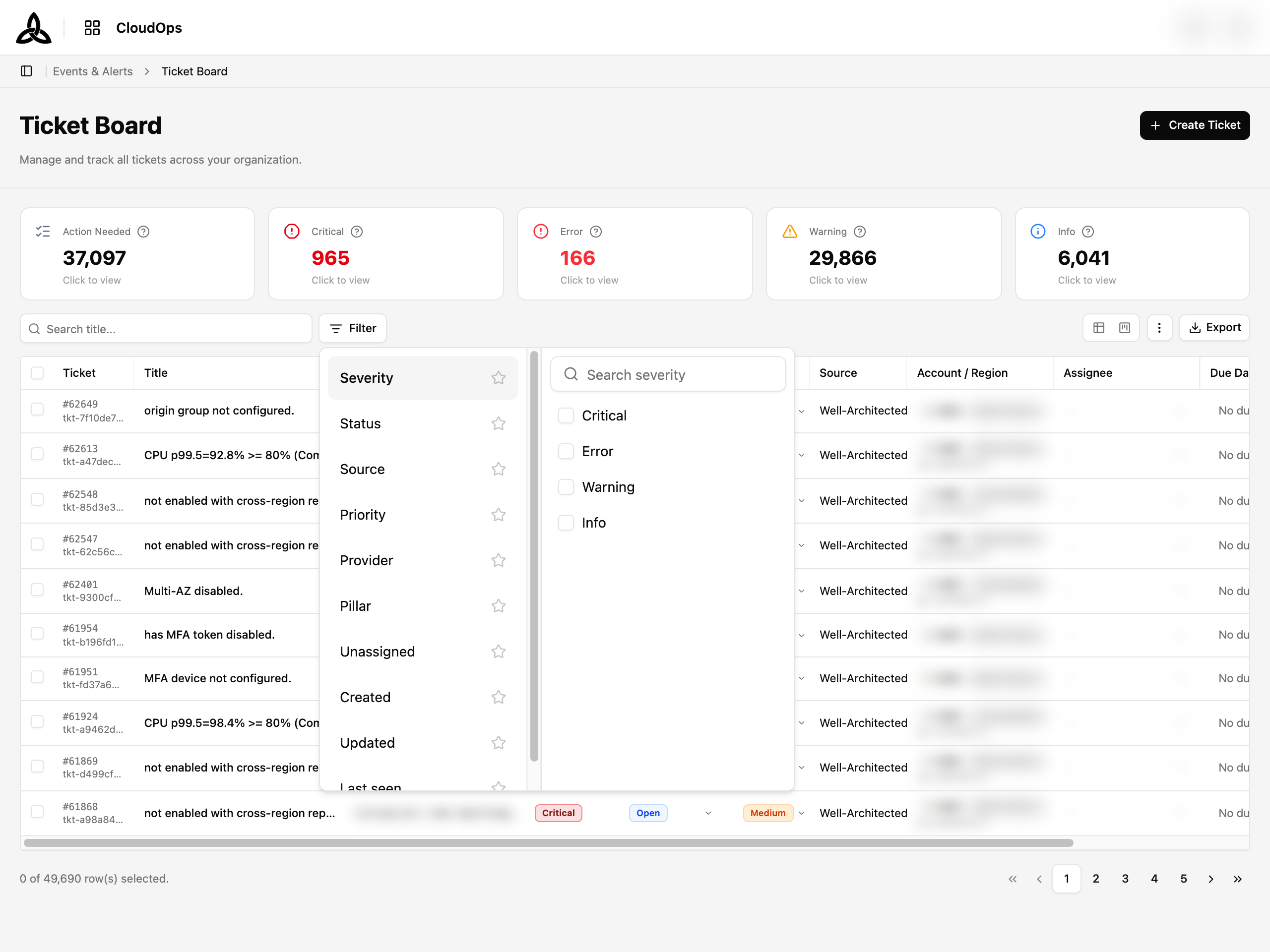
Filtering by period
Three independent time axes narrow the board, each with its own tab in the filter:
| Axis | Narrows by |
|---|---|
| Created | When the ticket was raised |
| Updated | When the ticket was last changed |
| Last seen | When the underlying problem was last observed |
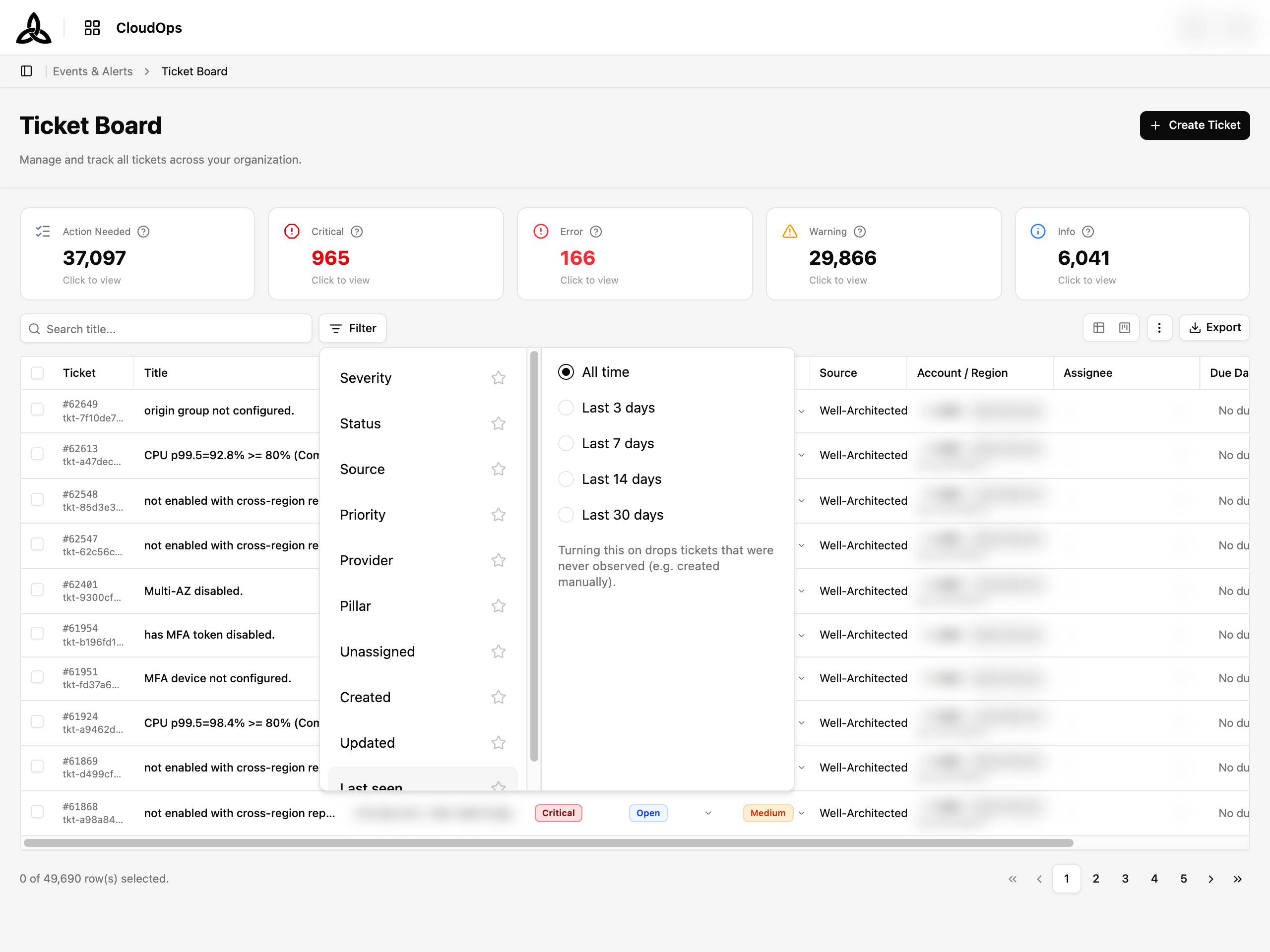
Each axis offers All time, Last 3 days, Last 7 days, Last 14 days, and Last 30 days — the last one covers “tickets raised this month”. The axes combine, so you can ask for tickets created in the last 30 days that were also updated in the last 3. A tab whose axis is set shows a count, and [Reset filters] clears all three along with the rest.
Created and Updated never exclude a ticket this way.Column pinning
Open ⋮ > Set Display to change rows per page, hide or reorder columns, and pin up to 2 columns to the left so they stay visible while you scroll the wide table horizontally. The layout is kept in your browser. Narrowing the list — a new search, filter, or KPI card — always returns you to page 1.
Exporting tickets
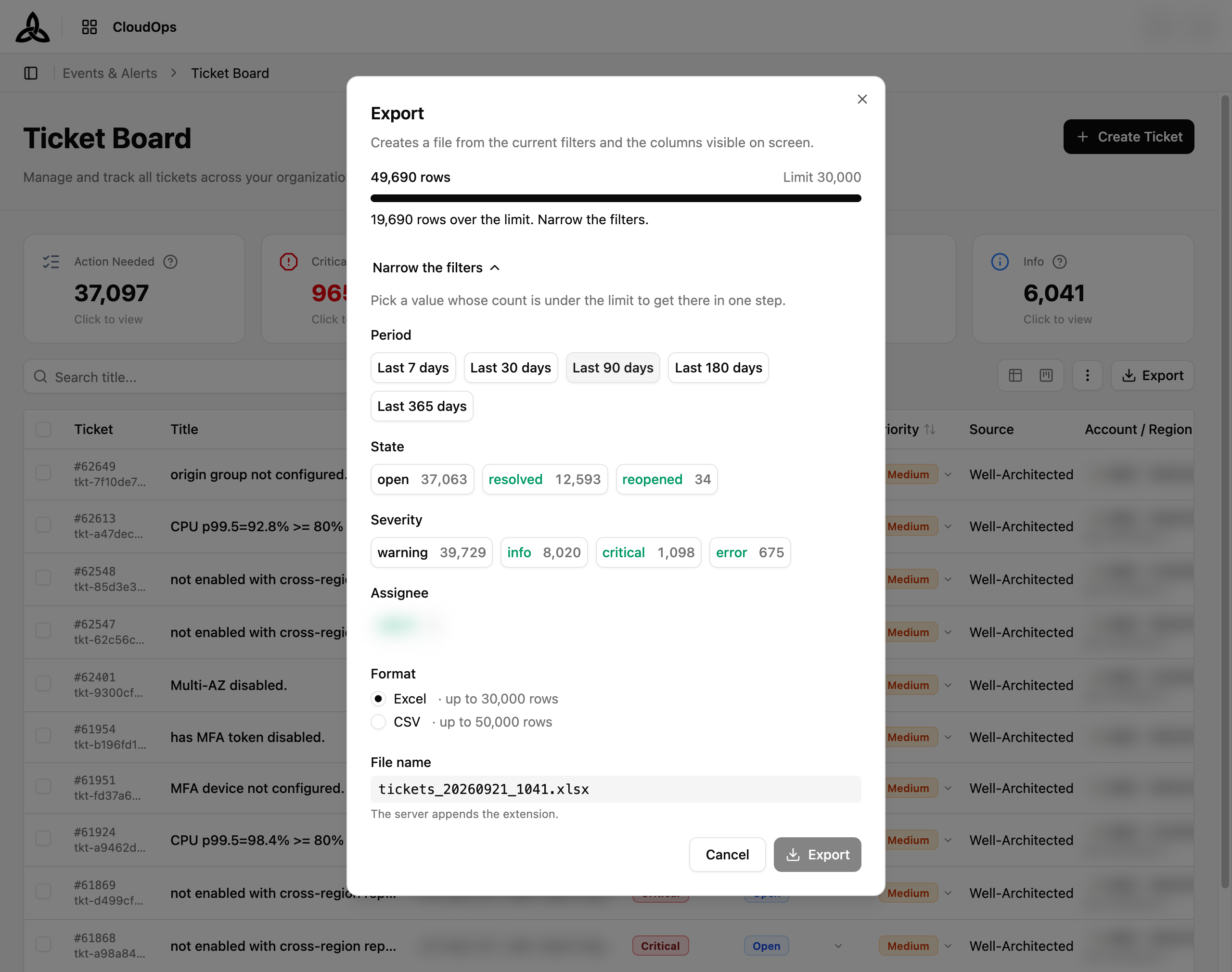
Export in the toolbar opens a dialog that builds a file from the tickets matching the current filters, with the columns that are visible on screen in the same order. The board keeps years of history, so the dialog opens with Last 90 days already applied and shows how many rows that is against the limit — Excel up to 30,000 rows, CSV up to 50,000.
| Step | What to do |
|---|---|
| Narrow the filters | While the count is over the limit, pick a shorter Period or a single State / Severity / Assignee value — the State, Severity, and Assignee chips show how many rows each value would leave |
| Format | Excel or CSV |
| File name | Generated from the resource and the time; the server appends the extension |
| [Export] | Enabled once the count is within the limit. The download starts automatically when the file is ready |
Kanban view
Switching to kanban groups tickets into a lane per status and lets you drag a ticket from one lane to another to change its status. Transitions that are not allowed are refused with an explanation rather than silently reverting.
Each lane shows its own count in the header and loads more cards as you scroll it, so a lane holding tens of thousands of tickets stays usable. The KPI cards above are clickable too — selecting one filters the board to exactly those tickets, in either view.
Changing status
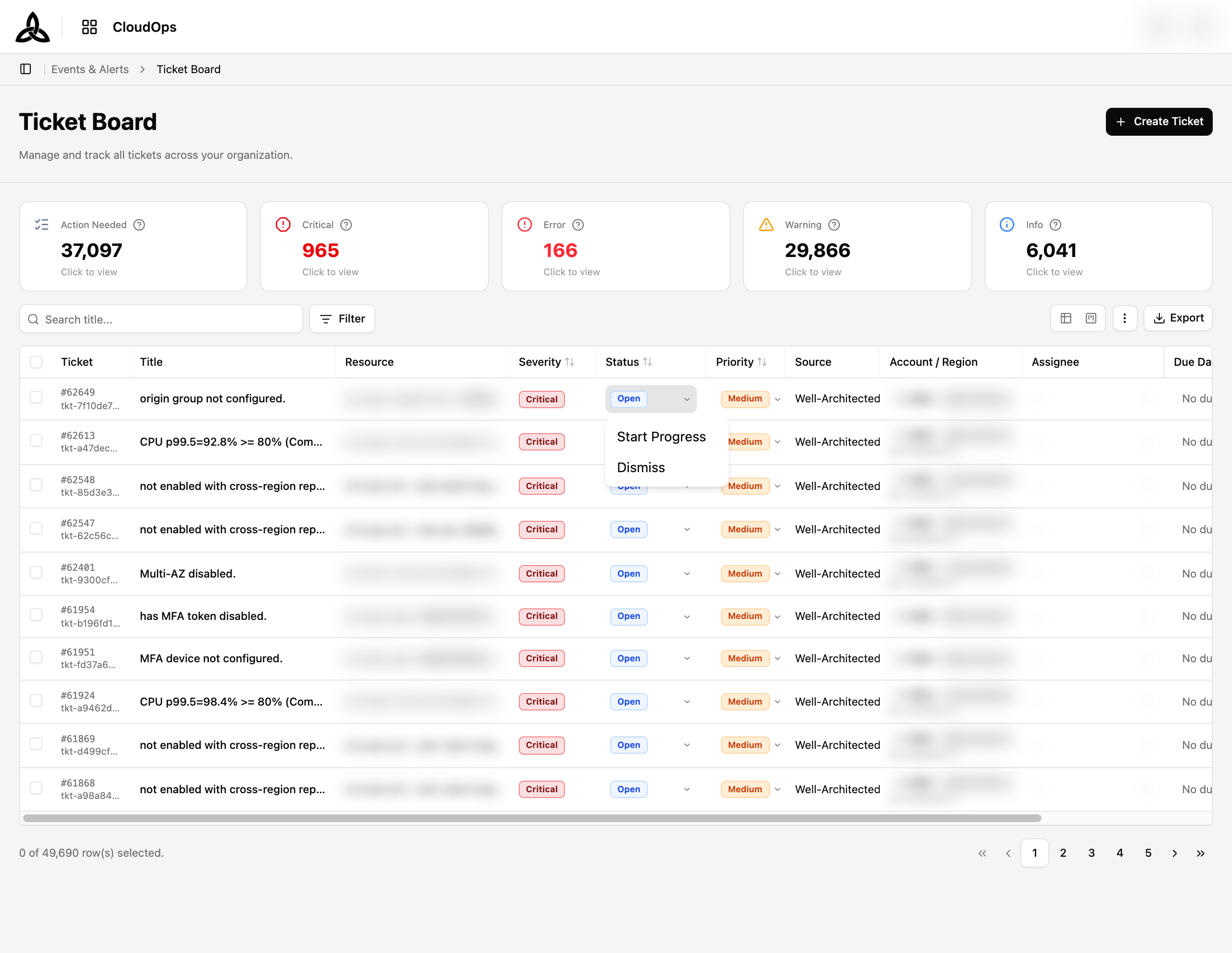
Click the chevron next to a ticket’s status to see which transitions are available from where it is now — for example an Open ticket offers Start Progress and Dismiss. Only valid next states are listed.
In Progress and sends an email notification.Ticket Detail
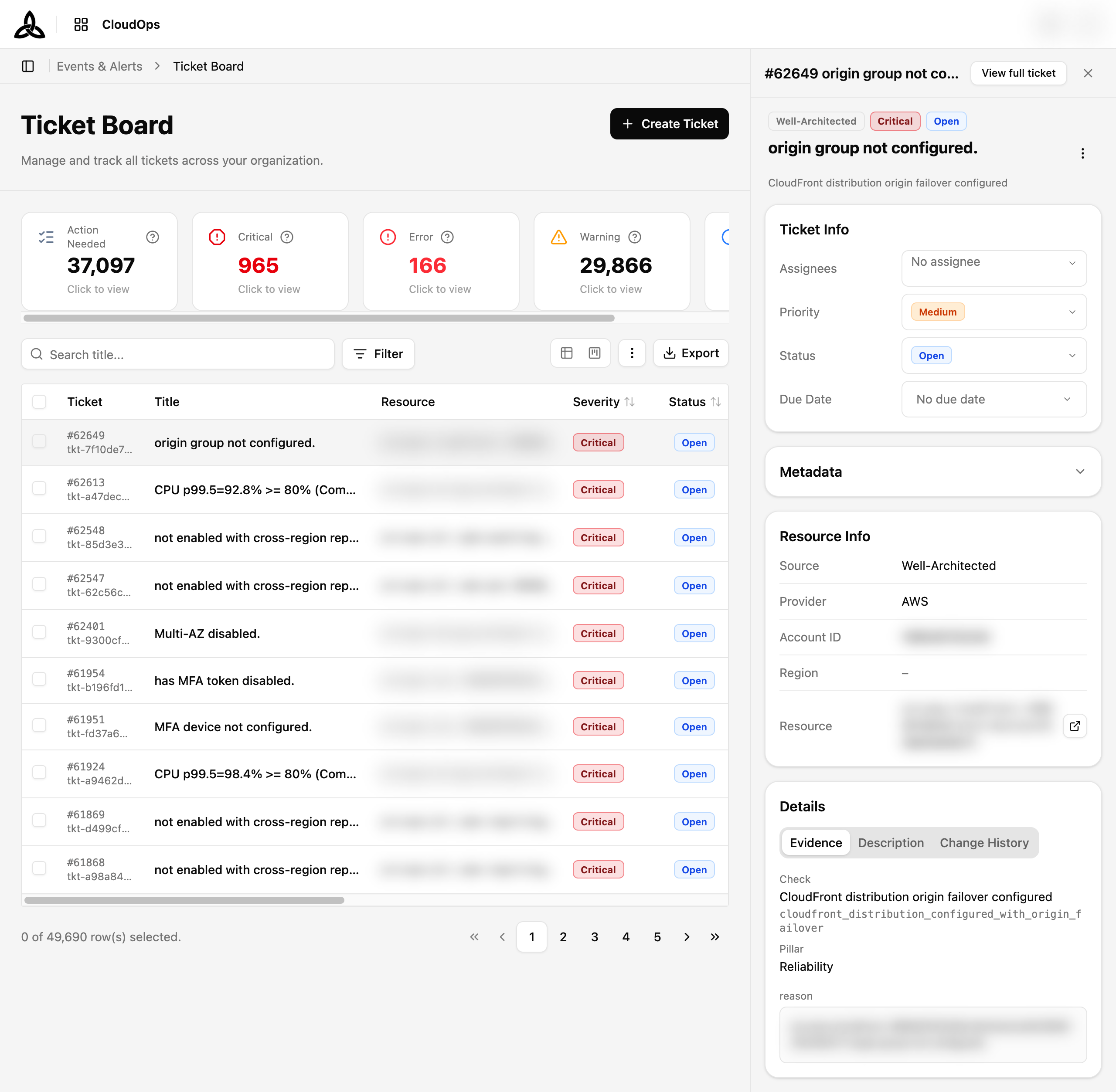
Click a ticket to open the preview panel beside the list. [View full ticket] opens it as a full page.
| Section | Contents |
|---|---|
| Header | Ticket number, title, and badges for source, severity, and status |
| Ticket Info | Assignees, Priority, Status, and Due Date — all editable here |
| Metadata | Collapsible block of the ticket’s own fields. For a Well-Architected ticket this includes the Pillar the finding belongs to |
| Resource Info | Source, Provider, Account ID, Region, and the affected Resource, with a link out to it — plus Last collected and the re-collect action below |
| Details | Three tabs — Evidence (the finding behind the ticket), Description (context you write yourself), and Change History |
Evidence shows the finding that produced it. If that finding has since been resolved or dropped out of the latest assessment, the tab says so rather than showing stale data.Re-collecting the resource
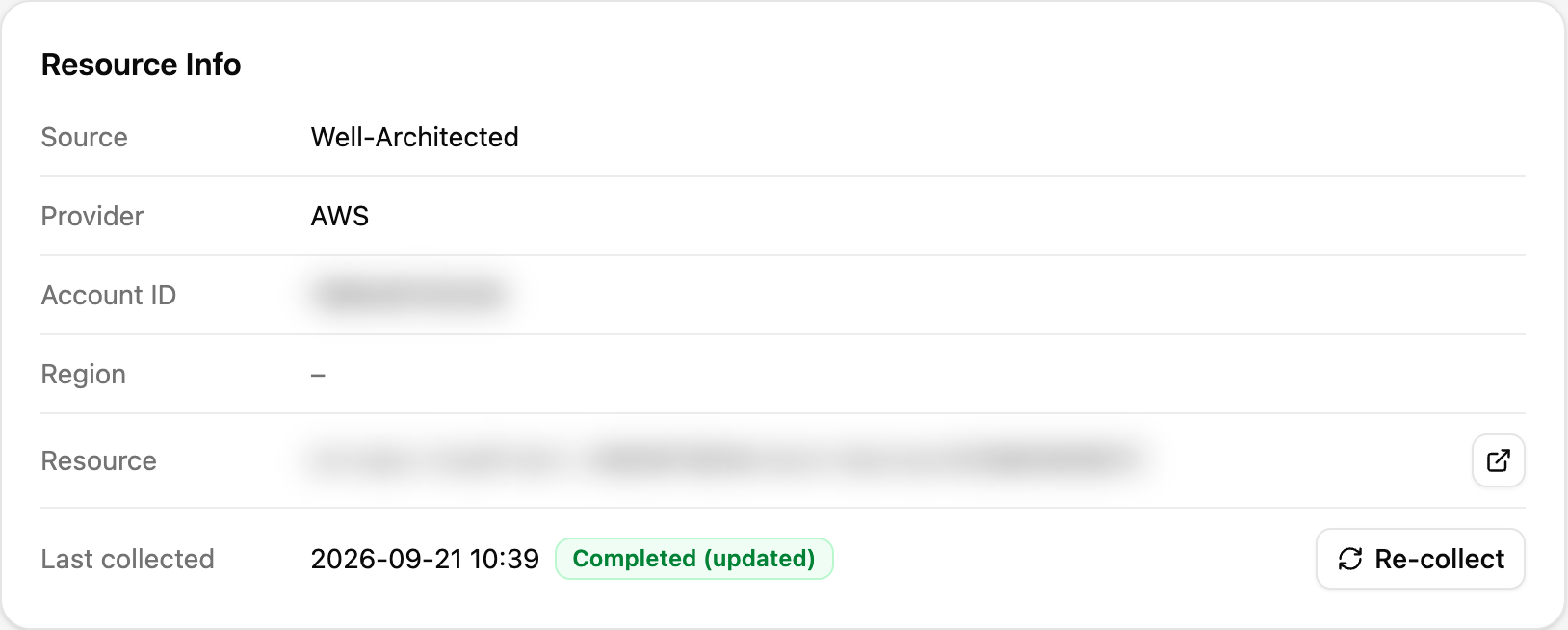
At the bottom of Resource Info, Last collected shows when the affected resource was last read from the cloud provider, with a [Re-collect] button beside it. This is the shortcut for the common case: you fixed something in the CSP console and want the ticket to catch up, without leaving for the resource inventory to find that one resource.
Once the request is accepted the row reports where the collection stands:
| Result | Meaning |
|---|---|
| In progress | The resource is being collected again |
| Completed (updated) | Collection finished and the latest data is reflected |
| Completed (deletion confirmed) | The resource is confirmed gone from the provider and marked deleted |
| Unverified | Existence could not be confirmed — a permission gap or a transient error. The resource is left unchanged |
The state shown is what the server reports for the resource, so it stays accurate even if you reload or come back later. If the collection resolves what the ticket was raised for, the ticket is reconciled and closes on its own; the detail refreshes so you see that here rather than having to reload.
[Re-collect] is never locked while a collection is running — pressing it again is simply refused with Re-collection is already in progress, which is not an error.
Creating a Ticket
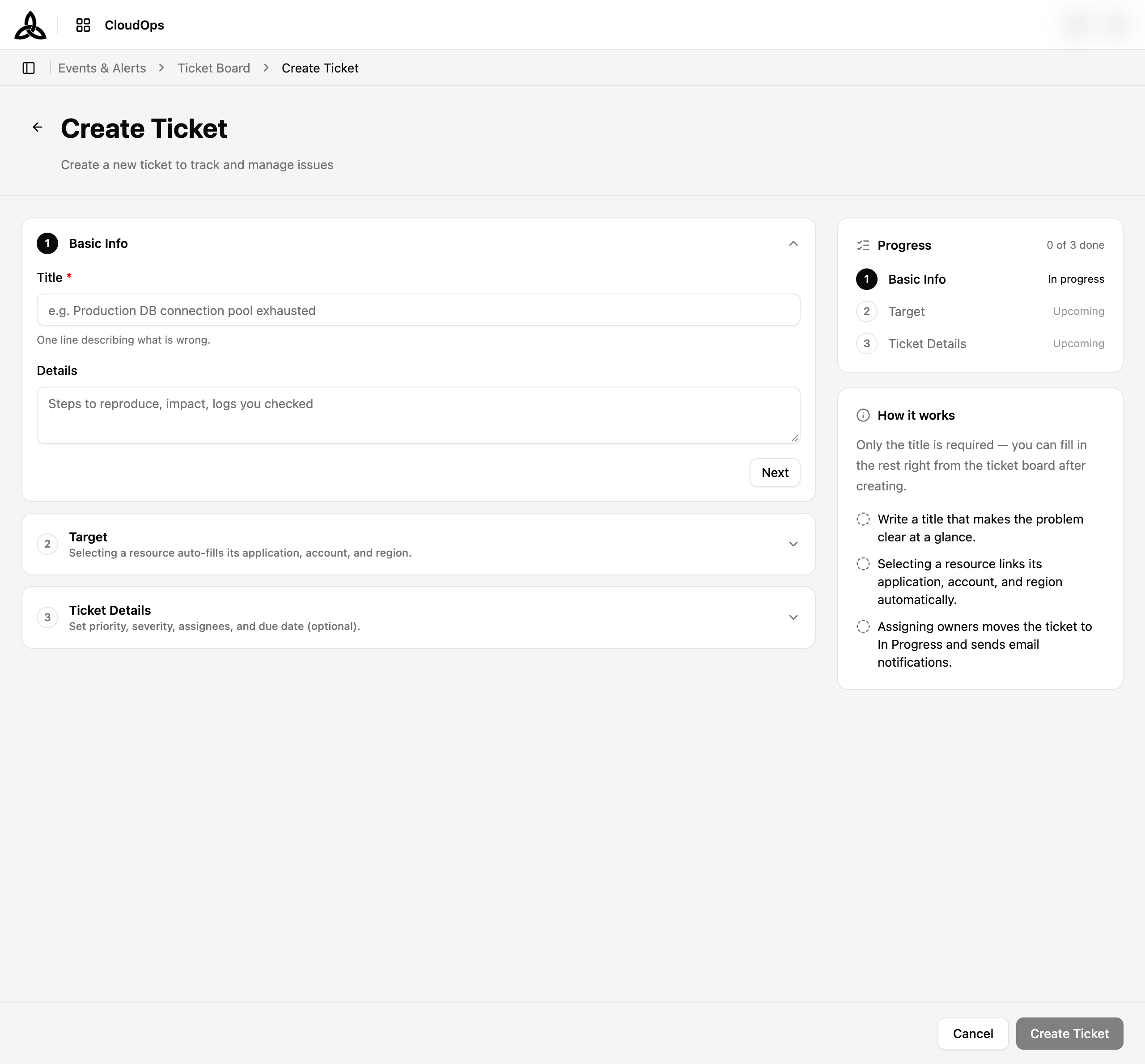
Click [+ Create Ticket]
Fill in Basic Info
Title is the only required field — one line describing what is wrong. Details is optional and is where reproduction steps, impact, and logs go.
Choose the Target
Selecting a resource auto-fills its application, account, and region.
Set the Ticket Details
Priority, severity, assignees, and due date. All optional — you can fill them in from the board afterwards.
Click [Create Ticket]
The panel on the right tracks progress through the three steps, so you can see what is still outstanding before saving.