Events
On the [Events & Alerts > Events] page, you can see every event received from your connected alarm sources, whether or not it became a ticket. The Ticket Board holds the work to be done; this page holds the full record of what arrived. Repeated alarms can be grouped by issue, and you can resolve events or leave notes on them here.
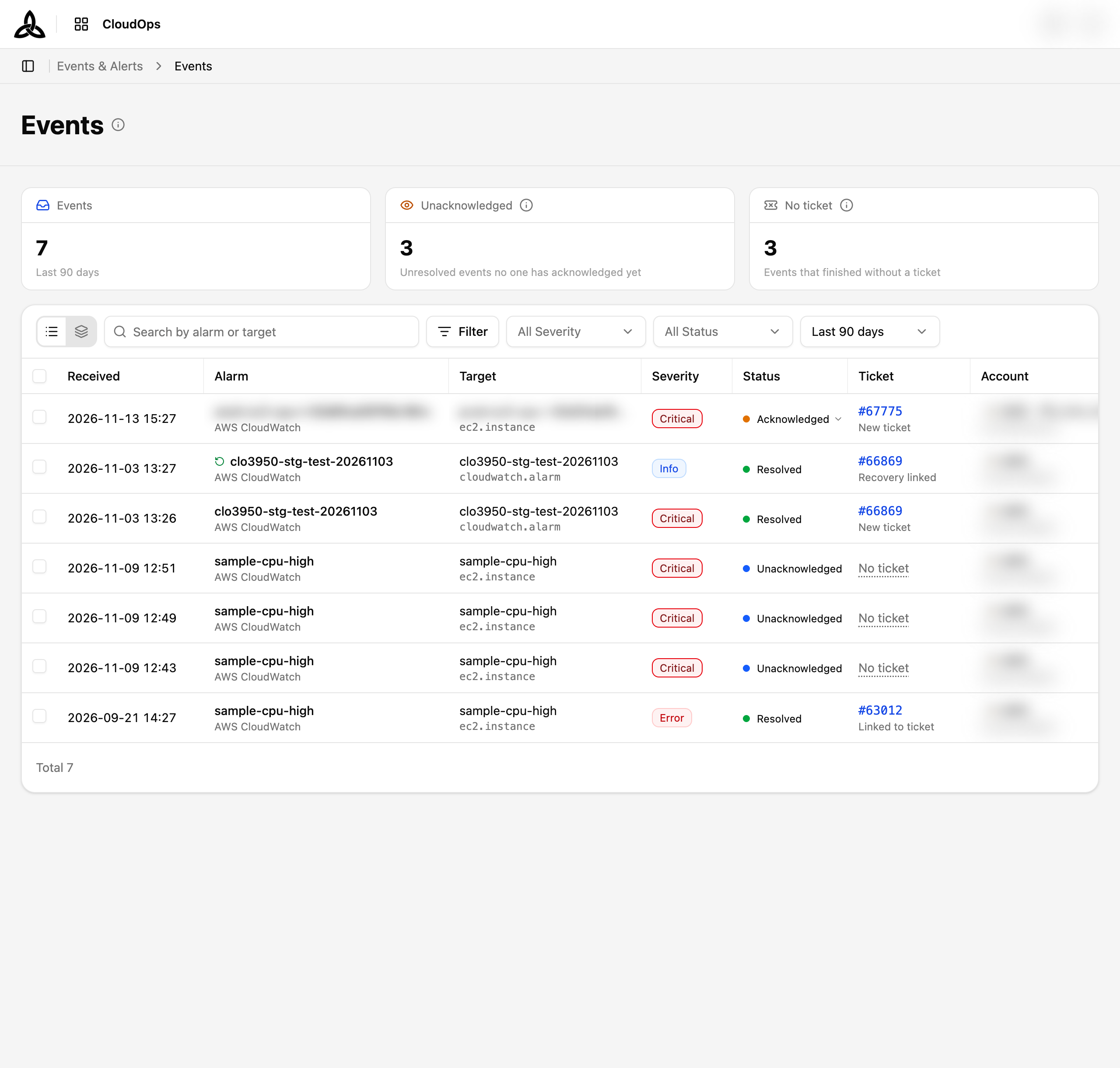
Acknowledged once someone has acknowledged the ticket it is linked to.Page Layout
| Section | Purpose |
|---|---|
| Summary cards | How many events arrived, how many are still unacknowledged, and how many ended without a ticket |
| Toolbar | View switch, search, filters, and the period |
| Event list | Every event that matches the period and conditions |
Summary cards
| Card | Meaning |
|---|---|
| Events | All events that match the current period and conditions |
| Unacknowledged | Unresolved events no one has acknowledged yet. Resolved events are not counted |
| No ticket | Events that finished without a ticket — their ticket result is No ticket or No ticket to link. Events still being processed or that failed are not counted |
The numbers count every result for the current period and conditions, not just the rows on the current page. Clicking Unacknowledged or No ticket filters the list to exactly those events.
Event List
| Column | Description |
|---|---|
| Received | When CloudOps received the event |
| Alarm | The alarm name, with the source it came from (for example AWS CloudWatch) underneath. A ↺ mark in front means a recovery event — the alarm went back to normal |
| Target | The affected resource and its type |
| Severity | Disaster / Critical / Error / Warning / Info, or — when the source gave none. This is the event’s own severity, not the current severity of its linked ticket |
| Status | Unacknowledged / Acknowledged / Resolved (see below) |
| Ticket | The linked ticket number and how the event joined it, or the ticket result when there is no ticket (see below) |
| Account | The cloud account the event belongs to |
Drag the border between column headers to change a column’s width. The browser remembers the widths.
Status
| Status | Meaning |
|---|---|
Unacknowledged | Not resolved, and no one has acknowledged the linked ticket yet |
Acknowledged | Someone acknowledged the linked ticket on the Ticket Board |
Resolved | Resolved directly, or the linked ticket was closed |
Ticket
When the event is linked to a ticket, the cell shows the ticket number (click it to open the ticket) and how the event joined it:
| Label | Meaning |
|---|---|
New ticket | This event opened the ticket |
Added to existing ticket | The event joined a ticket that was already open for the same issue |
Recovery linked | A recovery event attached to the ticket of the alarm it recovered |
When there is no ticket, the cell shows the ticket result instead. Hover over a dotted label to see the reason.
| Ticket result | Meaning |
|---|---|
Processing | Ticket linking is still being processed |
No ticket | Processing finished without creating a ticket |
Processing failed | Ticket processing failed. This is not a final “no ticket” result |
No ticket to link | A recovery arrived, but there was no open ticket to link it to |
Linking on hold | Linking was put on hold because the same issue could not be confirmed |
Historical | Received before ticket processing results were recorded |
Searching and Filtering
| UI element | Description |
|---|---|
| View switch | One per row shows each event on its own row; Group the same issue folds repeats into one row (see Grouping the Same Issue) |
| Search by alarm or target | Search by alarm name or target |
| Filter | Narrow by Severity, Status, Account, and Ticket result. Pin the axes you use most to the toolbar with the ☆ — up to three. Severity and Status are pinned by default |
| Period | Last 24 hours, Last 7 days (default), Last 30 days, or Last 90 days. There is no “all time” option |
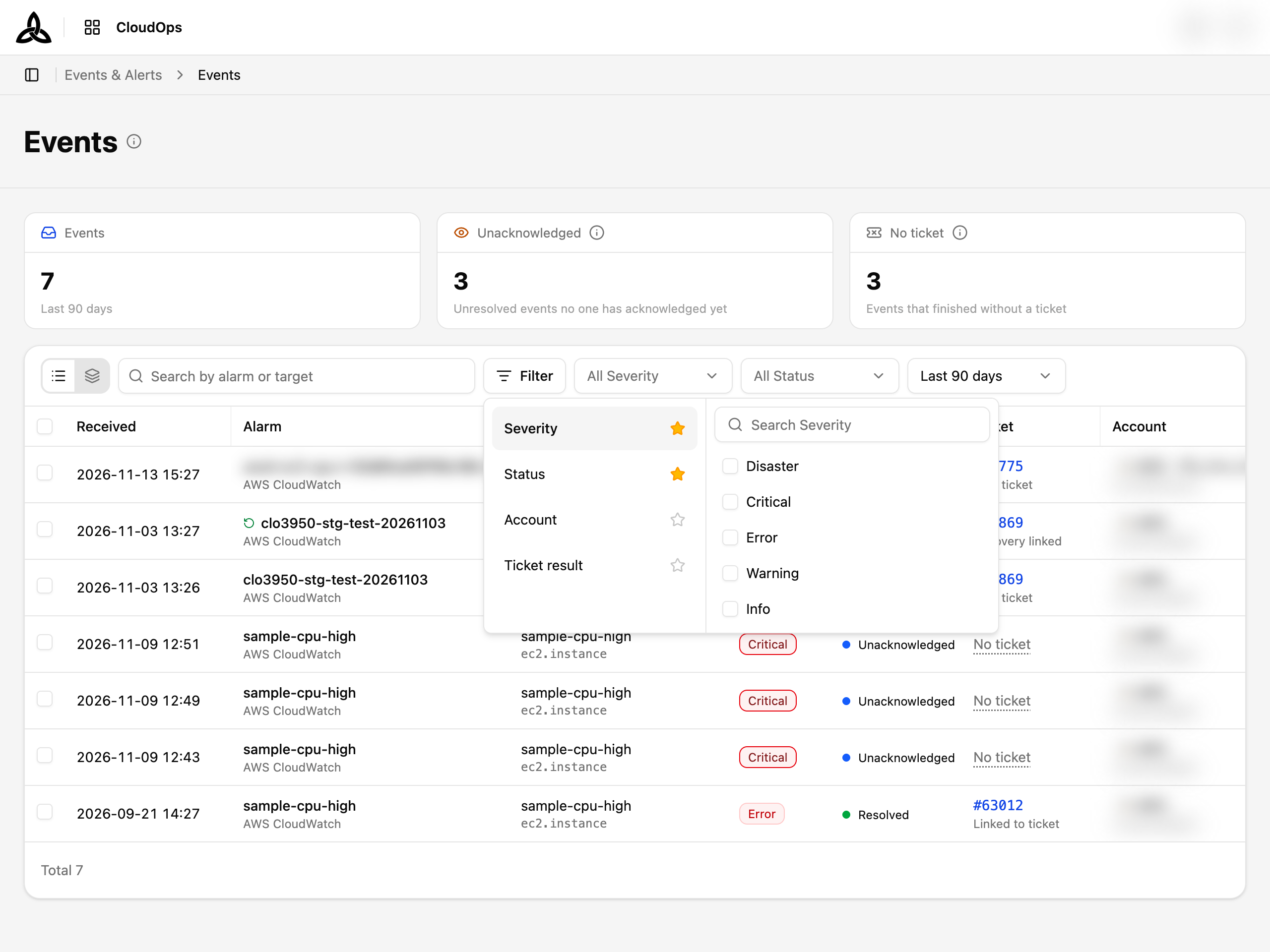
Applied conditions appear as chips under the toolbar. Remove one with its ×, or click [Reset filters] to clear them all. The period stays as it is.
Grouping the Same Issue
The same alarm on the same target usually fires again and again. Switch the view to Group the same issue to see one row per issue.
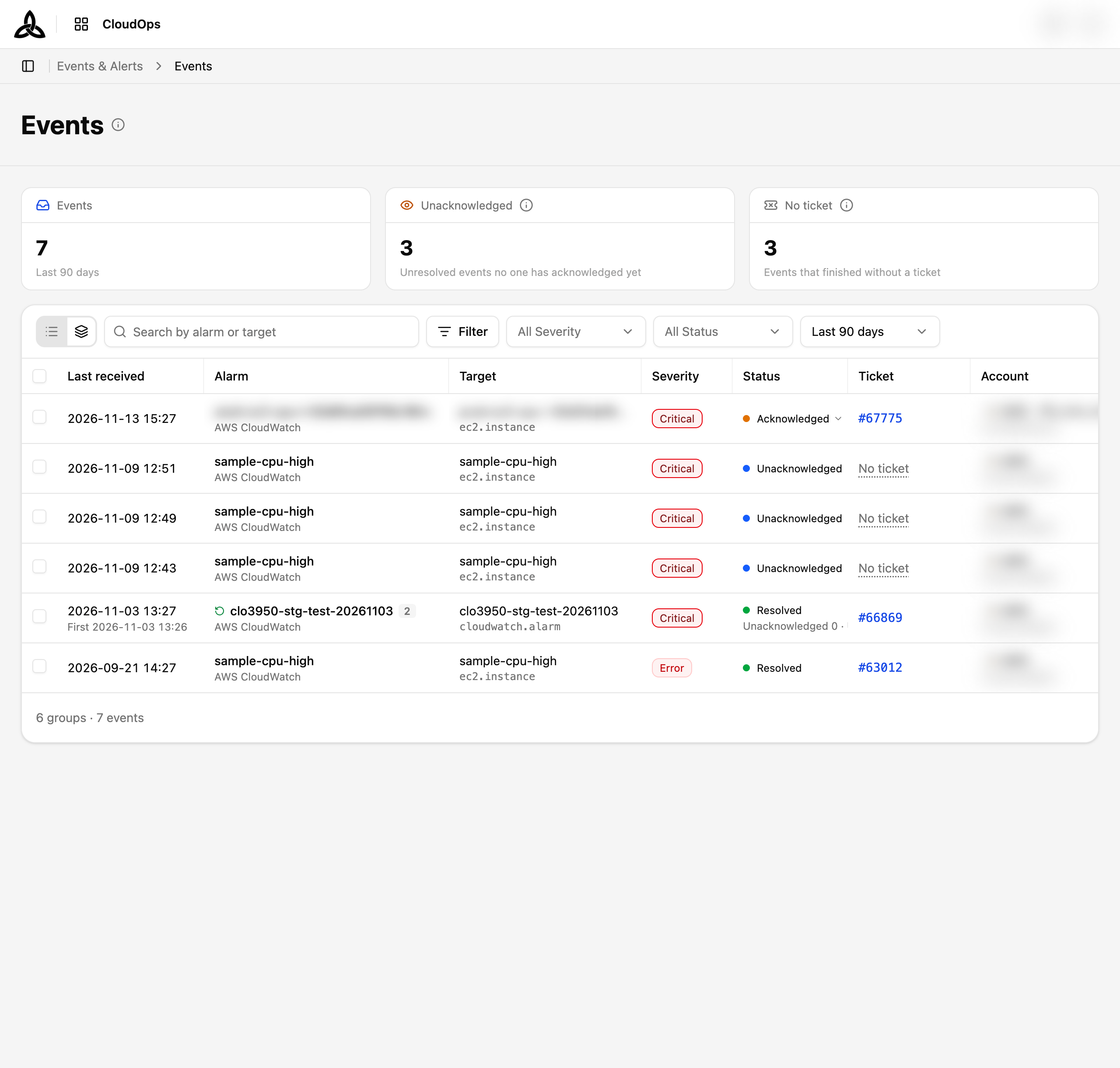
In the grouped view, each row covers every event of that issue in the current period and conditions:
| Column | In the grouped view |
|---|---|
| Last received | The most recent event, with First and the earliest time underneath when the group has more than one event |
| Alarm | A count chip next to the name shows how many events the group holds |
| Severity | The highest severity among the group’s events |
| Status | The group’s status, with Unacknowledged N · Unresolved N underneath when the group has more than one event |
| Ticket | Every ticket the group’s events are linked to — the first number plus +N more |
The footer shows both counts, for example 6 groups · 7 events.
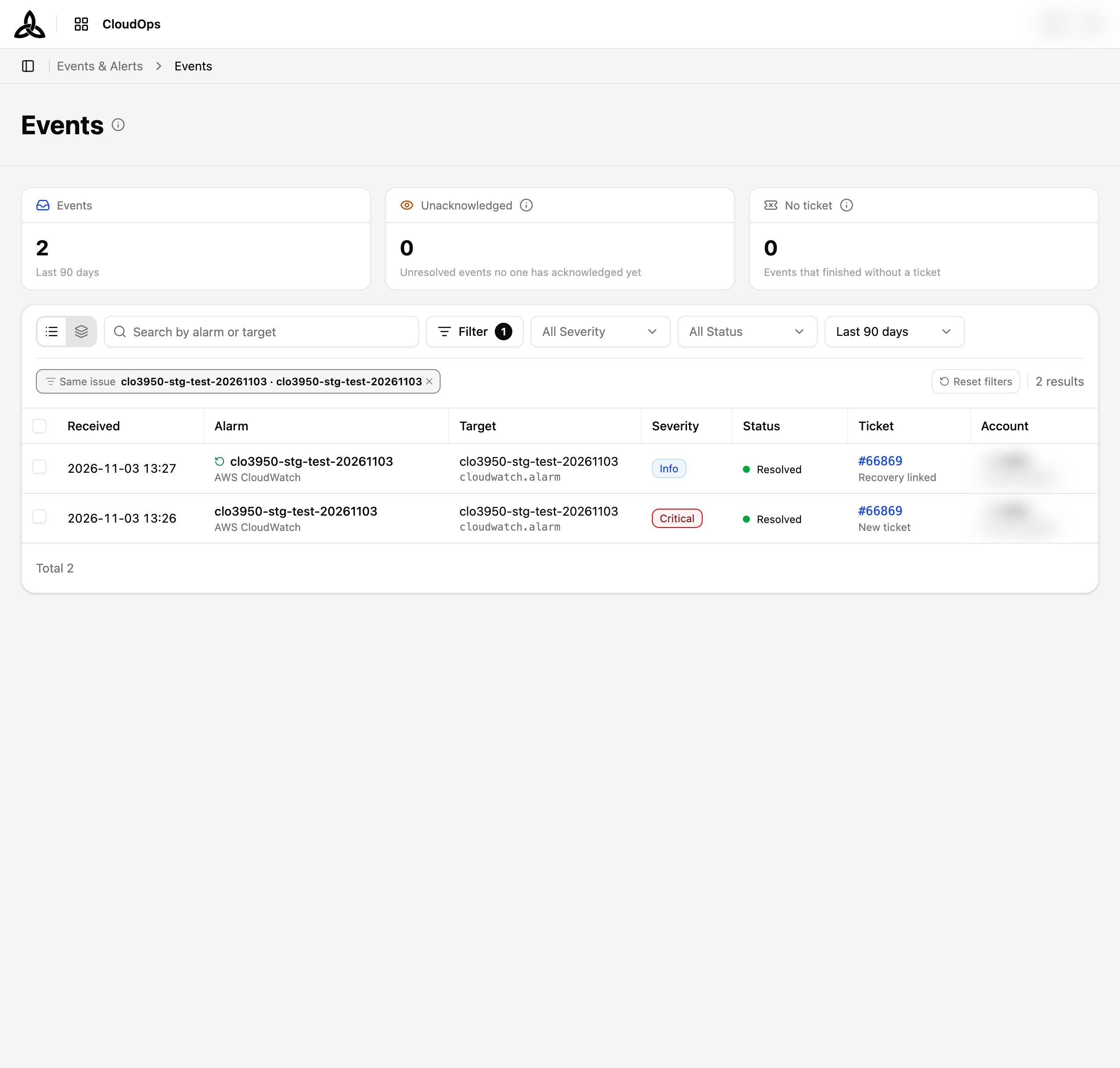
Click the count chip to see that group’s events one by one. The view switches to One per row, narrowed to the group, and a Same issue chip appears among the conditions. Remove the chip to go back to all events.
Event Details
Click a row to open the event in a panel on the right.
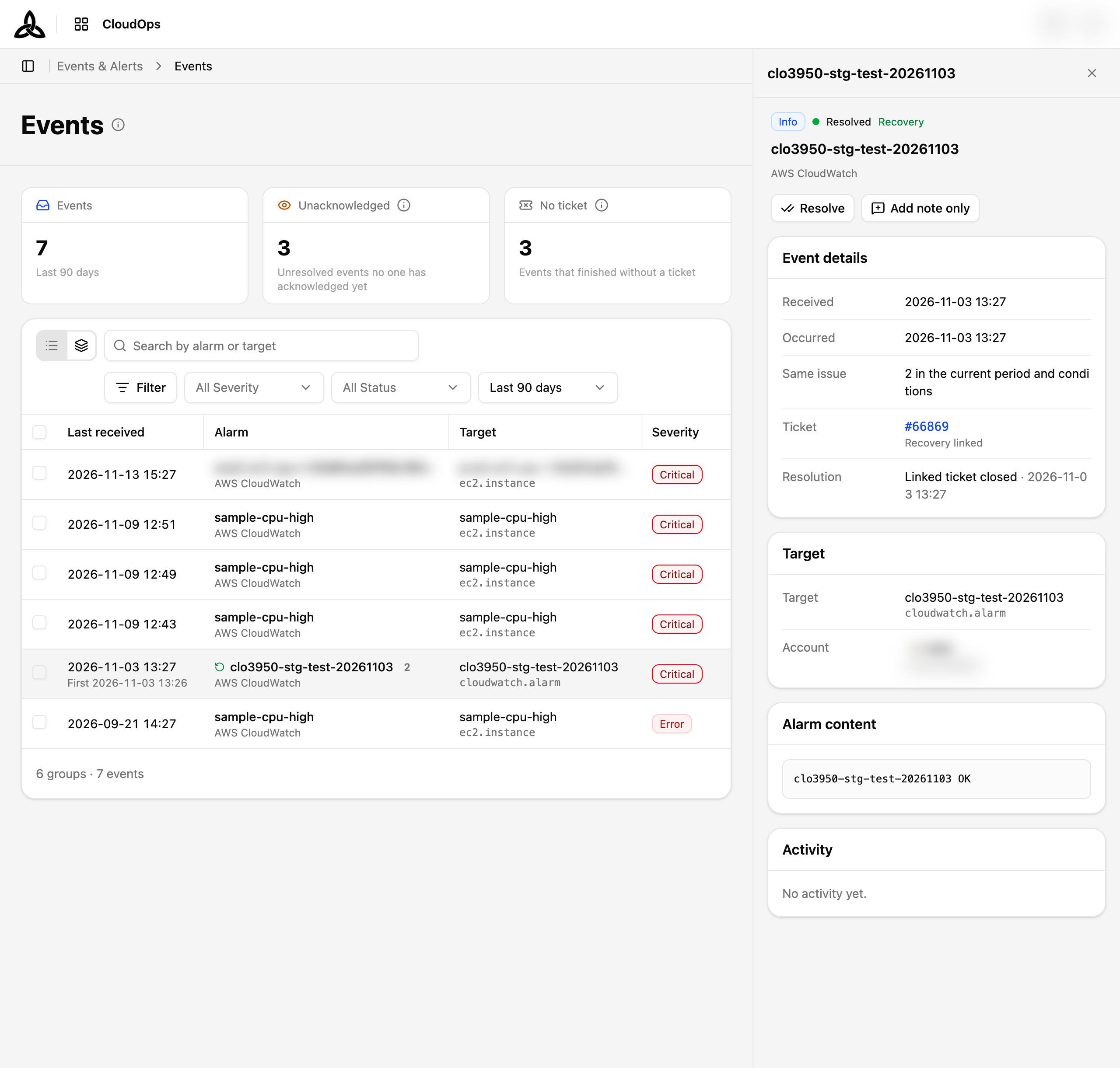
The top of the panel shows the severity, status, alarm name, and source, followed by the [Resolve] and [Add note only] buttons. When the event is unacknowledged and its linked ticket is still open, a line under the buttons reminds you to acknowledge it on that ticket.
| Card | Contents |
|---|---|
| Event details | Received, Occurred, Same issue (how many events of the same issue are in the current period and conditions — in the one-per-row view this reads See it in the grouped view), Ticket, and Resolution |
| Target | The affected resource and the cloud account |
| Alarm content | The message the alarm source sent |
| Activity | Notes, resolutions, and system processing on this event, with who did it and when |
Resolution tells you how the event came to be resolved:
| Resolution | Meaning |
|---|---|
Resolved directly | Someone resolved the event on this page |
Linked ticket closed | The linked ticket was closed, which resolved the event with it |
No longer a remaining occurrence | The issue recovered, so the event no longer counts as an open occurrence |
Recovered (ticket stays open for other alarms) | This alarm recovered, but the ticket stays open because other alarms remain |
Resolving Events and Adding Notes
You can act on one event, several events, or whole groups at once. There are three ways in:
- Status cell — click the chevron next to an unacknowledged or acknowledged status and choose Resolve. The ⋮ menu at the end of the row has Add note only
- Detail panel — the [Resolve] and [Add note only] buttons
- Selection bar — select rows with their checkboxes; a bar appears at the bottom with Resolve and Add note only
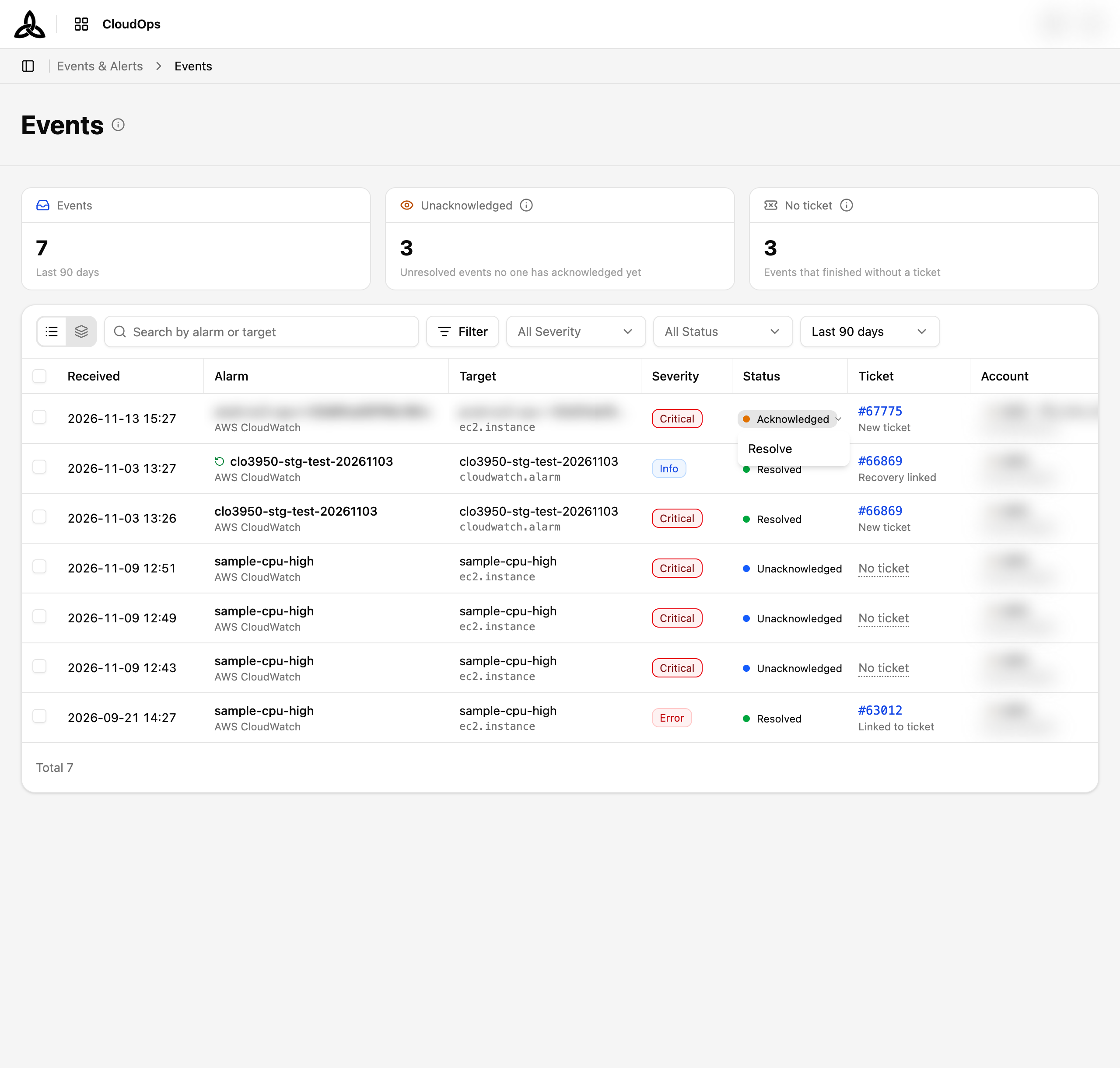
Open the action
Choose Resolve or Add note only from any of the places above. The Handle events dialog opens and shows how many events it will handle.
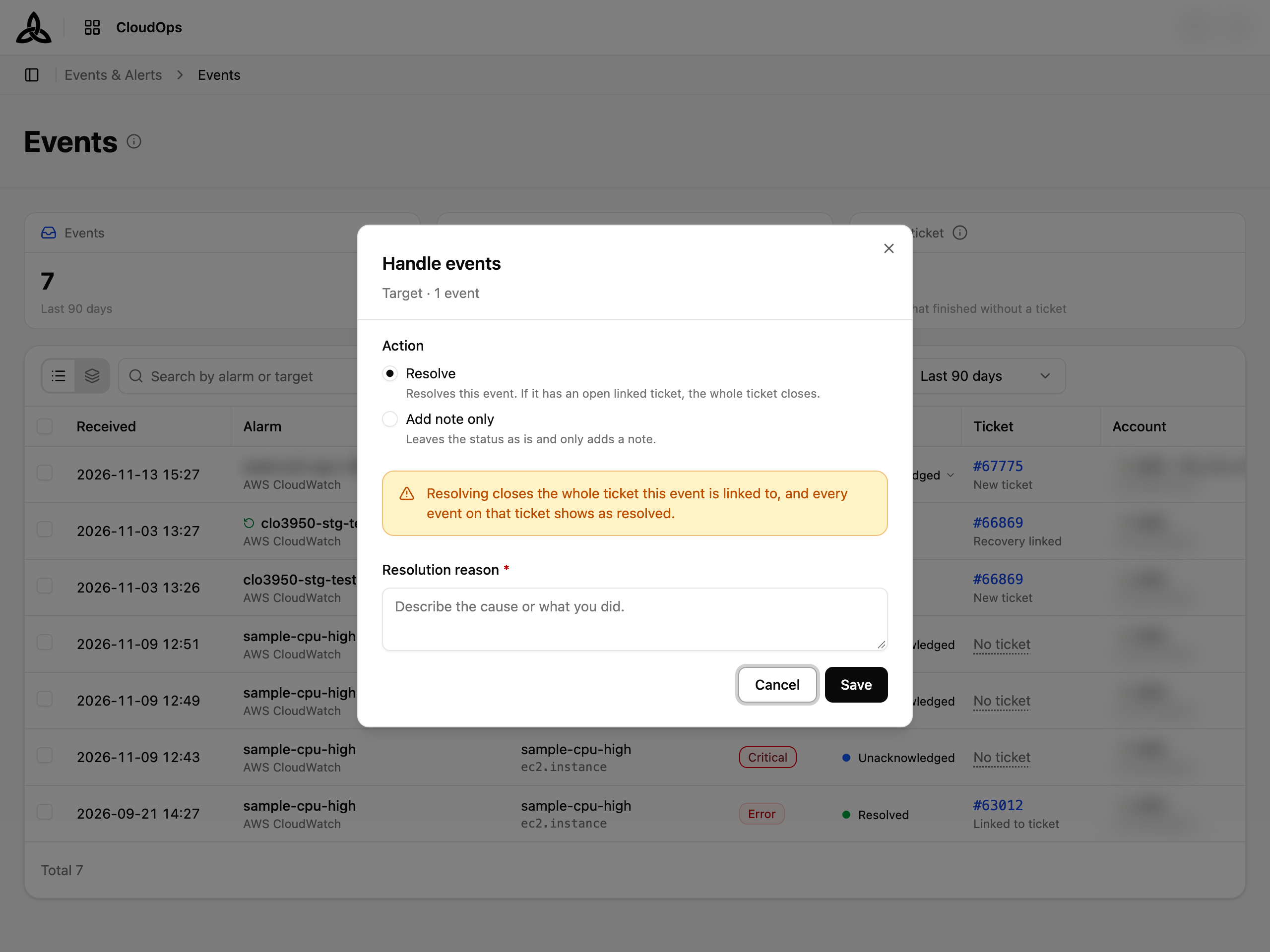
Choose the action
| Action | Effect |
|---|---|
Resolve | Resolves the event. If it has an open linked ticket, the whole ticket closes |
Add note only | Leaves the status as is and only adds a note |
Write the reason or note
Resolution reason (for Resolve) and Note (for Add note only) are both required.
Save
Click [Save]. The note appears in the event’s Activity.
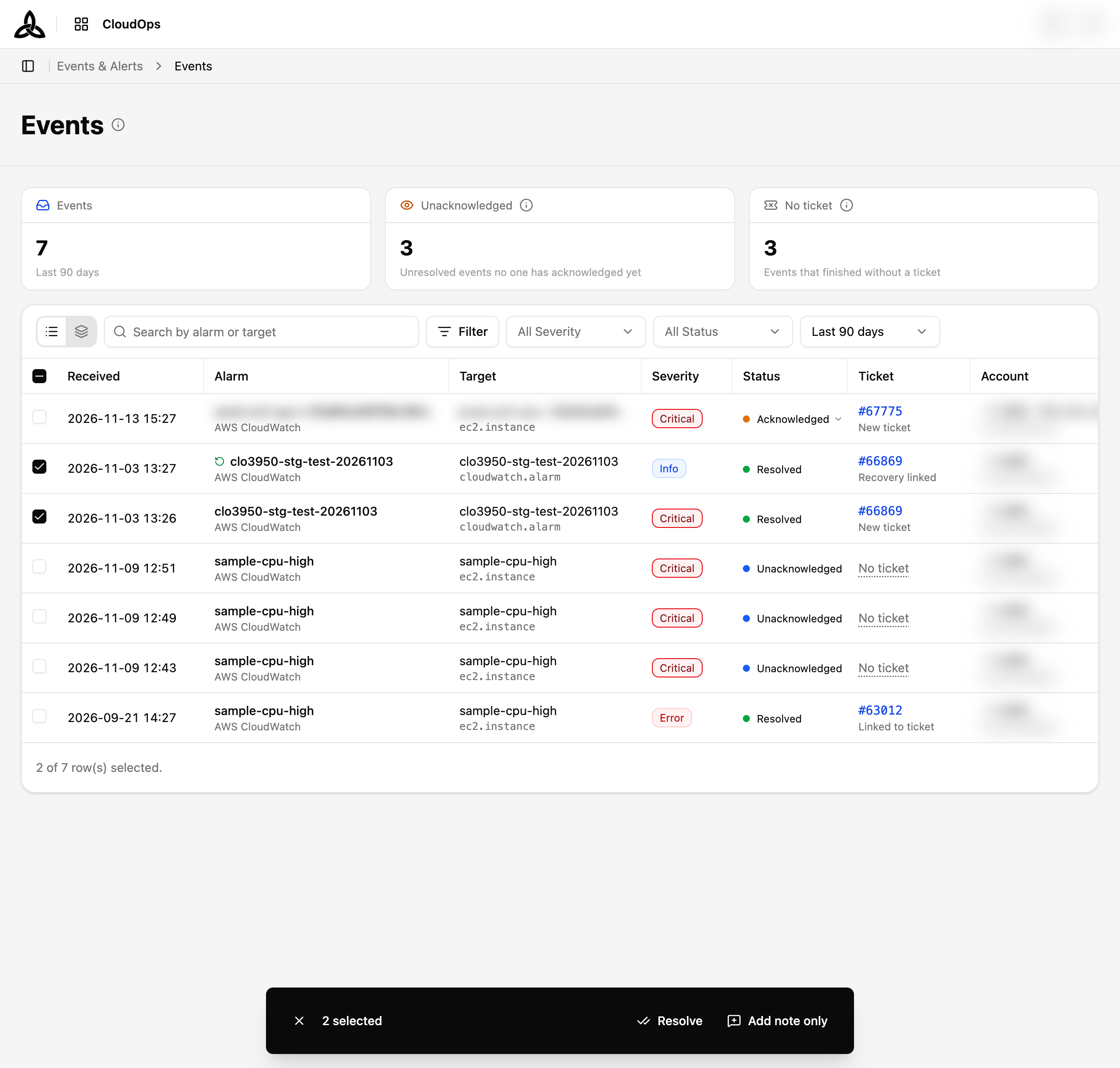
When you select rows, the bar shows how many are selected — in the grouped view it shows both groups and events. Selecting a group handles every event in it, not just the visible row. The selection clears when you change the search, filters, period, view, or page, so nothing you can no longer see gets handled.
Succeeded, Already handled, Failed, Not processed), and [Retry failed items] tries the failed ones again.