Auto-resolve rules
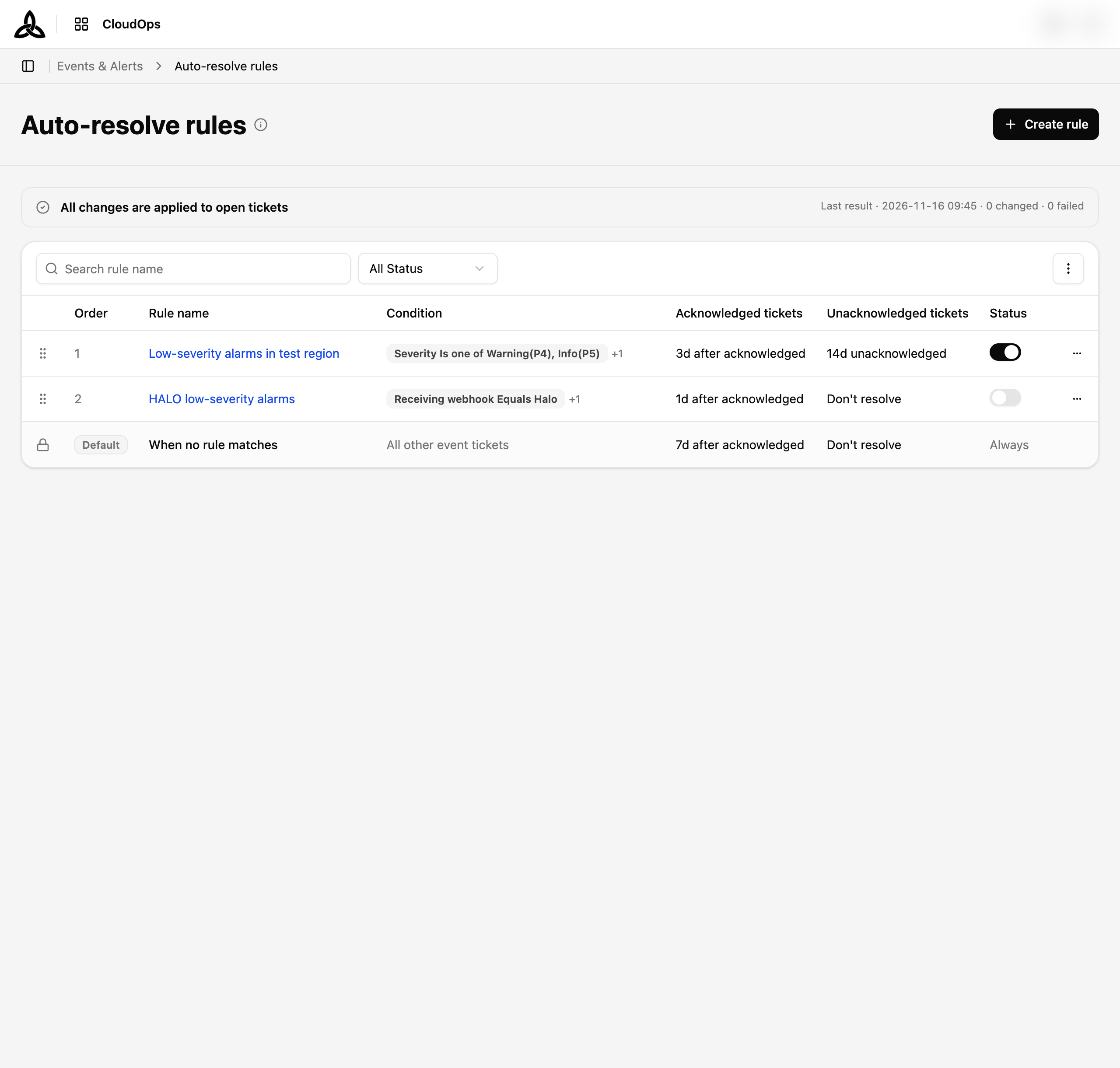
On the [Events & Alerts > Auto-resolve rules] page, you decide how many days after an alarm its ticket closes automatically. Rules apply to event tickets, the tickets opened from alarms that arrive on the Events page. You can set different days for acknowledged and unacknowledged tickets and narrow each rule by severity, cloud, resource type, receiving webhook, region, or cloud account.
How Rules Apply
- Active rules are checked from the top down, and only the first matching rule applies. Put narrow rules higher than broad ones
- If no rule matches, the default applies: acknowledged tickets close 7 days after acknowledgement, and unacknowledged tickets don’t close automatically
- A recovery alarm resolves the ticket regardless of the rules. Grafana and Prometheus tickets stay open until every open alarm has recovered
- A ticket with Hold auto-resolve turned on doesn’t close even after the period. The switch is on the ticket’s detail on the Ticket Board
- Saving a rule doesn’t change open tickets at once. Resolve dates for open event tickets are recalculated every 5 minutes
The days are counted from a different point depending on whether the ticket is acknowledged:
| Ticket | Counted from |
|---|---|
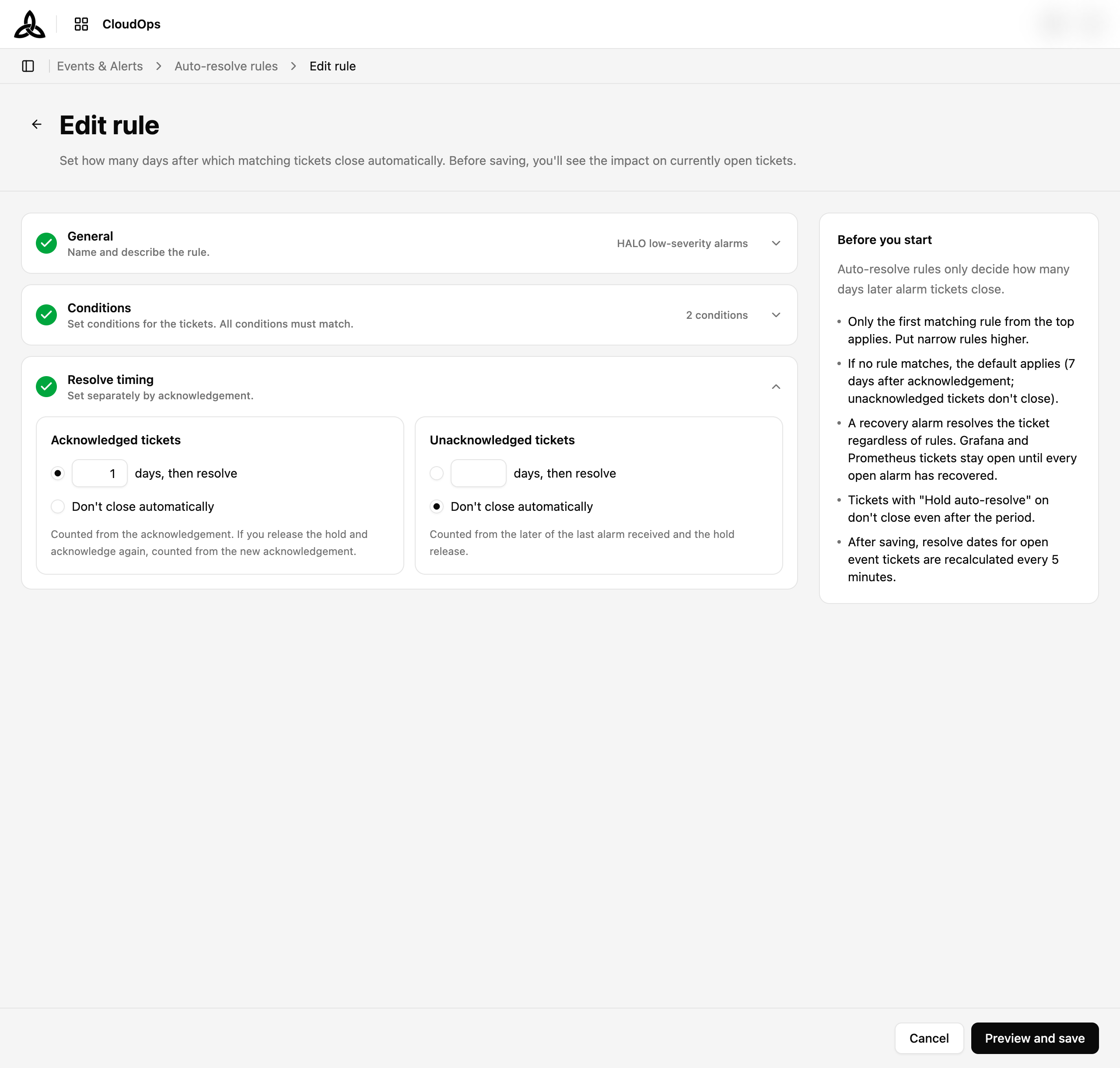
| Acknowledged | The acknowledgement. If someone releases the hold and acknowledges again, the count restarts from the new acknowledgement |
| Unacknowledged | The later of the last alarm received and the hold release |
Rule List
Recalculation status
The bar above the list shows where the 5-minute recalculation stands:
| Status | Meaning |
|---|---|
Waiting for recalculation | A rule changed and the next recalculation hasn’t run yet |
Recalculating resolve dates for open event tickets | The recalculation is running |
All changes are applied to open tickets | Every change has reached open tickets. The right side shows the last result — when it ran, how many tickets changed, and how many failed |
No changes to apply | Nothing has changed since the last recalculation |
The last recalculation couldn't apply N tickets | Some tickets failed. It retries in the next cycle; if it keeps failing, fix the rules with a condition error |
Columns
| Column | Description |
|---|---|
| ⠿ | Drag handle for changing the order |
| Order | The position the rule is checked in |
| Rule name | The rule’s name. Click it to edit the rule |
| Condition | The first condition, with +N for the rest. All conditions must match |
| Acknowledged tickets | For example 3d after acknowledged, or Don't resolve |
| Unacknowledged tickets | For example 14d unacknowledged, or Don't resolve |
| Status | Switch to turn the rule on or off |
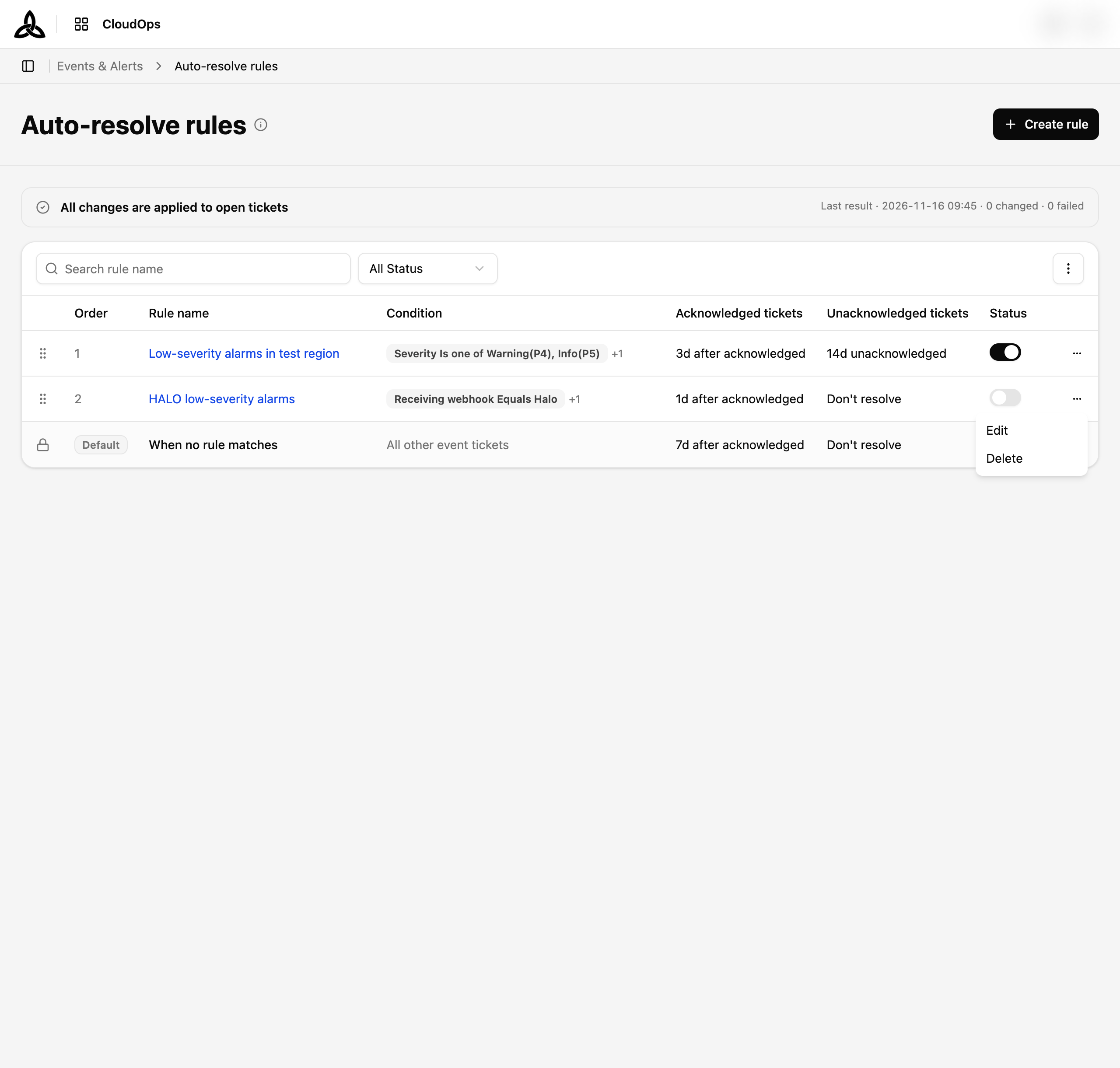
| ⋯ | Edit and Delete |
The last row, Default (When no rule matches), is always at the bottom. It covers All other event tickets and can’t be turned off, moved, or changed.
Toolbar
| UI element | Description |
|---|---|
| Search rule name | Search by rule name |
| Status | Show only Active or Inactive rules |
| ⋮ | Refresh |
Rules with an error
If a saved rule can’t be read, its row shows one of these marks and evaluation stops at that rule. Fix it in the rule editor or delete it.
| Mark | Meaning |
|---|---|
Condition error | The saved conditions can’t be read |
Resolution days error | The saved days aren’t an integer from 1 to 30 |
Rule error | The saved rule has another problem |
A rule with an error can’t be turned on until it’s fixed.
Previewing a Change
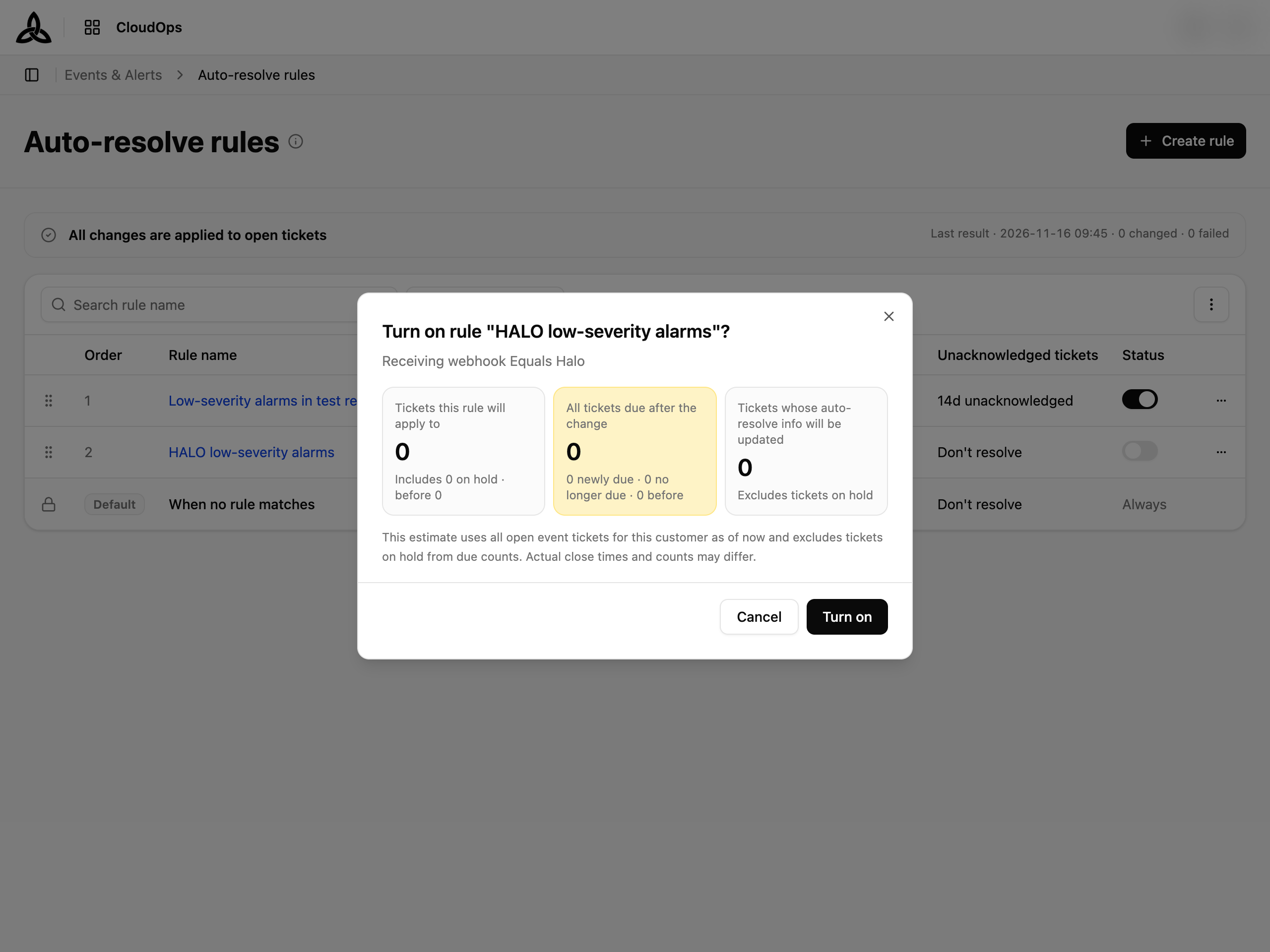
Every change to a rule — creating, editing, turning on or off, reordering, and deleting — first opens a preview of its impact on the open event tickets. Nothing is saved until you confirm.
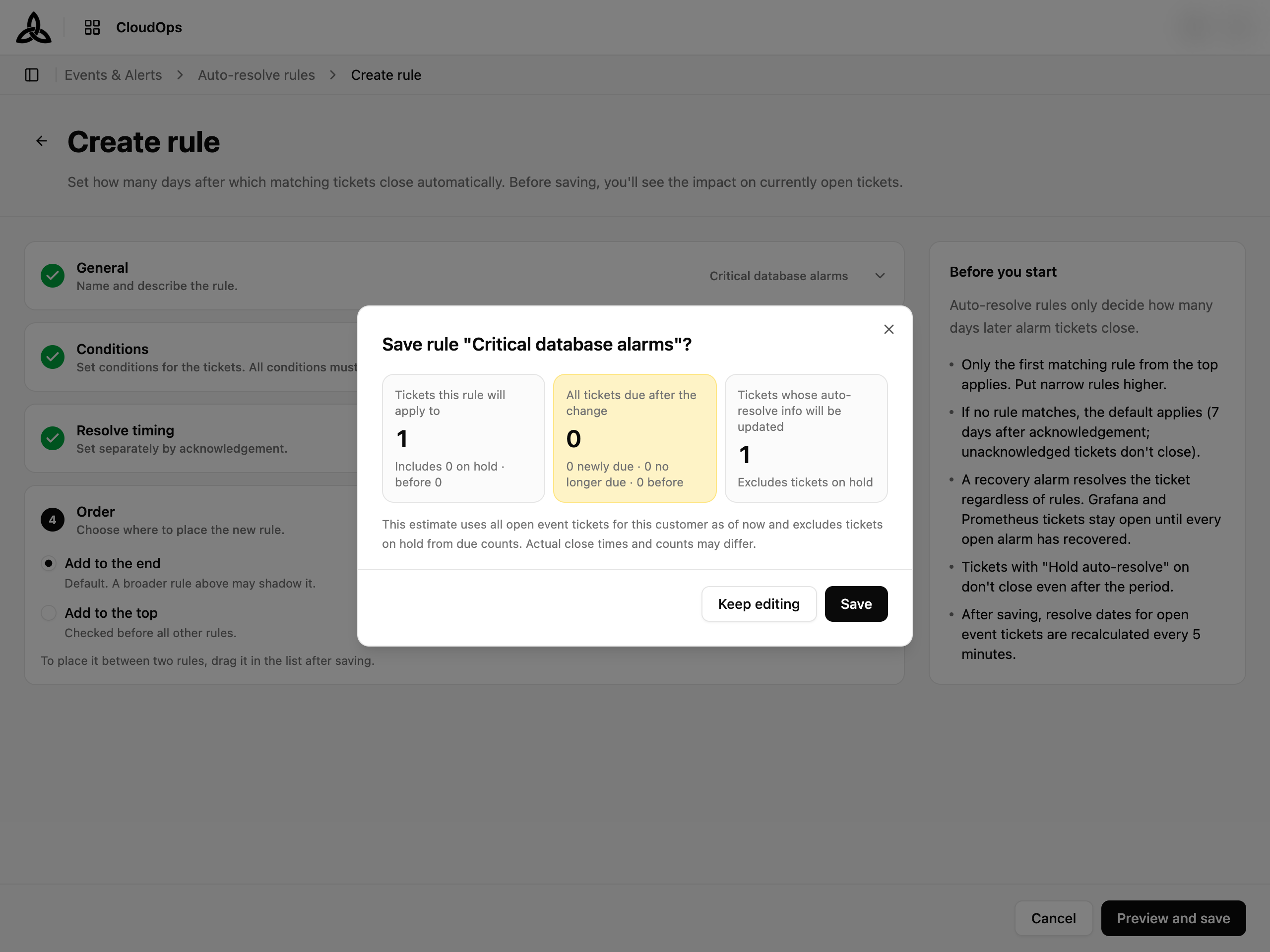
| Card | Meaning |
|---|---|
| Tickets this rule will apply to | Open event tickets the rule would match first, including those on hold, with the count before the change |
| All tickets due after the change | Tickets whose resolve date has passed after the change — newly due, no longer due, and before |
| Tickets whose auto-resolve info will be updated | Tickets whose auto-resolve information the next recalculation rewrites. Tickets on hold are excluded |
The preview may also warn you:
| Warning | Meaning |
|---|---|
This rule is shadowed by '...' and won't apply | A rule above has no conditions or the same conditions, so it always matches first. Reorder or narrow the conditions |
Rules above catch some tickets first | Some tickets this rule matches go to a rule above it. Each rule is listed with how many tickets it takes |
N tickets can't be evaluated | A rule with an error stops the evaluation for these tickets, so recalculation may fail |
Rules with the same conditions exist | Another rule — active or inactive, above or below — has exactly the same conditions |
The numbers are an estimate based on all open event tickets at this moment; actual close times and counts may differ. If the preview can’t be calculated, you can retry or save without it.
Creating a Rule
Click [+ Create rule] at the top right. The form has four steps; the panel on the right, Before you start, repeats how rules apply.
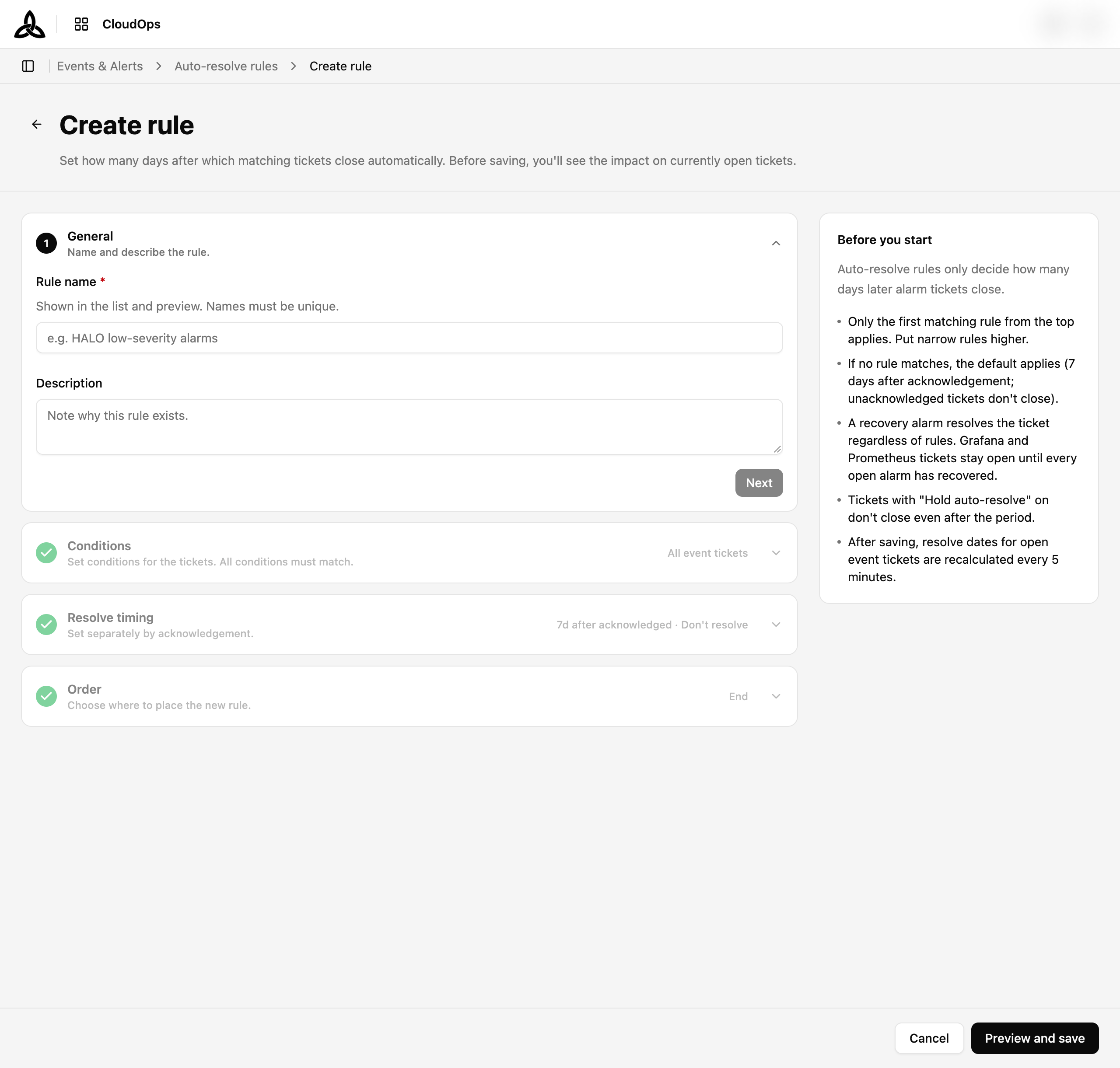
General
Enter the Rule name (required, unique, up to 200 characters) and an optional Description (up to 500 characters).
Conditions
Pick a field, an operator, and a value. Click [+ Add AND condition] for more — all conditions must match, and each field can be used only once.
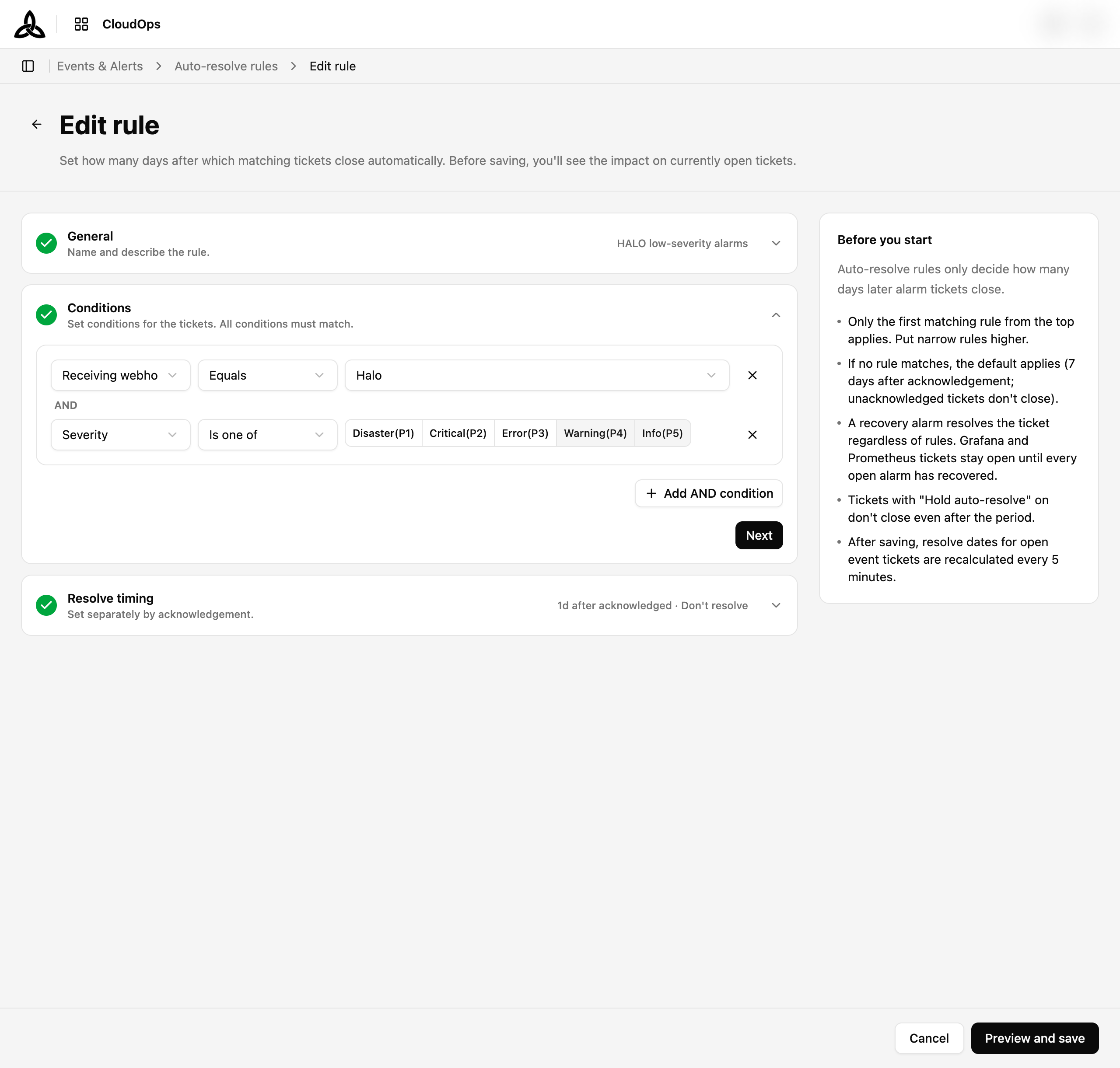
| Field | Matches |
|---|---|
Severity | The ticket’s severity, Disaster(P1) to Info(P5) |
Cloud | The cloud provider |
Resource type | The type of the affected resource |
Receiving webhook | The source the alarm came through. Pick one from the list, or choose Enter manually and type the plugin ID |
Region | The region of the affected resource |
Cloud account | The cloud account |
| Operator | Meaning |
|---|---|
Equals / Not equals | Exactly the value, or anything but it |
Is one of | Any of several values. Type a value and press Enter for each, up to 100 |
Contains / Starts with | Part of the value. Not available for Severity |
Resolve timing
Set Acknowledged tickets and Unacknowledged tickets separately: either a number of days from 1 to 30 (days, then resolve), or Don't close automatically.
Order
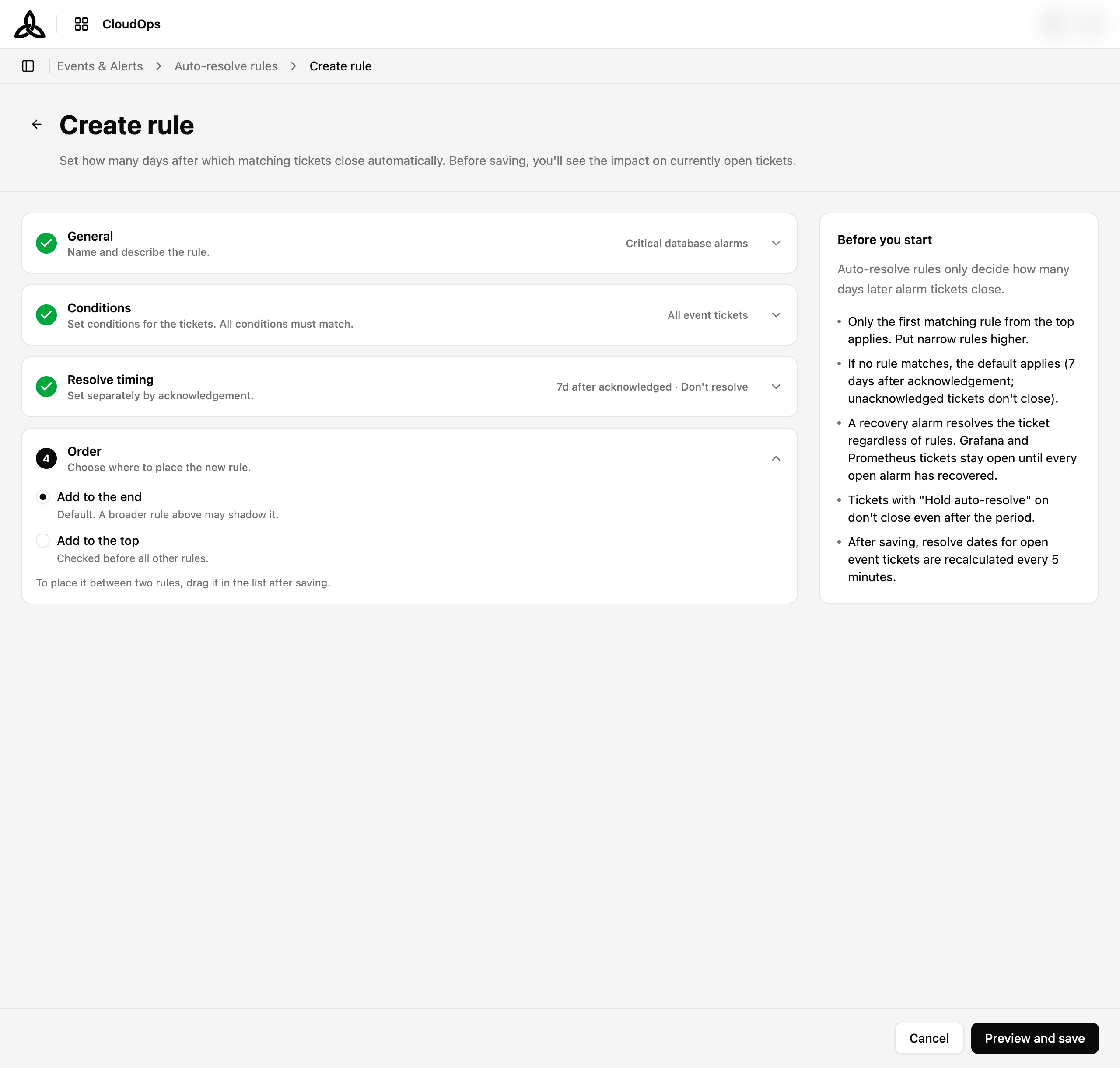
Choose Add to the end (default — a broader rule above may shadow it) or Add to the top (checked before all other rules). To place it between two rules, drag it in the list after saving.
Preview and save
Click [Preview and save]. Check the impact in the preview, then click [Save] — or [Keep editing] to go back to the form.
If you leave the form with unsaved changes, CloudOps asks you to confirm before discarding them.
Editing a Rule
Click a rule’s name, or choose Edit from its ⋯ menu. The form is the same as when creating, without the Order step — change the order by dragging in the list. Saving goes through the preview.
Changing the Order
Drag a rule by its ⠿ handle and drop it where it should be checked. The preview opens; click [Change order] to apply it, or [Cancel] to put the rule back.
Turning a Rule On or Off
Click the Status switch. The preview opens; click [Turn on] or [Turn off] to apply. An inactive rule stays in the list and keeps its place, but isn’t checked.
Deleting a Rule
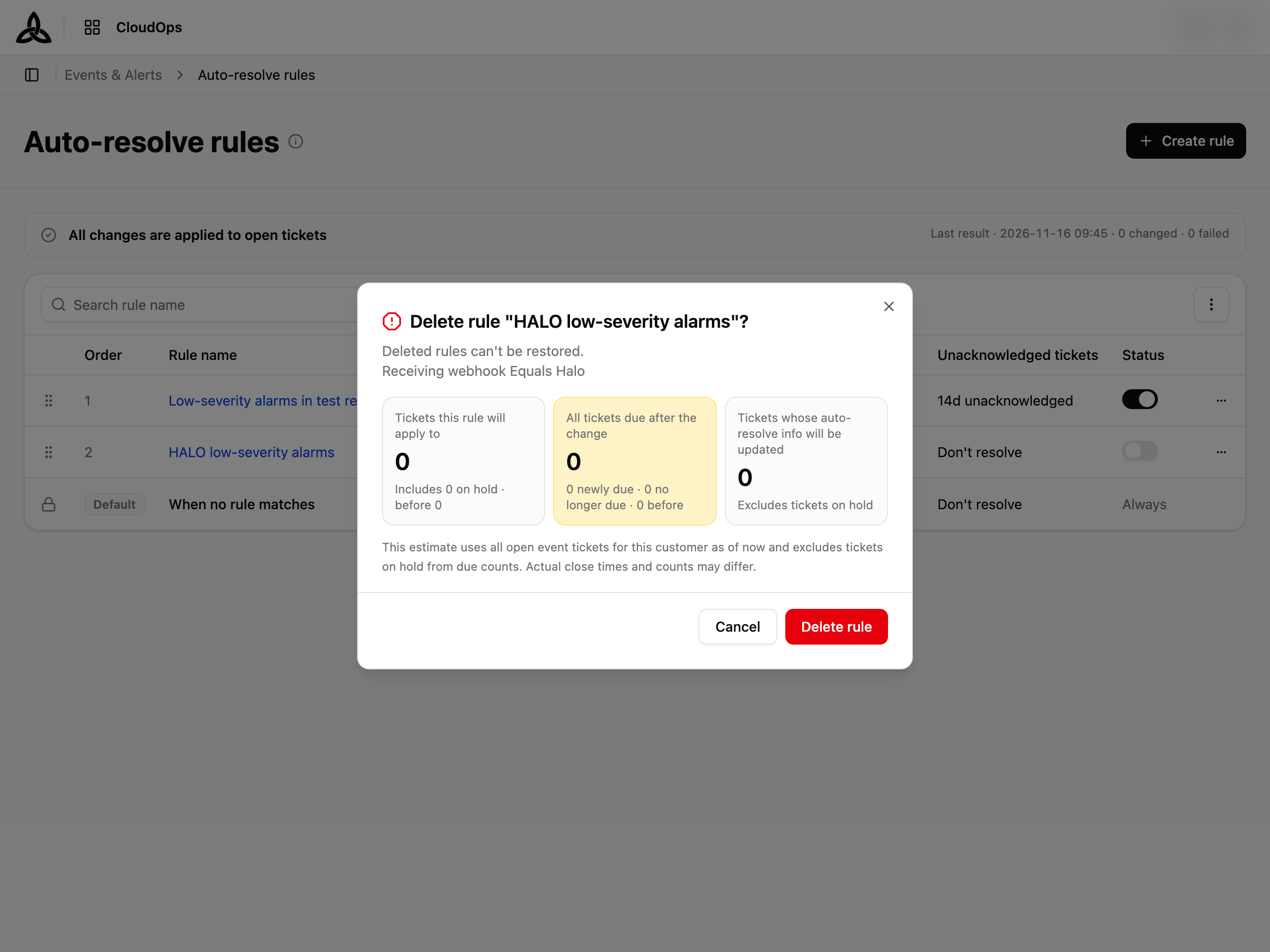
Choose Delete from the rule’s ⋯ menu. The preview shows the impact; click [Delete rule] to delete it.