Cost Optimizer
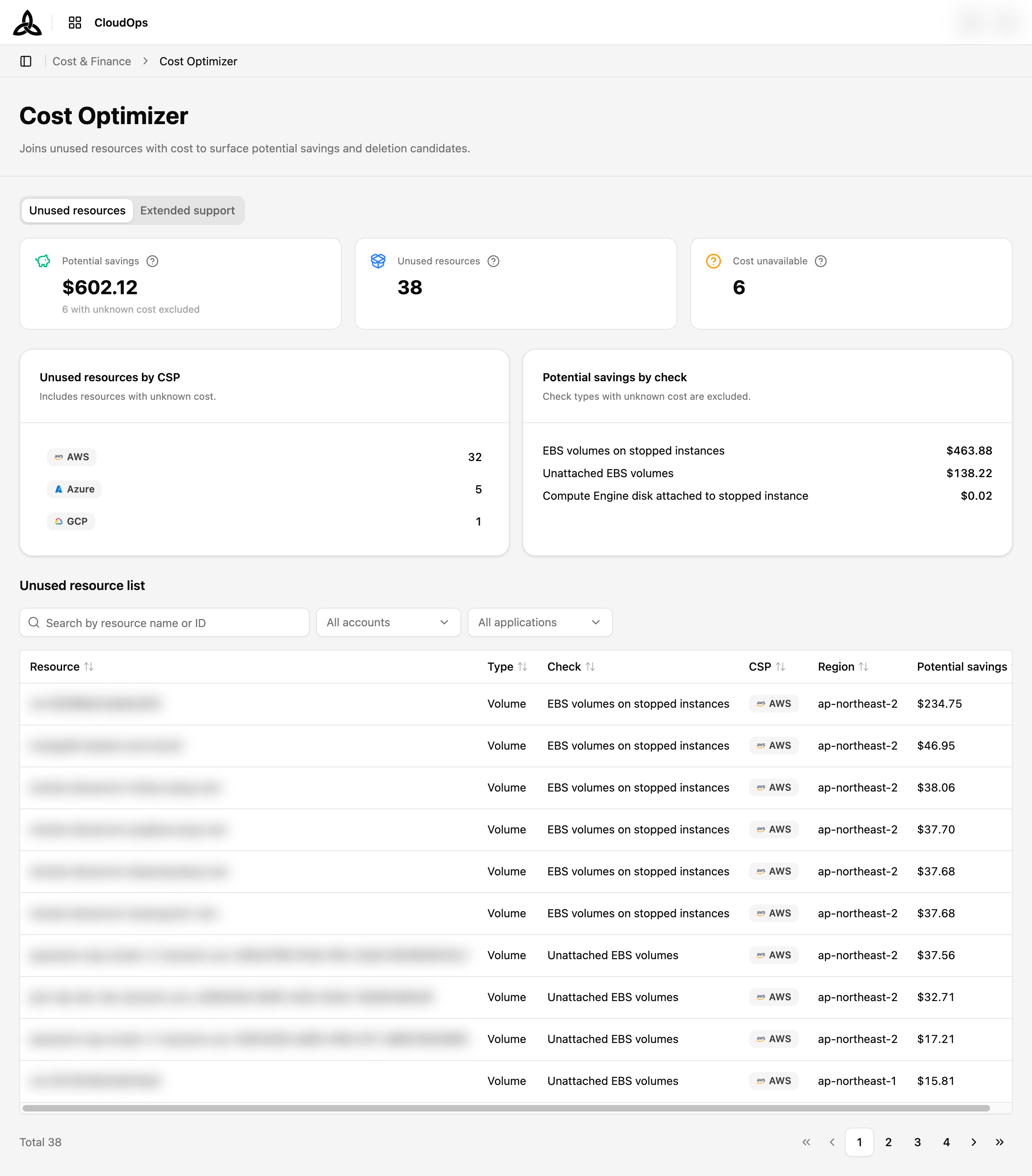
On the [Cost & Finance > Cost Optimizer] page, you can find resources that are no longer in use and see what deleting them would save, and resources that are still paying for extended support and what upgrading them would save. Each candidate is joined with its actual cost, so both lists double as a cleanup queue ordered by money.
Tabs
The page has two tabs, each a different kind of waste over the same inventory:
| Tab | What it lists |
|---|---|
| Unused resources | Resources nothing is using any more — delete them and the cost stops |
| Extended support | Clusters and databases past their standard support window, billed an extended-support surcharge — upgrade them and the surcharge stops |
The Account and Application filters are shared, so a scope you pick on one tab carries over to the other; search, sorting, paging, and card drill-downs belong to each tab and reset when you switch. The selected tab is kept in the URL (?tab=extended-support).
Unused resources
Page Layout
| Section | Purpose |
|---|---|
| Summary cards | Three headline numbers: what you could save, how many resources are unused, and how many have no cost attached |
| Distribution cards | Where the waste sits — by cloud provider, and by the check that flagged it |
| Unused resource list | The individual candidates, with search, filters, sorting, and paging |
Summary Cards

| Card | Meaning |
|---|---|
| Potential savings | Total you would stop paying if every unused resource in scope were deleted |
| Unused resources | Number of unique resources flagged as unused |
| Cost unavailable | Resources left out of the savings total because no cost information was found. Click it to show only those resources in the list; click again to clear |
Every card carries an ⓘ icon with the exact counting rule. Two of those rules matter when the numbers look inconsistent:
- Potential savings is totalled per unique resource. A resource caught by several checks is counted once, so this figure will not match the sum of Potential savings by check.
- Unused resources counts every unique resource, including the ones whose cost could not be determined — which is why it can exceed the number of resources behind the savings figure.
When some resources have no cost, the savings card adds a caption such as 5 with unknown cost excluded, so the gap is visible rather than silent.
Distribution Cards
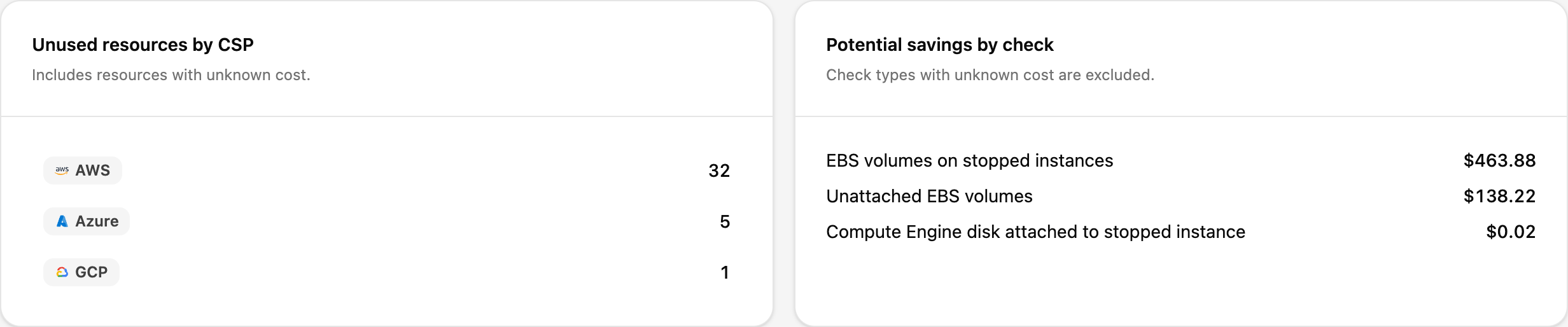
| Card | Axis | Ordering |
|---|---|---|
| Unused resources by CSP | Count of resources per cloud provider | Highest count first |
| Potential savings by check | Money per check that flagged the resource | Highest amount first |
Use the CSP card to see which cloud carries the most waste by volume, and the check card to find a single class of waste — for example EBS volumes on stopped instances — worth cleaning up in bulk.
Drilling down from a card
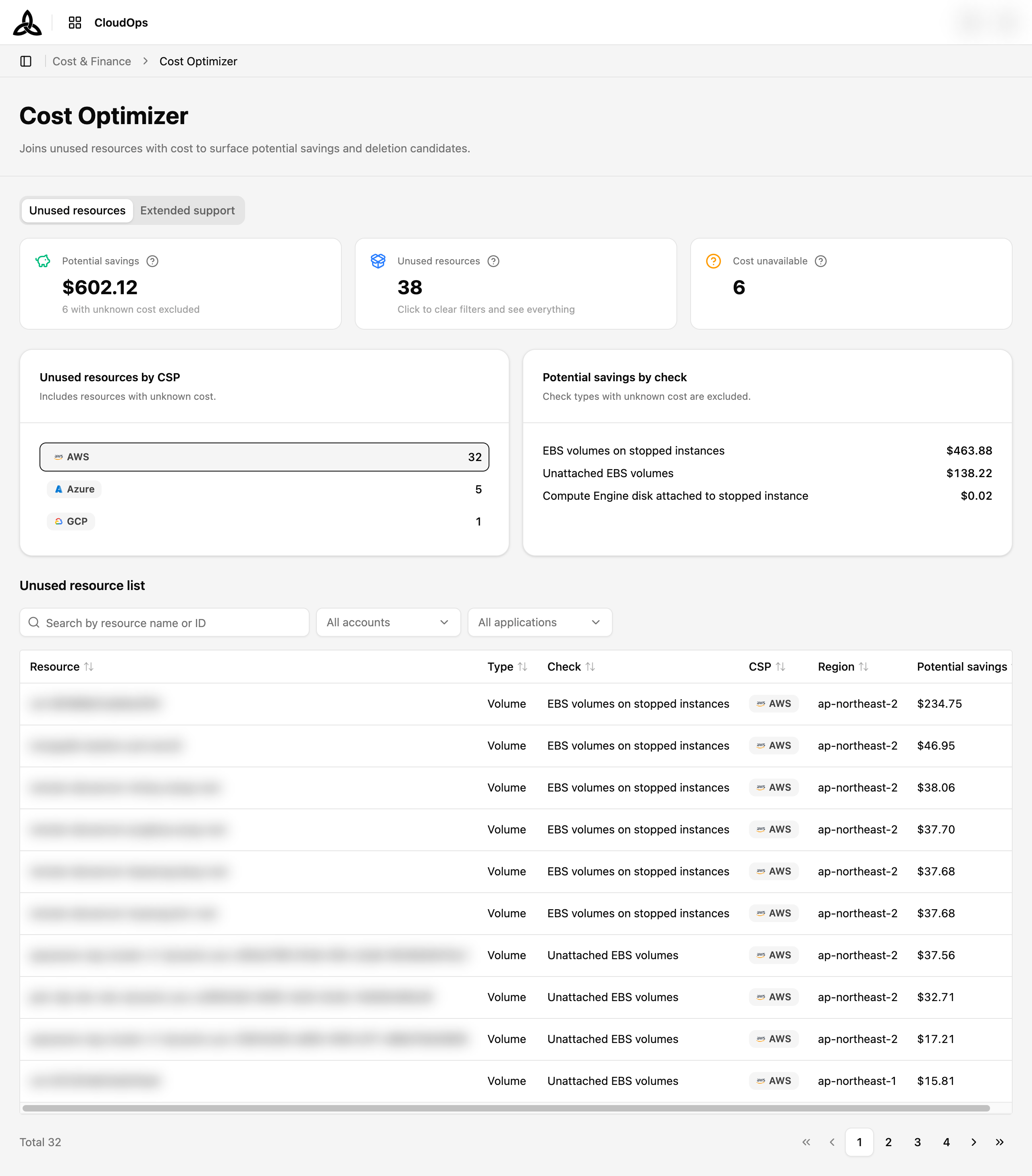
Two cards act as filters on the list beneath them:
| Card | Click it to… | Clear it by… |
|---|---|---|
| A row in Unused resources by CSP | Narrow the list to that provider’s resources and scroll down to the table | Clicking the same row again |
| Cost unavailable | Narrow the list to the resources whose cost could not be determined (disabled when the count is 0) | Clicking the card again |
These drill-downs narrow only the list — the summary and distribution cards keep counting the full scope, so the card you clicked stays comparable with its neighbours. The active state is kept in the URL, so it survives a reload and a shared link. Clear filters in the toolbar clears only Account and Application; to reset everything at once, click the Unused resources summary card.
Unused Resource List
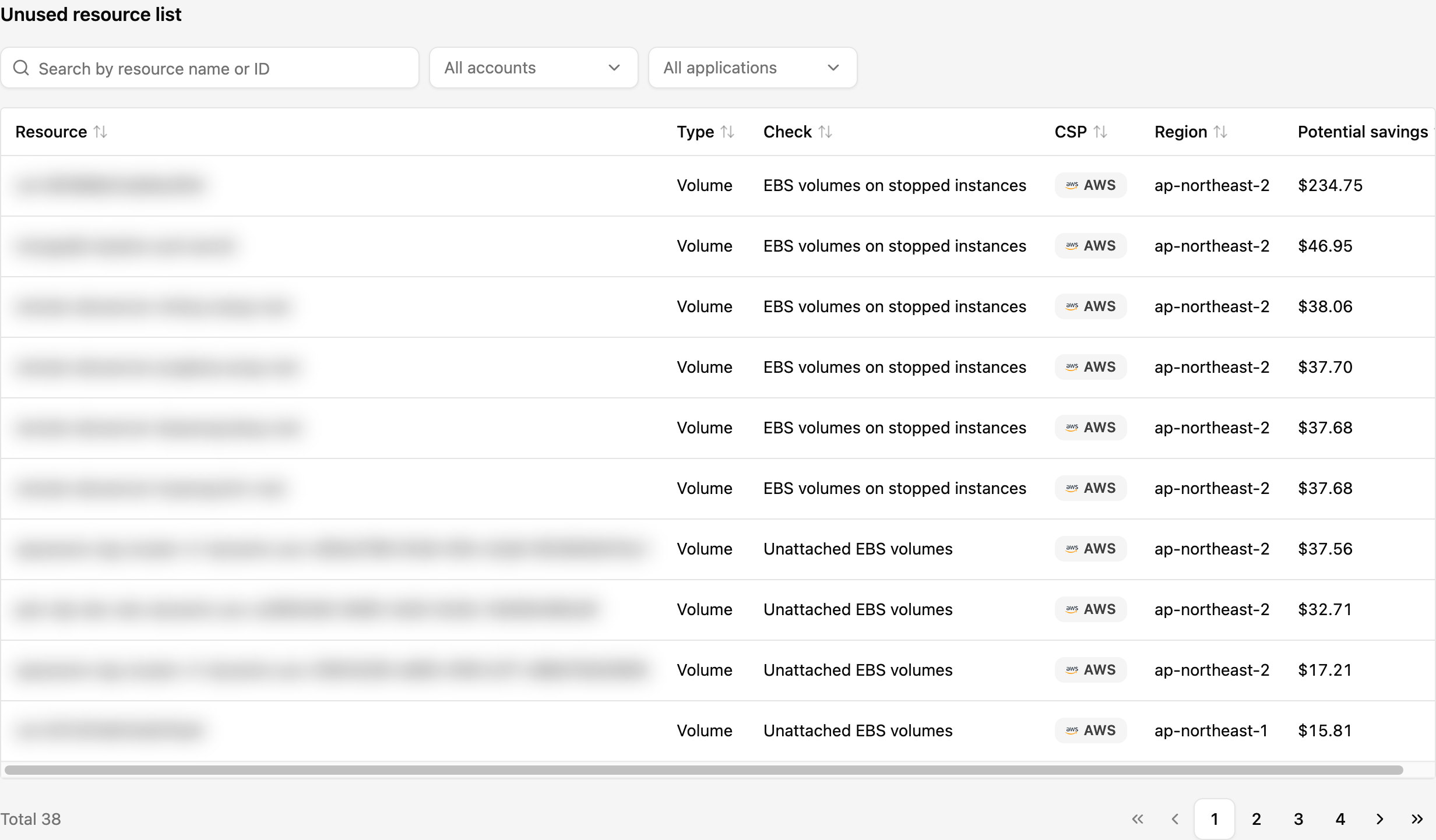
| Column | Description |
|---|---|
| Resource | Name of the flagged resource. Links through to its page in Resource Inventory |
| Type | Resource type as the provider reports it |
| Check | The check that flagged it — this is why the resource counts as unused |
| CSP | Cloud provider the resource belongs to |
| Region | Region the resource runs in |
| Potential savings | Amount saved by deleting this one resource. Reads Unavailable when no cost could be matched |
Every column header is sortable. Sorting is applied by the server across all results, not just the page you are looking at, so the top row after sorting really is the highest in the whole set. The list is paged; the total count sits at the bottom left.
Resource links
The Resource cell behaves in three ways, and the difference tells you what to do next:
| State | Appearance | Meaning |
|---|---|---|
| Linked | Clickable resource name | Opens the resource in Resource Inventory |
| Account-level check | Greyed out; hovering shows the reason | The check applies to the whole account, so there is no single resource to open |
| Deleted resource | Greyed out; hovering shows the reason | The resource was deleted after the evaluation ran, so its detail page is gone — nothing left to clean up |
Filters
| Filter | Selection | Applies to |
|---|---|---|
| Account | One or more cloud accounts | Both the cards and the list |
| Application | A single application, chosen from the organization tree | Both the cards and the list |
Both filters narrow the summary and distribution cards and the list together, so the whole page stays consistent. A Clear filters button appears next to them once anything is selected, and each control also has its own ✕ to clear just that one axis.
Search
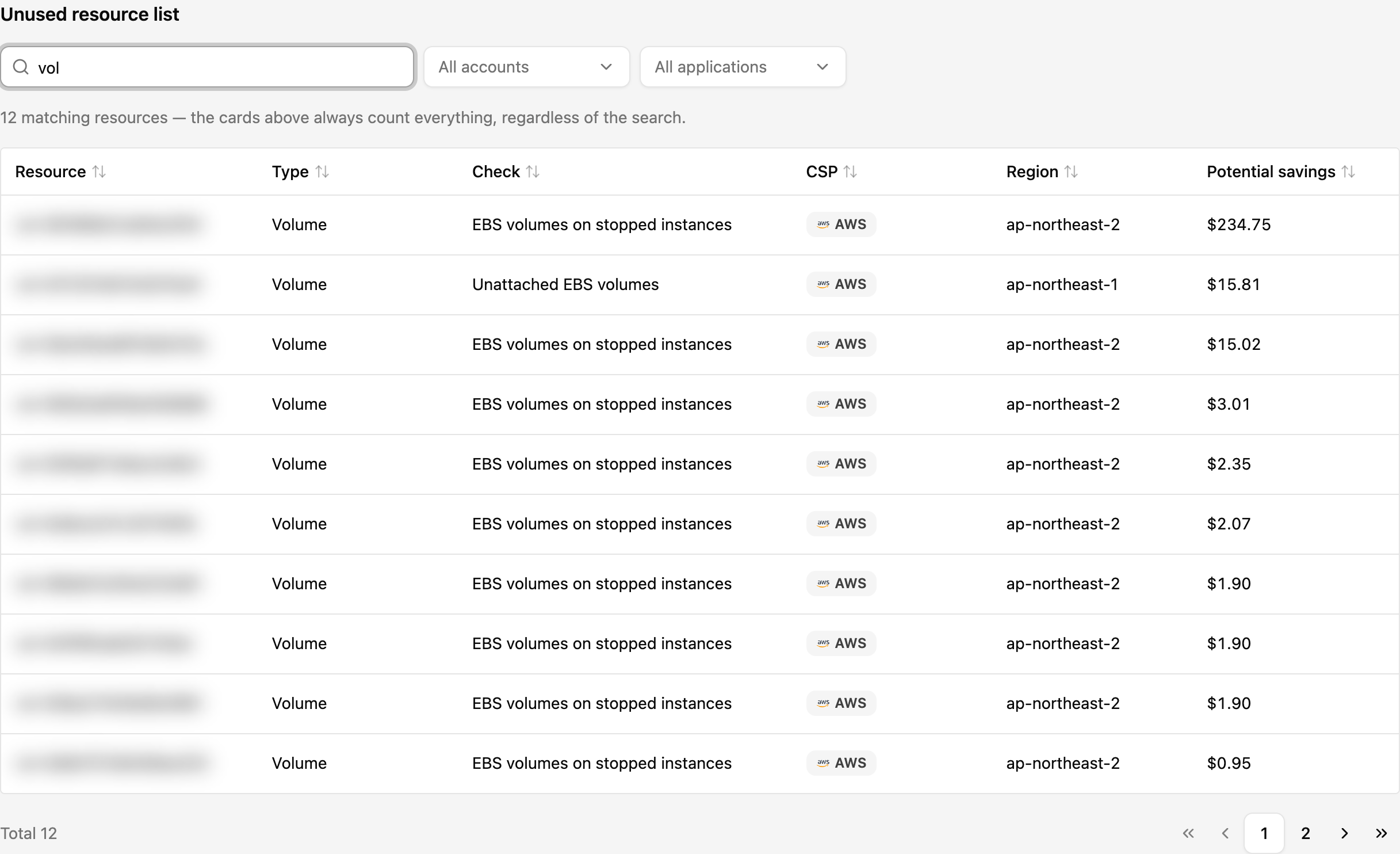
Search matches part of a resource name or ID. Unlike the two filters, it narrows only the list — the cards above keep counting everything. A notice above the table states the matching count so the difference does not read as a bug.
Two behaviours are worth knowing:
- Resources deleted after the evaluation have no name, so they can only be found by ID.
- Spaces are matched literally, as part of the text.
Extended support
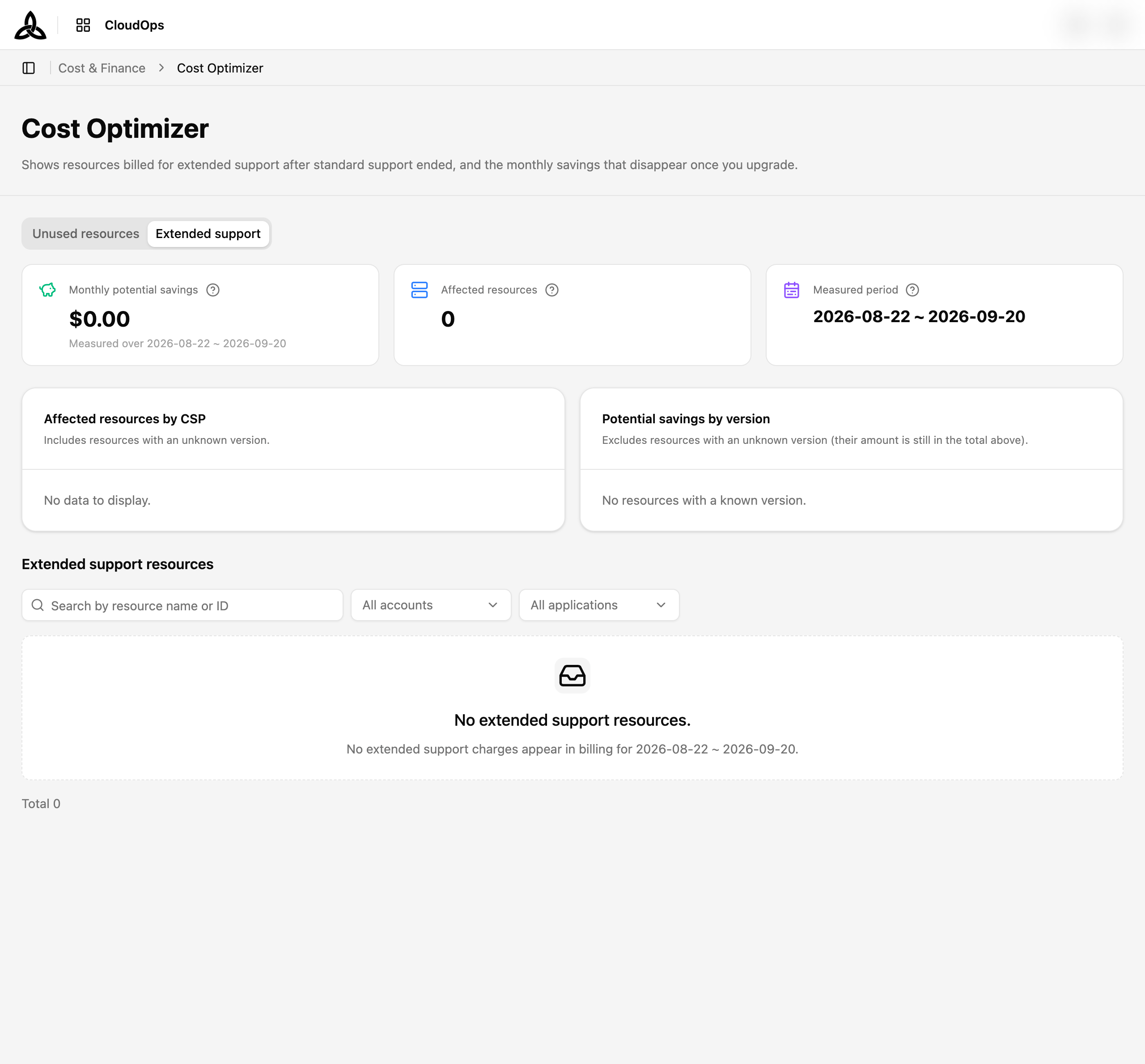
When a database or cluster version leaves standard support, the provider keeps running it but bills an extended-support charge as a separate line on top of the standard rate. Upgrading removes that line — so the saving is already sitting in your bill, itemised. This tab lists those lines per resource.
Summary cards
| Card | Meaning |
|---|---|
| Monthly potential savings | Total extended-support charges billed on top of standard rates — one month of charges over the measured period, not a running total. Upgrading removes this amount every month |
| Affected resources | Resources currently billed for extended support. A resource you upgrade drops off automatically once its billing line disappears. Click it to clear the filters |
| Measured period | The period the amounts were aggregated over. Today’s rows are partial and excluded; a resource that moved to extended support mid-period is counted only for the elapsed days, so the figure can understate the real monthly saving |
Distribution cards
| Card | Axis |
|---|---|
| Affected resources by CSP | Count per cloud provider, including resources whose version is unknown |
| Potential savings by version | Money per engine version. Resources with an unknown version are left out here, though their amount is still in the total above |
Unlike the unused-resources cards, these are informational only — every row here has a cost, so there is no “cost unavailable” state and nothing to drill into.
Extended support resources
| Column | Description |
|---|---|
| Resource | Name of the resource. Links to its page in Resource Inventory |
| Type | Resource type as the provider reports it |
| Version | The engine version that is past standard support |
| CSP | Cloud provider |
| Region | Region the resource runs in |
| Monthly savings | The extended-support charge for this one resource over the measured period |
Every column is sortable on the server across all results. Search matches part of a resource name or ID and narrows only the list; the cards keep the full scope and a notice above the table states the matching count.
No extended support charges appear in billing for <period> — so you can tell a genuinely clean estate from a query that returned nothing.