Budget Management
On the [Cost & Finance > Budget Management] page, you can set a spending budget per organization, watch how much of it has been consumed, and get notified before it runs out.
Viewing Budgets
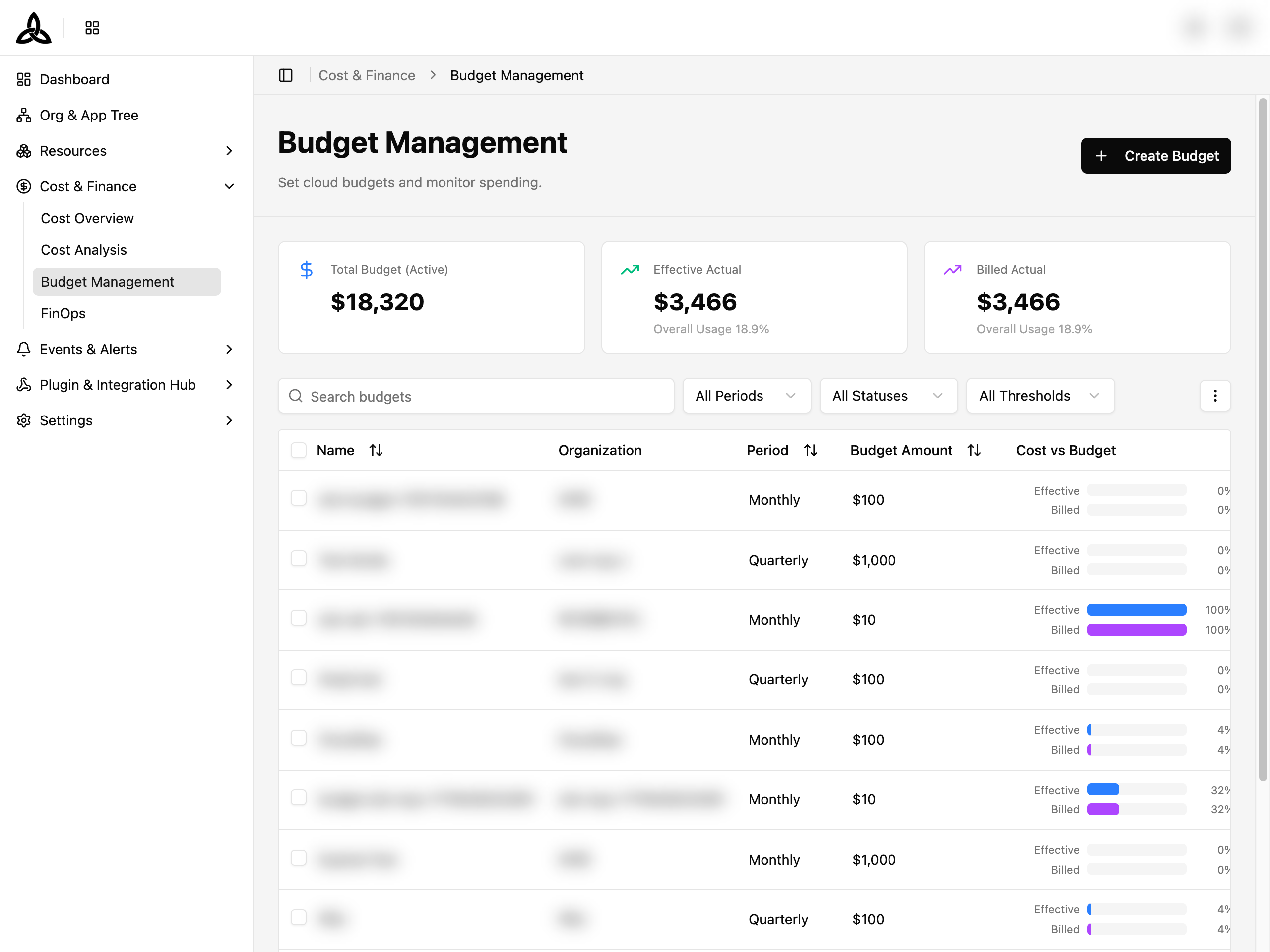
Summary Cards

| Card | Description |
|---|---|
| Total Budget (Active) | Sum of every active budget |
| Effective Actual | Total cost recorded against those budgets on the Effective Cost basis, with Overall Usage shown underneath as a percentage |
| Billed Actual | The same total measured on the Billed Cost basis, with its own Overall Usage percentage |
Budget Table
| Column | Description |
|---|---|
| Name | The user-defined name. Click a row to open the detail page |
| Organization | The organization the budget belongs to |
| Period | Period type — Monthly / Quarterly / Yearly |
| Budget Amount | The committed amount for the period |
| Cost vs Budget | Two progress bars — Effective and Billed — each with its own usage percentage. The percentage is the real burn rate and keeps counting past 100% (a budget of $1,000 with $1,800 spent reads 180%); only the bar stops at full width. Hover a bar to see the remaining amount, which goes negative once the budget is exceeded |
| Budget Status | Active / Expired / Not Started |
| Threshold Status | Exceeded / Critical / Warning / Normal |
| Budget Manager | The person responsible for the budget |
Use Set Display in the ⋮ menu to change rows per page, which of these columns are visible, their order, and which are pinned to the left (up to 2 — Name is pinned by default, so it stays visible while you scroll horizontally).
Toolbar and Filters

| UI element | Description |
|---|---|
| Search budgets | Search budgets by name |
| All Periods | Filter by period type — Monthly / Quarterly / Yearly |
| All Statuses | Filter by budget status — Active / Expired / Not Started |
| All Thresholds | Filter by threshold status — Exceeded / Critical / Warning / Normal |
| ⋮ | Set Display (rows per page, column visibility, order, and pinning) and Refresh |
| Export | Download the budgets matching the current search and filters as an Excel or CSV file |
Exporting the list
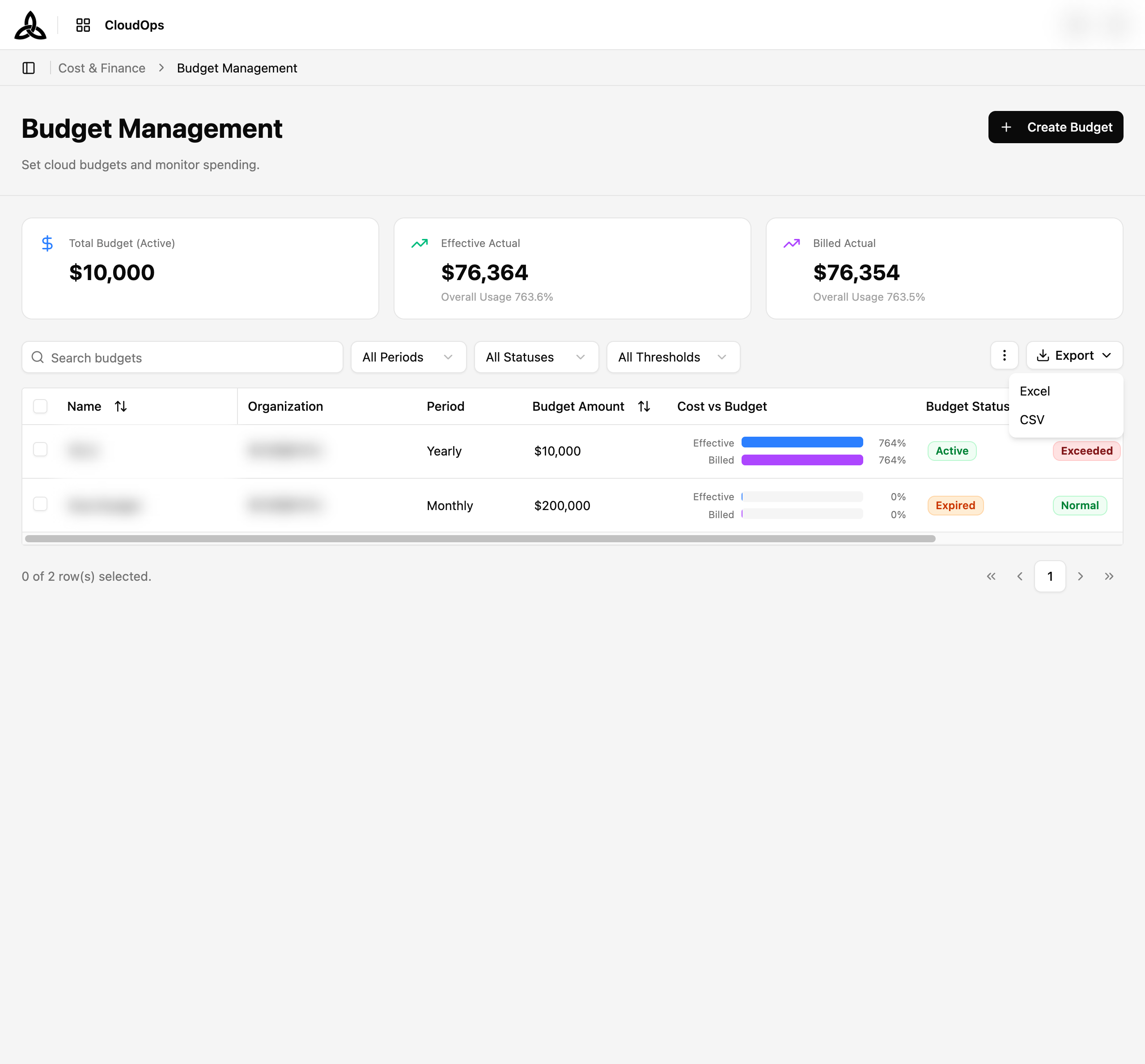
Click Export and choose Excel or CSV. The file contains every budget matching the current search and filters — not just the current page — with the columns visible in Set Display in the same order. The download starts automatically; if the server refuses the export (row limit, file too large, timeout), an error toast says why instead of leaving you waiting.
Bulk Actions
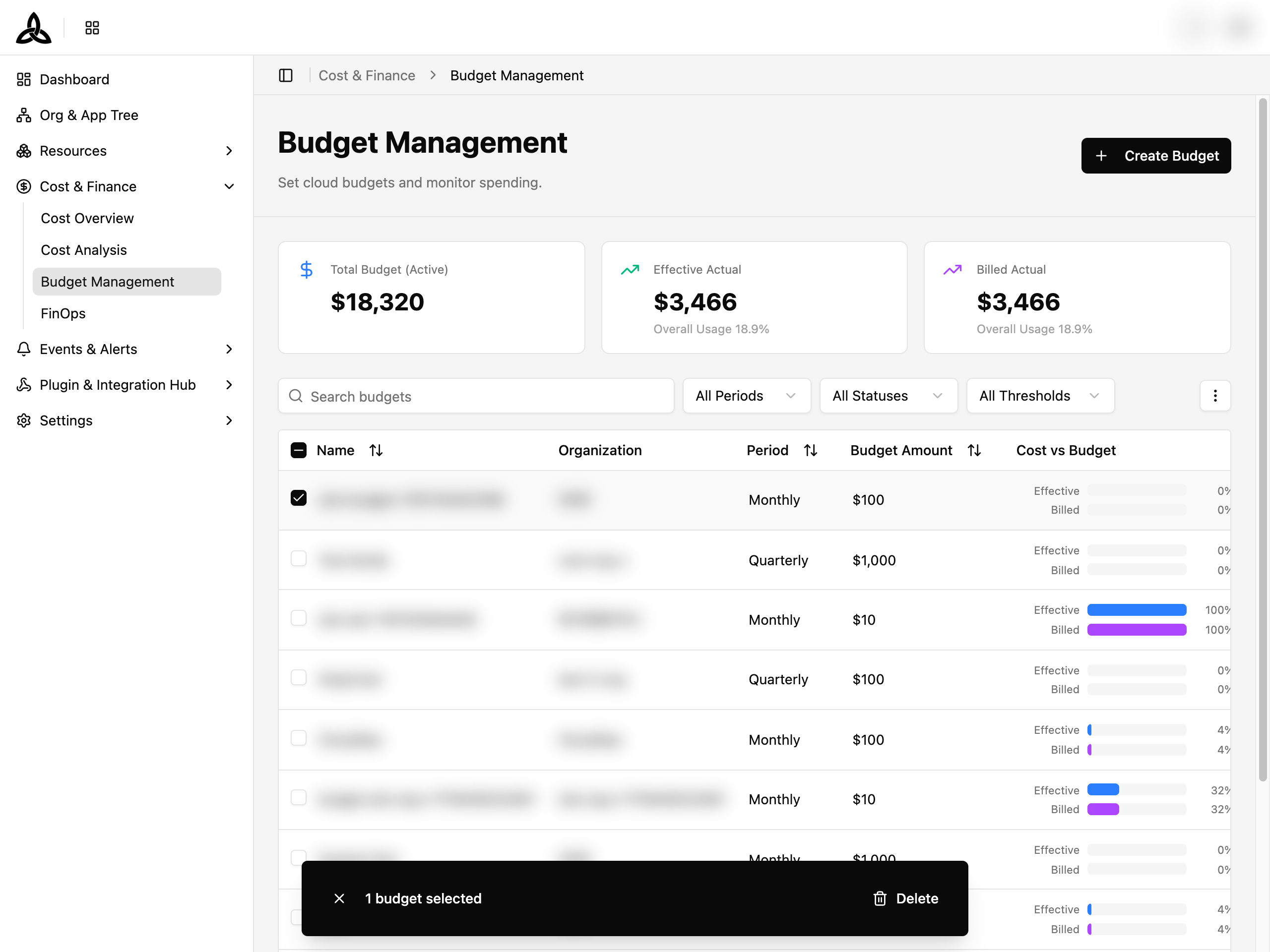
Tick the checkbox on one or more rows and a bar floats up at the bottom of the screen showing how many budgets are selected — for example 1 budget selected.
| UI element | Description |
|---|---|
| ✕ | Clears the selection and dismisses the bar |
| Delete | Deletes every selected budget |
Deleting in bulk asks for confirmation first and cannot be undone.
Creating a Budget
Click [+ Create Budget]
Enter the budget details
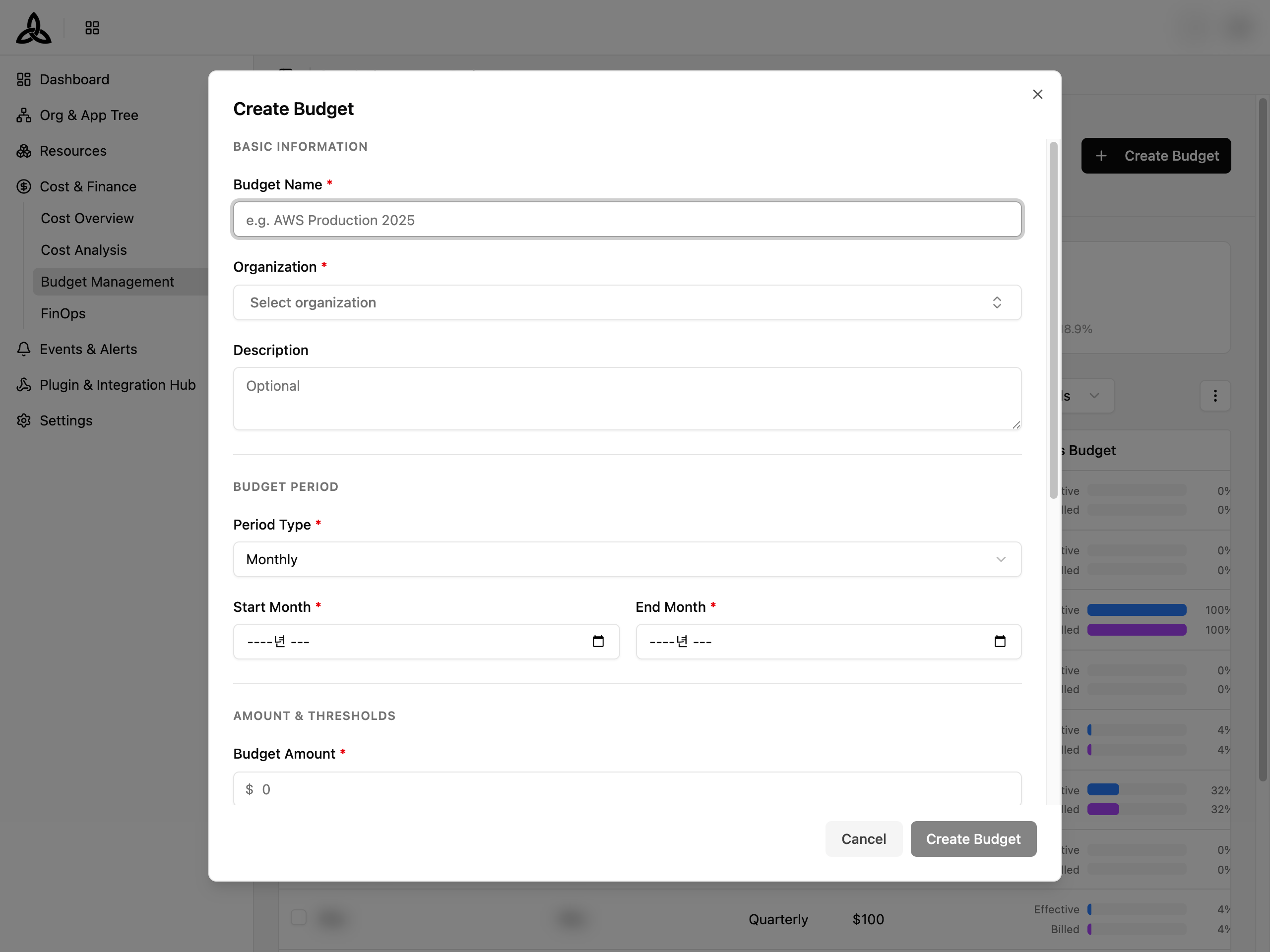
| Field | Required | Description |
|---|---|---|
| Budget Name | Yes | Display name of the budget |
| Period Type | Yes | Monthly / Quarterly / Yearly |
| Period Start / Period End | Yes | Depends on the period type — Start Month / End Month for monthly, a Quarter for quarterly, a Year for yearly |
| Duration | Yearly only | 1 Year or 2 Years |
| Cost Basis | Yes | Effective Cost or Billed Cost |
| Organization | Yes | The organization the budget belongs to. Organizations that already own a budget are excluded from the list |
| Budget Manager | Yes | Pick a member of the selected organization, or type a name directly |
| Notification Recipients | No | Who gets notified when a threshold rule fires. Members of the chosen organization are offered as recommendations |
| Description | No | Optional free-form note |
Click [Create Budget]
Budget Detail
Click a row to open the budget. The header shows the budget name, its period type, budget status, threshold status, and owning organization, along with when the values were last synced.
| Action | Description |
|---|---|
| Sync | Recalculates this budget against the latest cost data |
| Edit Budget | Opens the edit dialog. Unavailable for expired budgets, which explain why on hover |
| Delete | Permanently deletes the budget |
Overview
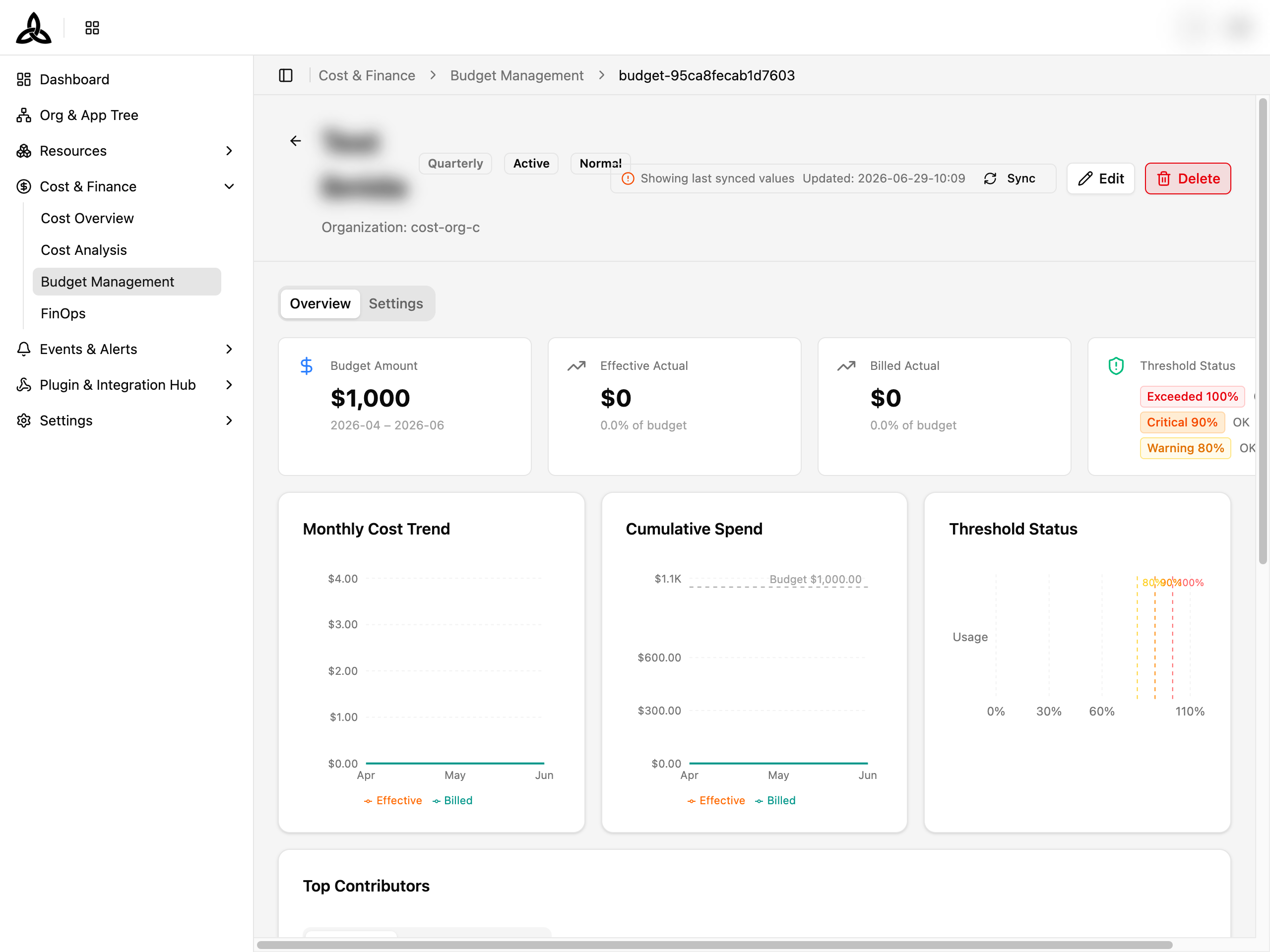
| Element | Description |
|---|---|
| Budget Amount | The committed amount, with the covered period underneath |
| Effective Actual / Billed Actual | Spend on each cost basis, with of budget showing the share consumed |
| Threshold Status | Each rule — Exceeded 100%, Critical 90%, Warning 80% — with OK or Exceeded next to it |
| Monthly Cost Trend | Spend per month, with Effective and Billed series. The Trend / Cumulative toggle switches the same data between per-month and running-total views |
| Threshold Status (chart) | Current usage plotted against the 80% / 90% / 100% markers |
| Top Contributors | What is driving the spend, switchable between Application, Account, and Resource |
Cost forecast
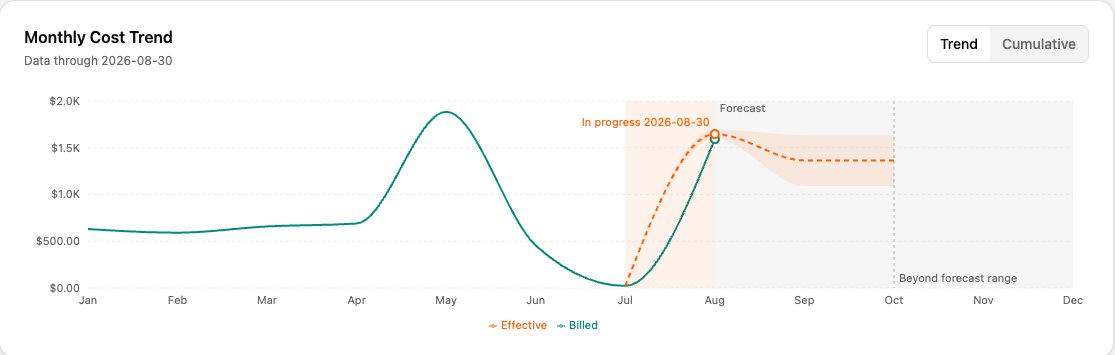
The trend chart also projects where the spend is heading. Actual months are drawn as a solid line and the projection continues as a dashed line, so a forecast is never mistaken for something already spent.
| Marker | Meaning |
|---|---|
| In progress | The month still running — its figure will keep moving |
| Forecast | The shaded region the projection covers, with a band showing its range |
| Beyond forecast range | Past the point the projection reaches; nothing is claimed here |
Notifications
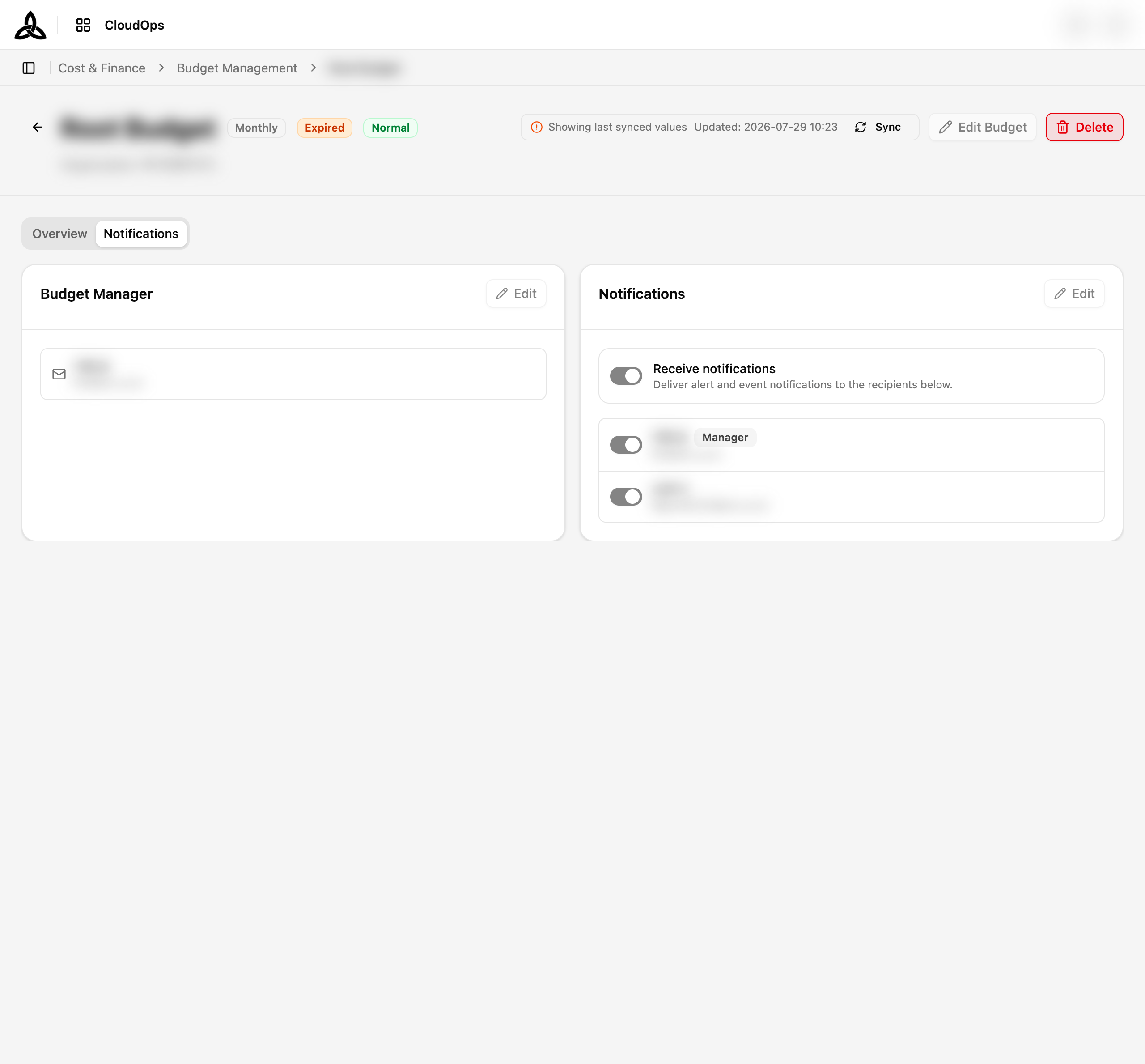
The Notifications tab manages who hears about this budget.
| Section | Description |
|---|---|
| Budget Manager | The person responsible for the budget. Add or remove the assignee here |
| Notification Recipients | Everyone notified when a threshold rule fires. Add or remove users individually |
When notifications are turned off for the budget, the tab says so instead of listing recipients.
Deleting a Budget
Delete a single budget from its detail page, or several at once from the list using the bulk bar. Either way a confirmation dialog names what is about to be removed, and the deletion is permanent.
No budgets found with Add a new budget to manage your cloud spending.