Cloud Service
The Cloud Service page allows you to browse and manage cloud resources collected from registered service accounts.
You can search and filter services by provider, view detailed resource tables, and inspect individual resource information including tags and change history.
Cloud Service List
Navigate to [Asset Inventory > Cloud Service] to view all collected cloud services.
Card View
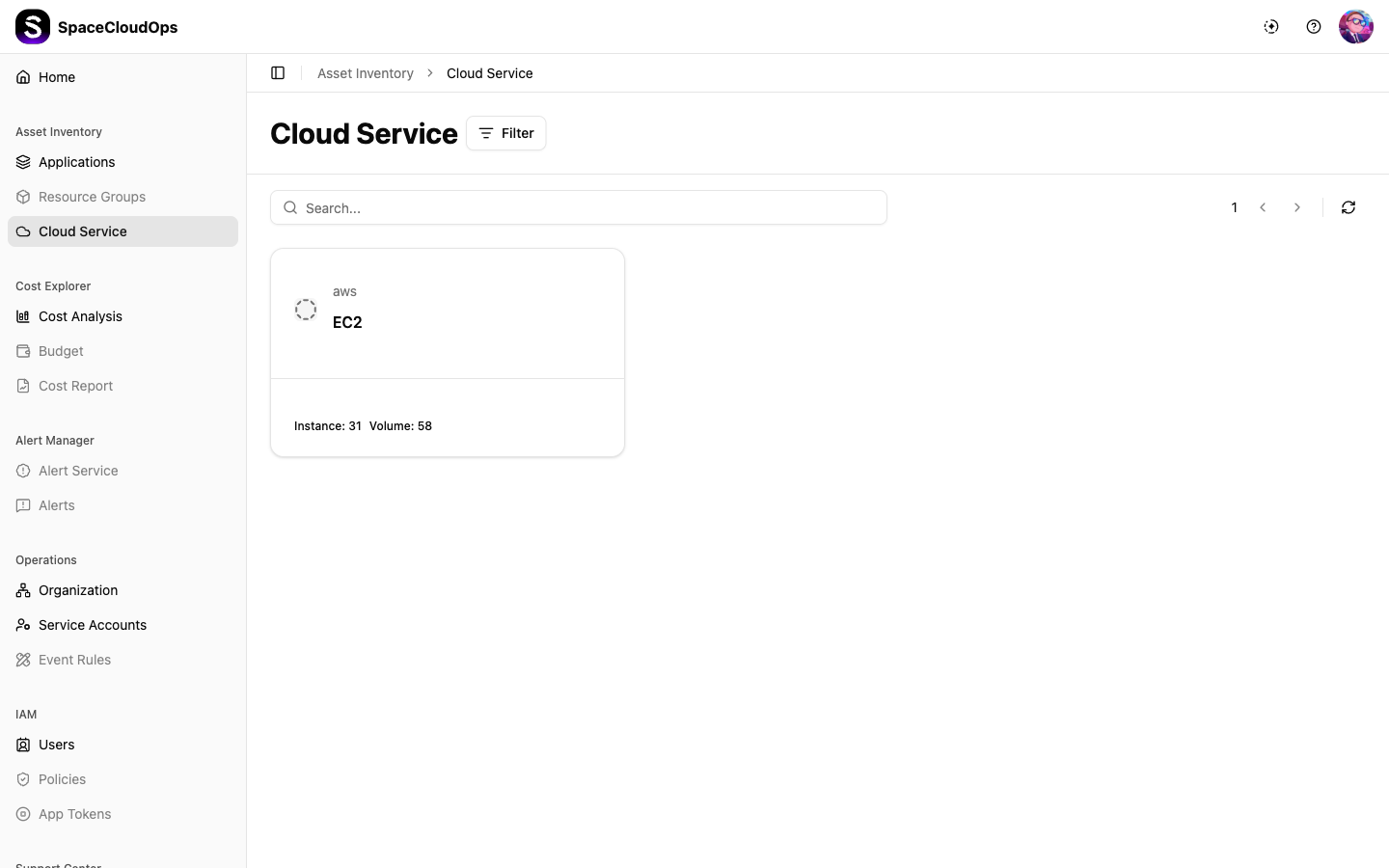
Cloud services are displayed as cards grouped by provider and service type. Each card shows the service name, provider, and resource count summary.
Search
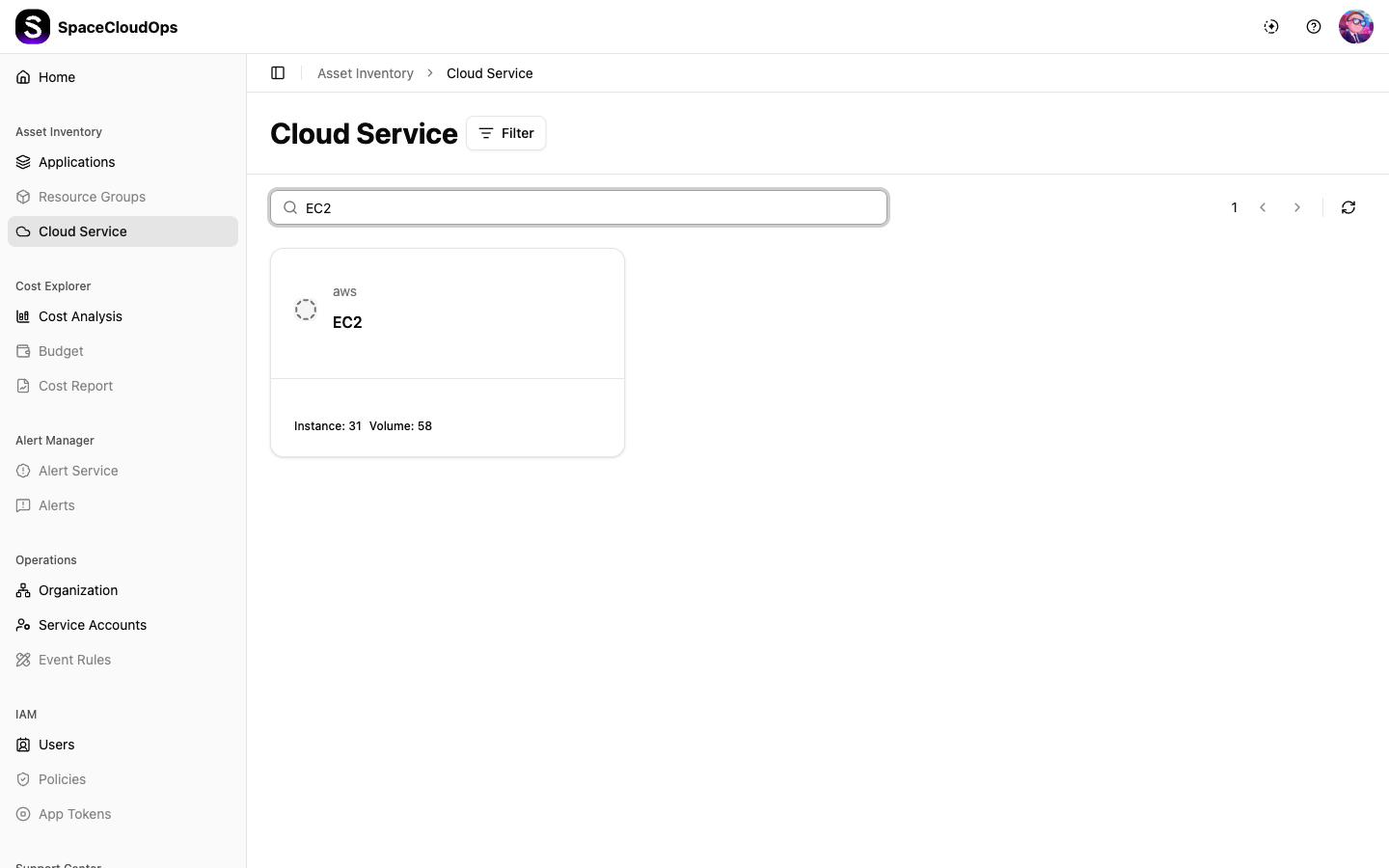
Use the search bar at the top to find specific cloud services by keyword.
Filter
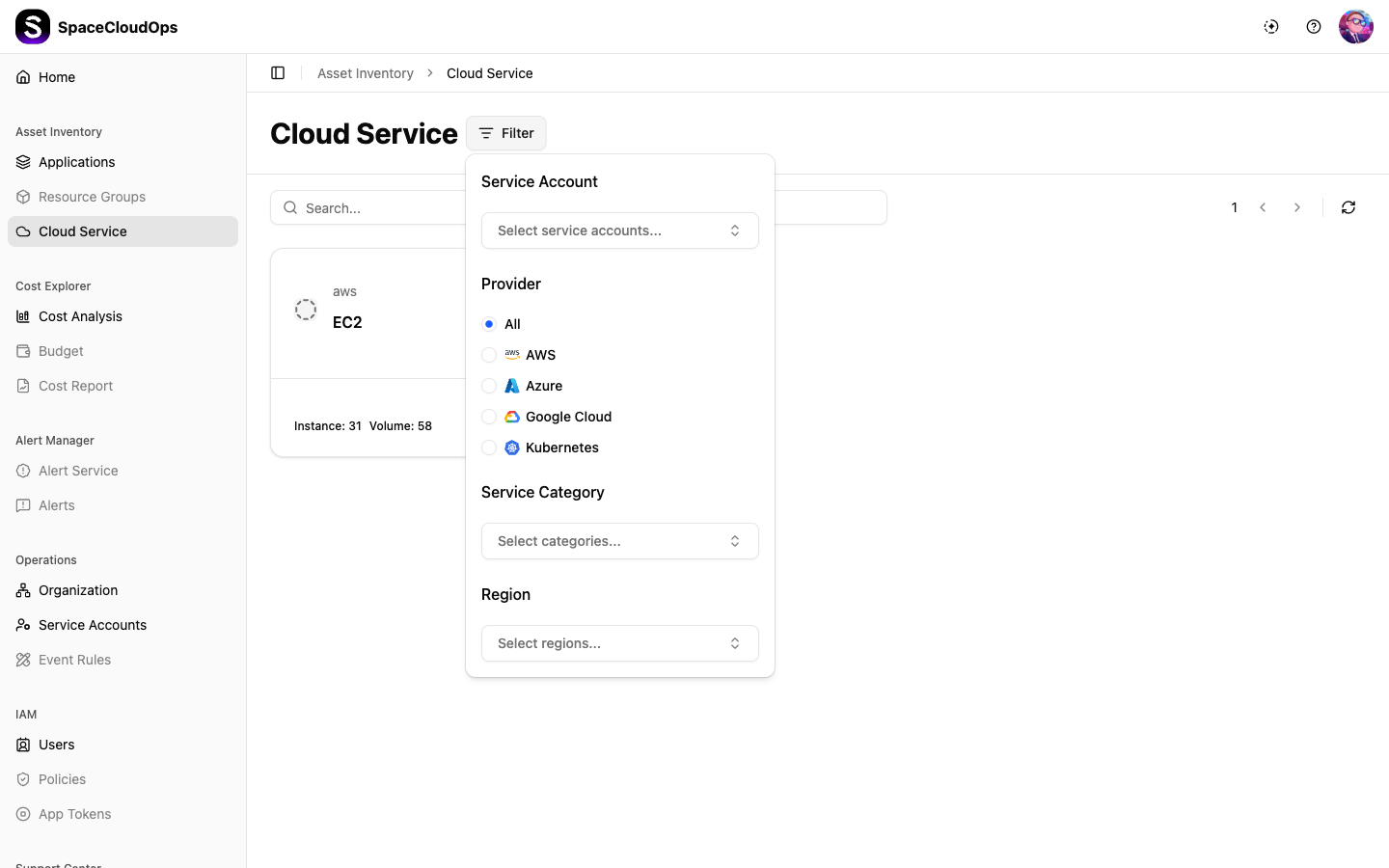
Click the Filter button to narrow results by the following criteria:
| Filter | Description |
|---|---|
| Service Account | Filter by specific service accounts |
| Provider | Filter by cloud provider (AWS, Azure, Google Cloud, etc.) |
| Service Category | Filter by service category |
| Region | Filter by region code |
Pagination & Refresh
- Use the pagination controls on the right side to navigate between pages.
- Click the refresh icon to reload the latest data.
Cloud Service Detail
Click on a cloud service card to view the detailed resource list.
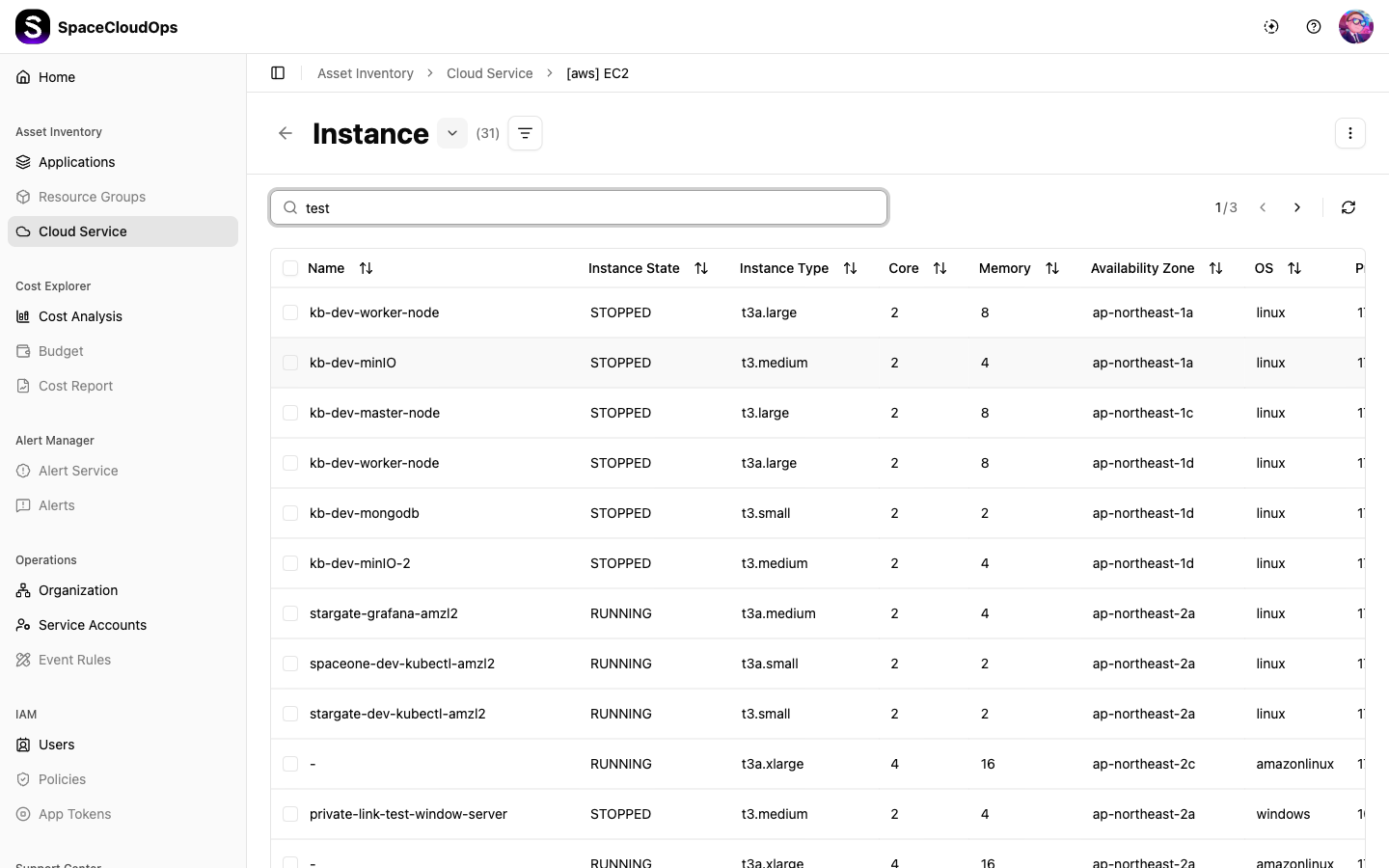
Resource Table
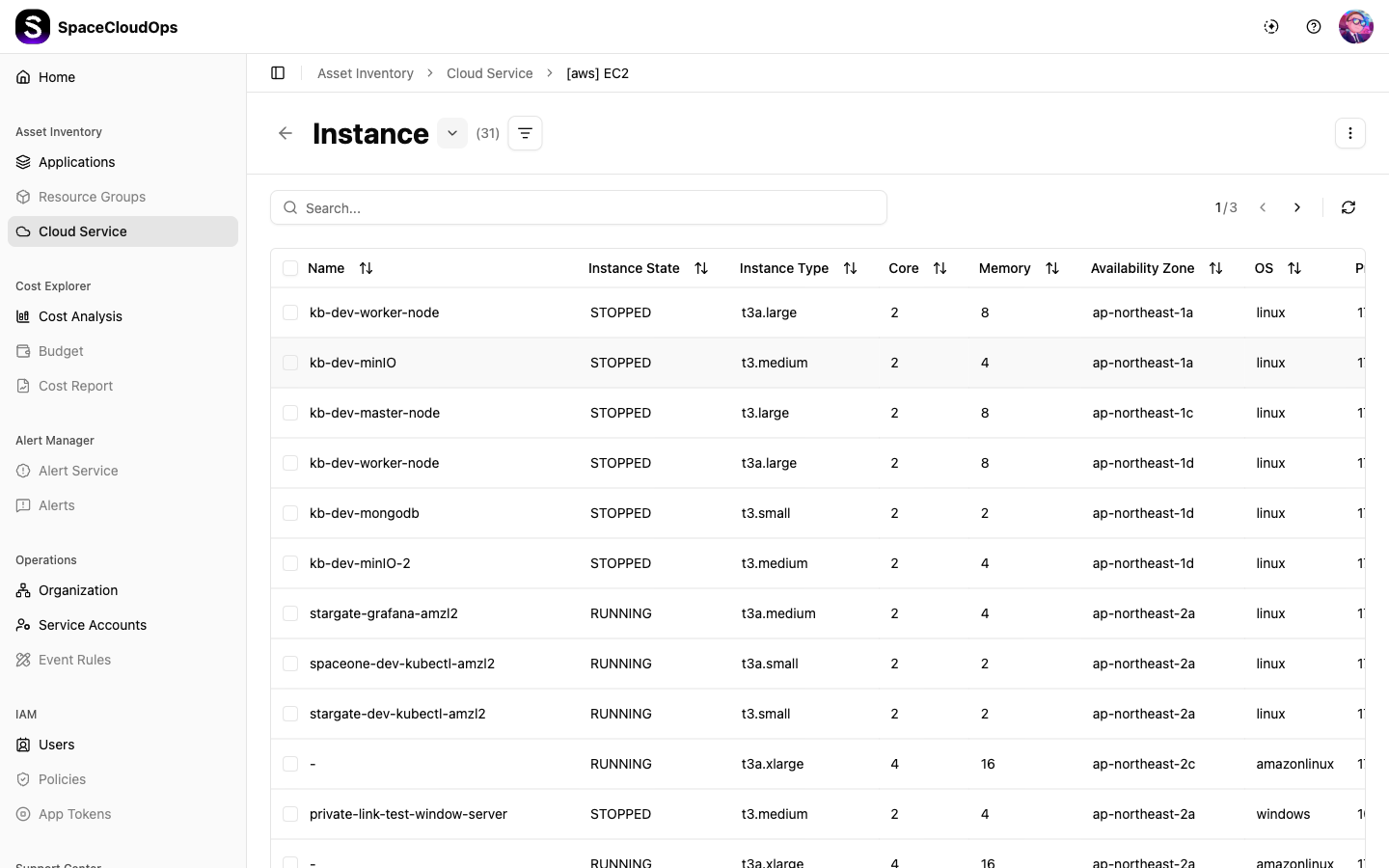
Resources are displayed in a table with dynamic columns based on the service type. You can sort, search, and paginate through resources.
Key features:
- Type Dropdown: Switch between different service types within the same group using the dropdown next to the title.
- Search: Use the search bar to filter resources within the table.
- Column Sorting: Click on column headers to sort data.
- Pagination: Navigate through resources with page controls.
Cloud Service Resource Detail
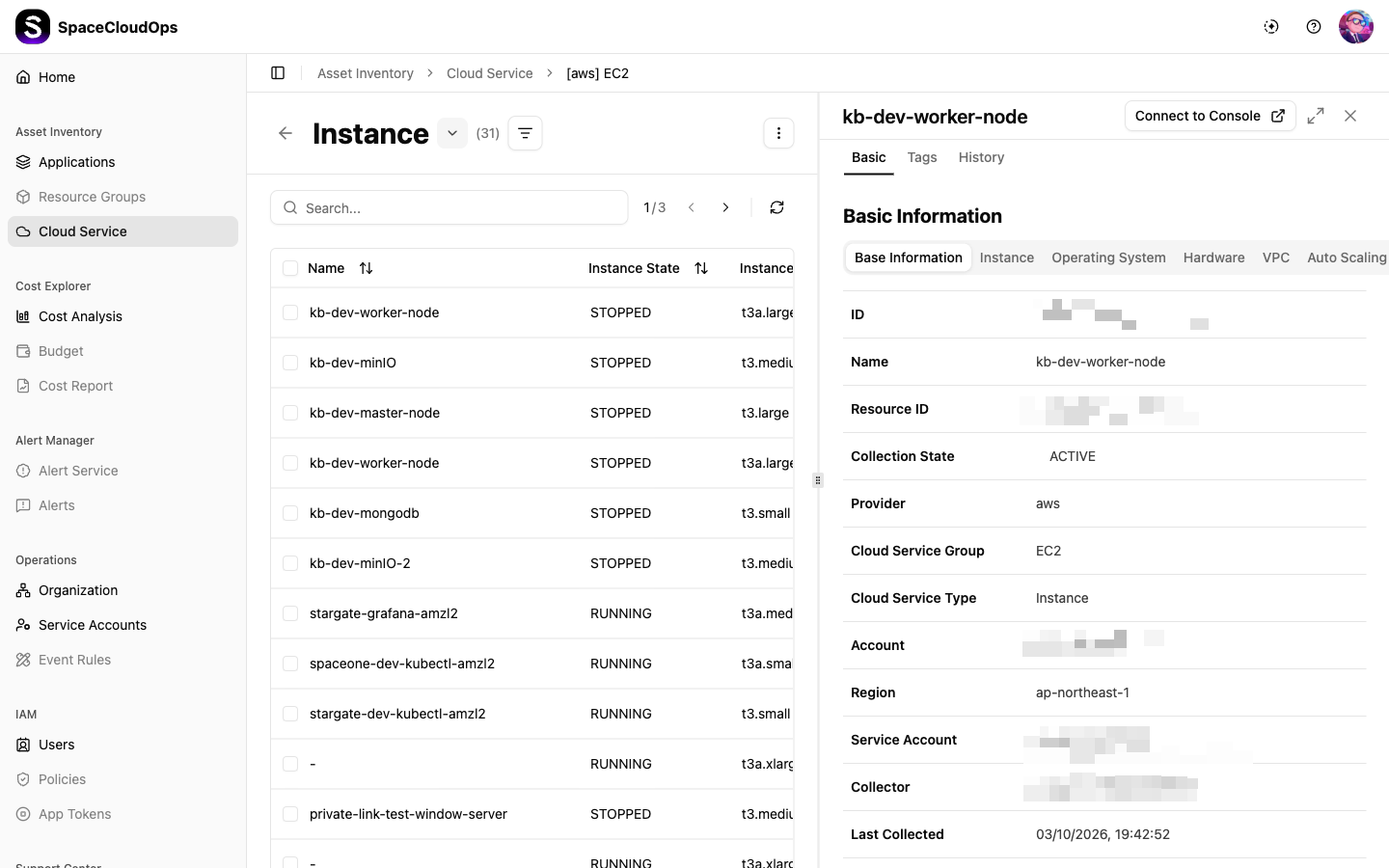
Select a resource row in the table to open the detail side panel on the right.
Basic Information
The Basic Information tab displays key attributes of the selected resource, including cloud service group, type, region, account, and collection details.
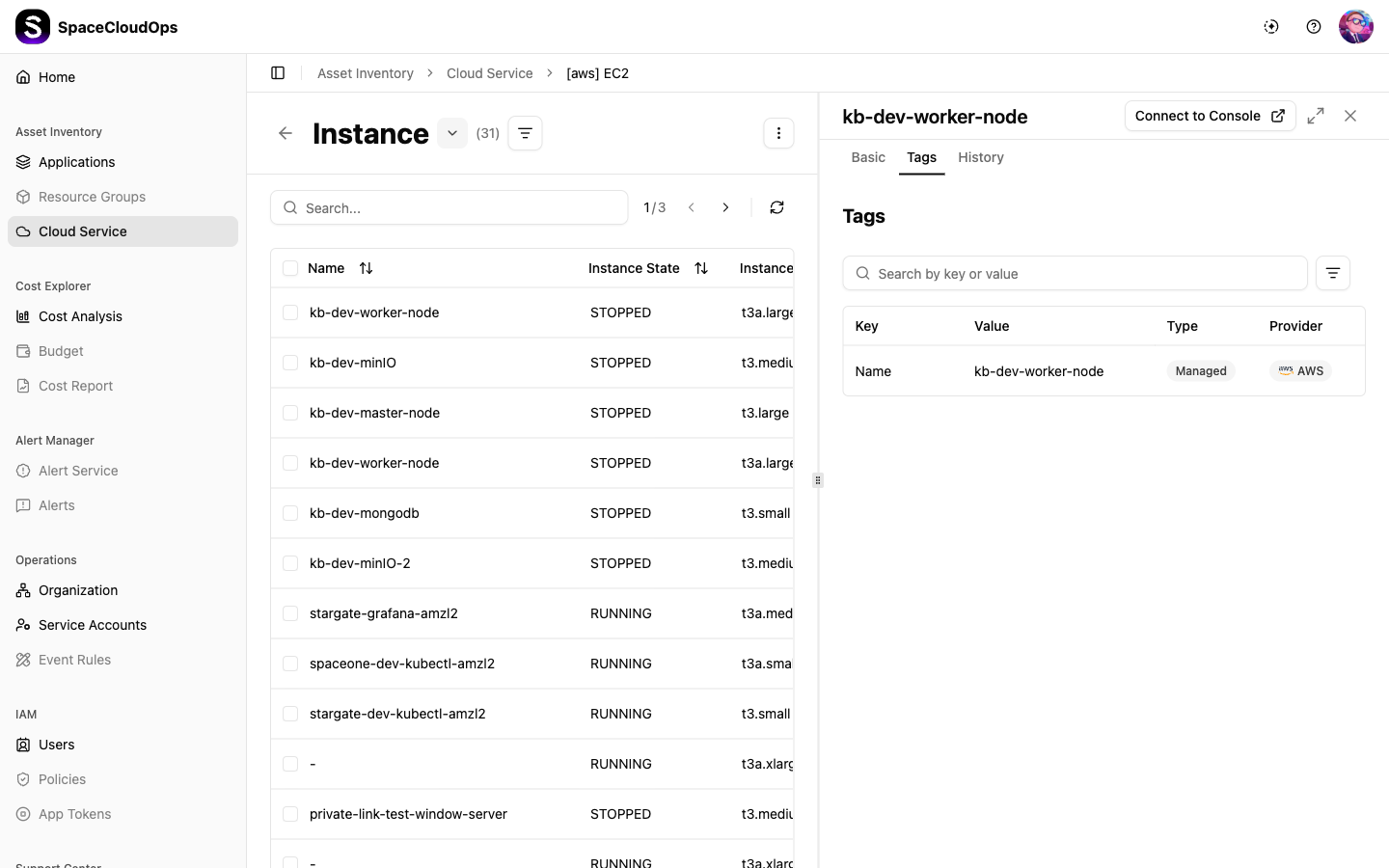
Tags
The Tags tab shows all tags associated with the resource in a searchable key-value table.
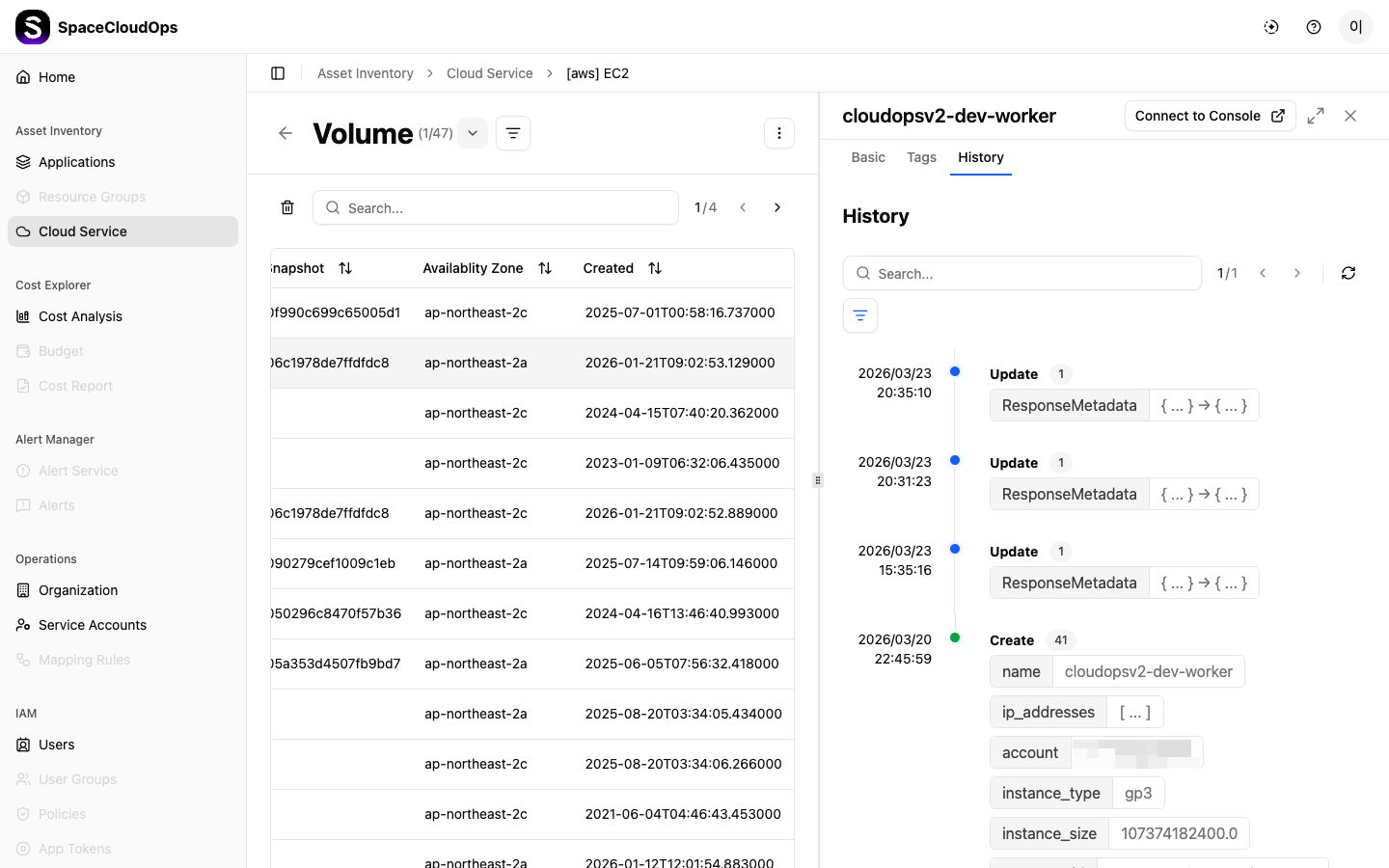
History
The History tab displays the change history of the resource.
History List
Each history entry shows the following information:
| Field | Description |
|---|---|
| Date/Time | The timestamp when the change occurred (e.g., 2026/03/23 20:35:10) |
| Change Type | Create (resource initially created) or Update (attributes changed) |
| Changed Keys Count | The number of changed fields, shown as a numeric badge |
| Change Summary | A preview of the changed field names and before/after values (e.g., ResponseMetadata { ... } → { ... }) |
When there are many history entries, an “and N more …” button appears at the bottom. Click it to view the full history in the History Details overlay.
Toolbar
The following tools are available at the top of the History tab:
| UI Element | Description |
|---|---|
| Search | Search change history by keyword |
| Sort | Sort history entries by date in ascending/descending order |
| Pagination | Navigate between pages (e.g., 1/1) |
| Refresh | Reload the history list |
History Details
Click a history entry to open the History Details overlay in full screen.
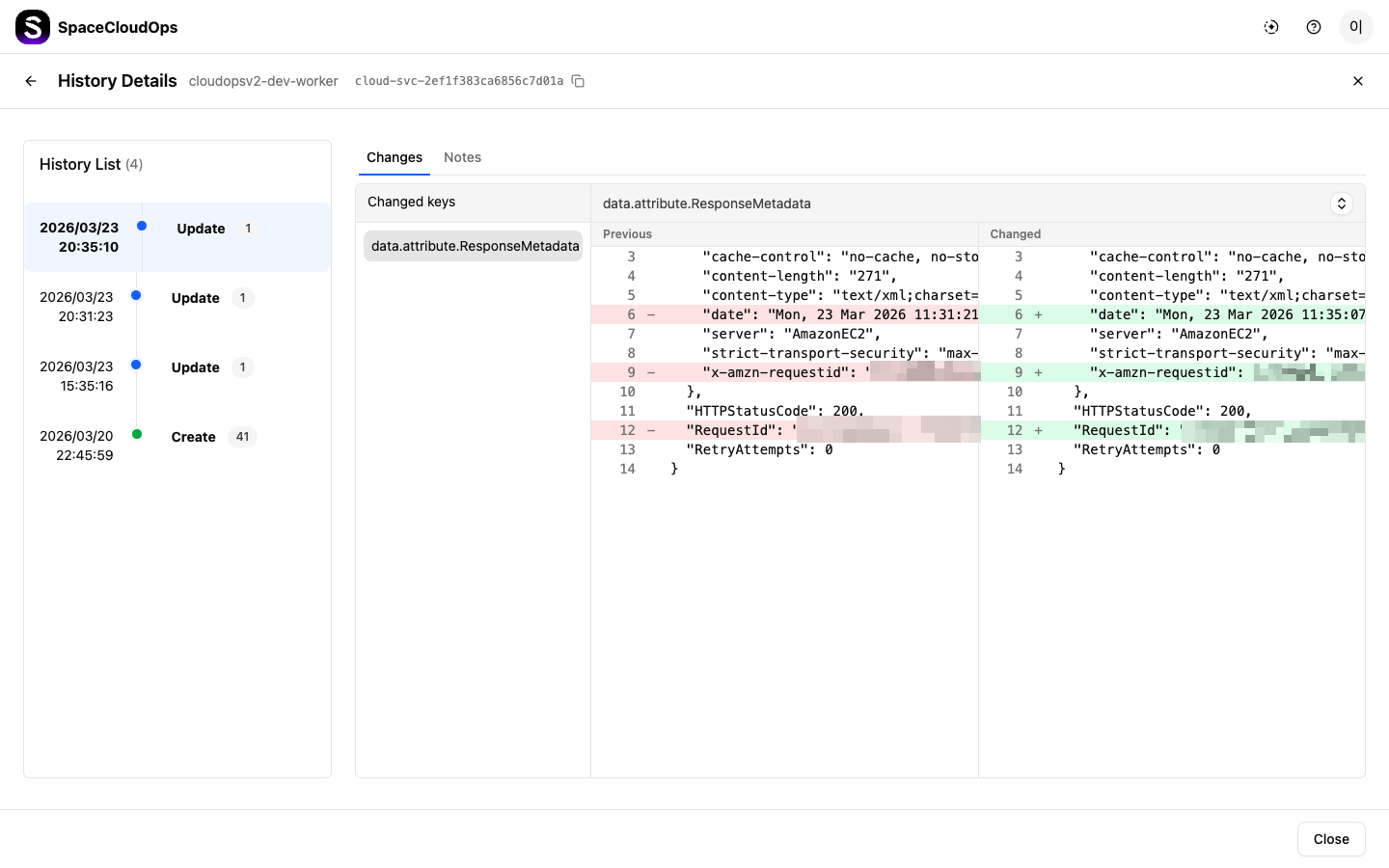
The overlay consists of the following areas:
History List (Left Panel)
The left panel displays the full change history as a timeline. Each entry includes the date/time, change type, and the number of changed keys. Update entries are marked in blue, while Create entries are marked in green. Click an entry to switch the detail view on the right.
Changes Tab (Right Panel)
| Element | Description |
|---|---|
| Changed Keys | Lists the field names that were changed. Select a field to display the detailed comparison view on the right. |
| Before/After Comparison | Displays the previous and current values of the selected field side by side. Removed values are highlighted in red, and added values are highlighted in green. |
Notes Tab (Right Panel)
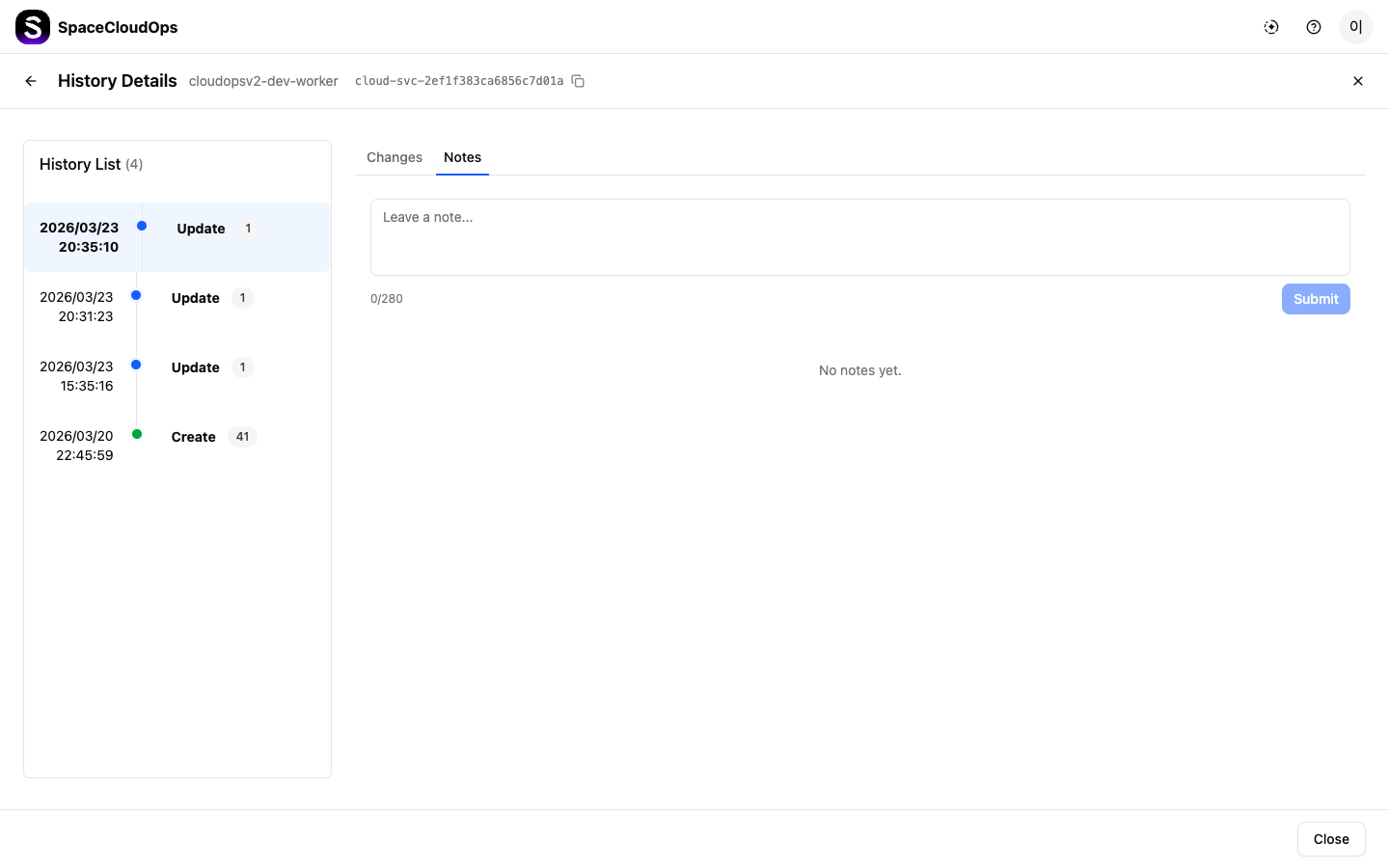
| Element | Description |
|---|---|
| Note Input | Write a note about the change history entry (up to 280 characters). |
| [Submit] | Save the written note. |
| Note List | Saved notes are displayed in chronological order. When no notes exist, “No notes yet.” is shown. |