Basic Screen Layout
The CloudOps console is divided into three main areas: the GNB (Global Navigation Bar) at the top, the LNB (Left Navigation Bar) on the left side, and the Main Content Area in the center.
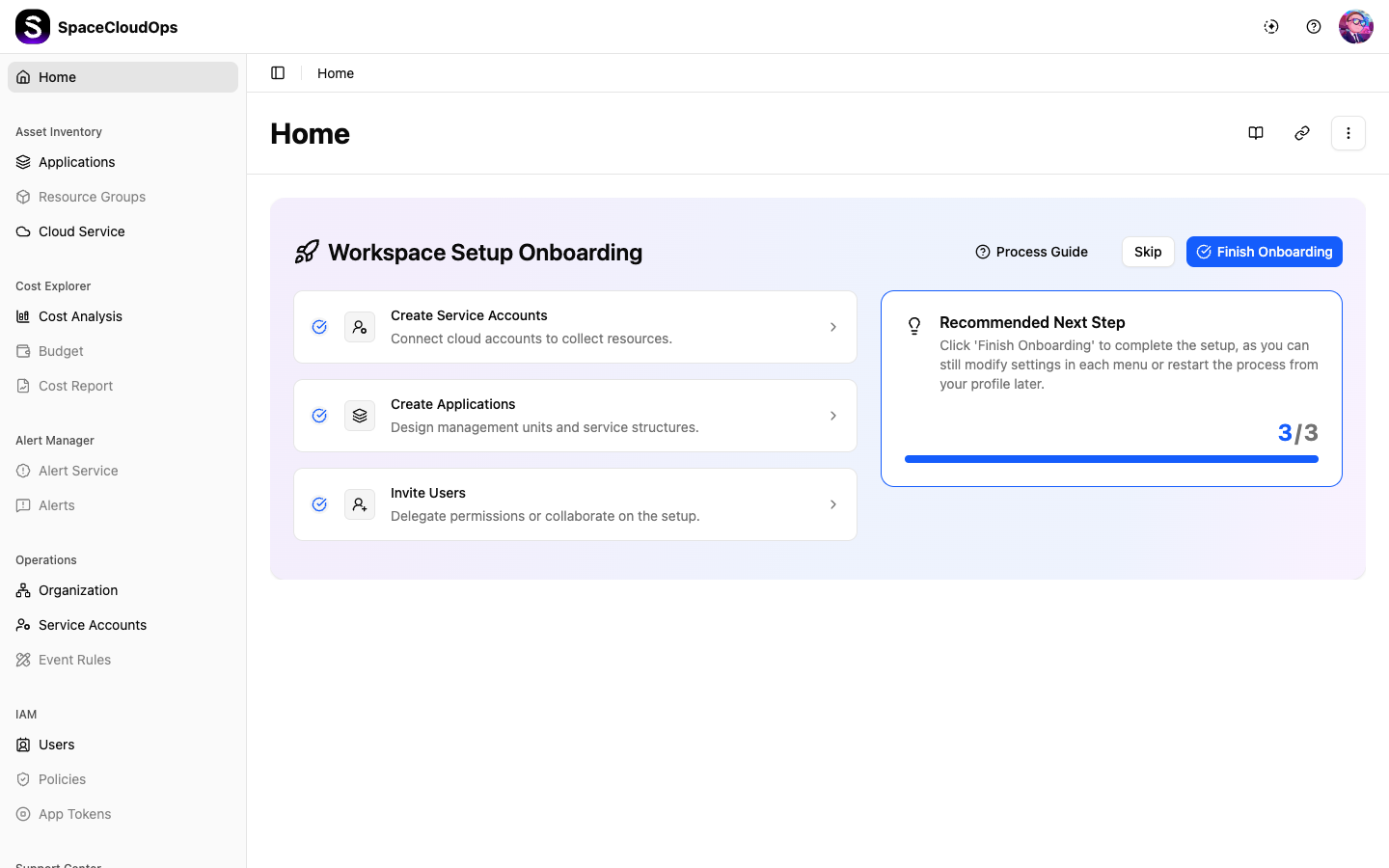
GNB (Global Navigation Bar)
The GNB is the top navigation bar that persists across all pages. It provides quick access to global features and account settings.
| Element | Position | Description |
|---|---|---|
| Logo | Left | Displays the SpaceCloudOps logo. Click to return to the Home page. |
| Workspace Selector | Left | Shows the current workspace name. Click to switch between workspaces (if available). |
| Theme Toggle | Right | Switch between light and dark mode. |
| Help | Right | Access documentation, API guides, and support resources. |
| Profile Icon | Right | Opens the profile dropdown for My Profile, Personal Settings, and Sign Out. |
LNB (Left Navigation Bar)
The LNB is the sidebar menu that provides access to all major console features. Menu items are organized by functional groups.
| Menu Group | Sub-menus | Description |
|---|---|---|
| Home | — | Workspace landing page with onboarding and dashboard widgets. |
| Asset Inventory | Applications, Resource Groups, Cloud Service | Manage cloud applications, resource groups, and browse cloud services. |
| Cost Explorer | Cost Analysis, Budget, Cost Report | Analyze costs, set budgets, and generate cost reports. |
| Alert Manager | Alert Service, Alerts | Configure alert rules and view triggered alerts. |
| Operations | Organization, Service Accounts, Event Rules | Manage organizational structure, cloud account connections, and event rules. |
| IAM | Users, Policies, App Tokens | Manage users, access policies, and application tokens. |
| Support Center | — | Access support resources and submit inquiries. |
Main Content Area
The main content area displays the page content for the selected menu item. It typically includes:
| Element | Description |
|---|---|
| Breadcrumb | Shows the navigation path (e.g., IAM > Users) at the top of the content area. |
| Page Title | The name of the current page, displayed prominently. |
| Action Buttons | Context-specific action buttons (e.g., + Invite, + Create) in the top-right corner. |
| Content Body | Tables, forms, charts, or other content specific to the page. |
Navigation Flow
Select a menu group from the LNB
Click on a menu group (e.g., Asset Inventory) or a sub-menu item (e.g., Applications) in the left sidebar.
View the page content
The main content area updates to display the selected page. The breadcrumb navigation at the top shows your current location.
Use action buttons
Most pages provide action buttons in the top-right corner for creating, inviting, or managing items.