Login Settings
CloudOps uses Megazone PoPs (Megazone’s unified authentication platform) for sign-in. The console does not host its own credential form — all authentication is delegated to PoPs over SSO.
Console Sign-In Page
Visiting the console for the first time (or after sign-out) shows the sign-in page with a single SSO entry point.
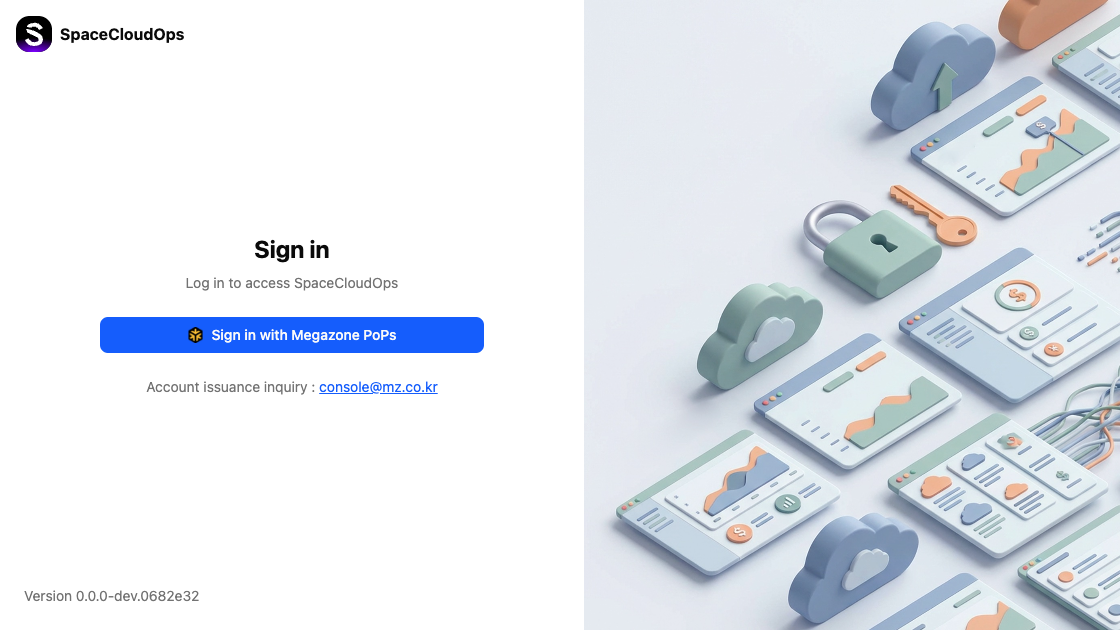
| Element | Description |
|---|---|
| CloudOps logo | Displayed in the top-left corner |
| Sign in with Megazone PoPs | SSO button that redirects to the Megazone PoPs authentication page |
| Account issuance inquiry | Contact email for account-related inquiries |
| Version | Console version displayed at the bottom-left |
Sign-In Flow
Access the console
Navigate to the CloudOps console URL in your browser. The sign-in page is displayed.
Click [Sign in with Megazone PoPs]
Click the [Sign in with Megazone PoPs] button. You are redirected to the Megazone PoPs authentication page.
Authenticate with Google
PoPs uses Google SSO. The Google sign-in page appears where you enter your Google account email and password.
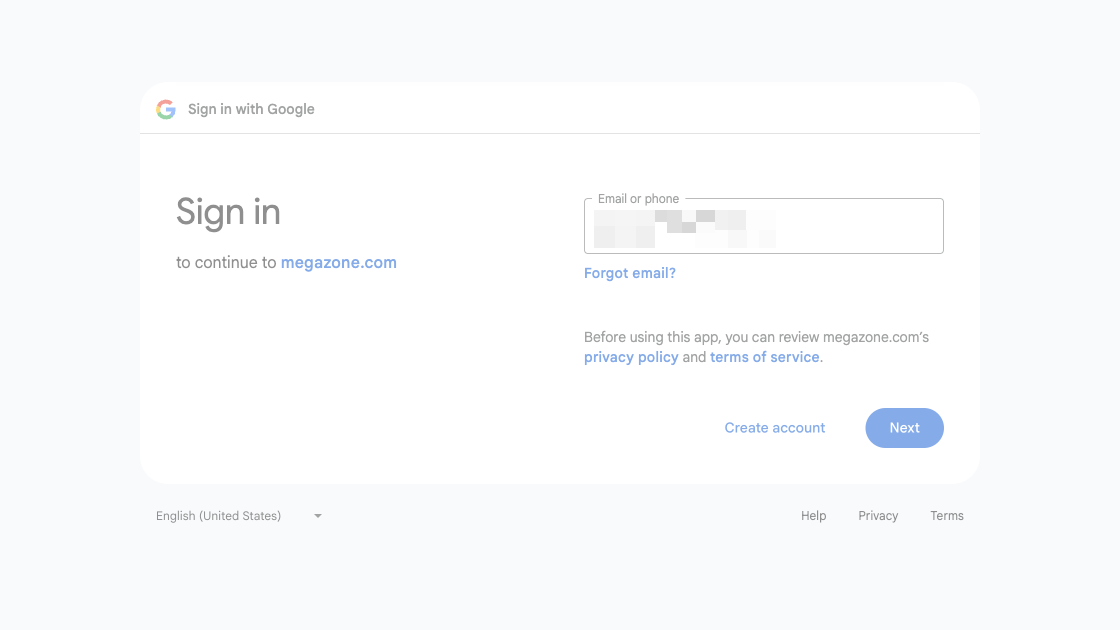
| Element | Description |
|---|---|
| Email or phone | Enter your Google account email |
| Forgot email? | Recover your Google account email |
| Create account | Create a new Google account |
| Next | Continue to the password step |
Enter your password
After entering your email and clicking [Next], enter your Google account password on the next screen.
Access the console
After successful authentication, you are redirected back to the CloudOps Home page.
Sign Out
Click the profile avatar
Click the profile avatar (your initials) in the top-right corner of the Global navigation bar.
Select Logout
Select Logout from the dropdown menu. You are redirected to the sign-in page.
Session Management
| Setting | Description |
|---|---|
| Session Timeout | Your session expires after the PoPs-configured timeout window. You are redirected to the sign-in page and must sign in again |
| Multiple Sessions | You can sign in from multiple devices at the same time |