Login Settings
CloudOps uses Megazone PoPs (Megazone’s unified authentication platform) for sign-in. The console does not have its own username/password form — all authentication is handled through PoPs via SSO.
Console Sign-In Page
When you access the CloudOps console, the sign-in page is displayed with a single SSO button.
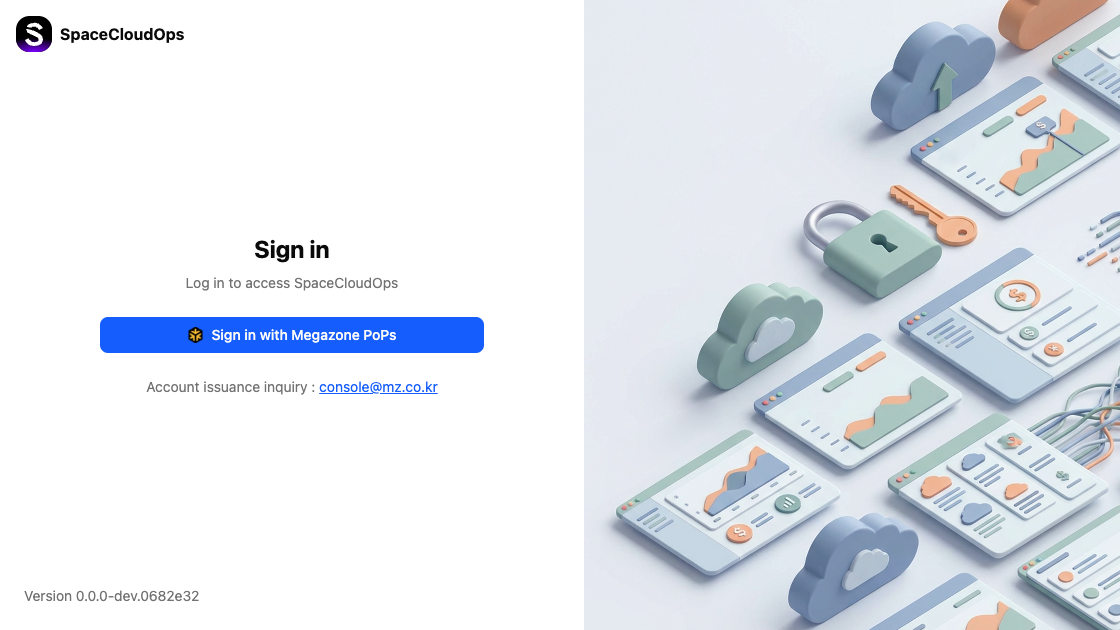
| Element | Description |
|---|---|
| SpaceCloudOps Logo | Displayed in the top-left corner. |
| Sign in with Megazone PoPs | SSO button that redirects to the Megazone PoPs authentication page. |
| Account issuance inquiry | Contact email (console@mz.co.kr) for account-related inquiries. |
| Version | Console version information displayed at the bottom-left. |
Sign-In Flow
Access the console
Navigate to the CloudOps console URL in your browser. The sign-in page is displayed.
Click [Sign in with Megazone PoPs]
Click the blue [Sign in with Megazone PoPs] button. You will be redirected to the Megazone PoPs authentication page.
Authenticate with Google
PoPs uses Google SSO for authentication. The Google sign-in page appears where you can enter your Google account credentials.
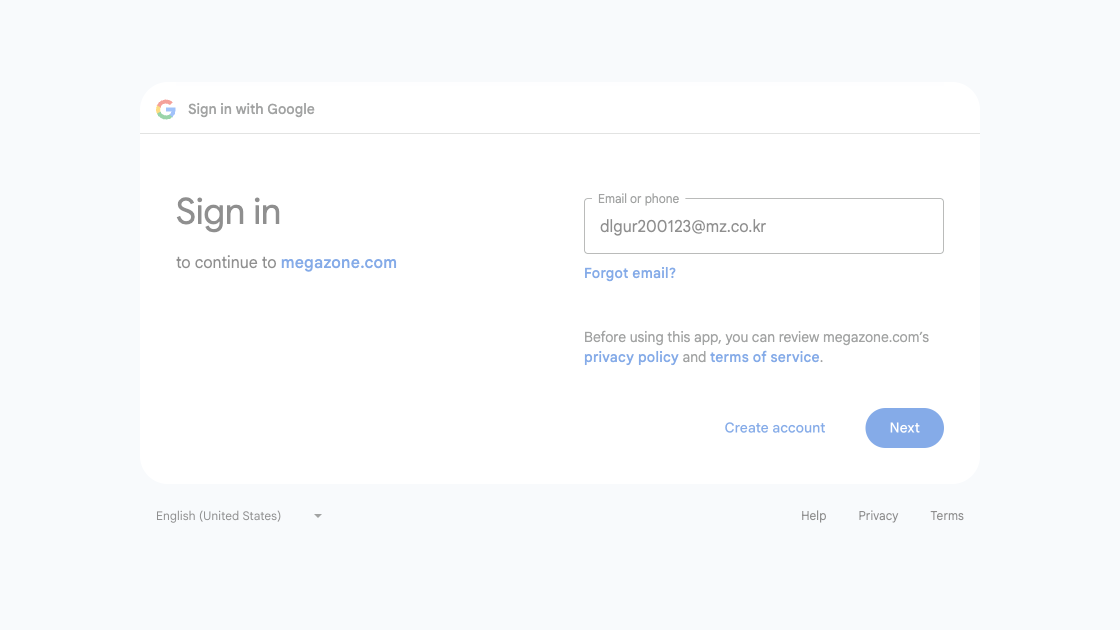
| Element | Description |
|---|---|
| Email or phone | Enter your Google account email address. |
| Forgot email? | Recover your Google account email. |
| Create account | Create a new Google account. |
| Next | Proceed to the password entry step. |
Enter your password
After entering your email and clicking [Next], enter your Google account password on the next screen.
Access the console
After successful authentication, you are automatically redirected to the CloudOps Home page.
console@mz.co.kr for account issuance.Sign Out
Click the profile icon
Click the profile icon (avatar) in the top-right corner of the console.
Select Sign Out
Select Sign Out from the dropdown menu. You will be redirected to the sign-in page.
Session Management
| Setting | Description |
|---|---|
| Session Timeout | Your session expires after a period of inactivity. You will be redirected to the sign-in page. |
| Multiple Sessions | You can sign in from multiple devices simultaneously. |
| Device Management | Manage your logged-in devices from My Profile > Security > Manage Devices. |